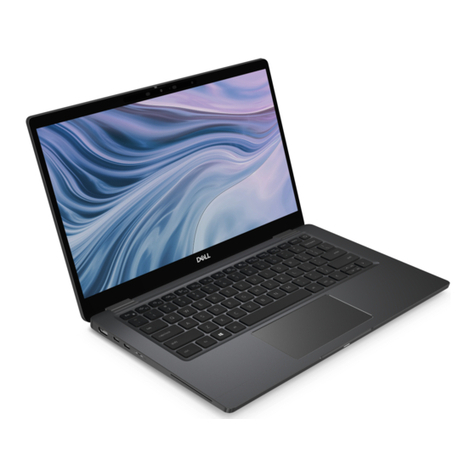
HP Net PC 20 User guide

HP Notebook PC
Startup Guide

ii Startup Guide
Notice
This manual and any examples contained herein are provided “as is” and are subject
to change without notice. Hewlett-Packard Company makes no warranty of any kind
with regard to this manual, including, but not limited to, the implied warranties of
merchantability and fitness for a particular purpose. Hewlett-Packard Co. shall not be
liable for any errors or for incidental or consequential damages in connection with
the furnishing, performance, or use of this manual or the examples herein.
© Copyright Hewlett-Packard Company 2003. All rights reserved.
Reproduction, adaptation, or translation of this manual is prohibited without prior
written permission of Hewlett-Packard Company, except as allowed under the
copyright laws.
The programs that control this product are copyrighted and all rights are reserved.
Reproduction, adaptation, or translation of those programs without prior written
permission of Hewlett-Packard Co. is also prohibited.
Portions of the programs that control this product may also be copyrighted by
Microsoft Corporation, Phoenix Technologies, Ltd., ATI Technologies Inc., Intel
Corporation, and Adobe Systems Incorporated. See the individual programs for
additional copyright notices.
This product incorporates copyright protection technology that is protected by
method claims of certain U.S. patents and other intellectual property rights owned by
Macrovision Corporation and other rights owners. Use of this copyright protection
technology must be authorized by Macrovision Corporation and is intended for home
and other limited viewing uses only unless otherwise authorized by Macrovision
Corporation. Reverse engineering or disassembly is prohibited.
Microsoft®, MS-DOS®, and Windows® are U.S. registered trademarks of Microsoft
Corporation. Pentium® and the Intel Inside logo are U.S. registered trademarks and
Celeron™ and SpeedStep™ are U.S. trademarks of Intel Corporation. Adobe® and
Acrobat® are trademarks of Adobe Systems Incorporated.
Startup Guide
Second Edition (March 2003)
Part Number: 311075-002

Startup Guide iii
Important Safety Information
CAUTION To reduce the risk of fire, use only No. 26 AWG or larger telecommunications
line cord to connect a modem to the telephone wall jack. In Australia, the
computer must be connected to the Telecommunication Network through a
line cord that meets the requirements of ACA Technical Standard TS008.
When using your notebook computer with a telephone connection, always follow
basic safety precautions to reduce the risk of fire, electrical shock, and injury to
persons:
• Do not use this product with a telephone connection near water (for example,
near a bathtub, sink, swimming pool, or in a wet basement).
• Avoid using a telephone connection (other than a cordless type) during an
electrical storm. There may be a remote risk of electrical shock from lightning.
• Do not use a telephone connection to report a gas leak in the vicinity of the leak.
• Use only the power cord and batteries indicated in this guide. Do not dispose of
batteries in a fire. They may explode. Check with local codes for possible special
disposal instructions.
• Disconnect the modem cable before opening the computer case or touching an
uninsulated modem cable, jack, or internal component.
• Do not plug a modem cable or telephone cable into the network (LAN)
receptacle.
WARNING This is a Class B digital device, pursuant to Part 15 of the FCC Rules. For
more Class B information, refer to the Reference Guide on the Documentation
Library CD.

iv Startup Guide
HP Software Product License Agreement
Your HP product contains software programs. CAREFULLY READ THIS
LICENSE AGREEMENT BEFORE PROCEEDING TO OPERATE THIS
EQUIPMENT. RIGHTS IN THE SOFTWARE ARE OFFERED ONLY ON THE
CONDITION THAT THE CUSTOMER AGREES TO ALL TERMS AND
CONDITIONS OF THE LICENSE AGREEMENT. PROCEEDING TO OPERATE
THE EQUIPMENT INDICATES YOUR ACCEPTANCE OF THESE TERMS
AND CONDITIONS. IF YOU DO NOT AGREE WITH THE TERMS OF THE
LICENSE AGREEMENT, YOU MUST NOW EITHER REMOVE THE
SOFTWARE FROM YOUR HARD DRIVE AND DESTROY THE MASTER
DISKETTES, OR RETURN THE COMPLETE HP PRODUCT AND SOFTWARE
FOR A FULL REFUND. PROCEEDING WITH CONFIGURATION SIGNIFIES
YOUR ACCEPTANCE OF THE LICENSE TERMS.
UNLESS OTHERWISE STATED BELOW, THIS HP SOFTWARE LICENSE
AGREEMENT SHALL GOVERN THE USE OF ALL SOFTWARE THAT IS
PROVIDED TO YOU AS PART OF THE HP PRODUCT AND SHALL
SUPERSEDE ANY OTHER SOFTWARE WARRANTY STATEMENT THAT
MAY BE INCLUDED IN THIS HP PRODUCT OR MAY BE FOUND ONLINE.
Operating system and software applications by Microsoft are licensed to you under
the Microsoft License Agreement contained in the Microsoft documentation or
displayed on your screen when Microsoft Software Products are launched.
For a PC supplied with a Microsoft operating system: When you start the PC and
accept the Microsoft End-user License Agreement (“EULA”), your license rights are
valid only if a Certificate of Authenticity (“COA”) label corresponding to your
Microsoft operating system is provided with your PC. The COA label can usually be
found on the bottom of the computer. If the COA label does not correspond to your
Microsoft operating system or is missing, contact your HP reseller for details.
Other non-HP Software and Operating Systems are covered by the appropriate
vendor license. The following License Terms govern the use of the HP software:
USE. Customer may use the software on any one HP product. Customer may not
network the software or otherwise use it on more than one HP product. Customer
may not reverse assemble or decompile the software unless authorized by law.
COPIES AND ADAPTATIONS. Customer may make copies or adaptations of the
software (a) for archival purposes or (b) when copying or adaptation is an essential
step in the use of the software with an HP product so long as the copies and
adaptations are used in no other manner.

Startup Guide v
OWNERSHIP. Customer agrees that he/she does not have any title or ownership of
the software, other than ownership of the physical media. Customer acknowledges
and agrees that the software is copyrighted and protected under the copyright laws.
Customer acknowledges and agrees that the software may have been developed by a
third party software supplier named in the copyright notices included with the
software, who shall be authorized to hold the Customer responsible for any copyright
infringement or violation of this Agreement.
PRODUCT RECOVERY CD-ROM OR DVD. If your HP product was shipped with
a product recovery CD-ROM or DVD: (i) The product recovery CD-ROM or DVD
and/or support utility software may only be used for restoring the hard disk of the HP
product with which the product recovery CD-ROM or DVD was originally provided.
(ii) The use of any operating system software by Microsoft contained in any such
product recovery CD-ROM or DVD shall be governed by the Microsoft License
Agreement.
TRANSFER OF RIGHTS IN SOFTWARE. Customer may transfer rights in the
software to a third party only as part of the transfer of all rights and only if Customer
obtains the prior agreement of the third party to be bound by the terms of this
License Agreement. Upon such a transfer, Customer agrees that his/her rights in the
software are terminated and that he/she will either destroy his/her copies and
adaptations or deliver them to the third party.
SUBLICENSING AND DISTRIBUTION. Customer may not lease, sublicense the
software, or distribute copies or adaptations of the software to the public in
physical media or by telecommunication without the prior written consent of
Hewlett-Packard.
TERMINATION. Hewlett-Packard may terminate this software license for failure to
comply with any of these terms provided Hewlett-Packard has requested Customer to
cure the failure and Customer has failed to do so within thirty (30) days of such
notice.
UPDATES AND UPGRADES. Customer agrees that the software does not include
updates and upgrades which may be available from Hewlett-Packard under a
separate support agreement.
EXPORT CLAUSE. Customer agrees not to export or re-export the software or any
copy or adaptation in violation of the U.S. Export Administration regulations or
other applicable regulation.

vi Startup Guide
U.S. GOVERNMENT RESTRICTED RIGHTS. Use, duplication, or disclosure is
subject to HP standard commercial license terms and for non-DOD Departments and
Agencies of the U.S. Government, the restrictions set forth in FAR 52.227-19(c)(1-2)
(June 1987) Hewlett-Packard Company, 3000 Hanover Street, Palo Alto, CA 94304
U.S.A. Copyright (c) 2000 Hewlett-Packard Company. All Rights Reserved.
Customer further agrees that Software is delivered and licensed as “Commercial
computer software” as defined in DFARS 252-227-7014 (June 1995) or as a
“commercial item” as defined in FAR 2.101(a), or as “Restricted computer software”
as defined in FAR 52.227-19 (or any equivalent agency regulation or contract
clause), whichever is applicable. The Customer agrees that it has only those rights
provided for such Software by the applicable FAR or DFARS clause or the HP
standard software agreement for the product involved.
SUPPORT POLICY FOR MICROSOFT OPERATING SYSTEMS SERVICE
PACK. HP will provide end user support for HP PCs that use Microsoft Operating
Systems, including its latest service packs. This support will be available 30 days
after the service pack being released by Microsoft.

Startup Guide vii
Contents
Getting Started with Your Notebook .......................................................................1
Identifying Parts of the Notebook ..........................................................................2
Front panel and right panel components...........................................................2
Left panel and back panel components.............................................................4
Bottom panel components ................................................................................6
Status lights.......................................................................................................8
Setting Up Your Notebook...................................................................................10
Step 1: Insert the battery.................................................................................10
Step 2: Connect AC power .............................................................................11
Step 3: Connect a phone line ..........................................................................12
Step 4: Turn on the notebook .........................................................................13
Step 5: Set up Windows..................................................................................13
Using the Documentation Library CD .................................................................14
Basic Operation ........................................................................................................15
Operating Your Notebook ....................................................................................16
Default power settings ....................................................................................16
To reset the notebook......................................................................................17
To change the boot device ..............................................................................17
To use the TouchPad ......................................................................................18
To use the function hot keys...........................................................................19
Using CDs or DVDs.............................................................................................20
To play DVD movies......................................................................................20
To connect a TV to your notebook.................................................................21
To connect an infrared device (select models only).......................................22
Batteries and Power Management..........................................................................23
Using Battery Power.............................................................................................24
To check battery status ...................................................................................24
To respond to a low-battery warning..............................................................25
To recharge the battery ...................................................................................25

viii Startup Guide
Troubleshooting and Maintenance.........................................................................27
Troubleshooting Your Notebook..........................................................................28
Display problems ............................................................................................28
Hard drive problems .......................................................................................29
Keyboard and pointing device problems........................................................29
Performance problems....................................................................................30
Power and battery problems ...........................................................................30
Startup problems.............................................................................................31
Configuring Your Notebook ................................................................................32
To run the BIOS Setup utility.........................................................................32
Reinstalling and Updating Software.....................................................................33
Index ..........................................................................................................................35

Startup Guide 1
Getting Started with Your Notebook

Getting Started with Your Notebook
Identifying Parts of the Notebook
2 Startup Guide
Identifying Parts of the Notebook
Components included with the notebook vary by geographical region and features
selected. The following illustrations identify the standard external components
included with most notebook models.
Find the illustrations that match your notebook to identify your components.
Front panel and right panel components
1Notebook open/close latch
2One-Touch buttons
3Keyboard status lights
4Power button: turns the notebook on and off
5TouchPad, scroll pad, Click buttons, and an
on-off button
6Main status lights (left to right): power mode,
hard drive activity, and battery
7Hard drive
8Infrared port (select models only)
9Wireless on-off button and indicator light
(select models only)
10 Battery
11 CD-ROM, DVD, or other drive
12 PS/2 port
Other manuals for Net PC 20
22
Table of contents
Other HP Laptop manuals

HP
HP nx6315 User manual

HP
HP ProBook 640 G1 Manual

HP
HP ProBook 4525s - Notebook PC Manual

HP
HP Envy 15-1270 User manual

HP
HP EliteBook 2170p Manual

HP
HP Compaq nc2400 User manual

HP
HP OmniBook XT6050 Instruction Manual

HP
HP Compaq Presario Specification sheet

HP
HP Pavilion g7-1200 User manual

HP
HP ProBook 6560b Manual

HP
HP Compaq Presario User manual

HP
HP Compaq 6710b User instructions

HP
HP 8510w - Mobile Workstation Manual

HP
HP Pavilion N3310 User manual

HP
HP Pavilion dv8-1000 - Entertainment Notebook... User manual

HP
HP OMEN Pro 15 Manual

HP
HP Compaq NX6320 Installation guide

HP
HP OmniBook VT6200 Technical manual

HP
HP Pavilion x360 convertible 15 Manual

HP
HP ENVY x360 Manual