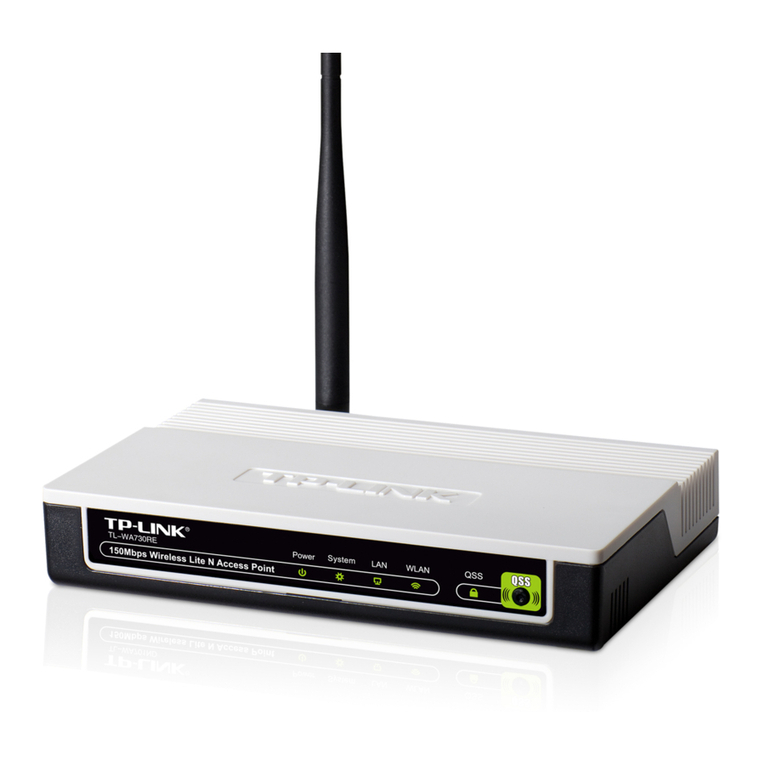
HOME8 WRP1220 User manual

What’s inside:
Wi-Fi Range Extender
Add-on Device
Quickstart Guide
Model No. WRP1220
All Home8 add-on devices have to work with Home8 systems.
1x Wi-Fi Range Extender
1x Power Adapter

1-10 ft
Deutsch
Schritt 1: Setzen Sie Ihr Gerät und das Zubehör zusammen
1. Packen Sie Ihr Gerät und Zubehör aus.
2. Koppeln Sie das Gerät mit dem Security Shuttle innerhalb von 1-10 Fuß, um
sicherzustellen, dass die Verbindung gut funktioniert.
3. Verbinden Sie den mitgelieferten Netzadapter mit dem Wi-Fi Range Extender und
stecken Sie ihn ein.
Schritt 2: Fügen Sie ein Gerät hinzu
1. Öffnen Sie die Home8 App, tippen Sie auf die Menütaste " " und wählen Sie
" Geräteverwaltung ".
2. Drücken Sie die die Schaltfläche Hinzufügen " + " neben der Sensorliste.
3. Folgen Sie den App-Anweisungen, um QR-Code zu scannen, der sich auf dem Gerät befindet.
Hinweis: Wenn der Scan nicht vollständig ist, werden Sie gebeten, die Seriennummer (SN) des Gerätes
einzugeben.

Deutsch
Schritt 3: Platzieren Sie das Gerät
Es wird empfohlen, den WiFi Range-Extender zwischen dem Gerät und dem Security
Shuttle zu platzieren, wo die Verbindung schlecht ist. Der Extender muss innerhalb
von 50 Fuß (15 Meter) von Ihrem Security Shuttle entfernt platziert werden. Die
Leistung kann durch Umwelteinflüsse wie Wände, Metallradiostörungen und vieles
mehr beeinflusst werden.

FAQ
How can I backup recorded video?
You can backup your recorded video by using any of the following methods.
- By setting automatic backup to Dropbox. (Dropbox account needed)
- By sharing your recorded video from VideoGram to your appointed method.
How can I be certain my personal information is secured?
Our first level of security is authentication and your password is encrypted when you sign in to your
account. At the next level where all data is transmitted, including videos, images, as well account
information, bank-level AES data encryption is used.
How do I retrieve my Home8 Mobile app password?
Go to the sign-in page of your Home8 app and tap "Forgot password?". Follow the instruction on
screen to enter your phone number. You will then receive an access code via SMS. After input an
Access Code that app requested, you can then reset the password by yourself. You will also receive
a confirmation email after successfully reset your password.
How can I be sure unauthorized people are unable to look at my videos on the cloud?
With your privacy in mind, all data is encrypted with bank-level security, and each user has his/her
own account to access the video. Our system alerts you and your authorized users when it detects
login attempts from unauthorized smart devices.
How many locations can I manage from my Home8 app?
Home8 app is built to support multi-location management. You can manage as many locations as
you would like, and we do not place a limit on the number of Home8 Systems you can purchase.

FAQ
If I lose my smart device, what should I do to protect my Home8 account?
We recommend you to change your password as soon as possible by using other smart device with
Home8 App installed to sign in to your account to make the change to your password. Alternatively,
you may also contact us to disable your account for you.
What are the requirements prior to purchasing an Home8 System?
Because Home8 System is a fully IoT interactive system, it will require the following:
- Broadband Internet connection. (dial-up connections are not supported)
- DHCP-enabled router with an available LAN port.
- Smart devices with internet connection.
Is there a place I can view the user manual online?
Yes, visit www.home8systems.eu/en/download/ , and then access user manuals.
What can I do if a camera is offline?
If a camera is showing as “offline”, try power cycle on the camera first and wait approximately two
minutes, if the offline situation persists, try moving the camera closer to the Security Shuttle and
power cycle the device again. After tried the methods above, if the offline status is still not resolved,
please contact our Technical Support for further troubleshooting assistance.
What can I do if my system is offline?
First, try checking your internet connection, if the connection is working properly, then unplug the
network cable from your Security Shuttle for 10 seconds, and then reconnect it. If the Security Shuttle
is still offline after 5 minutes, please contact our Technical Support for further troubleshooting
assistance.

Troubleshooting Tips
Are your devices listed in your app?
If you’re having trouble installing your devices, see if they’re listed in your Home8 app:
• Navigate to > Device Management to see if all your devices are listed
• Tap +next to the device category and follow the on-screen instructions to add any missing devices
Are your devices communicating with Security Shuttle?
• If your Wi-Fi devices still don’t connect to Security Shuttle, you can move Wi-Fi Range Extender closer to
Security Shuttle.
• Alternatively, you can move Security Shuttle closer to your Wi-Fi Range Extender.
Do you need to reset your Wi-Fi Range Extender?
If your Wi-Fi Range Extender isn’t communicating with Security Shuttle, you may need to reset your Wi-Fi
Range Extender.
• Press the reset button on the back of device with a pin for approximately 10 seconds till the LED stop blink.
• The LED will resume blink after you releasing the pin.
• Wait around 2 minutes then return to the app and follow the onscreen instructions.
Need help installing your Home8 system?
https://www.home8systems.eu/en/download/
support-global@home8systems.com
V1.0
Table of contents
Other HOME8 Extender manuals