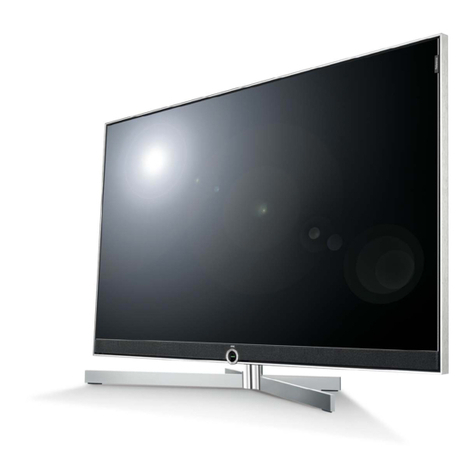
Hisense VIDAA U5 User manual

Hisense User Manual
VIDAA U5

Contents
Live TV....................................................................................... 5
Channel Scan.............................................................................................5
Channel List............................................................................................... 7
Channel Edit...............................................................................................9
Favourite...................................................................................................10
Guide (EPG).............................................................................................11
PVR.......................................................................................................... 13
Recording List.......................................................................................... 14
Timeshift................................................................................................... 16
Connection...............................................................................18
Wired Internet Connection....................................................................... 18
Wireless Internet Connection...................................................................19
Connecting Bluetooth Devices.................................................................20
Connecting Headphones..........................................................................22
Connecting USB Devices.........................................................................22
Connecting an Antenna........................................................................... 23
Connecting Audio Visual (AV) Devices................................................... 23
Connecting Speakers or Other Audio Receivers.....................................25
Connecting a Digital Audio System to Use ARC/eARC...........................25
Using HDMI & CEC................................................................................. 26
Connecting a PC or a Game Console.....................................................28
Multi-screen............................................................................. 29
Screen Sharing........................................................................................ 29
Content Sharing....................................................................................... 29
Smart Functions......................................................................31
Getting Familiar with the Home Screen...................................................31
Using a VIDAA Account...........................................................................34
Using Voice Service.................................................................................34
Media........................................................................................................40
App........................................................................................................... 43

Installing Mobile App to Control your TV.................................................44
Picture and Sound.................................................................. 45
Adjusting the Picture Quality................................................................... 45
Game Mode Settings............................................................................... 50
Adjusting the Sound Quality.................................................................... 51
Speakers Settings.................................................................................... 54
Using Headphones...................................................................................55
Accessibility and System.......................................................56
Accessibility.............................................................................................. 56
Setting Time............................................................................................. 56
Using Timer..............................................................................................57
Using Parental Control.............................................................................58
Setting Language and Location............................................................... 58
Using Power Indicator..............................................................................59
Enhanced Viewing................................................................................... 59
Setting Usage Mode................................................................................ 60
Using Remote Control Service................................................................ 60
Upgrade....................................................................................................61
Reset to Factory Default..........................................................................62
Troubleshooting...................................................................... 63
Picture Issues...........................................................................................63
Sound Issues........................................................................................... 64
Network Issues.........................................................................................64
External Device Connection Issues......................................................... 65
Apps......................................................................................................... 66
Media Files...............................................................................................66
Voice Service Issues............................................................................... 66
TV Status Diagnosis................................................................................ 67
Recording/Timeshift Issues......................................................................67
Other Issues.............................................................................................68
Using the E-Manual................................................................ 69
Launching the E-Manual.......................................................................... 69
Using the buttons in the E-Manual.......................................................... 69

Live TV
Channel Scan
You can scan for channels automatically or manually.
Note:
• Satellite/antenna/cable function may not be applicable in some models/
countries/regions.
Auto Scan
Automatically scan for channels to view programmes from TV source.
> TV
Alternatively, in Live TV, / > Settings > Channel > Auto Scan.
If no TV channels were saved before, you will be prompted to do a channel
search.
Satellite
•Single satellite: You can use single satellite if you only have one satellite
equipped.
•DiSEqC: You can choose DiSEqC if you have DiSEqC equipment. Up to
four satellites in DiSEqC 1.0 mode can be installed.
If you are using a motorized antenna, you can use DiSEqC 1.2 mode.
•Unicable: If your house is equipped with Unicable satellite distribution,
you should use this option.
Please make sure that you know the Unicable band and frequency that
can be used. The information should be available on the equipment or the
landlord can provide it.
Antenna
•Channel: Select from All Channels or Free Channels. This option may
not be available depending on countries/regions/operators.
•Scan Mode: Select from digital channels only (DTV), digital and analogue
channels (DTV+ATV) or analogue channels only (ATV).
If you receive DVB-T or DVB-T2 signal, you can use DTV.
•LCN: Switch on/off LCN (Logical Channel Number).
Please note that some operators are restricted to manually change the
channel order. If you switch off LCN, then the channel list can be edited
after channel scan.
This function may not be applicable in some models/countries/regions.
5

Cable
•Channel: Select from All Channels or Free Channels. This option may
not be available depending on countries/regions/operators.
•Scan Mode: Select from digital channels only (DTV), digital and analogue
channels (DTV+ATV) or analogue channels only (ATV).
•LCN: Switch on/off LCN (Logical Channel Number).
Please note that some operators are restricted to manually change the
channel order. If you switch off LCN, then the channel list can be edited
after channel scan.
This function may not be applicable in some models/countries/regions.
Manual Scan
Manually scan for channels to view programmes from your TV sources
through DTV or ATV.
In Live TV, / > Settings > Channel > Advanced Settings > Manual
Scan
DTV Manual Scan
Manually scan for DTV channels to view programmes from a TV source.
When the DTV Manual Scan screen appears, press / button to select
Antenna, Cable or Satellite, and select Start to commence the search
of that channel. When the signal has been tuned, signal strength will be
displayed on the screen.
ATV Manual Scan
Manually scan for ATV channels to view programmes from a TV source.
•Frequency: Input the channel frequency you want.
•Picture System: Select the Colour System.
•Sound System: Select the Sound System.
Live TV tutorial
After channel scanning is done for the first time, the screen will display Live
TV operating tutorial, including:
/ : Load the info bar
/ : Load the channel list
/ : Open the electronic programme guide (only available in some
models/countries/regions)
/ : Load onscreen menu
: Call up search function
6

: Jump to the previous channel
Note:
• The remote control buttons may vary depending on models/countries/
regions.
Related Topic
•Connecting an Antenna
Channel List
Displaying the channel list
In Live TV, press / button to display the Channel List menu.
Alternatively, in Live TV, / > Channel List.
Entering the sub-menu of channel list
In Live TV, / >
Introducing the sub-menu
In Live TV, / >
7

TV List
Display Live TV channel categories, such as Cable and Antenna.
Fav
Display favourite lists 1 to 4.
Filter
Select channels by Content, HD, Child Lock, Scrambled and Sort.
Some options in Filter may not be available in some models/countries/
regions.
Edit
8

Edit the channel list.
Note:
• The sub-menu options may vary depending on models/countries/regions.
Channel Edit
Manually edit the channel list to your preference.
Editing Live TV channels
In Live TV, press / > to select a Live TV channel category such as
Antenna or Cable, then use D-pad to select Edit.
Alternatively, in Live TV, press / button, select Settings > Channel >
Channel Edit, and select a Live TV channel category such as Antenna or
Cable.
•Press button on the selected channel, then a checkbox will appear.
You can select multiple channels at the same time to move or delete.
•Move: Press button to move the selected channel.
Moving the channels could be restricted by the operator. If you want to
be able to move channels, it is not recommended to choose an operator
during channel scan, and LCN should be set to Off.
•Delete: Press button to delete the selected channel.
9

•Restore: Press [RED] button, or press button to call out the
colour menu and select RED to enter the list of deleted channels. Press
button to restore the deleted channel.
•Filter: Press [YELLOW] button or press button to call out the
colour menu and select YELLOW, the filter screen will pop up. Press
button to select options, and the channel list can be updated.
•Search: Press [BLUE] button or press button to call out the
colour menu and select BLUE, to search the channel.
Exporting to USB
Allow you to export the current channel list to a USB storage device.
In Live TV, / > Settings > Channel > Channel Edit > Export to USB
Importing from USB
Allow you to import a previously exported channel list via a USB storage
device.
In Live TV, / > Settings > Channel > Channel Edit > Import from
USB
Related Topic
•Connecting USB Devices
Favourite
Adding a channel to a favourite list
1. In Live TV, press / button to call out the channel list.
2. Press / button and select the channel(s) you want to add to the
favourite list.
3. Select Add to Favourite, and choose from FAV1-FAV4.
4. Then, a heart-shape icon will appear next to the added channel.
Viewing your favourite list
In Live TV, press / > > Fav to call out the favourite list.
Editing the favourite list
In Live TV, press / > > Fav > to select FAV1-FAV4, then use D-
pad to select Edit.
Alternatively, go to / > Settings > Channel > Channel Edit, and select
FAV1 - FAV4.
10
Table of contents
Other Hisense TV manuals

Hisense
Hisense 32H3D+ User manual

Hisense
Hisense 65R8 User manual

Hisense
Hisense 32R4 User manual

Hisense
Hisense 100L5HD User manual

Hisense
Hisense 32A4G User manual

Hisense
Hisense 65U9HAU User manual

Hisense
Hisense 50A7G User manual

Hisense
Hisense H5 series User manual

Hisense
Hisense 32H4E User manual

Hisense
Hisense 55A6BG User manual

Hisense
Hisense HL55XT710PZLN3D 710 series User manual

Hisense
Hisense 50K366GW User manual

Hisense
Hisense Laser TV User manual

Hisense
Hisense H5C series User manual

Hisense
Hisense MR6DE Instruction manual

Hisense
Hisense 50R7 User manual

Hisense
Hisense 43R6 User manual

Hisense
Hisense 50H7GB series User manual

Hisense
Hisense K660HK3D series User manual

Hisense
Hisense 50CU6000 User manual