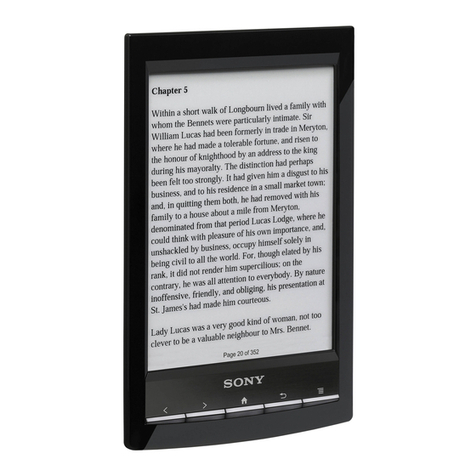
Hanvon WISEreader N520 User manual

WISEreaderN520English
WISEreader N520
E-Book Reader
User Manual

WISEreaderN520English
Content
QUICKGUIDE.................................................................................................. 4
DEVICEBUTTONS ....................................................................................................4
USINGSKILL ...........................................................................................................4
BASICOPERATION........................................................................................... 6
MAINMENU ..........................................................................................................6
READINGINTERFACE ................................................................................................6
RECENTREADING....................................................................................................7
BOOKCASE ...........................................................................................................8
PICTUREVIEW......................................................................................................10
MUSIC................................................................................................................11
SETTINGS ............................................................................................................13
ADOBEREADERINSTRUCTION ...................................................................... 17
FORMAT..............................................................................................................17
DRM .................................................................................................................17
STEPSOFSETTINGUPDRM ....................................................................................17
OTHEROPERATIONS ..................................................................................... 19
BATTERYCHARGING...............................................................................................19
FILEMANAGEMENT ..............................................................................................19
APPENDIX..................................................................................................... 21
TECHNOLOGYSPECIFICATION...................................................................................21

WISEreaderN520English
CAUTION.............................................................................................................21
PRODUCTMAINTENANCE........................................................................................23

WISEreaderN520English
Quick Guide
Device buttons
1) Power button
Press this button to turn on/off the device. The red indicator will light when the
device is charging, and the blue indicator will light when the device is operating.
2) Page Up button
Press this button to turn page up. Continue pressing this button can turn ten

WISEreaderN520English
pages up.
3) Page Down button
Press this button to turn page down. Continue pressing this button can turn ten
pages down.
4) Keyboard area
Including: Number button, letters, function keys.
Index button (Number)
Press any number button 1~9 to select and operate the corresponding function
at the function menu.
Page jump button (Number)
Under the reading status in DOC, TXT, HTXT, HTML, press the number button
0~9 or any combined number button can jump to the corresponding page directly.
Function shortcut key (Number)
Press “MENU”, the function menu will display. Press any number button to
select and operate the corresponding function.
Play/record button
Open or close the “Recorder and Player” interface.
Zoom button (Z)
Press this button to zoom in/out the fonts or pictures.

WISEreaderN520English
MENU button
Press this button, function menu will display, press direction button or number
button to select and operate the corresponding function.
OK button
Press this button to confirm the operation. Continue pressing “OK” button to
lock the keypad, and continue pressing this button again, the keypad will be
unlocked.
Direction button
Press these four buttons to turn page or select option.
Return button
Press Return button to cancel the operation or return to the previous
interface.
Refresh button
Press this button to refresh screen.
5) Mini USB port
USB connection port, it is used for charging the device or transmitting data
from PC.
6) Earphone outlet
Plug in/out earphone here.

WISEreaderN520English
7) MIC: Microphone
8) Speaker
Broadcast voice file.
9) Lock button
Switch on/off the lock button on top of machine to lock/unlock the keyboard.
10) TF card slot
Insert TF storage card into it.
11) Reserved USB Hot
12) Volume Control
13) Display screen
Using skill
1.Press “MENU”, and number button “1”, the system can return to the main menu
directly. Under the “Recent reading”, “Settings”, “User’s Guide” and “Recorder and
Player” interface, press “ ” button directly to return to the main menu.
2.Under the reading status, please press refresh button to refresh the screen
compulsively if the display is not clear.
3.Under the reading status, press the number button and “OK” to jump to the

WISEreaderN520English
corresponding page directly.
4.It will be faster and safer to use TF card to transfer data between PC and device.

WISEreaderN520English
Basic operation
Main menu
Turn on the device, the main menu will display automatically, as the following
picture shown.
Reading interface
The screen is separated into 3 parts, status area is on the top of the screen;
reading area is in the middle; the page information area is at the bottom of the
screen.

WISEreaderN520English
1.Status Area: the menu icon, titles, SD card icon, battery, time and “ESC” icon
display at this area.
2.Reading area: function list, file list, text or pictures will display at this area.
3.Page information area: display the current page number, total page number,
“Previous” and “Next” page button, turn 10 pages up or down button.
Recent Reading
The latest 14 files will display. Press ↑/↓button to select a book and press
OK to confirm, or press the number button to open a book directly. The page you
read last time will display when you open this book. If it is the first time you read
this book, it will begin from the very beginning.
Table of contents
Other Hanvon Ebook Reader manuals