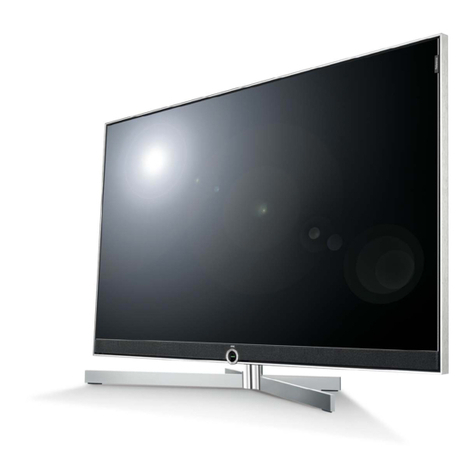
Haier HTARC21 User manual

Please read this manual carefully
before using this TV set and keep it
for future reference.
OWNER'S MANUAL
COMBINED 21" TV AND DVD PLAYER
DTA-2198
TVTV
++

CONTENTS
Before Operation
Basic operation
..............................................................
Installation..............................................................................................3
..............................................................................
Preparation for the remote control..........................................................3
Function buttons and ........................................
Front panel of the TV set.....................................................................4
Rear panel of the TV set.......................................................................4
Using the remote control......................................................................5
Menu
........................................................................
Specifications .....................................................................................
Warning and cautions
......................................................................................
DVD Operation
DVD Features.......................................................................................18
Advanced Playback..............................................................................19
Special Function Playback...................................................................20
DVD System Setup................................................................................22
Playable Discs.......................................................................................26
Disc Protection and DVD Characteristics..........................................27
Others
Antenna Connection
External Connections
Functions
Connection to the External Audio and Video Equipment.................28
Troubleshooting guide
1
2
2
2
3
3
3
4
5
14
15
16
17
21
22
23
24
25

Warning and cautions
1. When you clean the TV set, please
pull out the power plug from AC outlet.
Don't clean the cabinet and the
screen with benzene, petrol and other
chemicals.
4. Do not place the TV set near rain or
moisture as it may cause an electric
shock, or the TV set to catch fire. The
TV set must only
be used in dry in
door locations.
2. In order to prolong the using life of
the TV set, please place it in a well
ventilated location.
5. The back cover must only be
removed by a registered electrical
service person. Removing the back
cover may result in electric shock, fire
or damage to
the TV set.
3. Don't place the TV
set in direct sunlight
or near a heat source.
6. If the TV set is not going to be used
for a long time, or there is a severe
thunder & Lighting storm, it is
recommended that the TV set be
disconnected from the AC power outlet
and the aerial plug removed.
Explanation on the display tube
Should the picture tube require cleaning, disconnect the power and use a dry
soft cotton cloth. Do not use any cleaner or abrasive cloths.

Installation
Antenna connection
Generally speaking, to enjoy a clearer picture, we recommend that you use a CATV
system or an outdoor antenna .In different places, the suitable antenna type and position
may vary.
Preparation for the remote control
Battery installation
Tips for remote operation
Remove the battery cover.
! When the remote control will not be used for a long period of time or when the
batteries are worn out, remove the batteries to prevent leakage.
! Do not throw the batteries into fire. Dispose of used batteries in the specified
manner.
! Do not drop, dampen or disassemble the remote control.
Insert two size AA batteries matching
the +/-polarities of the battery to the +/-
marks inside the battery compartment.
!
!
Note:
* It is recommended that a 75 ohm coaxial antenna is used to avoid
interference.
*To avoid interference from electrical signals, do not bind the antenna cable
together with any mains lead.
AC power socket
Mixer
(not incl.)
Antenna/ CATV input
75 standard
coaxial type
OUT
IN
VIDEO
L R
AUDIO
Y Cb Cr

Function Buttons and External
Connections
Front panel of the TV set
VIDEO L-AUDIO-R
TV/DVD MENU VOL- VOL+ CH- CH+
Video R/LAudio
The DVD Player
Power Indicator
Signal Receiver
TV/DVD Switching
Menu
Volume up/ down
Channel Position up/down
Open/close the DVD
Stop the DVD
Power Switch
Play the DVD
Rear panel of the TV set
DVD component
Y terminal
DVD component Cb terminal
DVD component Cr terminal
OUT
IN
VIDEO L RAUDIO
Y Cb Cr
Audio left channelinput terminal
Audio right channelinput terminal
Audio left channeloutput terminal
Audio right channeloutput terminal
Antenna input socket
Video input terminal
Video output terminal
OUT
IN
VIDEO
L R
AUDIO
Y Cb Cr
S-VIDEO input terminal

Using the Remote Control
DVD/TV OPEN/CLOSE
NEXTNEXTPREVPREV
REVREV FWDFWD
STOPSTOP
PAUSE/STEPPAUSE/STEP
D.MENUD.MENU
CH+CH+
CH-CH-
PLAY/ENTERPLAY/ENTER
VOL+VOL+
VOL-VOL-
SETUPSETUP
SUBTITLESUBTITLE
A-BA-B REPEATREPEAT
112233
PROGRAMPROGRAMTITLE/PBCTITLE/PBC
ANGLEANGLE
ZOOMZOOM
AUDIOAUDIO
MENU
MUTE
SCAN
SWAP
EXIT
TV/AVP.STD
TIMETIME
SLOWSLOW
DISPLAY
POWER
SLSL
SEARCHSEARCH
SLEEPSLEEP
CCD
D.CALL
10+
DVD SEARCH
DVD SETUP
Stand By
DVD Open/close
TV/DVD
Mute
Number Buttons
Digital Selector
Call Screen Display
Former Program
Exit TV Menu
Time Menu
Picture Mode
TV/AV Exchange
Volume Adjust
Channel Selection
TV MENU
Scan through TV channels
DVD FAST REVERSE / FAST FORWARD
DVD NEXT
DVD Cursor Move button
DVD PREVIOUS
DVD PAUSE/STEP
DVD PLAY/ENTER
DVD STOP
DVD MENU
1O+
DVD SUBTITLE
DVD SLOW
DVD REPEAT
DVD PROGRAM
DVD ANGLE
DVD TITLE
DVD AUDIO
DVD Status display CALL
CCD: closed caption display.
ZOOM
SLEEP
Buttons on the remote control
DVD A-B REPEAT
UP
DOWN
LEFT RIGHT

Menu Functions
Video Setup:
Pressing MENU buttononce will bringthe Video Setup menu onthe TV.
The following is shown on your TV screen:
Follow the procedure below to adjust the picture quality of your choice:
1.Press the CH(+) and CH(-) button to go up and down the menu.
2.Press the VOL(+) and VOL(-) button to increase anddecrease the levelto your
preference for eachitem.
Picture 70
Color 50
Sharpness 40
Hue 50
Color Temp. Neutral
Brightness 32
Video
Information to user: This television receiver is equipped with
close caption decoder and parental blocking technology as
required by the FCC.
Menu Functions
Picture Quality Adjustments:
By decreasing thelevel, the brightness level will be decreased. By
increasing the level, the brightness level will be increased.
By decreasing thelevel, color intensity will be decreased. By
increasing the level, color intensity will be increased.
This setting allowsyou to adjust the tint of the picture.
from three color temperature
settings: A)Neutral, B)Warm, C)Cool.
Picture: By increasing the level. It will adjust white areas of picture and by
decreasing the level , it will adjust black areas of picture.
Brightness:
Color:
Sharpness: By decreasingthe level, the picture becomes softer. By increasing
the level, the picture becomes clearer.
Hue:
By decreasing the level, it will give red tint to skin color and by
increasing the color it will give green tint to skin color.
Color Temp : Press the VOL(-/+) buttons to select

Audio Setup:
By pressing MENUbutton ,and thenpressing VOL(-/+) buttons it will bring you to
Audio Setup display. You will see the following menu on your TV screen:
Follow the procedurebelow to adjust the sound quality:
Press VOL (+) button to increase and VOL (-)button to decrease the level to your
preference.
Audio
Volume 45
Timer Setup:
By pressing MENUbutton ,and thenpressing VOL(-/+) buttons it will bring you to
Timer Setup display. Youwill see the following menu on your TV screen:
Timer
Time-on 18:00
Ch. Select 1
Time-off --:--
Sleep Time 0
Remind Time --:--
Ch. Switch 1
Clock 17:18
Menu Functions (Continued)
Follow the procedure below to select one of the above options:
1.Press the CH(+) and CH(-) button to go up and down the menu.
2.Press VOL (+) button or VOL (-) button to select your preference.
Clock: Press VOL (-/+) buttons for HOURS and VOL(-/+) buttons for MINUTES
adjustment.
Time-On: Press VOL(-/+) buttons for HOURS and VOL(-/+) buttons for
MINUTES adjustment. This feature works like an alarm clock. Your
TV will turn on at the set time.
Ch. Select: This feature switches you to your favorite channel at the set time.
Press VOL(+) and VOL(-) buttons to select the channel.
Time-Off : Press VOL (+/-) buttons for HOURS and VOL (+/-) buttons for
MINUTES adjustment. This feature works like an alarm clock. Your TV
will turn off at the set time.
Sleep Time: This feature allows you to turn off the television after a pre-selected
minutes (180, 170,160, ........,10 and 0).
Remind Time: Press VOL(+/-) buttons to set HOURS of attention and VOL(+/-) buttons
to set MINUTES of attention. You will see the flashing time on your TV
when the reminder time arrives.
Ch. Switch:
number of
Note: This exclusive feature can
remind you of important tasks when watching TV.
This feature lets you store your favorite channel. Once you store the
channel number in this function, when the set time is up, it will switch
over to the set channel. This feature is used with the Exchange feature.
Press VOL(+) or VOL(-) button to select the channel.

Menu Functions (Continued)
Follow the procedure below to select one of the above options:
1.Press the CH(+) and CH(-) button to go up and down the menu.
2.Press the VOL(+) and VOL(-) button to increase and decrease the level to your
preference for each item.
Language:
Background: Press the VOL (-/+) buttons to select between Background ON or
Background OFF. When the Background ON function is chosen, a
moving "NO SIGNAL" sign will be displayed if there is no input signal
to the set.
Black Stretch: Press VOL (-/+) buttons to turn the Black Stretch feature on or off.
When the Black Stretch function is on, the screen automatically
increases the contrast range.
VNR: Press VOL (-/+) buttons to turn the VNR function on or off. VNR is a
term for Video Noise Reduction, a built-in device that reduces video
noise interference so the viewer is assured a clear picture.
Fade: FADE control allows for the picture tube to warm up and gently turn
on,
VOL(+) button or VOL (-) button to
set it ON or OFF.
C.Caption: Press VOL (-/+) buttons to select the Closed Caption options. Closed
Captioning helps the hearing impaired with the broadcast program, as
well as helping children learn how to read. A built in decoder displays
the audio portion of a program as text on the screen when this option is
selected.
Use VOL(-/+) buttons to select the OSD language.
AVL: Automatic Volume Limit control reduces effect of large volume changes
such as when the ads come on.Press
which can help prolong the life of the picture tube.
OFF: When OFF is displayed on C.Caption is turned off.
CC1: When Cc1 on TV means C.Caption is turned on.
CC2 to CC4: For other modes of video related broadcast information.
T1: For program guide and other information displayed by broadcasters.
(This blocks a large portion of the picture on your screen).
T2 to T4 :For other modes of information displayed by broadcasters.
(This blocks a large portion of the picture on your screen).
TV, it means
is displayed
Note: Select CC1 for full translation of the primary language such as English in your
area. Select CC2 for secondary language translation such as French or any other
language that may be broadcast in your area.
Function Setup:
By pressing theMENU button, andthen pressing VOL(-/+) buttons
Function Setup menu. You will see the following menu on your screen:
, you will enter the
Setup
Demo Mode: This will display the main functions of the TV set.
Language English
Background on
VNR on
Fade off
AVL on
C. Caption on
Demo mode
Black stretch on
IMPORTANT: Closed captioning availability entirely depends on broadcasters
supplying the signal. Therefore, closed captioning might not always be available and
language availability will differ by broadcast.

Menu Functions (Continued)
Channel setup:
By pressing MENUbutton ,and thenpressing VOL-/+ button it will bring you to
Channel Setup menu. You will see the following display on TV screen.
Follow the procedure below to select above options:
1.Press the CH(+) and CH(-) button to go up and down the menu.
2.Press VOL (+) button or VOL (-) button to select your preference.
Channel System: Press the VOL(-/+) buttons to select the correct channel system.
In general, you can set it as "AUTO" AUTO,NTSC and NTSC443
will display in turn
Air Cable: Press VOL (+) button or VOL(-) button to select
Skip : Press VOL(+) button or VOL(-) button to add or delete a channel
from the stored memory.
Current Ch. : Press VOL(+) button to go up and VOL (-) button to go down to set
the channel position. The display will show the current playing
channel.
Channel Coverage by Antenna:
Antenna Type Channel Range
VHF 2-13
UHF 14-69
CATV 1-125
Fine: If the picture and/or sound are poor, try using the FINE TUNE
feature. Do not use this feature unless reception is poor. Press
VOL (+/-) to start the Fine Tune function.
Auto Program:
Note: The Auto Search function will scan the channels on the selected antenna
input. If the TV is connected to cable, please select Cable under
Aerial Antenna
(VHF and UHF) or Cable Antenna (CATV) reception preference.
Press VOL (+) button to auto program channels. This search
automatically adds only the active channels in your area to the TV's
memory. It deletes any channels on which there is no broadcast or
a poor signal.
' Air Cable ' sub menu.
Channel
Air Cable Air
Skip off
Current Ch. 2
Fine
Auto Program
Channel System Auto
Table of contents
Other Haier TV manuals

Haier
Haier LE32C430 User manual

Haier
Haier 28T9G User manual

Haier
Haier LET39C800HF User manual

Haier
Haier LE19B13200 Assembly instructions

Haier
Haier L32D1120 Assembly instructions

Haier
Haier 21T6B-TD Guide

Haier
Haier 29F9B-P User manual

Haier
Haier HL19K1 - K-Series - 19" LCD TV User manual

Haier
Haier HLH32ATBB User manual

Haier
Haier HL42B-B User manual

Haier
Haier HL32K1b User manual

Haier
Haier LE55B7500U User manual

Haier
Haier L26A9A User manual

Haier
Haier 21F9B-S User manual

Haier
Haier DTA-2196PF User manual

Haier
Haier NS-CL15C User manual

Haier
Haier L37K30B User manual

Haier
Haier HL15WHITE User manual

Haier
Haier LE20F6500 User manual

Haier
Haier HTAF21C User manual