Grundig MPixx 2200 User manual

PORTABLE
MEDIA PLAYER
MPixx 2000 series
MPixx 2200
MPixx 2400

2
CONTENTS------------------------------------------------------------------------------------------------------------------------------------------------
4 MPIXX 2000 SERIES
Supplied accessories
Special features
Safety
Environmental note
5 OVERVIEW
Controls
Displays in music playback mode
Main menu pages
9 CONNECTION AND PREPARATION
Power supply
Connecting to a computer
Disconnecting from the computer
Connecting earphones
11 GENERAL FUNCTIONS
Switching on and off
Selecting the menu language
Adjusting the volume
Locking and unlocking the buttons
Selecting the operating modes
Menu navigation
Resetting the player
13 MUSIC PLAYBACK
Basic music playback functions
Functions in the music menu
17 VIDEO PLAYBACK
Basic video playback functions
Functions in the video menu
19 AUDIO PLAYBACK
Playback of audio recordings
Functions in the audio recording menu
21 RADIO MODE
Basic radio mode functions
Tuning to radio stations
23 TEXT AND PICTURE PLAYBACK
Text playback
Picture playback
24 RECORDING
Recording settings
Voice recording
Recording from FM radio

ENGLISH
3
CONTENTS----------------------------------------------------------------------------------------------------------------------------------------------------------------
27 PREFERENCES
Selecting the »Setting« menu
Setting the player switch-off time (sleep timer)
Setting the brightness of the display
Setting the backlight display switch-off time
Recording settings
System tools and settings
30 OPERATING WITH A COMPUTER
General information
Basic settings for MSC players
Basic settings for MTP players
System requirements
Connecting to a computer
MP3/WMA data transfers
Transferring DRM-protected WMA data
Synchronising music and text files
Classifying music files
Compiling pictures for a slide show
Converting video files to MTV format
Text data transfer
Disconnecting from the computer
35 INFORMATION
Technical data

4
MPIXX 2000 SERIES --------------------------------------------------------------------------------------------------------------
Supplied accessories
1Installation CD with operating manual
2Stereo earphones
3Brief instructions
Note:
The accessory components supplied can change.
Special features
MP3/WMA/AD PCM player, player for picture and video files, voice and text
files, recording device, FM radio and USB removable disc in one.
Safety
This device is intended for the reproduction of music, picture, voice and text files
and serves as a removable disc. Any other use is expressly prohibited.
Do not drop the device. Do not press on the TFT display.
Do not place the device near magnetic objects.
Make sure that the equipment is protected from moisture (dripping or splashing
water), sunlight and heat.
Do not expose the batteries to extreme heat, caused for example by direct
sunlight, heaters or fire.
Never open the device casing. No warranty claims are accepted for damage
caused by improper handling.
Environmental note
This product has been made from high-quality parts and materials which can be
re-used and recycled.
Therefore, do not dispose of the product along with normal household waste at
the end of its service life. Take it to a collection point for the recycling of electri-
cal and electronic devices. The symbol on the product, in the operating manual
or on the packaging indicates that recycling is possible.
Please find out about collection points operated by your local authority.
Help protect the environment by recycling used products.

ENGLISH
5
OVERVIEW----------------------------------------------------------------------------------------------------------------------------------------------------------------
Controls
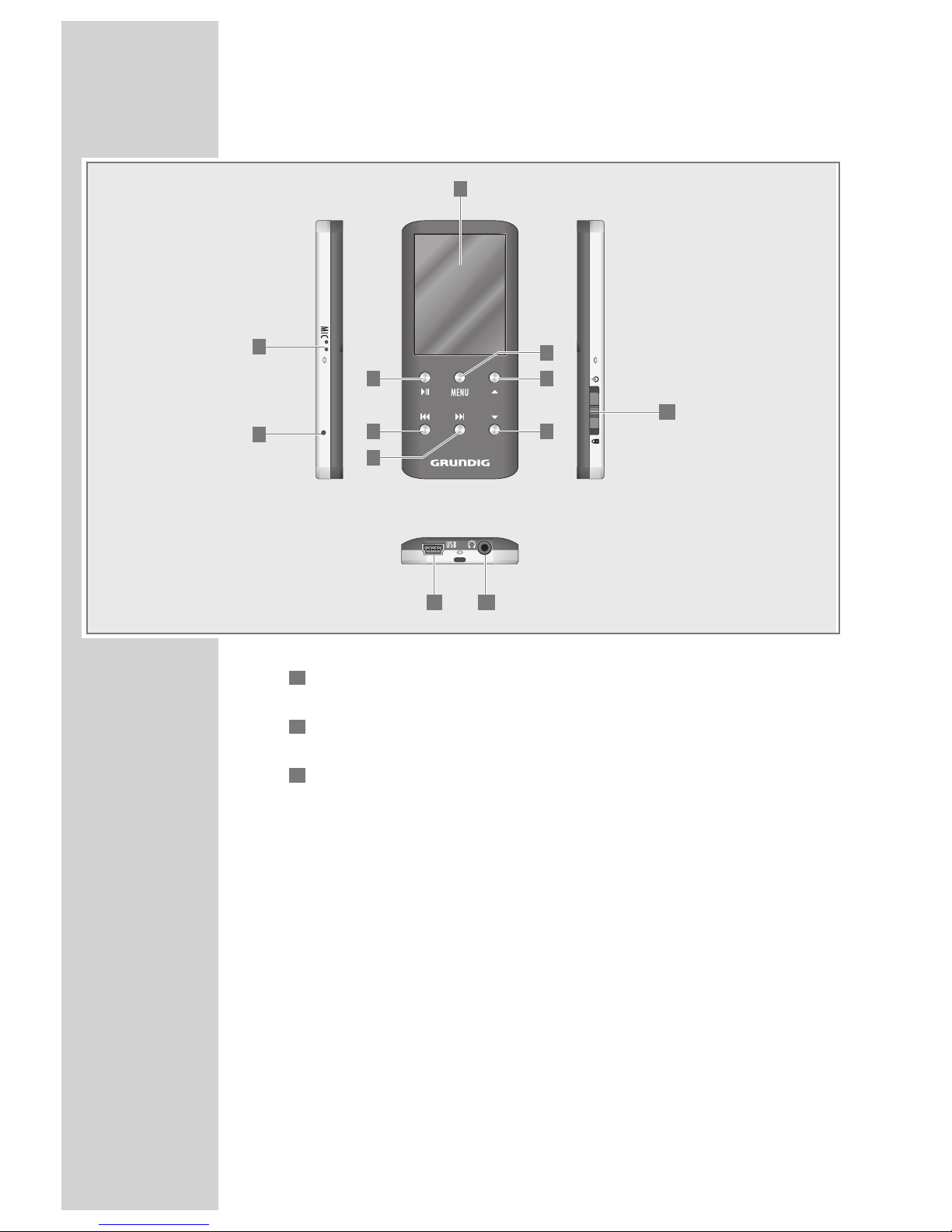
MIC Integrated microphone for voice recordings.
RESET Resets the player.
1.8” TFT display (128 x 160).
sII In playback mode: starts and pauses playback.
Press and hold down to set points A and B to repeat a selected passage.
In menu mode: confirms selected options.
8In playback mode: selects the previous track;
press and hold down: starts the reverse search.
In the main menu: selects the previous menu item.
9In playback mode: selects the next track;
press and hold down: starts the forward search.
In the main menu: selects the next menu item.
MENU In playback mode: press briefly to open the sub-menu;
hold down to open the main menu.
In menu mode: press briefly to switch to the previous menu level;
hold down to open the main menu.
AIn playback mode: increases the volume.
In menu mode: moves the cursor upwards.
SIn playback mode: decreases the volume.
In menu mode: moves the cursor down.
9
8
7
6
5
4
3
2
1
1
10
4
5
6
7
8
9
2
3
11 12
6
OVERVIEW----------------------------------------------------------------------------------------------------------------------------------------------------------------
8Switches the player on and off.
Disables and enables the buttons (position »D«).
USB USB socket for connecting the player to the computer or standard USB
charger using a USB cable.
0Connecting socket for the stereo earphones.
12
11
10
1
10
4
5
6
7
8
9
2
3
11 12

ENGLISH
7
OVERVIEW----------------------------------------------------------------------------------------------------------------------------------------------------------------
Displays in music playback mode
Current operating mode, i.e. music
Music root directory
ID3 tag information such as title, artist, album, etc. (if available).
Playback progress display.
Operating status (playback e, pause II, standby 7or recording •).
Current sound setting, e.g. classical.
Elapsed playing time of the track.
Button lock on.
Playback mode (No Repeat, Repeat One, Repeat All, Random All, Folder Normal,
Folder Repeat, Folder Random or A-B Repeat).
Battery status display (» «: the battery is low).
Track number and total number of tracks.
Ä
11
10
9
8
7
6
5
4
3
2
1
1
11
2
3
4
5 6 7 8 9 10

8
OVERVIEW----------------------------------------------------------------------------------------------------------------------------------------------------------------
Main menu pages
Music – music playback.
Video – video playback.
Recording – voice recording or recordings from radio stations.
Recordings – playback of recorded files.
FM – FM radio reception.
Ebook – text file playback.
Photo – picture playback.
Setting – settings.
8
7
6
5
4
3
2
1
1234
56 7 8
Music Video Recording Recordings
FM Ebook Photo Setting

ENGLISH
9
CONNECTION/PREPARATION----------------------------------------------------------
Power supply
The player operates with the integrated lithium-polymer battery 1 x 3.7 V,
270 mA.
Charging the battery
Charge the battery for the player on a computer.
You can also charge the battery by connecting it to a USB-compatible hi-fi system
using a USB cable.
Note:
When charging with a standard USB adapter, the player is still ready for
operation.
1Connect the USB socket on the player to the USB socket on the computer,
charger or hi-fi system using the USB cable.
2Switch on the computer or hi-fi or connect the charger to the power supply.
– The display indicates the charging procedure. The charging time is
approximately four hours. »P« appears in the display when the battery
is fully charged.
Notes:
The display of the player tells you about the state of the battery. » « in the
display indicates that the battery is running low.
The playing time of the device with batteries is up to seven hours in audio
mode and up to four hours in video mode.
Note:
There is a risk of explosion if the battery is not replaced properly. Only use
the same type of battery or an equivalent.
Connecting to a computer
1Switch on the computer.
2Switch off the player.
3Connect the USB socket on the player to the USB socket on the computer
using the USB cable.
– A display appears as soon as the connection is made.
Ä

10
CONNECTION/PREPARATION----------------------------------------------------------
Disconnecting from the computer
If there is no data transfer in progress, you can disconnect the player from the
computer.
You must first remove the player from the Windows desktop by following the
Windows instructions for “Removing hardware”.
Note:
Do not disconnect the player from the computer while a data transfer is in
progress. This can damage the data irreparably.
1Double click the icon for removing hardware.
The “Remove hardware” window appears.
2To continue, follow the instructions on the screen.
Note:
The circuits of the player and the computer can be seriously damaged if you
do not follow the instructions for Windows ME / 2000 / XP / Vista.
Connecting earphones
1Plug the earphones into the »0« socket on the player.
Note:
The earphones must always be plugged in for radio mode, as the cable acts
as the FM antenna.
Note:
Prolonged listening at loud volumes with the earphones can damage your
hearing.
This manual suits for next models
1
Table of contents
Other Grundig Portable Multimedia Player manuals