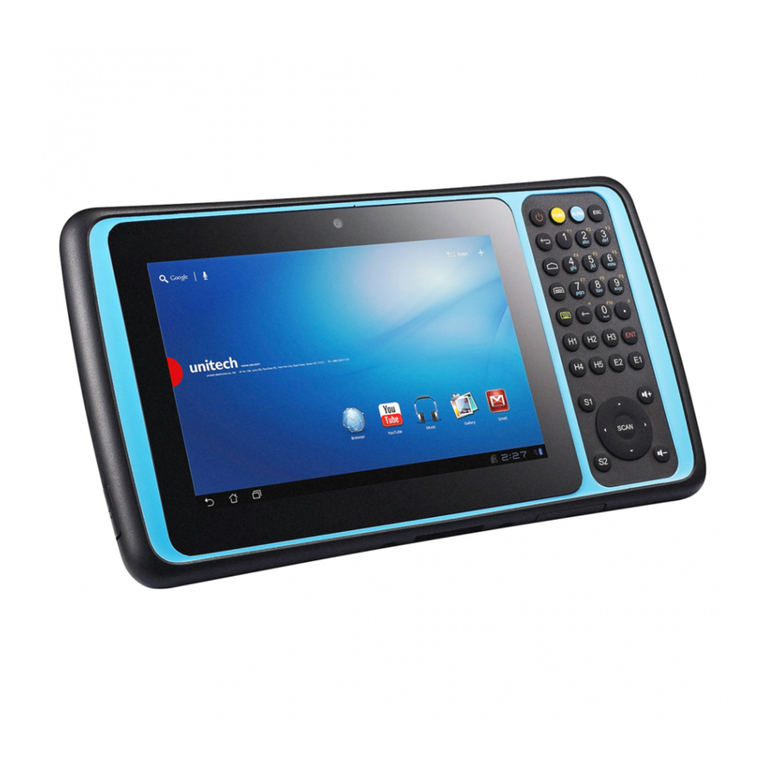
GRAYHILL DuraMax-HG User manual

Product Reference Guide
© 2007 Grayhill, Inc.
| Proprietary Content | All Rights Reserved
DuraMax-HG
Rugged Handheld Quick Reference Guide
V 0.05 | Bulletin XXXX | Effective Spring 2007
Grayhill Part Number:
M1YY1023
561 Hillgrove Avenue
LaGrange, IL 60525
Phone: (708) 354-1040
Fax: (708) 354-2820
On the Internet:
http://www.grayhill.com/CustomMobile

Product Reference Guide
© 2007 Grayhill, Inc.
| Proprietary Content | All Rights Reserved
Copyright © 2007 Grayhill, Inc. All rights reserved.
The information supplied in this manual is believed to be reliable and accurate at the time of its publication. Grayhill, Inc. assumes no
responsibility for any errors, omissions, or the suitability of its product(s) for a particular application.
Warranty
Industrial Handheld Computers from Grayhill, Inc., (i.e., “Product”) are warrantied against defects in materials and workmanship under normal use,
for a period of 1 year from the date of purchase. This warranty does not apply to units that have been abused or stressed beyond the published
environmental and electrical specifications. In the event of a product failure due to materials or workmanship, Grayhill will repair or replace the
defective product. This warranty is limited to the original purchase price of the unit and does not cover installation, labor or any other contingent
costs. For warranty service, return the defective product to Grayhill, shipping prepaid, for prompt repair or replacement. The foregoing sets forth
the full extent of Grayhill’s warranties regarding the Product. Repair or replacement at Grayhill’s option is the exclusive remedy.
THIS WARRANTY IS GIVEN IN LIEU OF ALL OTHER WARRANTIES, EXPRESS OR IMPLIED; AND GRAYHILL SPECIFICALLY
DISCLAIMS ALL WARRANTIES OF MERCHANTABILITY OR FITNESS FOR A PARTICULAR PURPOSE. IN NO EVENT SHALL
GRAYHILL, ITS SUPPLIERS OR LICENSORS BE LIABLE FOR DAMAGES IN EXCESS OF THE PURCHASE PRICE OF THE PRODUCT;
FOR ANY LOSS OF USE; LOSS OF TIME; INCONVENIENCE; COMMERCIAL LOSS; LOST PROFITS OR SAVINGS; OR OTHER
INCIDENTAL, SPECIAL OR CONSEQUENTIAL DAMAGES ARISING OUT OF THE USE OR INABILITY TO USE THE PRODUCT, TO
THE FULL EXTENT SUCH MAY BE DISCLAIMED BY LAW. SOME STATES DO NOT ALLOW THE EXCLUSION OR LIMITATION OF
INCIDENTAL OR CONSEQUENTIAL DAMAGES. THEREFORE, THE FOREGOING EXCLUSIONS MAY NOT APPLY IN ALL CASES.
This warranty provides specific legal rights. Other rights, which vary from state to state, may also apply.
Ordering Guide
All programs and files on the CD included with this Product are protected by copyright. Grayhill, Inc. authorizes duplication of the contained
p
rograms and files as necessary for use by the licensee; however, general distribution of these programs and/or files is strictly forbidden withou
t
p
rior written consent from Grayhill, Inc.
Grayhill Product Grayhill
Part Number
Rugged Mobile Handheld QVGA Display GPS, BlueTooth, IP67 M1YY1023-2
Rugged Mobile Handheld QVGA Display GPS, Barometer, Compass, 802.11, BlueTooth, IP67 M1YY1023-3
Handheld Lithium Ion Battery 10.5Whr M1YY1020-8
Handheld Lithium Polymer Battery 15.5Whr M1YY1020-3
Charging Cable with USB Host and USB Client Snap Version M1HH4151-1
Charging Cable with USB Host, USB Client, and RS-232 Snap Version M1HH4151-3
Auto Cable 01YY5061-2
USB To Serial Adapter 01YY5062-1
Evaluation Kit – 1 Handheld QVGA Display (M1YY1023-3) DURAMAXEVT35HG
1 Handheld Lithium Ion Battery (M1YY1020-3)
1 Handheld Product CD
1 Charging cable (M1HH4152-1)
1 Stylus
Audience
This manual is designed to be a quick reference resource for the Grayhill Handheld. The information it provides is intended for qualified electrical
p
ersonnel familiar with installing, programming, and maintaining industrial networks and industrial automation.
1

Product Reference Guide
© 2007 Grayhill, Inc.
| Proprietary Content | All Rights Reserved
Table of Contents
Warranty .................................................................................................................................................................... 1
Introduction................................................................................................................................................................ 3
Summary of Features .................................................................................................................................................................... 3
Typical Uses.................................................................................................................................................................................. 3
Handheld Product Components..................................................................................................................................................... 3
Evaluation Kit Contents ................................................................................................................................................................ 5
Setting Up the Handheld............................................................................................................................................ 4
Charge the Handheld..................................................................................................................................................................... 4
Turn On the Handheld................................................................................................................................................................... 5
Align the Handheld Touch Screen................................................................................................................................................. 6
Resetting........................................................................................................................................................................................ 6
Using the Handheld.................................................................................................................................................... 7
Handheld Buttons.......................................................................................................................................................................... 7
Connectivity.................................................................................................................................................................................. 8
Using the Stylus ............................................................................................................................................................................ 8
Task Bar and Start Menu............................................................................................................................................................... 9
Pre-Installed Programs.................................................................................................................................................................. 9
Using the Keyboard......................................................................................................................................................................10
Changing Handheld Settings........................................................................................................................................................11
Field Swapping the Battery..........................................................................................................................................................12
Storing Data............................................................................................................................................................. 13
Built-In Flash Memory.................................................................................................................................................................13
Wired Communications ........................................................................................................................................... 14
Running ActiveSync ....................................................................................................................................................................17
Disconnecting ActiveSync...........................................................................................................................................................17
Wireless Communications ....................................................................................................................................... 18
WiFi (802.11x).............................................................................................................................................................................18
BlueTooth.....................................................................................................................................................................................18
Compass and Barometer...............................................................................................................................................................19
GPS..............................................................................................................................................................................................19
Regulatory Information (Pending)........................................................................................................................... 20
FCC Notices.................................................................................................................................................................................20
Service Information.................................................................................................................................................. 21
2

Product Reference Guide
© 2007 Grayhill, Inc.
| Proprietary Content | All Rights Reserved
Introduction
The Grayhill Industrial Handheld Computer is a rugged handheld computer designed for use in heavy industrial o
r
commercial applications. The Handheld provides wireless connectivity and durable mobile personal computing
functionality for personnel working in extreme environments.
Summary of Features
•Environmentally Sealed and Submersible
•Daylight Viewing Ability
•3.5” VGA (640x480) or QVGA (320x240) Transflective Display
•Ruggedness: Solid frame; industrial-strength, high-impact touch screen
•Dimensions: 7.6” x 3.3” x 1.7”
•Weight: 20oz. with battery
•Operating System: Windows CE 5.0
•Processor: Intel XScale PXA270 416 MHz
•Battery Life: 8 hours at maximum power consumption
•64 MB RAM and 64 MB Non-Volatile Flash Memory: No loss of data upon hard reset
•Auxiliary Storage Capabilities: Secure Digital / Compact Flash
•Multiple On-Board Wireless Options: WiFi (802.11x), Bluetooth
•Wired Connections: Active Sync and USB via cable
•Audio: Speakers and Microphone
•GPS: On-board GPS with internal antenna and connection for external antenna
•Other Features: Compass, barometer, Hot Swap
Typical Uses
Wireless communications address a range of industrial and commercial communications challenges.
Communications using radio waves can be made over long distances; through the heat of blast furnaces; and in the
cold temperatures and precipitation that may be present at outdoor sites.
Whether working in construction, manufacturing, mining, or other physically demanding jobs, field personnel will
find the Grayhill Handheld useful because of its comprehensive communications options; and its ability to withstand
hard knocks, dusty job sites, extreme temperatures, rain, snow, and even submersion in water.
Handheld Product Components
The portable Handheld is housed in a 7.6” x 3.3” x 1.7” rugged plastic frame that features a rubber boot for added
durability. It features a 3.5” VGA or QVGA display with a rugged 5-wire touch screen. The Handheld also includes
two (2) keypads: one for navigation and one for numeric entry.
Accessories that accompany the Handheld include a Lithium Ion battery or Lithium Polymer Battery; an AC adapter
that includes USB Active Sync and USB Host; and a companion CD with an electronic version of this guide.
3

Product Reference Guide
© 2007 Grayhill, Inc.
| Proprietary Content | All Rights Reserved
Evaluation Kit Contents
The Handheld Evaluation Kit includes the following components. For detailed ordering information,
please refer to the Ordering Guide.
Handheld Kit Components
1 Handheld Standard
1 Handheld Stylus
1 Handheld Lithium Ion Battery (15.5Whr)
1 Handheld AC Adapter with USB Active
Sync connection and USB Host Connection
1 Handheld Product CD
Setting Up the Handheld
The Grayhill Handheld is shipped with a rechargeable Lithium Ion battery, which is not installed at
time of shipment. Some initial setup is required.
Charging the Handheld
Before using your Handheld for the first time, charge its battery for about three (3) hours, connecting
the Handheld to an electrical outlet using the Grayhill Charging cable.
A completely charged battery will power the Handheld for eight (6-8) hours of maximum power
consumption, depending upon the type of battery ordered with the system.
Charging the Battery Using the AC Adapter
Attach the AC adapter to the Handheld’s external connector, then connect the power cord to an
electrical outlet. Refer to Figure 5.
WARNING: Use only a Grayhill-approved AC adapter with the Handheld. Use of another AC adapter
may cause a fire or an explosion. Always connect the AC adapter first to the Handheld. Use the adapter
with a properly grounded supply to avoid electric shock. Before plugging the power cord into the wall
socket, make sure its voltage and frequency match that of the AC adapter. If using an extension cord with
the AC adapter provided, ensure that the total current rating of the product does not exceed the current
rating of the extension cord.
!
Table 1
Grayhill Handheld
evaluation kit components
4

Product Reference Guide
© 2007 Grayhill, Inc.
| Proprietary Content | All Rights Reserved
LEDs
•When the Handheld is fully charged, the green Power LED will glow steadily green.
•When the unit is unplugged from AC or the Battery is not charging, the LED will be off.
•While the battery is charging, the LED will glow steadily amber.
•If there is a low battery, the LED will flash red.
•If there is a fault or no battery present, the LED will glow steadily red.
No Adapter
Battery Status Char
g
er ON Char
g
er OFF Not Char
g
in
g
Battery Reports Fully Char
g
ed Green Green None
Battery Reports Fully Dischar
g
ed Amber Flash Red Flash Red
Battery Reports Between Char
g
ed and Dischar
g
ed Amber None None
Battery Status Unknown or Disconnected Red Red Red
Adapter Present
Turning On the Handheld
If your Handheld has been turned off, turn it on by pressing the Power button, which is located on the
lower center of the Handheld’s frame. The first time you power on your Handheld, it should take
approximately 45 seconds to activate.
Instant On/Off
Once the unit is initially powered up, the Handheld will turn on instantly when you press the Power button,
and turn off instantly when you press the Power button again. This instant on/off feature is designed to
facilitate work under harsh and unpredictable conditions.
Figure 1
Power button
Table 2
Battery Status Lights
5

Product Reference Guide
© 2007 Grayhill, Inc.
| Proprietary Content | All Rights Reserved
Aligning the Handheld Touch Screen
The Handheld’s touch screen may require initial calibration to align the touch screen cursor with the tip of
your stylus. To launch the calibration, tap ; then tap Settings; then tap Control Panel; then tap .
Click on the calibration tab, and then click on Recalibrate. To calibrate your screen, tap the
center of each alignment target with the tip of the stylus. Once the calibration is successful the screen will
prompt the user to press escape or tap the screen.
Resetting
By default, the Handheld’s instant-off feature causes it to go into immediate “low power” mode where closed
programs are still in memory, but the screen’s backlight is off. If the Handheld will not be used in the near
future, batteries should be removed.
Soft resets of the Handheld are accomplished by:
1) Selecting Restart, located in MyDevice>Windows>Restart.exe, or
2) Responding affirmatively to a request for restart from an installer or other program. When so instructed,
click Yes on the pop up box for restart.
To conduct a hard reset, hold the Power button down for 6-10 seconds, until the screen goes black.
This will clear the Handheld's RAM and reload the OS from Flash.
Figure 2
Recalibration Prompt Screen
Figure 3
Restart Prompt
6

Product Reference Guide
© 2007 Grayhill, Inc.
| Proprietary Content | All Rights Reserved
Using the Handheld
The Handheld’s external features are designed for use in harsh conditions or on rugged terrain. Its QVGA
or VGA display, external buttons, and battery are built to resist impact.
Handheld Buttons
Power/Sleep Button
Firmly press the Power button on the bottom center of the Handheld frame to turn the Handheld on.
Press the Power button again to put it into low power mode.
Navigation Button
The Handheld features an 8-way navigation button, which can be customized.
Hot Keys
Function keys 1 – 6 are the hot keys. Three Hot Keys are located to the left of the navigation key, and three
Hot Keys are to the right. You may assign any functions you wish to each of these keys via Settings>Conto
l
P
anel>HotKey on the Start menu. The hot keys are programmed to the following default settings:
Hot Key 1: Tab, Hot Key 2: Backlight Control, Hot Key 3: Escape, Hot Key 4: Virtual Keyboard, Hot Key 5:
Start Menu, Hot Key 6: Enter.
Figure 4
Handheld front view
7
Power / Sleep Button
Navigation
Hot Keys 4-6Hot Keys 1-3

Product Reference Guide
© 2007 Grayhill, Inc.
| Proprietary Content | All Rights Reserved
Connectivity
•The main port to connect the cable is located on the bottom of the unit.
•The USB A-Type Female connector facilitates connectivity with peripherals, such as with an external keyboard
or a mass storage device.
•The USB A-Type Male connector is for connecting to another PC via Active Sync.
•The Serial Cable offers Serial Communications (RX and TX only).
•The AC adapter is capable of 100 VAC - 240VAC 50/60 Hz. Plugs for universal compatibility for other
countries other than US are available.
Using the Stylus
You may use the Handheld stylus like a mouse to navigate menus and select items on the Handheld touch screen.
Tapping: Tap the touch screen with the stylus to select or open an item. Tapping with the stylus is equivalent to
using your mouse to click an item on your PC screen.
Dragging: Place the stylus on the touch screen and drag the stylus across the screen to select text and images.
Drag the stylus down a list to select multiple items.
Figure 5
Handheld cable
8
Main Port
USB A - Type Male
Serial Cable
AC - Adapter
USB A- Type Female

Product Reference Guide
© 2007 Grayhill, Inc.
| Proprietary Content | All Rights Reserved 9
•Internet Explorer
•Windows Explorer
•PDF Viewer
•PowerPoint Viewer
Task Bar and Start Menu
When you power on the Handheld, the Task Bar will appear at the bottom of the Handheld display.
Task Bar
The Task Bar at the bottom of the display contains the Start menu and other items. You can perform a variety
of tasks by tapping your stylus on the corresponding Task Bar item.
Figure 6
Handheld task bar Figure 7
Handheld start menu
Start Menu
You can display the Start menu by tapping . The Start menu drops down, showing utilities such as Programs,
F
avorites, Settings, Find, and Help for the current screen.
Factory-Installed Programs
Certain programs are pre-installed for you on the Handheld. When you first power on the Handheld, the following
programs will appear on the Start menu:
•ActiveSync
•Word Viewer
•Media Player
•Image Viewer
•Excel Viewer
When the Handheld is connected to your regular computer via the Grayhill cable, you can install other programs on
the Handheld. Note: Each program must be compatible with CE 5.0. Also on a hard boot the program will be lost
and need to be re-installed.
Table of contents
Other GRAYHILL Handheld manuals