Goldweb GW-WR151N User manual

150Mbps Wireless Router
GW-WR151N
User Manual
150
2W Low Power
Consumption

GW-WR151N
i
Contents
1Safety Precautions ............................................................................................. 1
2Overview ............................................................................................................ 2
2.1 Product Introduction .............................................................................. 2
2.2 Packing list ............................................................................................ 2
3Hardware Description and Hardware Installation............................................... 3
3.1 Front Panel and LED Status.................................................................. 3
3.2 Rear Panel and Interface Description ................................................... 4
3.3 Hardware Installation............................................................................. 5
3.3.1 System Requirements ................................................................ 5
3.3.2 Before You Begin........................................................................ 5
3.3.3 Connecting the Device ............................................................... 5
3.4 Operation Range ................................................................................... 6
4Configuring Your Computer and Wireless Connection....................................... 7
4.1 Configuring Your Computer ................................................................... 7
4.2 Configuring Wireless Configuration....................................................... 9
5Logging In to the Web Page............................................................................. 11
6Web Configuration ........................................................................................... 12
6.1 Status................................................................................................... 12
6.1.1 System Information................................................................... 12
6.1.2 LAN Client List.......................................................................... 12
6.1.3 LAN Statistics............................................................................ 13
6.1.4 WAN Connection Status ........................................................... 13
6.1.5 Wireless Connection Status...................................................... 14
6.1.6 Wireless Statistics..................................................................... 14
6.2 Wizard ................................................................................................. 15
6.3 Setup Configuration............................................................................. 19
6.3.1 LAN Basic Configuration .......................................................... 19
6.3.2 WAN Configuration ................................................................... 21
6.3.2.1 DHCP (Dynamic IP) ...................................................... 22
6.3.2.2 Static IP ......................................................................... 25
6.3.2.3 PPPoE .......................................................................... 28
6.3.2.4 PPTP............................................................................. 32
6.3.2.5 L2TP ............................................................................. 35
6.3.2.6 Bridge............................................................................ 37

GW-WR151N
ii
6.4 Advanced Configuration ...................................................................... 37
6.4.1 ALG........................................................................................... 39
6.4.2 DHCP Filter............................................................................... 39
6.4.3 Parents Control......................................................................... 40
6.4.3.1 MAC Filter ..................................................................... 40
6.4.3.2 URL Filter ...................................................................... 41
6.4.4 Anti Attack................................................................................. 42
6.4.5 IP Filter ..................................................................................... 44
6.4.6 Virtual Server ............................................................................ 46
6.4.7 Schedules ................................................................................. 48
6.4.8 QoS........................................................................................... 49
6.4.8.1 QoS Interface................................................................ 49
6.4.8.2 QoS Flux ....................................................................... 51
6.4.9 Access Control.......................................................................... 53
6.4.10 IGMP ................................................................................... 54
6.4.10.1 IGMP Proxy................................................................. 54
6.4.10.2 IGMP Snooping........................................................... 55
6.4.11 UPnP ................................................................................... 56
6.4.12 SNTP................................................................................... 56
6.4.13 DMZ..................................................................................... 58
6.4.14 DDNS .................................................................................. 59
6.4.15 IP UNNumber ...................................................................... 60
6.5 Wireless Configuration ........................................................................ 62
6.5.1 Wireless Basic Configuration.................................................... 62
6.5.2 SSID Configuration................................................................... 63
6.5.3 Wireless Advanced Configuration............................................. 68
6.5.4 Wireless Repeater .................................................................... 70
6.5.4.1 Configuring the Wireless Basic Station......................... 72
6.5.4.2 Configuring the Repeater.............................................. 73
6.6 Management........................................................................................ 74
6.6.1 System Management................................................................ 74
6.6.2 User Management .................................................................... 75
6.6.3 Diagnosis .................................................................................. 75
6.6.3.1 Ping Diagnosis .............................................................. 75
6.6.3.2 Traceroute Diagnosis .................................................... 76

GW-WR151N
iii
6.6.4 TR069 Configuration................................................................. 77
6.6.5 Configuration Upgrade ............................................................. 79
6.6.6 Firmware Upgrade.................................................................... 80
6.6.7 Log Configuration ..................................................................... 80
6.6.8 Log View ................................................................................... 81
7Troubleshooting ............................................................................................... 83

GW-WR151N
1
About User Manual
This user manual describes how to install and configure the GW-WR151N wireless
router.
Organization
This user manual is organized as follows:
Chapter Description
Chapter 1 : Safety
Precautions Provides safety precaution information.
Chapter 2 : Overview Provides a general overview of the
wireless router, and the packing list.
Chapter 3 : Hardware
Description and Hardware
Installation
Describes the front and rear panels of the
wireless router and the procedure for
hardware installation.
Chapter 4 : Configuring
Your Computer and
Wireless Connection
Describes how to set the TCP/IP for your
computer and how to connect to
GW-WR151N wirelessly.
Chapter 5 : Logging In to
the Web Page
Describes how to log in to the wireless
router.
Chapter 6 : Web
Configuration
Describes how to navigate through the
Web pages and how to configure the
parameters.
Chapter 7 : Troubleshooting Provides troubleshooting information.

GW-WR151N
2
Features
Support IEEE802.11b, IEEE802.11g, IEEE802.11n, IEEE802.3, IEEE802.3u,
IEEE802.11i, and IEEE802.11e
Transmission data rate is up to 150 Mbps
Support WEP and WPA for secure data transmission
Support DHCP server
Support manually configuring static routing
Support software upgrade through Web page
Support restoring factory default settings
Support demilitarized zone (DMZ)
Support DNS proxy and forwarding
Support QoS
Support UPnP
Support WPS
Support port mapping
Support wireless repeater
Support guest network
Support restricting IP bandwidth
Support filtering by MAC address and URL
Support wireless security authentication
Support 6 types of WAN connection modes, including DHCP, static IP,
PPPoE, PPTP, L2TP, and Bridge
Support remote access control
Support firewall
Support system status display
Support backing up and restoring configuration files
Support WMM

GW-WR151N
1
1 Safety Precautions
Before operating GW-WR151N, read the following precaution information carefully:
Use the type of power that user manual marks.
Use the power adapter that is packed within the device package.
Pay attention to the power load of the outlet or the prolonged lines. An
overburden power outlet or damaged lines and plugs may cause electric
shock or fire accident. Check the power cords regularly. If you find any
damage, replace it at once.
Leave proper space for heat dissipation to avoid damage caused by device
overheating. Heat dissipation holes enable the device to work normally. Do
not cover heat dissipation holes.
Keep the device away from heat outlets, high temperature places, and direct
sunlight.
Keep the device in dry places. Do not spill any liquid on this device.
Do not connect the device to any PC or electronic product unless our
customer engineer or your broadband provider instructs you to do this,
because any wrong connection may cause power or fire risks.
Do not place this device on an unstable surface.

GW-WR151N
2
2 Overview
2.1 Product Introduction
GW-WR151N is a high-performance network access device. It is fully compatible
with IEEE802.11b, IEEE802.11g and IEEE802.11n standards. It can provide
reliable and convenient access service for individual users and SOHO (Small
Office, Home Office). It features Web-based GUI, allowing users to easily modify
settings to connect the device to ISP (Internet Service Provider) and conveniently
perform upgrade using the WEB page.
2.2 Packing list
Please check that your packing list includes the following items:
1 x GW-WR151N
1 x Power adapter (12V DC, 500 mA)
1 x Ethernet cable
1 x Quick Installation Guide
1 x CD
1 x Warranty Card

GW-WR151N
3
3 Hardware Description and Hardware Installation
3.1 Front Panel and LED Status
There are 8 LED indicators on the front panel of GW-WR151N. By observing their
status, you can check whether the device runs normally.
The following table describes the status of LED indicators on the front panel.
Indicator Color Status Description
Green On Power is on.
Power - Off Power is off or the device is down.
Green On The WLAN connection is in the
communication state.
Green Blink Data is being transmitted and received in
the WLAN.
WLAN
- Off
The WLAN connection is in the
non-communication state.
WPS Green On Connection succeeds under WPS (Wi-Fi
Protected Setup).

GW-WR151N
4
Green Blink Negotiation is in progress under WPS.
- Off WPS is disabled.
Green On WAN connection succeeds.
Green Blink Data is being transmitted.
WAN
- Off No WAN connection.
Green On LAN connection succeeds.
Green Blink Data is being transmitted.
LAN1/2/3/4
- Off No LAN connection.
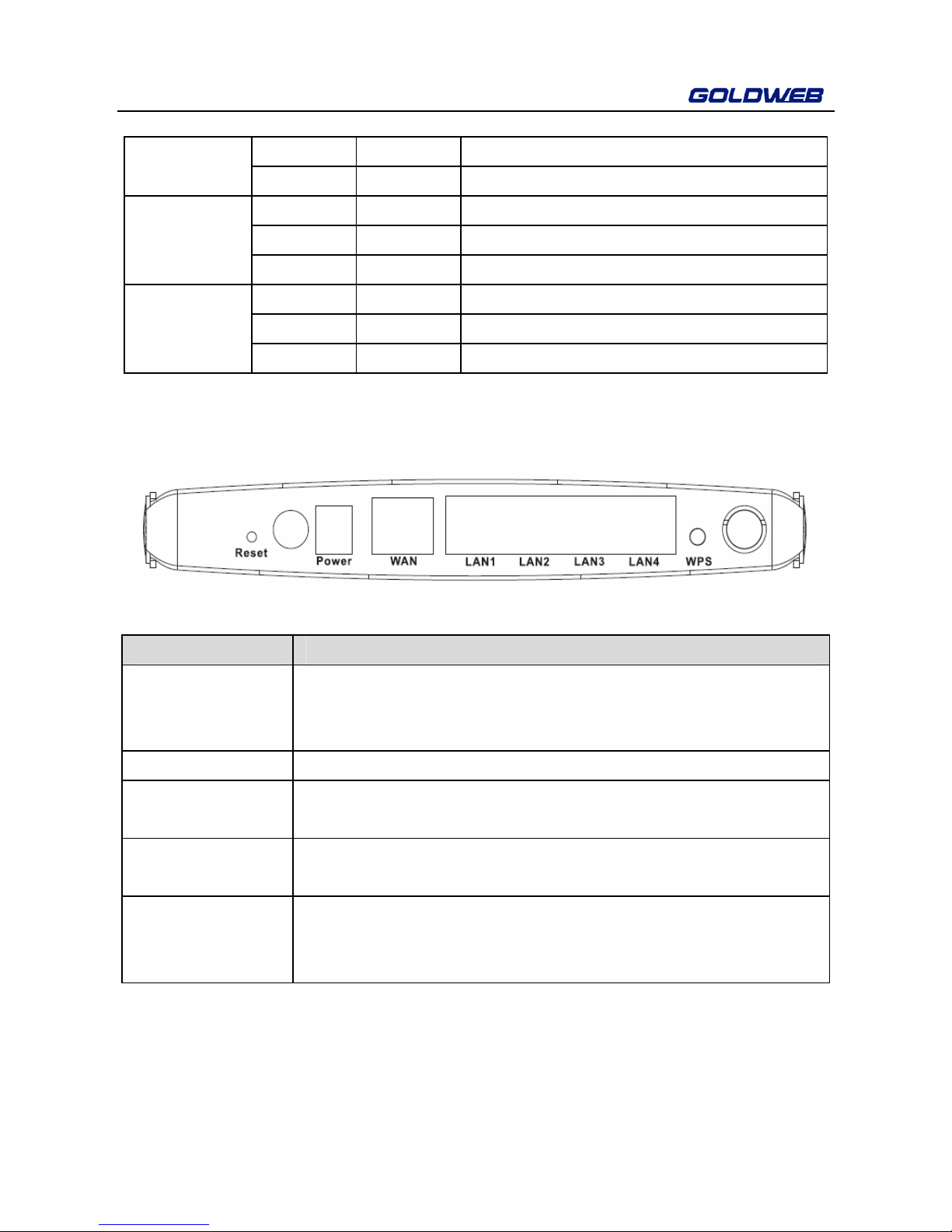
3.2 Rear Panel and Interface Description
The following table describes interfaces and buttons on the rear panel.
Interface/Button Description
Reset
Use a fine needle to press Reset gently for 5 seconds and
then release the button. The system reboots and restores to
the factory defaults.
PWR Power socket, for connecting the power adapter.
WAN RJ45 WAN interface, for connecting WAN or the uplink
network devices.
LAN1/2/3/4 RJ45 LAN interfaces, for connecting hub, switch, or computer
in the LAN.
WPS
This button is used for enabling the WPS PBC mode. When
WPS is enabled, press this button, and the AP starts to
accept negotiation of PBC mode.
Table of contents
Other Goldweb Wireless Router manuals