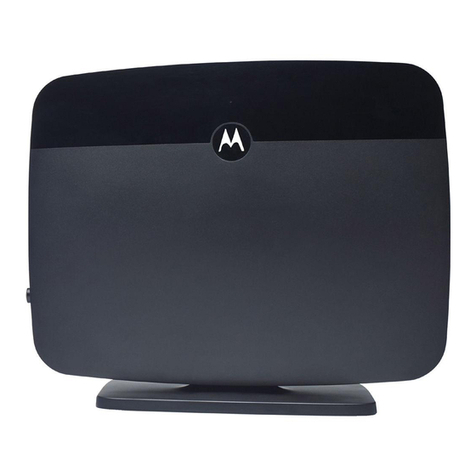
GL-INET Opal User manual

Opal
(GL-SFT1200)
USER MANUAL

Page 1 | 4
Table of Contents
1. Getting Started with GL.iNet Opal.........................................................................................1
1.1. Power on.................................................................................................................................1
1.2. Connect ...................................................................................................................................2
(1) Connect via LAN.............................................................................................................2
(2) Connect via Wi-Fi ...........................................................................................................3
1.3. Access the Web Admin Panel............................................................................................3
(1) Language Setting...........................................................................................................4
(2) Admin Password Setting............................................................................................4
(3) Admin Panel .....................................................................................................................5
2. INTERNET ........................................................................................................................................6
2.1. Cable.........................................................................................................................................8
(1) DHCP ...................................................................................................................................9
(2) Static....................................................................................................................................9
(3) PPPoE............................................................................................................................... 10
2.2. Repeater............................................................................................................................... 11
2.3. USB 3G/4G Modem ........................................................................................................ 12
Compatible Modems............................................................................................................... 14
2.4. Tethering.............................................................................................................................. 15
EasyTether.................................................................................................................................... 17
3. WIRELESS ..................................................................................................................................... 17
4. CLIENTS......................................................................................................................................... 21
5. UPGRADE...................................................................................................................................... 24
5.1. Online Upgrade ................................................................................................................. 24
5.2. Upload Firmware.............................................................................................................. 24
(1) Official OpenWrt/LEDE firmware......................................................................... 25
(2) Compile your own firmware................................................................................... 26
(3) Third party firmware .................................................................................................. 26
5.3. Auto Upgrade..................................................................................................................... 26
6. FIREWALL ..................................................................................................................................... 27
6.1. Port Forwards.................................................................................................................... 27
6.2. Open Ports on Router .................................................................................................... 28

Page 2 | 4
6.3. DMZ........................................................................................................................................ 28
7. VPN.................................................................................................................................................. 29
7.1. OpenVPN ............................................................................................................................. 29
7.1.1. OpenVPN Client ...................................................................................................... 29
7.1.2. OpenVPN Server ..................................................................................................... 37
7.2. WireGuard ........................................................................................................................... 41
7.2.1. WireGuard Client..................................................................................................... 41
7.2.2. WireGuard Providers ............................................................................................. 44
7.2.3. WireGuard Server ................................................................................................... 47
7.2.4. Wireguard App Support........................................................................................ 49
7.2.5. Visit Client’s LAN Subnet..................................................................................... 50
7.3. VPN Policies ...................................................................................................................... 50
7.3.1. Settings....................................................................................................................... 51
7.3.2. Add VPN policy........................................................................................................ 52
7.3.3. Clear DNS cache..................................................................................................... 53
8. APPLICATIONS .......................................................................................................................... 53
8.1. Plug-ins................................................................................................................................. 54
8.2. Internet Kill Switch .......................................................................................................... 54
Setup ............................................................................................................................................... 55
8.3. File Sharing......................................................................................................................... 57
8.3.1. Router settings........................................................................................................ 58
8.3.2. Access the storage device................................................................................. 61
8.4. DLNA Server....................................................................................................................... 78
8.4.1. Install Plug-ins ............................................................................................................... 78
8.4.2. Use the DLNA server in GL.iNet Routers ........................................................... 79
8.5. DDNS ..................................................................................................................................... 85
8.6. Cloud ..................................................................................................................................... 92
Introduction.................................................................................................................................. 92
Setup ............................................................................................................................................... 93
Manage your devices .............................................................................................................101
Site to Site...................................................................................................................................107
Batch Setting .............................................................................................................................116
Template Management.........................................................................................................119

Page 3 | 4
Task List ......................................................................................................................................121
BLE MQTT Bridge.....................................................................................................................122
GoodCloud and VPN...............................................................................................................122
Disable..........................................................................................................................................123
9. MORE SETTINGS.....................................................................................................................126
9.1. Admin Password............................................................................................................126
9.2. LAN IP .................................................................................................................................127
9.3. Time Zone .........................................................................................................................127
9.4. MAC Clone ........................................................................................................................128
9.5. Custom DNS Server......................................................................................................129
9.6. Button Settings ...............................................................................................................129
9.7. Network Mode.................................................................................................................130
9.8. Revert Firmware .............................................................................................................131
9.9. Advanced...........................................................................................................................132
10.Troubleshooting..........................................................................................................................133
10.1 LED Indicators.................................................................................................................133
GL-MT1300/ SFT1200...........................................................................................................133
LED Customization..................................................................................................................133
10.2 Repair or Reset ................................................................................................................134
10.3 Debrick via Uboot ...........................................................................................................135
Windows 7 / Windows 10....................................................................................................137
Mac................................................................................................................................................138
10.4 Change WAN to LAN.....................................................................................................139
10.5 Captive Portal...................................................................................................................141
10.6 GL.iNet app .......................................................................................................................143
10.7 Access Web Panel .........................................................................................................145
Check connection/router's IP address ...........................................................................145
Your IP address is incorrect................................................................................................145
Your IP address is correct....................................................................................................145
10.8 Extensible Authentication Protocol (EAP)...........................................................146
Introduction................................................................................................................................146
Connect via web panel...........................................................................................................147
Connect via Luci.......................................................................................................................150


Page 1 | 153
1. Getting Started with GL.iNet Opal
Model:
GL-SFT1200
1.1. Power on
Plug the Micro USB power cable into the power port of the router. Make sure you
are using a standard 5V/3A power adapter. Otherwise, it may cause malfunction.

Page 2 | 153
Note: Hot plug for TF card is not supported. If you want to use TF card, please
insert before powering on the router.
1.2. Connect
You can connect to the router via Ethernet cable or Wi-Fi.
Note: This step only connects your devices to the local area network (LAN) of the
router. You cannot access the Internet currently. In order to connect to the Internet,
please finish the setup procedures below and then follow Internet to set up an
Internet connection.
(1) Connect via LAN
Connect your device to the LAN port of the router via Ethernet cable.

Page 3 | 153
(2) Connect via Wi-Fi
Search for the SSID of the router in your device and input the default password:
goodlife.
Note: The SSID was printed on the bottom label of the router with the following
formats:
•GL-SFT1200-XXX
•GL-SFT1200-XXX-5G
1.3. Access the Web Admin Panel
Open a web browser (we recommend Chrome, firefox) and visit
http://192.168.8.1. You will be directed to the initial setup of the web Admin
Panel.

Page 4 | 153
(1) Language Setting
You need to choose the display language of the Admin Panel. Currently, our
routers support English, 简体中文, 繁體中文, Deutsch, Français, Español and 日本
語, 한국어, русский.
Note: If your browser always redirects to Luci (http://192.168.8.1/cgi-bin/luci), you
can visit: http://192.168.8.1/index.html instead of http://192.168.8.1.
(2) Admin Password Setting
There is no default password for the Admin Panel. You have to set your own
password, which must be at least 5 characters long. Then, click Submit to
proceed.

Page 5 | 153
Note: This password is for this web Admin Panel and the embedded Linux system.
It will not change your Wi-Fi password.
(3) Admin Panel
After the initial setup, you will enter the web Admin Panel of the router. It allows
you to check the status and manage the settings of the router.
This manual suits for next models
1
Table of contents
Other GL-INET Network Router manuals

GL-INET
GL-INET GL-MT300N-V2 Series User manual

GL-INET
GL-INET GL-X300B User manual

GL-INET
GL-INET GL-MiFi Manual

GL-INET
GL-INET Amarok GL-X1200 User manual

GL-INET
GL-INET GL-MiFi User manual

GL-INET
GL-INET GL-AX1800 User manual

GL-INET
GL-INET GL-USB150 User manual

GL-INET
GL-INET Convexa-B User manual

GL-INET
GL-INET GL-B1300 User manual

GL-INET
GL-INET GL-AXT1800 User manual