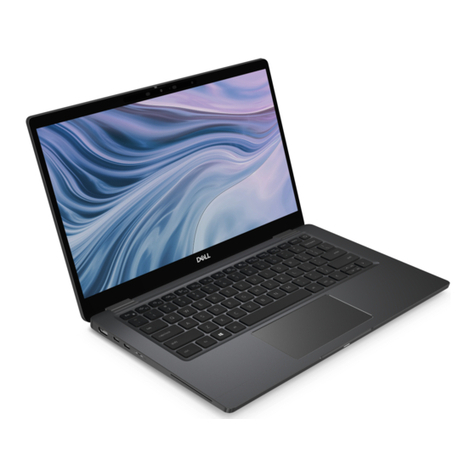
Getac B360 Pro User manual

Rugged Mobile Computing Solutions
B360
B360 Pro
USER MANUAL

March 2023
TRADEMARKS
The Bluetooth® word mark and logos are registered trademarks owned by
Bluetooth SIG, Inc.
Thunderbolt is a trademark of Intel Corporation or its subsidiaries.
All brand and product names are trademarks or registered trademarks of
their respective companies.
NOTE
The information in this manual is subject to change without notice.
For the latest version of the manual, please visit the Getac website at
www.getac.com.

i
Table of Contents
Chapter 1 Getting Started.................................................................1
Getting the Computer Running................................................ 2
Unpacking .............................................................................. 2
Connecting to AC Power....................................................... 3
Turning On and Off the Computer ...................................... 4
Taking a Look at the Computer................................................ 6
Front Components................................................................. 6
Rear Components .................................................................. 6
Right-Side Components......................................................... 8
Left-Side Components ......................................................... 10
Top-open Components........................................................ 11
Bottom Components ........................................................... 14
Chapter 2 Operating Your Computer.............................................16
Using the Keyboard ................................................................. 17
Typewriter Keys ................................................................... 17
Cursor-Control Keys............................................................. 17
Numeric Keypad................................................................... 18
Function Keys....................................................................... 19
Fn Key ................................................................................... 19
Hot Keys ............................................................................... 19
Windows Keys...................................................................... 20
Using the Touchpad................................................................. 21
Configuring the Touchpad.................................................. 22
Using the Touchscreen (Optional) .......................................... 23
Using Multi-touch Gestures ................................................ 24
Using the Tether (Optional)................................................ 26
Using Network and Wireless Connections ............................. 27
Using the LAN ...................................................................... 27
Using the WLAN................................................................... 28
Using the Bluetooth Feature .............................................. 29

ii
Using the WWAN Feature (Optional) ................................ 30
Using the Optical Disc Drive (Select Models Only) .................. 32
Inserting and Removing a Disc ........................................... 33
Using the Fingerprint Scanner (Optional) .............................. 34
Using the RFID Reader (Optional)........................................... 35
Using the Barcode Scanner (Optional) ................................... 36
Notes..................................................................................... 37
Chapter 3 Managing Power ............................................................38
AC Adapter............................................................................... 39
Battery Pack.............................................................................. 40
Charging the Battery Pack .................................................. 40
Initializing the Battery Pack................................................ 41
Checking the Battery Level ................................................. 41
Battery Low Signals and Actions ........................................ 42
Replacing the Battery Pack ................................................. 43
Power-Saving Tips .................................................................... 45
Chapter 4 Expanding Your Computer............................................46
Connecting Peripheral Devices ............................................... 47
Connecting a USB Device .................................................... 47
Connecting a Device for USB Charging.............................. 47
Connecting a Thunderbolt™ Device .................................. 48
Connecting a Display Monitor ............................................ 49
Connecting a Serial Device.................................................. 50
Connecting an Audio Device .............................................. 51
Using Various Card Readers .................................................... 52
Using Storage Cards (Optional) .......................................... 52
Using Smart Cards................................................................ 53
Using ExpressCards (Select Models Only)........................... 54
Using PC Cards (Select Models Only).................................. 55
Expanding or Replacing........................................................... 56
Replacing or Adding an SSD ............................................... 56
Removing the Optical Disc Drive or Additional SSD
(Select Models Only)............................................................ 57
Chapter 5 Using BIOS Setup............................................................58
When and How to Use............................................................. 59
Menu Descriptions ................................................................... 60
Information Menu ............................................................... 60
Main Menu........................................................................... 60
Advanced Menu................................................................... 60
Security Menu ...................................................................... 62

iii
Boot Menu ........................................................................... 63
Exit Menu ............................................................................. 64
Chapter 6 Using Getac Software ....................................................65
G-Manager ............................................................................... 66
Chapter 7 Care and Maintenance ...................................................67
Protecting the Computer......................................................... 68
Using an Anti-Virus Strategy............................................... 68
Using the Cable Lock ........................................................... 68
Taking Care of the Computer ................................................. 69
Location Guidelines ............................................................. 69
General Guidelines .............................................................. 69
Cleaning Guidelines............................................................. 70
Battery Pack Guidelines....................................................... 70
Touchscreen Guidelines....................................................... 72
When Traveling........................................................................ 73
Chapter 8 Troubleshooting .............................................................74
Preliminary Checklist................................................................ 75
Solving Common Problems...................................................... 76
Battery Problems ................................................................. 76
Bluetooth Problems............................................................. 76
Display Problems.................................................................. 77
Hardware Device Problems ................................................. 77
Keyboard and Touchpad Problems .................................... 78
LAN Problems....................................................................... 78
Optical Disc Drive Problems................................................. 78
Power Management Problems ........................................... 79
Software Problems .............................................................. 80
Sound Problems ................................................................... 80
Startup Problems ................................................................. 80
WLAN Problems ................................................................... 81
Other Problems.................................................................... 82
Resetting the Computer .......................................................... 83
System Recovery....................................................................... 84
Using Windows RE............................................................... 84
Using Recovery Partition ..................................................... 85
Using the Driver Disc (Optional) ............................................. 86
Appendix A Specifications .................................................................87
Appendix B Regulatory Information.................................................89
Safety Notices........................................................................... 90

iv
About the Battery................................................................ 90
About the AC Adapter ........................................................ 92
Heat Related Concerns ........................................................ 93
North America.......................................................................... 94
USA ....................................................................................... 94
Canada.................................................................................. 97
User Notification of Take-back Service .............................. 98
Europe Marking and Compliance Notices.............................. 99
Statements of Compliance.................................................. 99
Notices ................................................................................ 100
Restriction of Hazardous Substances (RoHS) Directive ... 101
ENERGY STAR ......................................................................... 102
About Battery and External Enclosure Replacement .......... 103
Battery ................................................................................ 103
External Enclosure ............................................................. 103
Manufacture Date and Labels............................................... 104

1
Chapter 1
Getting Started
This chapter first tells you step by step how to get the computer up and
running. Then, you will find a section briefly introducing the external
components of the computer.
CAUTION: Safety instructions are provided in related sections throughout
the User Manual. Please read the manual and any accompanying document(s)
before starting to use the product.
NOTE: The information in this document applies to both B360 and B360 Pro
models though most illustrations show the B360 model as the example. The
difference between the B360 Pro model and B360 model is that the former
has an expansion unit at the bottom providing extra functions.

2
Getting the Computer Running
Unpacking
After unpacking the shipping carton, you should find these standard items:
Notebook computer
Battery pack ×2
AC adapter
AC power cord
Additional battery
pack* (for B360 Pro)
Stylus and tether*
Document(s) Driver disc*
* Optional
Inspect all the items. If any item is damage or missing, notify your dealer
immediately.
NOTE: Specific models do not have the AC adapter and power cord as
standard items. To purchase the AC adapter kit for your model, contact a
Getac authorized distributor. (Check https://www.getac.com/en/contact/ for
contact information.)

3
Connecting to AC Power
CAUTION: Use only the AC adapter included with your computer. Using
other AC adapters may damage the computer.
NOTE:
The battery pack is shipped to you in power saving mode that protects it
from charging/discharging. It will get out of the mode to be ready for
use when you install the battery pack and connect AC power to the
computer for the very first time.
When the AC adapter is connected, it also charges the battery pack. For
information on using battery power, see Chapter 3.
You must use AC power when starting up the computer for the very first
time.
1. Plug the DC cord of the AC adapter to the power connector of the
computer ().
2. Plug the female end of the AC power cord to the AC adapter and the
male end to an electrical outlet ().
NOTE: The power cord type varies with countries. The look of your power
cord and electrical outlet might not match the one shown in this document.
3. Power is being supplied from the electrical outlet to the AC adapter and
onto your computer. Now, you are ready to turn on the computer.

4
Turning On and Off the Computer
Turning On
1. Open the top cover by pushing the cover latch () and lifting up the
cover (). You can tilt the cover forward or backward for optimal
viewing clarity.
2. Press the power button ( ). The Windows operating system should
start.
This manual suits for next models
1
Table of contents
Other Getac Laptop manuals