
Gemtek Systems WX-6215G User manual

WX-6215G
11Mbps Wireless Router
User's Manual
Jun. 20, 2002 (Draft 1.0)
Gemtek Technology Co., Ltd.

1
CONTENTS
Introduction ........................................................................2
Hardware Installation ...................................................................4
General System Connection ….............................................5
Default Settings ……………….…………………………………………5
Web Management Setttings ……….………………………….6
Device Information ……..………………………………………………...9
Device Status ….………………………………………………………...10
Device IP Settings ….……………………………………………………11
Cable / ADSL ISP Settings ………………………………………………12
ISPAdditional Settings …………………………………………………..12
Wireless Settings …………………………………………………………12
Modem Settings ………………………………………………………….12
Advanced Settings …………………………………………………………13
DHCP Server Settings ……………………………………………………14
Virtual Server Settings ……………………………………………………15
Access Control Settings …………………………………………………..17
Static Settings ……………… …………………………………………….21
Dynamic Settings …….…………………...………………………………21
Modem Settings……………………………………………………………21
Filter Settings ………………………………………………………………21
Administration Settings ……………………………………………………21
System Tools …………………………………………………………………21
Troubleshooting ………………………………………………………………22
Technical Specifications ………………………….…………………………24
Copyright statement ……………………………………………………………26
Federal Communication Commission Interference Statement …………27
R&TTE Compliance Statement …………………………………………….….28

2
Introduction
Thank you for purchasing your Wireless SOHO AP (Router ).
This manual will assist you with the installation procedure.
The package you have received should contain the following items:
•Wireless SOHO AP Router
•User’s Manual
•Power Adapter
•Ethernet cable
Note: if anything is missing, please contact your vendor

3
Safety Notification
Your Wireless SOHO AP Router should be placed in a safe and secure location. To
ensure proper operation, please keep the unit away from water and other
damaging elements.
Please read the user manual thoroughly before you install the device.
The device should only be repaired by authorized and qualified personnel.
Please do not try to open or repair the device yourself.
Do not place the device in a damp or humid location, i.e. a bathroom.
The device should be placed in a sheltered and non-slip location within a
temperature range of +5 to +40 Celsius degree.
Please do not expose the device to direct sunlight or other heat sources. The
housing and electronic components may be damaged by direct sunlight or heat
sources.

4
Hardware Installation
Front Panel
The front panel provides LED’s for device status. Refer to the
following table for the meaning of each feature.
PWR Power status of the SOHOAP Router. A steady
LED indicates the power is applied to the unit.
WLAN The WLAN LED will be ON when AP function
enable, at this time Wireless clients are able to
connect to the AP.
WAN Wide Area Network status. WAN LED is
illuminated when there is a good connection to
the 10 BaseT mode Ethernet port.
LAN
1,2,3,4 Local Area Network status. LED will be on when
Ethernet port is connected.
Rear Panel
The rear panel features 4 LAN ports, 1 WAN port and Factory
Reset button. Refer to the following table for the meaning of each
feature.
Power
(DC 5v) Used to connect to the power outlet. Only use the
power adapter provided with the device. Use of an
unauthorized power adapter may cause damage to
your device and violate your warranty.
Internet
(WAN) The RJ-45 Ethernet port is used to connect your
SOHO AP Router to your xDSL.
Reset Resets the configuration to default settings.
LAN
(1,2,3,4) The RJ-45 Ethernet ports used to connect your PC
or HUB. The Ethernet Cable used can be normal
Ethernet cables or even Crossover Cable.
The device has internal Auto - Crossover detection
circuits to automatic identify them.

5
General System Connection
Default Settings
By default settings, the SOHOAP is regarded as an “AP Router”. The default
settings are shown following.
Note:
In Web configuration mode setup system, only one user allows to access
setup program at one time i.e. setup system will decline when other users to
connect setup system.
User Name admin
Password gemtek
AP Router Name Wireless AP SOHO Wireless LAN
AP Router IPAddress 192.168.0.10
AP Router Subnet Mask 255.255.255.0
10/100 Ethernet LAN IP 192.168.0.10
10 Mbps Ethernet WAN IP Obtain from ISP via
DHCP Can be manually
configure
WAN DHCP Client Enabled After 20 sec. Go to blank
RF ESSID Wireless Gateway
RF Channel 11
RF Roaming Enabled
Encryption Disabled
DHCP Server Enabled
NAT Routing Enabled
6
Web Management Settings
TURN ON POWER SUPPLY
Quick power cycle can caused system corruption. When power on, be careful not
to shut down in about 5 seconds, because data is writing to the flash.
START -UP & LOG IN
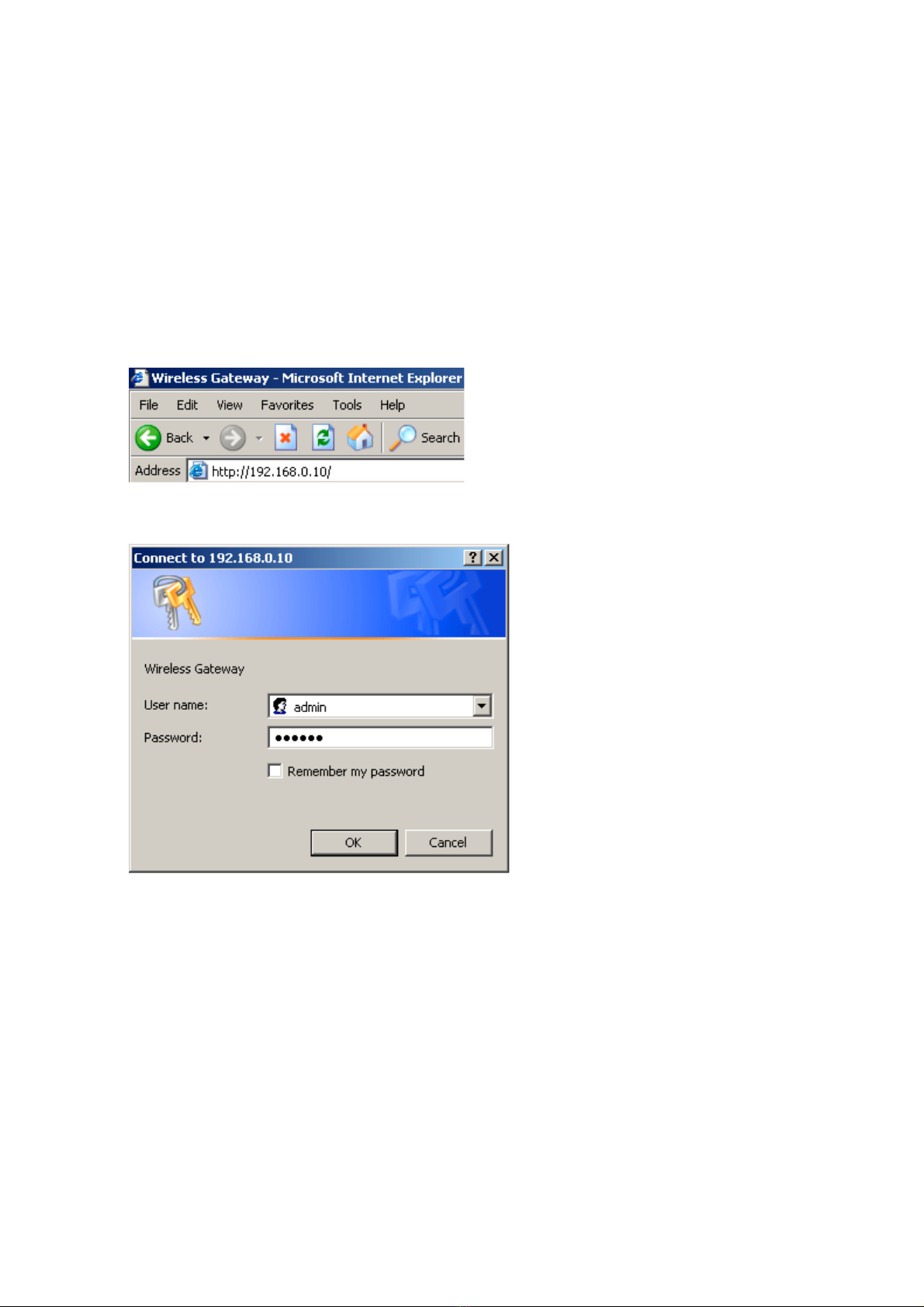
In order to configure the Wireless SOHOAP Router, you must use your web
browser (Microsoft Internet Explorer or Netscape) and manually input 192.168.0.1
into the address box and press Enter. Then Main Page will appear.
In order to configure the Wireless SOHOAP Router, you must input the user-
name into the User Name box. Enter the password into the Password box and
press the OK button. The default User Name is “admin”. There is no default
password, leave the Password field blank.
Once you have logged-in as administrator, it is a good idea to change the
administrator password to ensure a secure connection to the Wireless SOHOAP
Router. The Advanced Settings section described later in this manual describes
how to change the password.
Once you have input the correct password and logged-in, the screen will
change to the Main Page screen.

7
MAKE CORRECT NETWORK SETTINGS OF YOUR COMPUTER
To change the configuration, use Internet Explorer (IE) or Netscape Communicator
to connect the WEB management 192.168.0.10.

8
SETUP WIZARD
Click SETUP WIZARD. Here allow user to configure basic network settings with
your ISP provider.
Gateway Status
The Device Status screen displays a graphical representation of your current
configuration.

9
Enter the Network Name (SSID) for your network. All wireless client station devices
on your network must use the same Network Name.
Table of contents
Other Gemtek Systems Wireless Router manuals


