
GefenTV HDMI-2-COMPSVIDS User manual

HDMI To Composite/S-Video Scaler
User Manual
www.gefentv.com
GTV-HDMI-2-COMPSVIDS

Technical Support:
Telephone (818) 772-9100
(800) 545-6900
Fax (818) 772-9120
Technical Support Hours:
8:00 AM to 5:00 PM Monday thru Friday.
Write To:
Gefen Inc.
c/o Customer Service
20600 Nordhoff St
Chatsworth, CA 91311
www.gefen.com
Notice
Gefen Inc. reserves the right to make changes in the hardware, packaging and
any accompanying documentation without prior written notice.
HDMI To Composite/S-Video Scaler is a trademark of Gefen Inc.
© 2008 Gefen Inc., All Rights Reserved
All trademarks are the property of their respective companies
ASKING FOR ASSISTANCE

CONTENTS
1 Introduction
2 Operation Notes
3 Features
4 Panel Layout
5 Panel Descriptions
6 Connecting And Operating The
6 Hdmi To Composite/S-Video Scaler
7 Specifications
8 Warranty

1
Congratulations on your purchase of the HDMI To Composite/S-Video Scaler.
Your complete satisfaction is very important to us.
Gefen TV
Gefen TV is a unique product line catering to the growing needs for innovative
home theater solutions. We specialize in total integration for your home theater,
while also focusing on going above and beyond customer expectations to ensure
you get the most from your hardware. We invite you to explore our distinct
product line and hope you find your solutions. Don’t see what you are looking for
here? Please call us so we can better assist you with your particular needs.
The Gefen TV HDMI To Composite/S-Video Scaler
The new GefenTV HDMI to Composite Scaler lets you transform HDMI video
of any resolution from 480i to 1080p into Composite video or S-Video, properly
sized to view optimally on your display.
How It Works
Simply connect your HDMI video source to the HDMI input jack of the GefenTV
HDMI to Composite Scaler. Connect your Composite or S-Video display cable to
the correct video output jack on the Scaler’s rear panel. RCA-type analog audio
output jacks and Coaxial S/PDIF digital audio output jacks allow for the connec-
tion of an audio receiver or other device to receive the audio signal embedded
in the HDMI signal. Power-cycle all connected components. You will then have
HDMI video playing on your Composite or S-Video display with simultaneous
audio out.
INTRODUCTION

READ THESE NOTES BEFORE INSTALLING OR
OPERATING THE HDMI TO COMPOSITE/S-VIDEO SCALER
HDMI To Composite/S-Video Scaler converts 480i/p, 576i/p, 720p, 1080i/p to•
either NTSC 480i or PAL 576i.
The HDMI To Composite/S-Video Scaler will cross convert between some•
digital audio formats. Both the digital and analog audio outputs are active at
all times. The HDMI To Composite/S-Video Scaler will not, however, down-
mix multi-channel digital audio formats to 2 channel analog stereo. Please
see the chart on page 6 for more info.
Please be sure to set the proper output format for your television. NTSC•
60Hz is commonly used in the United States and Japan, while PAL 50Hz is
commonly used in European countries. Using the improper format will result
in a unrecognizable picture and may damage your TV set.
HDMI 1.2 Compliant.•
HDCP encrypted HDMI sources are not supported by this device. If a•
connected HDMI source requires HDCP the outgoing video signal will result
in a black screen.
2
OPERATION NOTES

3
Features
HDMI to Composite / S-Video conversion plus scaling•
HDMI pass-through•
Supports 480i to 1080p HDMI input resolutions•
Outputs 480i / 576i signal for Composite/S-Video•
Supports both NTSC and PAL formats•
Package Includes
(1) HDMI To Composite/S-Video Scaler
(1) 6 Foot HDMI Cable (M-M)
(1) 5V DC Power Supply
(1) User’s Manual
FEATURES
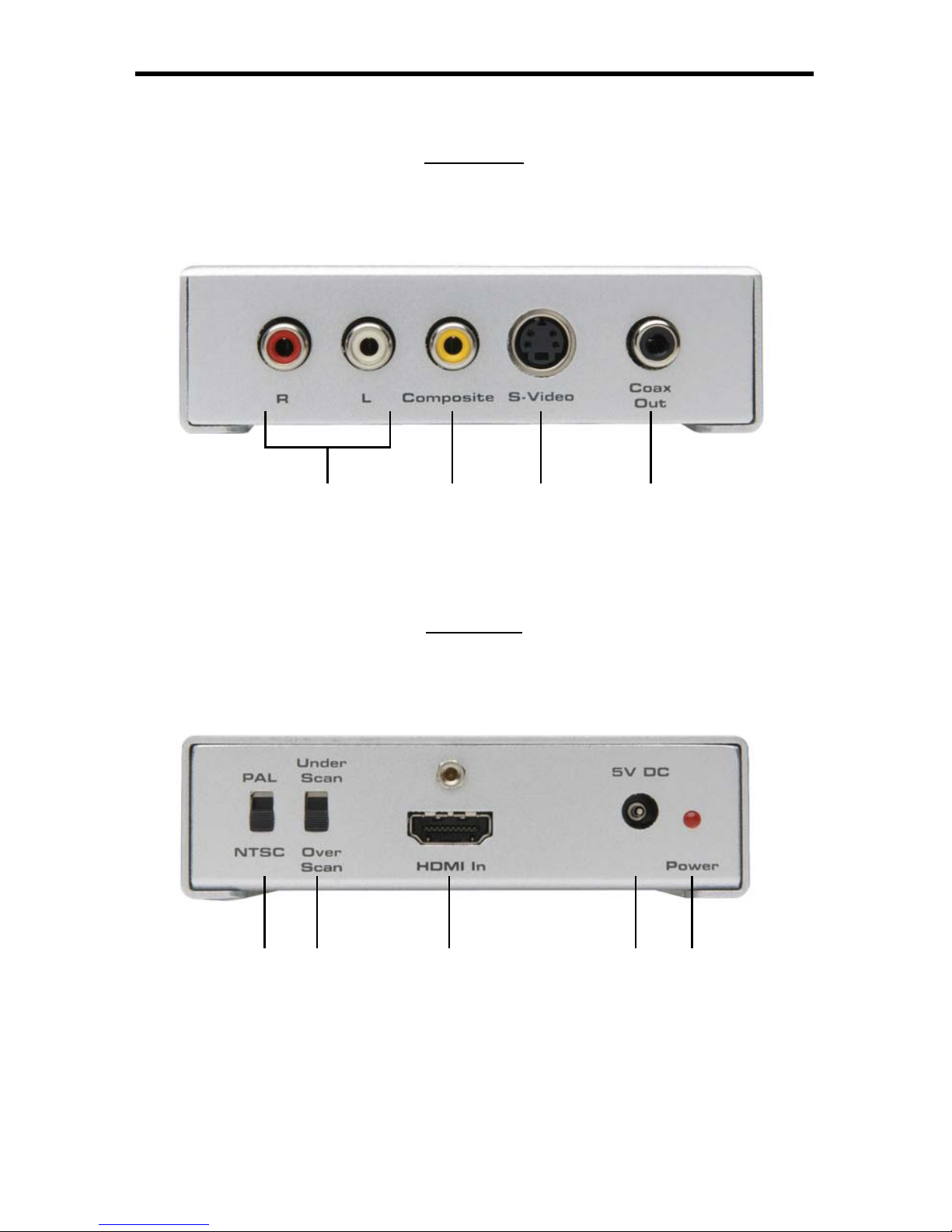
4
Front Panel
Back Panel
1
5
2
76
3
8
4
9
PANEL LAYOUT

5
Stereo Analog Audio Output1
2 RCA stereo analog audio outputs. Connects to the display or a audio receiver.
Only 2 channel LPCM from the HDMI input can be passed to these outputs.
Multi-channel bit-stream such as Dolby Digital will not be passed to this output.
Composite Analog Video Output2
RCA composite video output. Connect to a composite input on a television. 480i
and 576i are the only resolution output options.
S-Video Analog Video Output3
S-Video video output. Connect to a s-video input on a television. 480i and 576i
are the only resolution output options.
Digital Audio Output4
Coaxial digital audio output. Connects to the display or a audio receiver. 2
channel LPCM and multi-channel bitstream can be output from this connector.
Video Format Output Switch5
Switch between NTSC (60Hz) and PAL (50Hz) output. Please ensure that you
use the proper output for you television. Using the wrong format will result in a
unrecognizable picture and may damage your television.
Under/Over Scan Switch6
Most analog television sets were designed to accept an over-scanned signal.
If the resulting video signal displays a black border around the edges, use
the over-scan option. If the resulting video signal is stretched far beyond the
television’s edge, use the under-scan option.
HDMI Input7
Connect the HDMI source to this input connector. This will accept both video
and audio through the HDMI connector.
5V DC Power Supply Input8
Connect the included 5V DC power supply to this input.
Power LED9
This LED will become active once the included power supply is properly
connected.
PANEL DESCRIPTIONS

6
How to Connect the HDMI To Composite/S-Video Scaler
Connect the HDMI source to the HDMI To Composite/S-Video Scaler’s HDMI1.
input using the supplied HDMI cable.
Connect the display to the HDMI To Composite/S-Video Scaler’s composite2.
or s-video outputs using user supplied cables.
Connect the HDMI To Composite/S-Video Scaler’s stereo analog audio3.
output to the display or audio receiver. Optionally, you can connect the digital
coaxial output to the display or an audio receiver.
Ensure that the proper video output format is set using the NTSC/PAL format4.
switch on the rear panel of the unit. Please consult your television’s manual
for the proper input format type.
Connect the included 5V DC power supply to the HDMI To Composite/S-5.
Video Scaler.
Once you have a video image on-screen, use the under/over scan switch to6.
adjust the image’s size.
NOTE: The HDMI To Composite/S-Video Scaler will cross convert between some
digital audio formats. Both the digital and analog audio outputs are active at all
times. The HDMI To Composite/S-Video Scaler will not, however, down-mix multi-
channel digital audio formats to 2 channel analog stereo. Please see the chart
below for supported input and output formats.
INPUT ►HDMI
MULTICHANNEL
LPCM
HDMI
2 CHANNEL
LPCM
HDMI
DOLBY DIGITAL
& DTS
OUTPUT ▼
DIGITAL
COAXIAL
YES
*2 CHANNEL YES YES
ANALOG
STEREO
MINI-JACK
NO YES NO
*2 channels are the front right and front left speakers. It will not down-mix multi-channel to 2 channel audio
CONNECTING AND OPERATING THE
HDMI TO COMPOSITE/S-VIDEO SCALER

7
Input Video Signal .................................................................................... 1.2V p-p
Input Sync Signal ............................................................................... 5V p-p (TTL)
Horizontal Frequency Range ................................................................ 15-70 KHz
Vertical Frequency Range ................................................................... 30-170 KHz
Video In/Out ..................................................... 1 L/R Composite RCA / 1 S-Video
Audio In/Out ............................................ 2 L/R RCA audio, 2 S/PDIF digital audio
Power Consumption .............................................................. 10 Watts (maximum)
Power Supply .............................................................................................. 5V DC
SPECIFICATIONS
This manual suits for next models
1
Table of contents
Other GefenTV Media Converter manuals

GefenTV
GefenTV GTV-HDMI-2-COMPSVIDS User manual

GefenTV
GefenTV GTV-HDMI-2-HDMIAUD User manual

GefenTV
GefenTV GTV-HIDEFS User manual

GefenTV
GefenTV GTV-192KUSB-2-ADAUD User manual

GefenTV
GefenTV GTV-COMPSVID-2-HDMIS User manual

GefenTV
GefenTV GTV-HDMI-1080PS User manual

GefenTV
GefenTV GTV-HDMI-2-HDMIAUD User manual

GefenTV
GefenTV GTV-DVIDL-2-MDP User manual

GefenTV
GefenTV GTV-VOLCONT-D User manual

GefenTV
GefenTV GTV-DD-2-AA User manual


