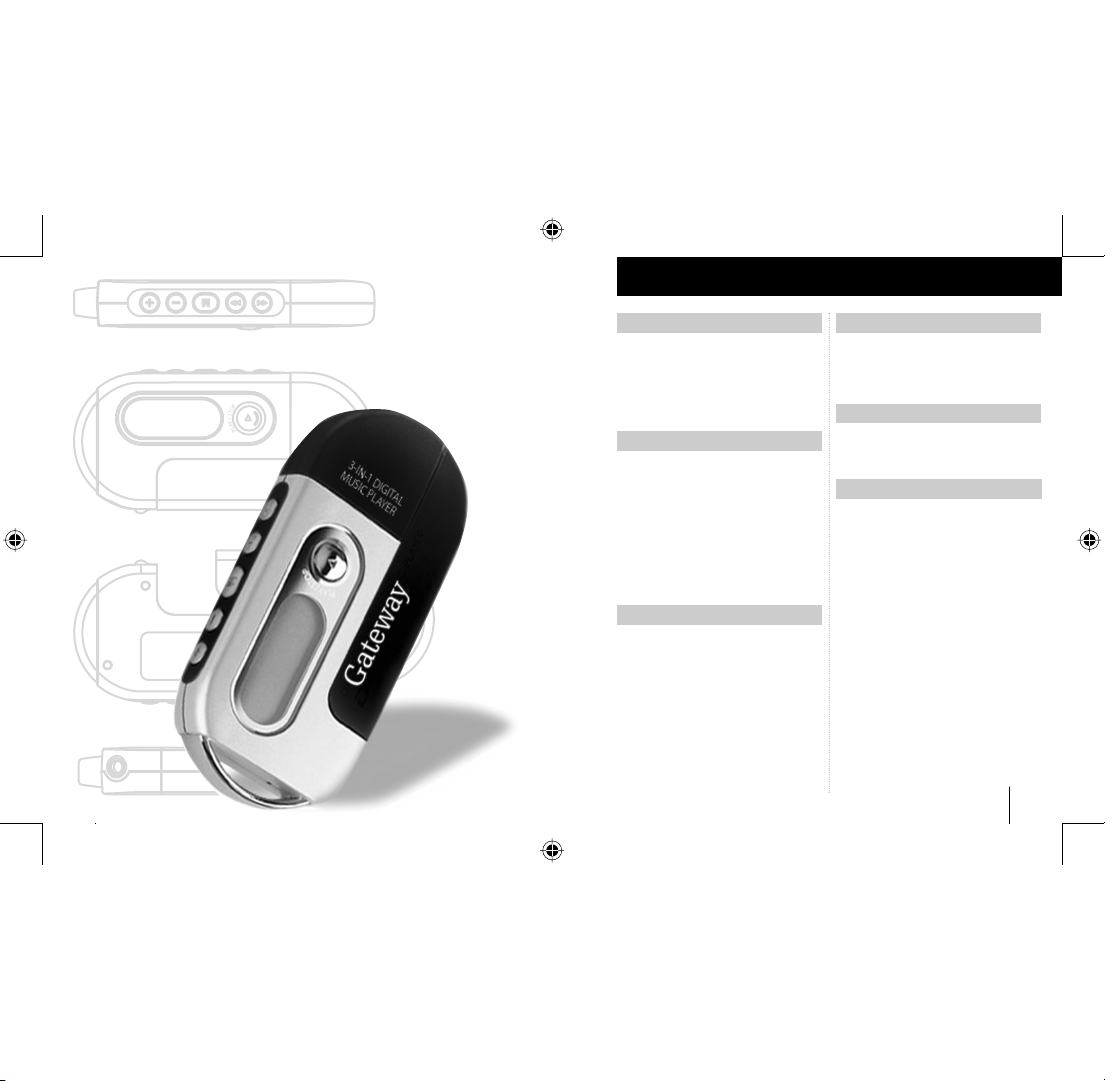
Gateway 3-IN-1 Digital Music Player User manual

Gateway digital music player
1
3-IN-1 DIGITAL MUSIC
PLAYER
8509324.indd 1 7/3/2003, 10:36:36 AM
Gateway digital music player
2
Gateway digital music player
3
Preparing to Use
Features 6
Package content 6
Product overview 7
LCD Panel 7
Button function table 8
Using
Installing the battery 12
Listening to music quick start steps 12
Turning the power On/Off 13
Digital music player modes 13
Playing digital music tracks or voice files 13
Adjusting the volume 14
Navigating music tracks or voice files 14
Setting the repeat play function 14
Recording voice 15
Menu Settings
Menu table 18
Using the Menu mode 20
Setting the Repeat mode 20
Setting the equalizer (EQ) function 22
Managing files 23
Setting the logo options 24
Setting the display options 25
Displaying file information 26
Selecting the display language 26
Contents
3-IN-1 DIGITAL
MUSIC PLAYER
Connecting
Installing software 30
Connecting to your computer 34
Managing files 35
Using Programs
Using the VoiceConverter program 40
Using the Logo Editor program 42
Support and Product Information
Contacting Gateway 50
Product specifications 52
Safety, regulatory, and legal information 53
Notices
© 2003 Gateway, Inc. All rights reserved. Gateway,
Gateway Country, the Gateway stylized logo, and the
black-and-white spot design are trademarks or registered
trademarks of Gateway, Inc. in the United States and
other countries. All other brands and product names are
trademarks or registered trademarks of their respective
companies.
8509324.indd 2-3 7/3/2003, 10:36:37 AM
Gateway digital music player
4
Gateway digital music player
5
3-IN-1 DIGITAL
MUSIC PLAYER
Preparing to Use
•Features 6
• Package content 6
• Product overview 7
• LCD Panel 7
• Button function table 8
8509324.indd 4-5 7/3/2003, 10:36:37 AM
Gateway digital music player
6
Gateway digital music player
7
M
• Gateway 3-IN-1 Digital Music Player
• Stereo earphone
• USB extension cable
• Installation CD
• One AAA size battery
• User manual
• Carrying strap
• Compact and slim design
• Plug and play USB flash drive
(USB driver is required for Windows 98 SE only)
• MP3 and WMA music file playback
• Voice recording
• 10 band equalizer
• Menu selection system
• Multi language support
• Custom logos
• Blue backlight
• High-speed USB communication
• OS support for Windows, Mac, and Linux
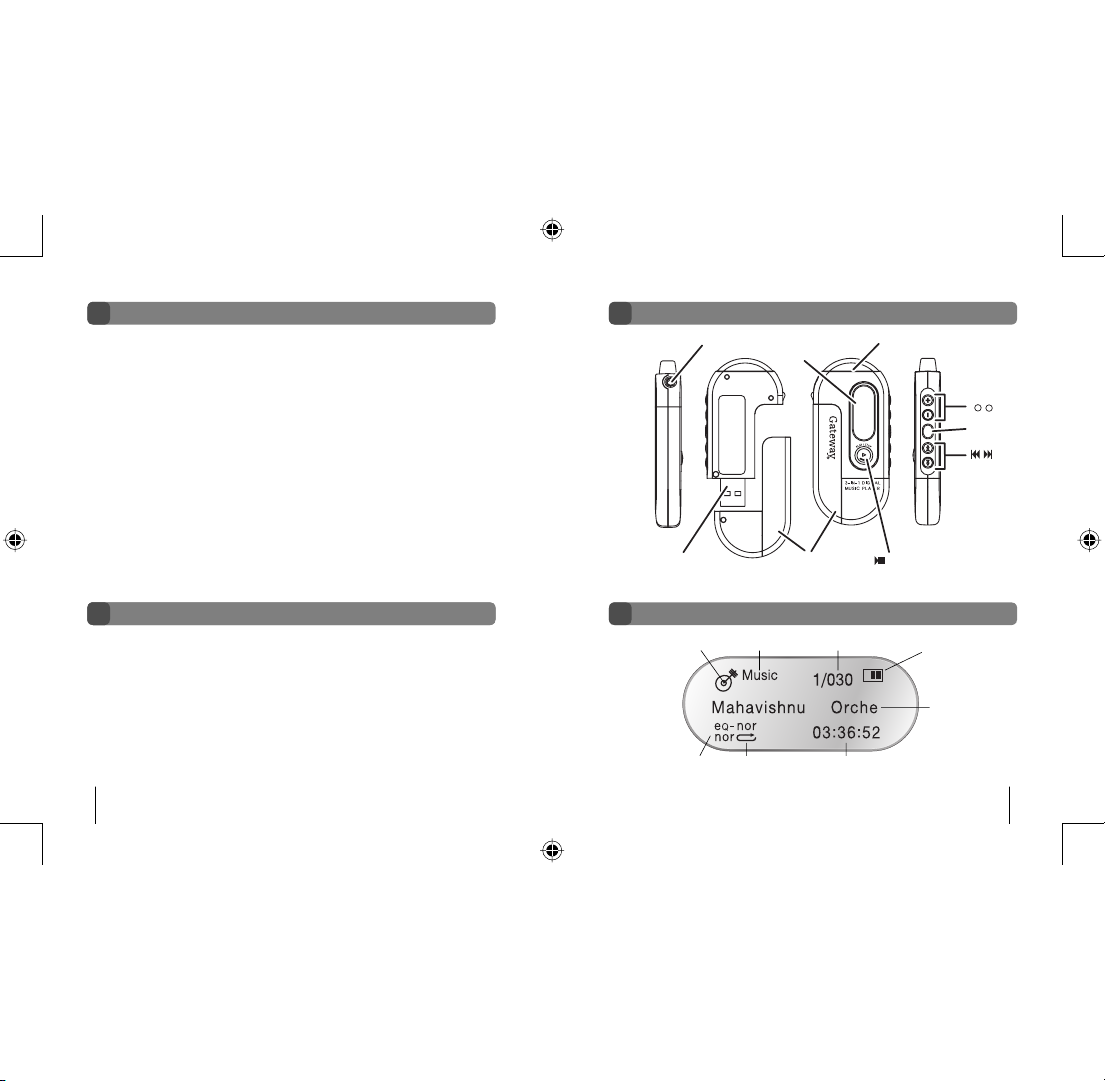
Earphone jack
Mode icon Mode File no. / Total file no. Battery power icon
Text scroll area
Playing timeRepeat iconEQ icon
Microphone
USB connector Battery case
LCD
panel
Mode button
(
+
-
)Buttons
Features
Package content
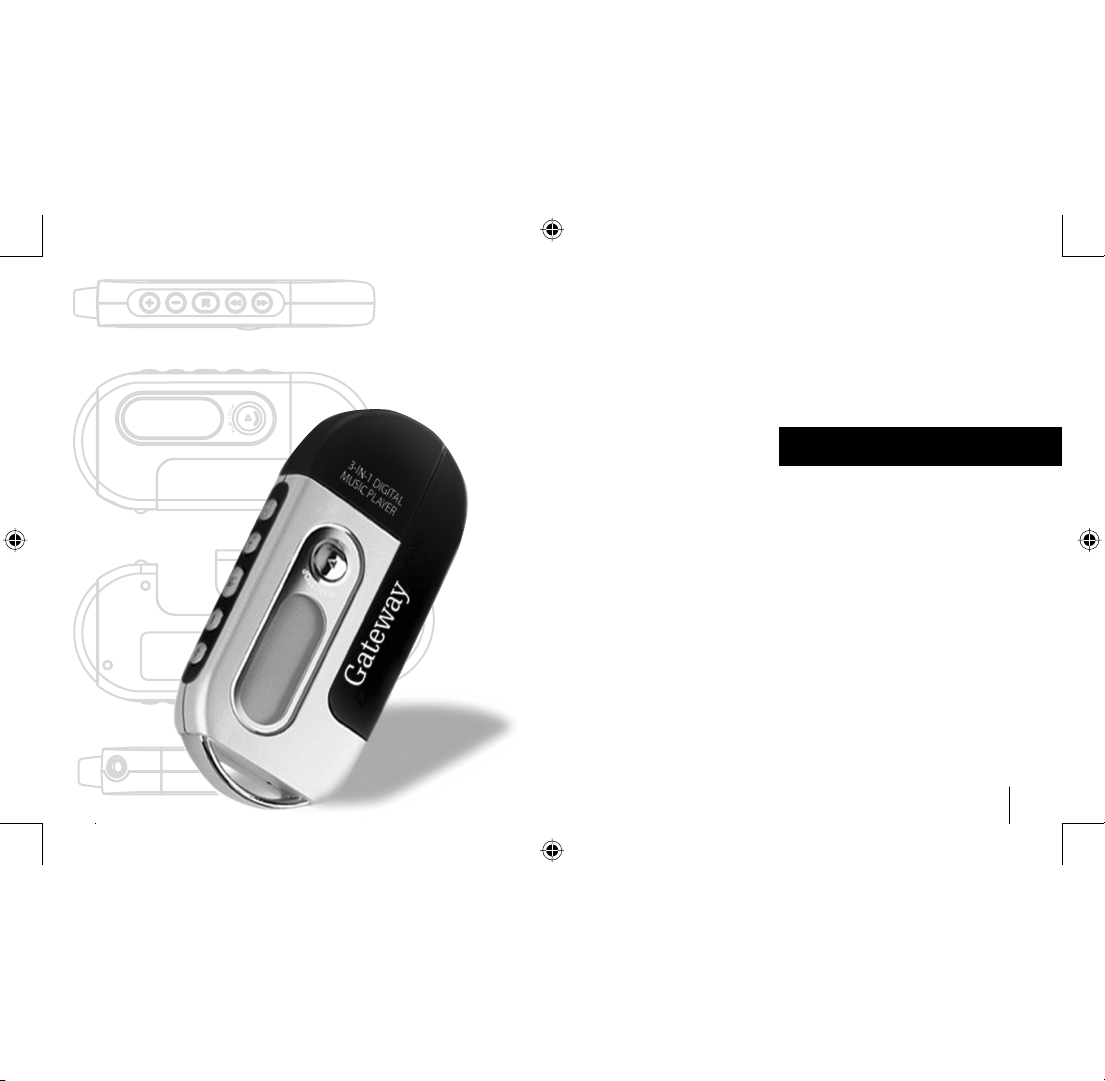
Product Overview
LCD Panel
Buttons
Play / Stop button
8509324.indd 6-7 7/3/2003, 10:36:37 AM
Gateway digital music player
8
Gateway digital music player
9
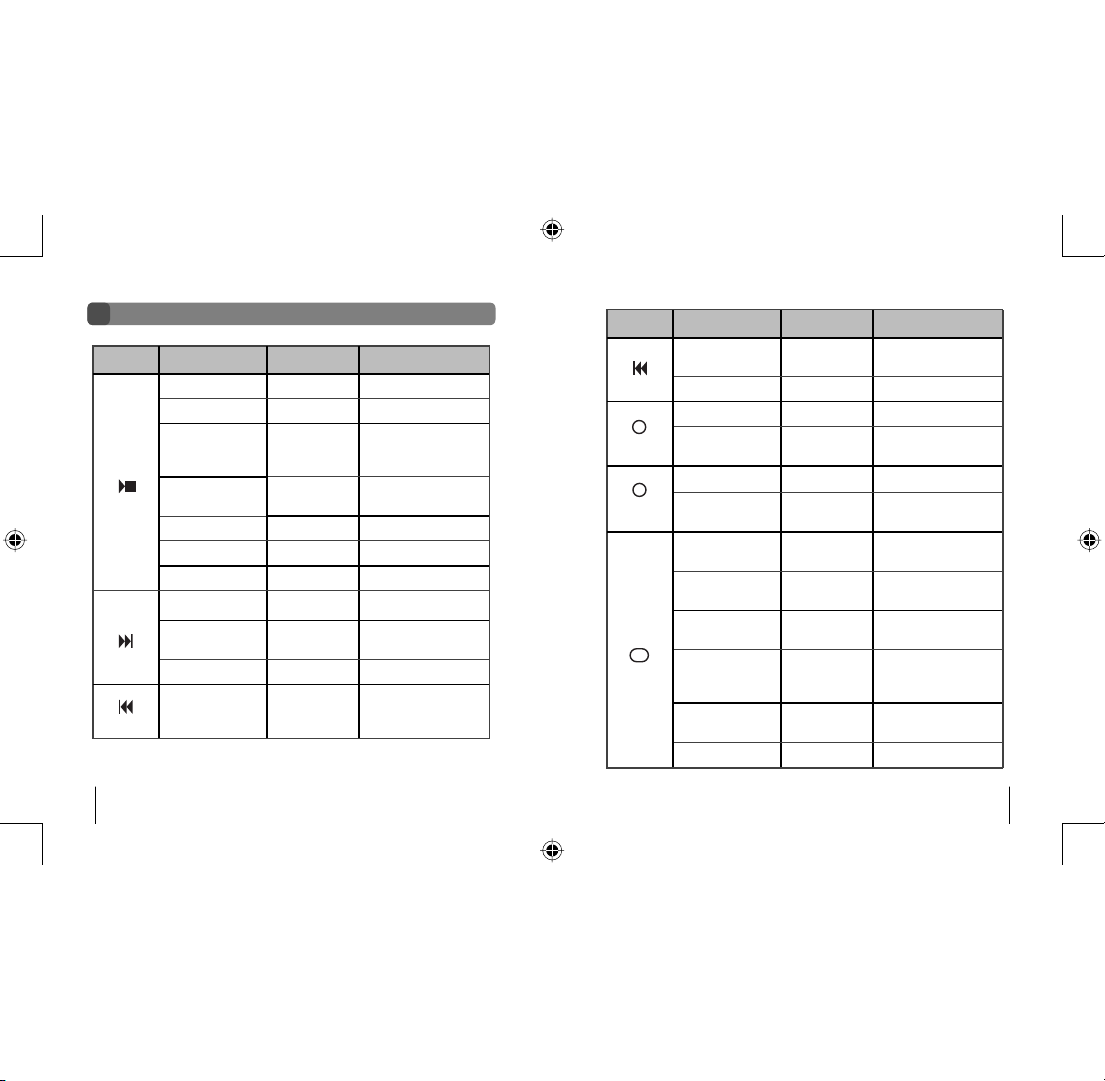
Button function table
Button Current status Push time Result
Power off Press and hold Power on
Music / Voice playback Briefly Stop
Music / Voice playback
/ Voice recording
/ Stop
Press and hold Power off
Stop
(Music / Voice mode)
Briefly Playback / recording
Stop (Record mode) Briefly Recording
Voice recording Briefly Stop
Menu mode Briefly Exit Menu mode
Playback Briefly Playback the next file
Playback Press and hold Fast forward search in
playback file
Stop Briefly To move to the next file
Playback Briefly Less than 5 sec. after
beginning playback : Former
file playback
Button Current status Push time Result
Playback Press and hold Fast backward search in
playback
Stop Briefly Move to the former file
+
Playback / Stop Briefly Volume up
Menu mode Briefly Move up the
menu options
-
Playback / Stop Briefly Volume down
Menu mode Briefly Move down the menu
options
Mode
M
Playback Briefly Set a repeat section
start point
While setting a
repeat section
Briefly Set a repeat section
end point
While playing a
repeat section
Briefly Cancel a repeat section
Stop Briefly Change the mode
between music, voice, and
voice recording
Playback / Stop Press and hold Enter the
Menu mode
Menu mode Briefly Select a Menu item
8509324.indd 8-9 7/3/2003, 10:36:37 AM

Gateway digital music player
10
Gateway digital music player
11
Using
• Installing the battery 12
• Listening to music quick start steps 12
• Turning the power On/Off 13
• Digital music player modes 13
• Playing digital music tracks or voice files 13
• Adjusting the volume 14
• Navigating music tracks or voice files 14
• Setting the repeat play function 14
• Recording voice 15
3-IN-1 DIGITAL
MUSIC PLAYER
8509324.indd 10-11 7/3/2003, 10:36:38 AM
Gateway digital music player
12
Gateway digital music player
13
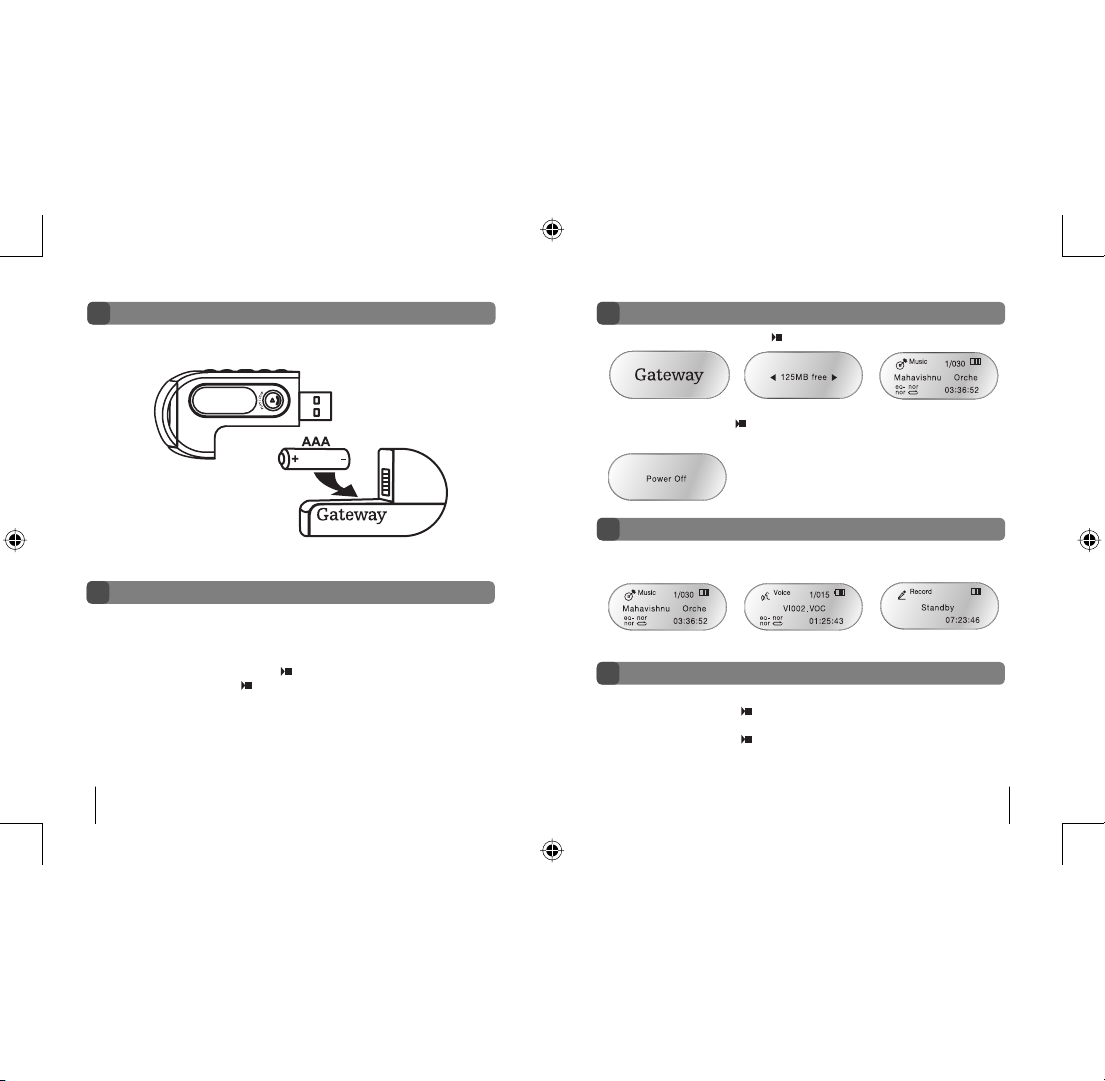
Installing the battery
• Insert one AAA battery into the player. Match the + and - symbols on the batteries with the
+ and - symbols inside the battery compartment
.
Digital music player modes
• To play music tracks or voice files
- Press the Play / Stop
button . The
music track or voice file plays.
• To stop music tracks or voice files
- Press the Play / Stop
button
.
The
music track or voice file stops playing.
• Stop playback and press the Mode button one or more times to select one of the following
player modes:
Music mode Voice mode Voice recording mode
Playing digital music tracks or voice files
Turning the power On and Off
• Press and hold the Play / Stop
button
to turn on the player. The player turns on.
• Press the Play / Stop
button for more than one second to turn off the player. If the
player is in Stop mode longer than one minute, the player turns off.
Listening to music quick start steps
• If you are using Windows XP, Windows Me, or Windows 2000:
1. Plug the player into your computer’s USB port.
2. Copy .MP3 files to the Music folder on the player.
3. Remove the player from your computer.
4. Press and hold the Play / Stop
button
to turn on the player.
5.
Press the Play / Stop
button
to play music.
8509324.indd 12-13 7/3/2003, 10:36:38 AM

Gateway digital music player
14
Gateway digital music player
15
• To change to another music track or voice file
- In the playback or stop mode, press the rewind button to move to the previous music
track or voice file. Press the rewind button within five seconds after a song has started
playing to repeat the previous music track or voice file.
- In the playback or stop mode, press the fast-forward button to move to the next music
track or voice file. Press the fast-forward button within five seconds after a song has
started playing to repeat the current music track or voice file.
• To move within a music track or voice file during playback
- Press the rewind or fast-forward button for more than one second and release the
button.
Note: Variable Bit Rate (VBR) files are MP3 files with multi-compression rates. These files
do not repeat previous or current music tracks or voice files. VBR file playtime may not
match the playback time displayed.
Navigating music tracks or voice files
Setting the repeat play function
• To set a repeat section start point
- While a file is playing, briefly press the Mode button to mark the start point of a music track
or voice file repeat section. The start point icon appears.
Recording voice
• To record voice
1. Select the voice recording mode. For more information, see “Digital music player modes”
on page 13.
2. Press the Play / Stop
button. The voice recording starts. Speak into the microphone.
• To stop the voice recording
- Press the Play / Stop
button. The recording stops and the voice file is created.
Note: When the player memory is full, the voice recorder stops and a voice file is created.
The available recording time appears below the “Standby” menu text.
725
• To adjust the volume
- The volume range adjusts from 0 to 30.
- Press the
+
button to turn the volume level up.
- Press the
-
button to turn the volume level down.
Adjusting the volume
• To set a repeat section end point
- While the file continues playing, briefly press the Mode button a second time to mark the
end point of a music track or voice file repeat section. The end point icon appears
and the music track or voice file repeats from the starting point (A) to the ending point (B).
• To cancel a repeat section
- While a repeat section is playing, press the Mode button. The repeat section is cancelled
and the recording plays in normal mode.
8509324.indd 14-15 7/3/2003, 10:36:38 AM
Gateway digital music player
16
Gateway digital music player
17
Menu Settings
• Menu table 18
• Using the Menu mode 20
• Setting the Repeat mode 20
• Setting the equalizer (EQ) function 22
• Managing files 23
• Setting the logo options 24
• Setting the display options 25
• Displaying file information 26
• Selecting the display language 26
3-IN-1 DIGITAL
MUSIC PLAYER
8509324.indd 16-17 7/3/2003, 10:36:39 AM
Gateway digital music player
18
Gateway digital music player
19
Note: Use Western as the
language option for English.
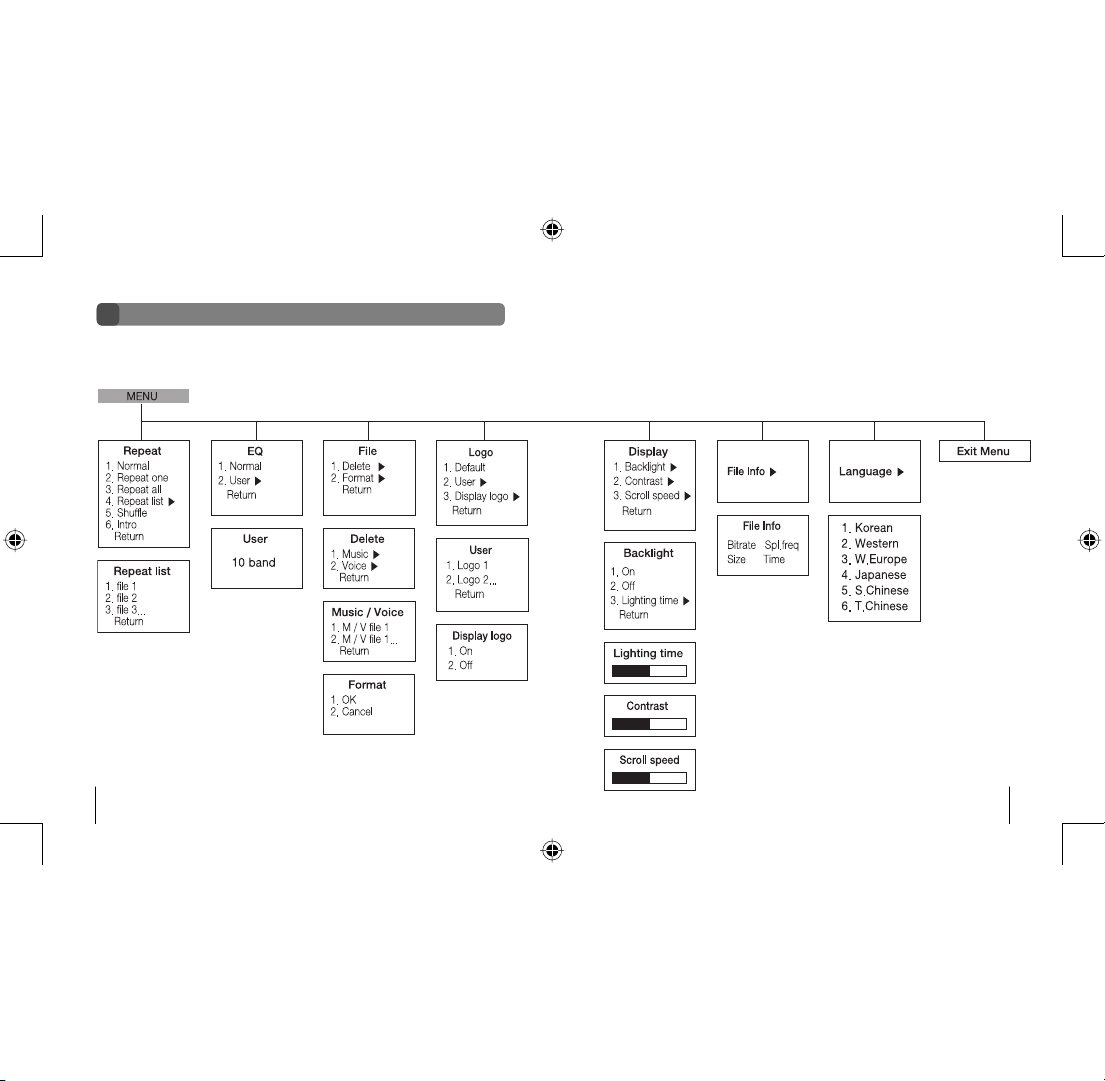
Menu table
The player includes a Menu mode that lets you customize and use the player features. This
diagram shows an overview of the Menu mode options. For more information, see “Using the
Menu mode” on page 20.
8509324.indd 18-19 7/3/2003, 10:36:39 AM
This manual suits for next models
2
Table of contents
Other Gateway MP3 Player manuals