Garmin Varia eRTL615 User manual

Varia™eRTL615
Owner’s Manual

© 2023 Garmin Ltd. or its subsidiaries
All rights reserved. Under the copyright laws, this manual may not be copied, in whole or in part, without the written consent of Garmin. Garmin reserves the right to change
or improve its products and to make changes in the content of this manual without obligation to notify any person or organization of such changes or improvements. Go to
www.garmin.com for current updates and supplemental information concerning the use of this product.
Garmin®, the Garmin logo, ANT+®, Edge®, fēnix®, Forerunner®, Venu®, and vívoactive® are trademarks of Garmin Ltd. or its subsidiaries, registered in the USA and other countries.
Garmin Connect™, Garmin Express™, and Varia™ are trademarks of Garmin Ltd. or its subsidiaries. These trademarks may not be used without the express permission of Garmin. The
BLUETOOTH® word mark and logos are owned by the Bluetooth SIG, Inc. and any use of such marks by Garmin is under license.
M/N: A04540
Country restrictions apply. 010-02790-00 is approved for operation in France and the United Kingdom. 010-02789-00 is approved for operation in Germany. 010-02791-00 is approved
for operation in European countries outside of Germany, France, and the United Kingdom.

Table of Contents
Introduction......................................1
Getting Started........................................ 1
Tips for Installing the Device.................. 1
Installing the Device on a Seat
Mount....................................................... 2
Installing the Device on a Rear Rack...... 3
Device Overview...................................... 4
Varia eRTL615 Status LED......................5
Tail Light Modes and Intensity............... 5
Turning Off the Varia eRTL615 Tail
Light......................................................... 5
The Varia eRTL615 and Your Edge
1040.................................................5
Pairing the Varia eRTL615 with Your
Edge 1040................................................ 6
Viewing Radar on Your Edge Bike
Computer................................................. 6
Tone Alerts for Approaching
Vehicles................................................... 6
Viewing Widgets...................................... 7
Customizing the Varia Device Settings
with Your Edge 1040............................... 7
Customizing the Radar Alert Settings
with Your Edge 1040............................... 8
The Varia eRTL615 and the Varia
App.................................................. 8
Pairing the Varia eRTL615 with Your
Phone....................................................... 8
Viewing Radar on the Varia App............. 9
Customizing the Varia App Alert
Settings.................................................... 9
The Varia eRTL615 and Your Radar
Display Unit...................................... 9
Varia RDU Overview.............................. 10
Installing the Varia RDU........................ 11
Pairing the Radar Device with the Varia
RDU........................................................ 11
Turning On the Varia RDU..................... 12
Turning Off the Varia RDU and Radar
Device.................................................... 12
Other Compatible Devices.............. 12
Pairing the Varia eRTL615 with a
Compatible Edge Bike Computer......... 12
Pairing the Radar Device with a
Compatible Garmin Watch................... 13
Device Information......................... 13
Device Care............................................13
Radar Detection.....................................13
Specifications........................................14
Troubleshooting............................. 14
Resetting the Device............................. 14
Product Updates................................... 14
The radar device is not responding..... 15
My phone will not connect to the
device..................................................... 15
Radar detection does not work
indoors................................................... 15
The status LED is flashing yellow........ 15
The status LED turns red while updating
the software.......................................... 15
The status LED turns red while plugged
into a power source.............................. 16
The radar device disconnects from the
Edge bike computer.............................. 16
The radar device disconnects from the
Varia app................................................16
The radar device disconnects from the
Varia RDU device................................... 16
Getting More Information..................... 16
Table of Contents i


Introduction
WARNING
See the Important Safety and Product Information guide in the product box for product warnings and other
important information.
The device can improve situational awareness. It is not a replacement for cyclist attentiveness and good
judgement. Always maintain awareness of your surroundings, and operate the bicycle in a safe manner. Failure
to do so could result in serious injury or death.
Always consult your physician before you begin or modify any exercise program.
Getting Started
You can use the Varia eRTL615 with your compatible Garmin® device or a phone. This list provides an overview
of the installation and setup tasks.
• Install the tail light mount (Installing the Device on a Rear Rack, page3).
• If you are using an Edge® series bike computer, pair the devices (The Varia eRTL615 and Your Edge 1040,
page5).
• If you are using your phone, download the Garmin Varia app to your phone, and pair the devices (Pairing the
Varia eRTL615 with Your Phone, page8).
• If you are using another Garmin device, pair the devices (Other Compatible Devices, page12).
Tips for Installing the Device
The Varia eRTL615 includes a tail light and micro radar that can detect approaching vehicles up to 140 meters
away.
• Select a secure location to mount the device where it does not interfere with the safe operation of your bike.
• Mount the device as high as possible for optimal light visibility and radar detection.
NOTE: The mount surface should be vertical. The devices are designed to accommodate most bike rack
angles.
• Mount the device 250 mm to 1200 mm above the road.
• Ensure the device faces backward and is perpendicular to the road.
• Make sure there are no obstructions in front of the light.
• Go for a test ride during the day in a safe environment.
Introduction 1
Installing the Device on a Seat Mount
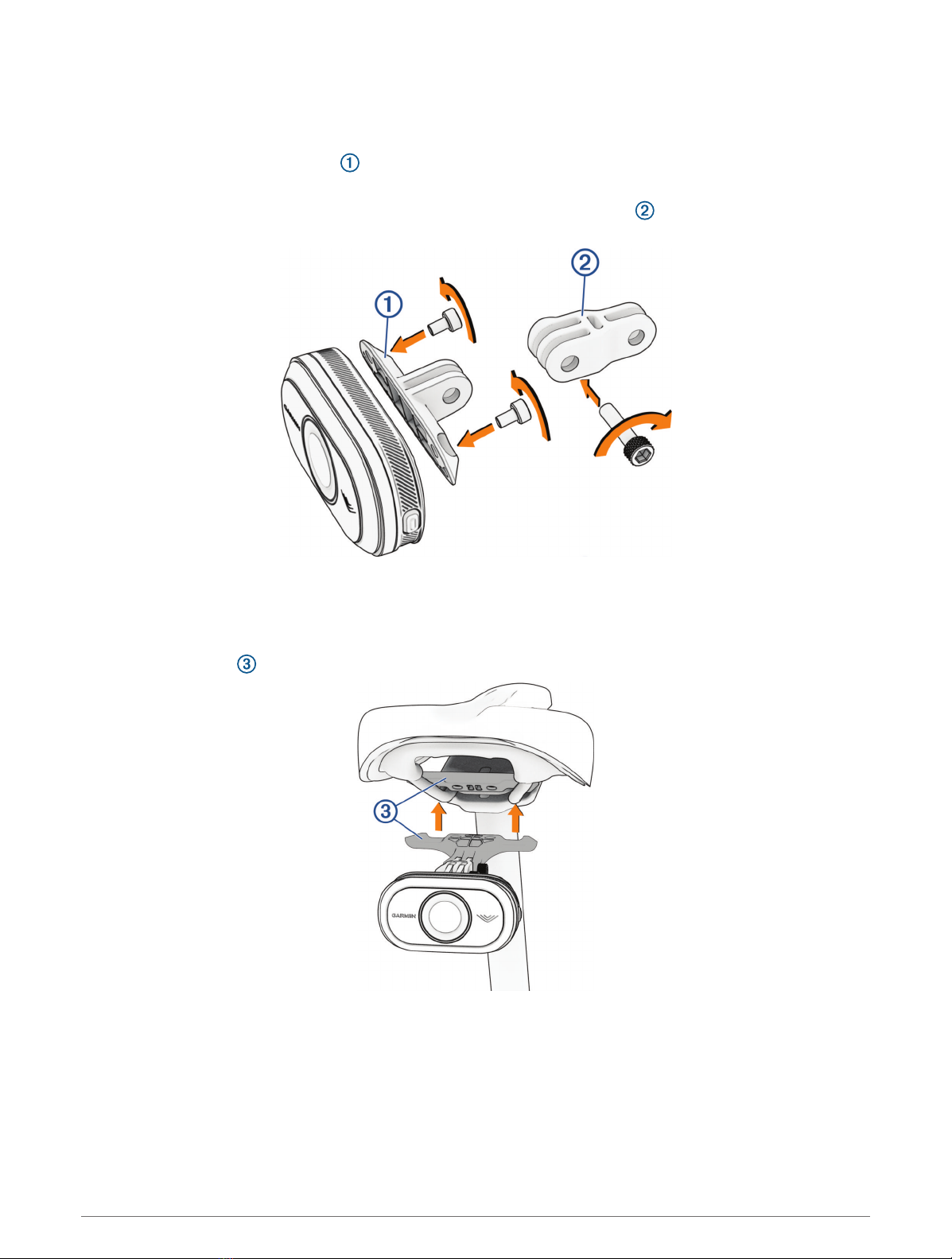
Before you can install the Varia eRTL615 tail light, you need 3 mm and 4 mm hex keys and a cable to connect
your device.
1Attach the friction flange adapter to your Varia eRTL615 tail light using two M4 screws.
2Using a 3 mm hex key, tighten the two M4 screws to 1 N-m (9 lbf-in.).
3If you have other attachments on the back of your seat, attach the extender to the friction flange adapter
using an M5 screw.
4Align the hole in the friction flange adapter or the extender with the hole in the center of the seat mount
bracket.
5Attach the device to the seat mount bracket loosely using an M5 screw.
NOTE: The M5 screw will be fully tightened after positioning the device on your bike.
6Attach the bracket to the rails under the seat.
7Using a 4 mm hex key, tighten the two M5 screws on the bracket to 2 N-m (18 lbf-in.).
8Position the device (Tips for Installing the Device, page1).
2 Introduction

9Using a 4 mm key, tighten the M5 screws on the friction flange adapter and extender to 3 N-m (27 lbf-in.).
10 Connect the cable to your bike.
If necessary, consult the owner's manual for your bike for additional information on connecting devices.
11 Secure the cable so that it does not interfere with any moving parts of the bike.
Installing the Device on a Rear Rack
Before you can install the Varia eRTL615 tail light, you need 3 mm and 4 mm hex keys and a cable to connect
your device.
1Complete the required steps based on the configuration of your rear rack:
• If the rear rack can accommodate the friction flange adapter, complete steps 2 through 5.
• If the device can be attached directly to the rear rack, complete steps 6 through 9.
2Attach the friction flange adapter to your Varia eRTL615 tail light using two M4 screws.
TIP: For longer bike racks or if you have other attachments on the back of your bike, attach the extender
to the friction flange adapter.
3Using a 3 mm hex key, tighten the two M4 screws to 1 N-m (9 lbf-in.).
4Align the hole in the friction flange adapter or extender with the hole in the rear rack of your bike.
Introduction 3
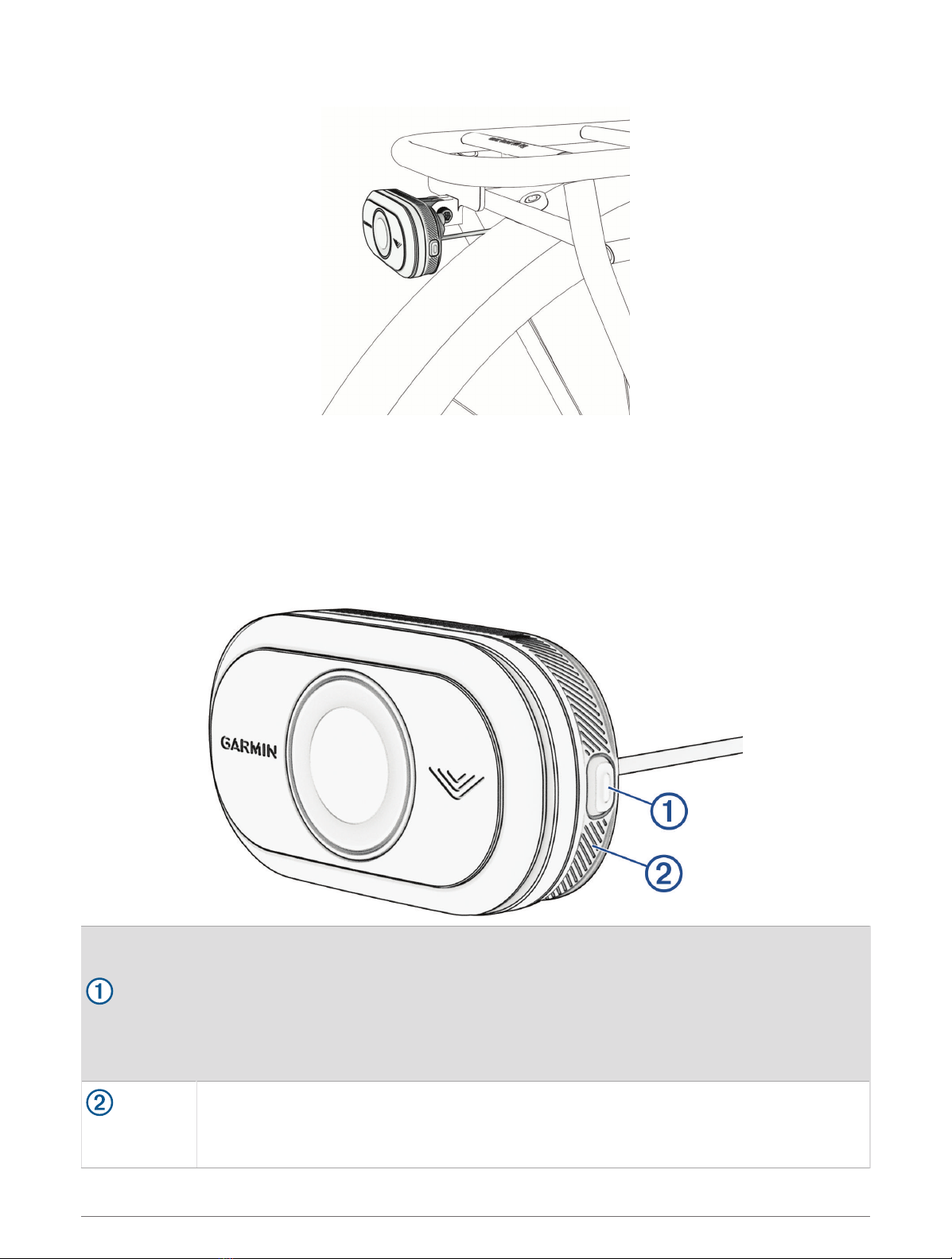
5Using a 4 mm hex key, tighten the M5 screw to 3 N-m (27 lbf-in.).
6If you are not using a friction flange adapter, align the holes in the rear rack of your bike with the holes on the
back of your Varia eRTL615 tail light.
7Using a 3 mm hex key, tighten the two M4 screws to 1 N-m (9 lbf-in.).
8Connect the cable to your bike.
Consult the owner's manual for your bike for additional information on connecting devices.
9Secure the cable so that it does not interfere with any moving parts of the bike.
Device Overview
Device button
Press to change device and light modes.
Hold for 1 second to turn the device on and enter active mode.
Hold for 4 seconds to enter pairing mode (Pairing the Varia eRTL615 with Your Phone,
page8).
When the device is in sleep mode, hold for 2 seconds to wake the device.
Hold for 2 seconds to turn the tail light off.
Hold for 10 seconds to reset the device.
Device status
LED
Changes color based on the pairing status and device mode status (Varia eRTL615 Status
LED, page5).
4 Introduction
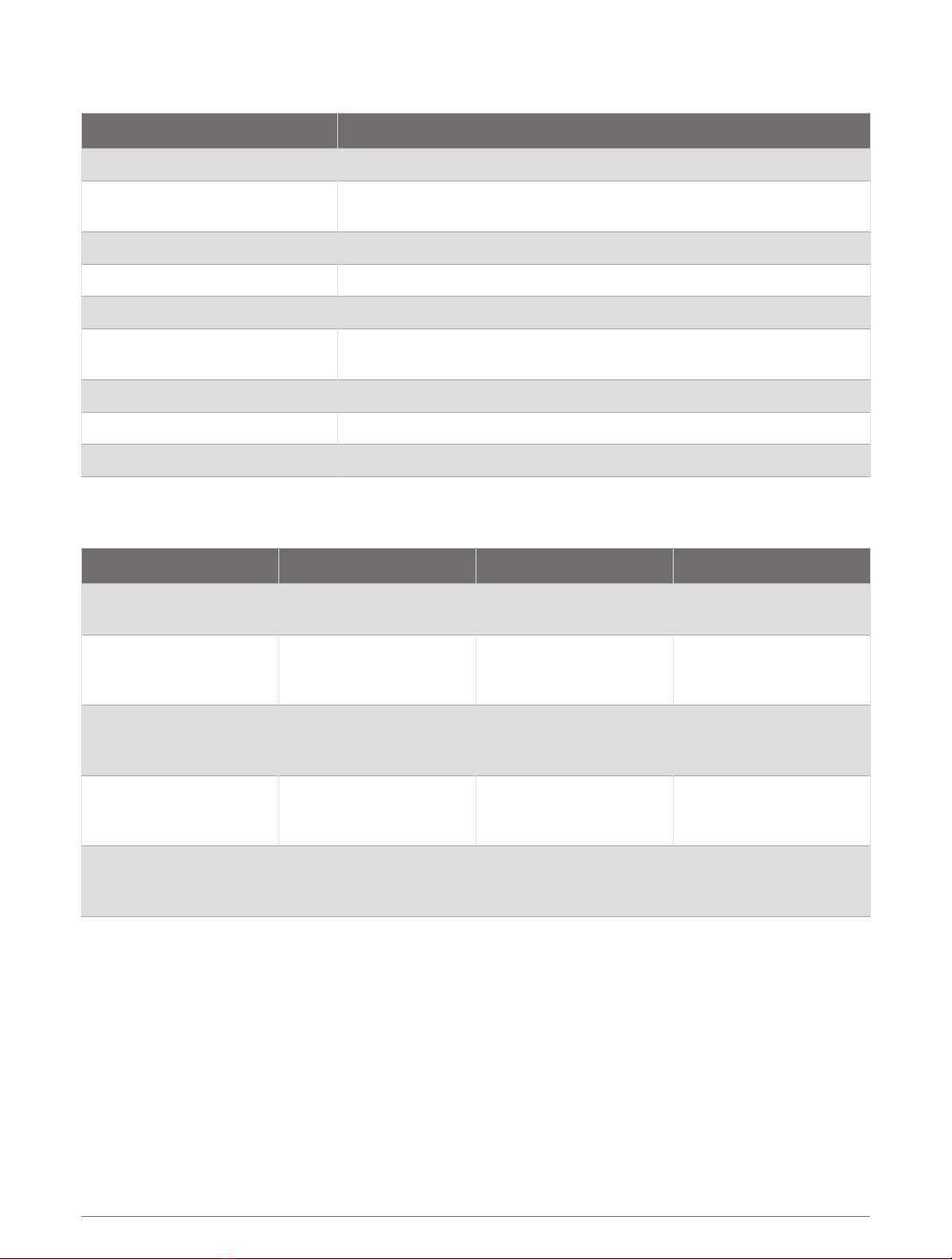
Varia eRTL615 Status LED
LED State Status
Flashing purple The device is in active pairing mode.
Flashing blue The device is in smart mode and can be controlled by a paired compatible
Garmin device.
Single blue flash The device entered smart sleep mode.
Double blue flash The device entered active mode.
Flashing yellow The device is in demo mode.
Flashing blue and green alter
nating The device is applying a firmware update.
Flashing green 10 times The device successfully applied a firmware update.
Flashing red 10 times The device was unable to apply a firmware update.
Solid red An error occurred. You may need to restart the device.
Tail Light Modes and Intensity
You can switch the Varia eRTL615 tail light modes by pressing the button (Device Overview, page4).
Mode Light Intensity Default Flash Behavior Function
Solid (default) High None The tail light is on, and the
device detects vehicles.
Peloton (group ride) Moderate None
The tail light flashes softly
when the device detects
vehicles.
Night Flash High Slow
The tail light flashes
quickly when the device
detects vehicles.
Day Flash Maximum Occasional
The tail light flashes
quickly when the device
detects vehicles.
Standby Off None
The tail light is off, and the
device continues to detect
vehicles.
Turning Off the Varia eRTL615 Tail Light
Hold the device button for 2 seconds (Device Overview, page4).
The radar continues to function while the tail light is off.
The Varia eRTL615 and Your Edge 1040
You can remotely control your radar device and customize settings using your compatible Edge bike computer.
This section contains instructions for the Edge 1040. Other compatible Edge bike computers contain similar
settings and controls (Other Compatible Devices, page12).
The Varia eRTL615 and Your Edge 1040 5
Pairing the Varia eRTL615 with Your Edge 1040
The first time you connect the Varia eRTL615 to your Edge 1040, you must pair both devices using ANT+®
technology. After the initial pairing, the Edge device automatically connects to the radar device when you start
your activity and the radar device is active and within range.
NOTE: The radar device is compatible with other Garmin devices (Other Compatible Devices, page12).
1Bring the Edge 1040 within range (3m) of the sensor.
NOTE: Stay 10m away from other wireless sensors while pairing.
2Turn on the Edge 1040.
3Select > Sensors > Add Sensor > Search All.
4While the Varia eRTL615 is turned off, hold the device button for 4 seconds to enter pairing mode.
The status LED flashes purple, and the tail light turns on. The device is in pairing mode for 5 minutes or until
you hold the device button for 2 seconds to exit pairing mode.
5Select your sensor, and select Add.
When the sensor is paired with your Edge 1040, the sensor status is Connected. The (radar) and (bike
light) status icons appear solid on the top banner of the home screen.
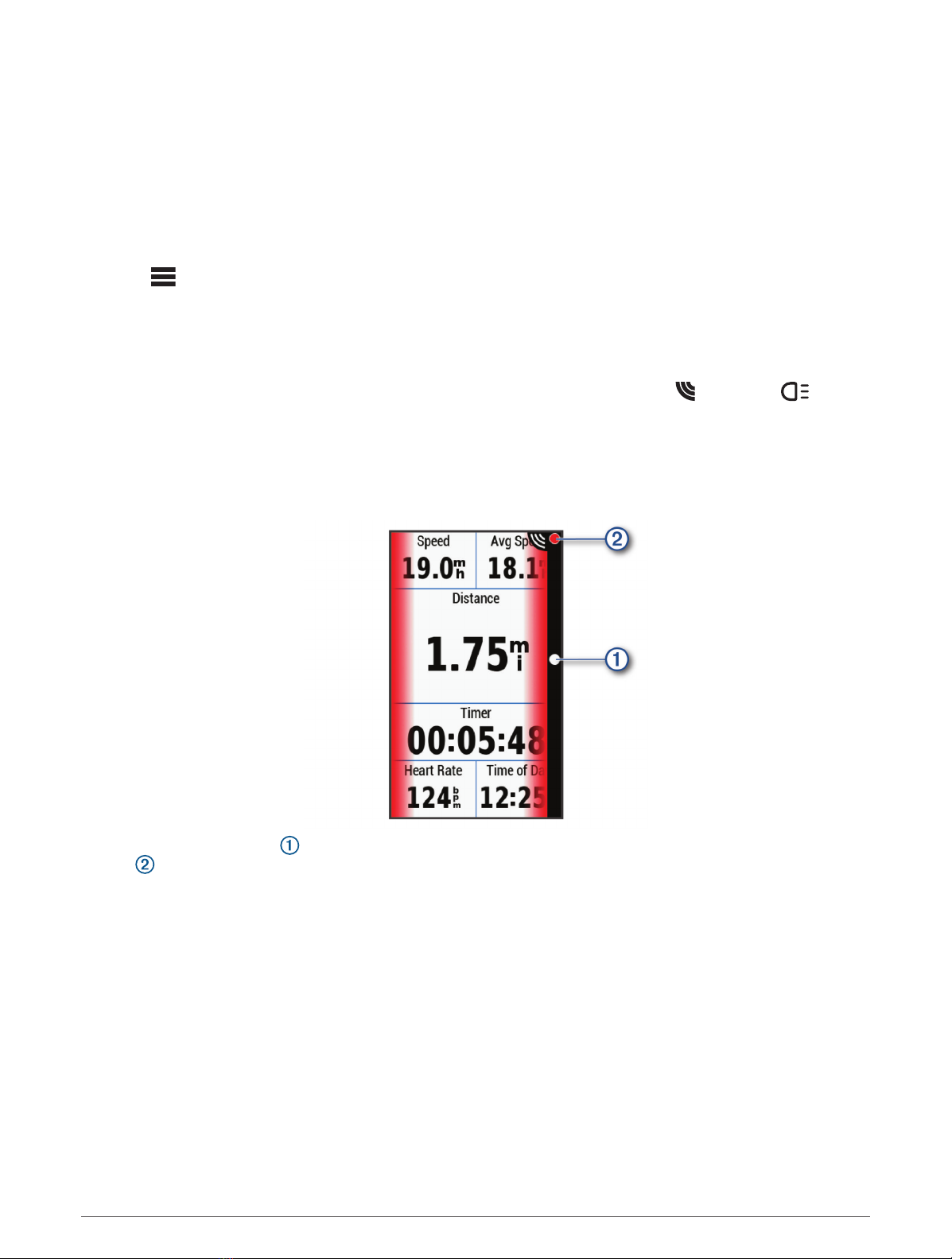
Viewing Radar on Your Edge Bike Computer
Go for a ride.
The radar information appears on the active data screen.
The vehicle position LED moves up the column as a vehicle gets closer to your bike. The threat level
LED changes color based on the potential level of threat. Green indicates no vehicle is detected. Amber
indicates a vehicle is approaching. Red indicates a vehicle is advancing at a high rate of speed.
Tone Alerts for Approaching Vehicles
The Edge device beeps if audible tones are turned on in the settings. Your device has alert tones for several
features. The alert tone for approaching vehicles has a unique sound. The device beeps one time when the first
vehicle is detected. After the threat is cleared, the device beeps again when another vehicle is detected.
6 The Varia eRTL615 and Your Edge 1040
Table of contents
Other Garmin Radar manuals

Garmin
Garmin VARIA RTL510 User manual

Garmin
Garmin GWX 68 Owner's manual

Garmin
Garmin GWX 68 User manual

Garmin
Garmin GMR 18 xHD User manual

Garmin
Garmin VARIA RVR315 User manual

Garmin
Garmin GWX 68 User manual

Garmin
Garmin VARIA RTL510 Instruction manual

Garmin
Garmin VARIA ERTL616 User manual

Garmin
Garmin GWX User manual

Garmin
Garmin GMR Fantom 18 Instruction Manual


Popular Radar manuals by other brands

SAW D2L
SAW D2L Valentine One Gen2 owner's manual

Raymarine
Raymarine Raytheon R20X instruction manual

Simrad
Simrad CA34 manual

Endress+Hauser
Endress+Hauser Micropilot FMR67B Brief operating instructions

Endress+Hauser
Endress+Hauser Levelflex M FMP45 operating instructions

ECHOMAX
ECHOMAX Active-X-Band manual