Focusrite Audio Engineering Novation Launchkey Mini User manual

1

2
Novation
A division of Focusrite Audio Engineering Ltd.
Windsor House
Turnpike Road
Cressex Business Park
High Wycombe
Buckinghamshire
HP12 3FX
United Kingdom
Tel: +44 1494 462246
Fax: +44 1494 459920
Web: http://www.novationmusic.com
Trade marks
The Novation trade mark is owned by Focusrite Audio Engineering Ltd. All other brand,product and company names
and any other registered names or trade marks mentioned in this manual belong to their respective owners.
Disclaimer
Novation has taken all possible steps to ensure that the information given here is both correct and complete. In no
event can Novation accept any liability or responsibility for any loss or damage to the owner of the equipment, any
third party, or any equipment which may result from use of this manual or the equipment which it describes. The infor-
mation provided in this document may be modified at any time without prior warning. Specifications and appearance
may differ from those listed and illustrated.
COPYRIGHT AND LEGAL NOTICES
Novation is a registered trade mark of Focusrite Audio Engineering Limited. Launchkey Mini is a trade mark of Focus-
rite Audio Engineering Plc.
2019 © Focusrite Audio Engineering Limited. All rights reserved.

32
Contents
Introduction Page 4
●Key Features
●What’s in the box
●Getting started with your Launchkey Mini [MK3]
●Getting Connected
●Launchkey Mini Setup examples
●Hardware Overview
●Rear view
●Top Panel
Using the Launchkey Mini [MK3] Page 10
Working with Ableton Live
●Installation
●Setup
●Session Mode
●Launching Clips
●Launching Scenes
●Stop, Solo, Mute
●Record/Capture MIDI
●Playing and recording drums
●Using Ableton Live’s Mixer
●Volume and Pan
●Sends
●Device
Arp Page 21
●Arpeggiator Rotary Knobs
●Tempo
●Swing
●Gate
●Mutate
●Deviate
●Arp Modes
●Arp Rates
●Arp Octaves
●Arp Rhythms
●Arp Latch
●Arp Pads
Fixed Chord Page 25
Custom Modes and Components Page 26
●Setting up Custom Modes
Working with Apple Logic Pro X Page 27
Working with Reason 10 Page 31
Working with HUI Page 32
(Pro Tools, Cubase)
Vegas mode Page 35

4
Introduction
The Launchkey Mini [MK3] is Novation’s most portable MIDI keyboard controller. Though compact
in size, Launchkey Mini is packed with powerful features and a streamlined workflow that will
elevate your music production and performance.
Launchkey Mini integrates perfectly with Ableton Live (and other DAWs) for both production and
performance. You can navigate and control Live’s Session View, play and record clips, adjust
effects and much more without ever looking at your computer. Additionally, we provide you with a
license for Ableton Live Lite should you need one.
Launchkey Mini features a creative arpeggiator (‘Arp’), as well as ‘Fixed Chord’ mode – both of
which make finding new musical ideas easier. Launchkey Mini’s pads bring your Ableton Session
to your fingertips in full RGB colour, so you know exactly which clips you’re launching. Finally, you
can make Launchkey Mini the perfect controller for your studio or on the go with Custom modes,
where you can customise knobs and pads using Novation Components.
The Launchkey Mini also features a standard TRS MIDI Out 3.5mm jack for connecting to your
hardware synths and drum machines. This means you can use many of the Launchkey Mini’s
functions without a computer!
If you need any support please contact us at support.novationmusic.com.
Key Features
● Ableton Live integration – Launch clips and scenes, control Live’s mixer, play instruments
and Drum Racks, capture MIDI, and more
● Integration with other DAWs (Apple Logic Pro X, Propellerhead’s Reason, etc. and HUI)
● Connect to your hardware with a standard TRS MIDI Out 3.5mm jack
● 25 velocity-sensitive mini-keys
● 16 velocity-sensitive RGB pads
● 8 rotary knobs
● Powerful and creative Arpeggiator for generating ideas quickly
● Fixed Chord mode
● Play and Record transport control
● Custom modes for user-defined mappings of knobs and pads
What’s in the box
● Launchkey Mini
● USB Type-A to B cable (1.5 meters)
● Safety Instructions
* TRS MIDI Out 3.5mm to MIDI DIN converters are available for purchase at
https://novationmusic.com.
54
Getting started with your Launchkey Mini [MK3]
We’ve made getting up and running with Launchkey Mini as easy as possible, whether you’re a
brand new beatmaker or a seasoned producer. Our ‘Easy Start Tool’ provides a step-by-step guide
on getting set up that is tailored to your needs.
We’ll give you exactly what you need, whether you’ve never made music before, or if you just want
to download your included software.
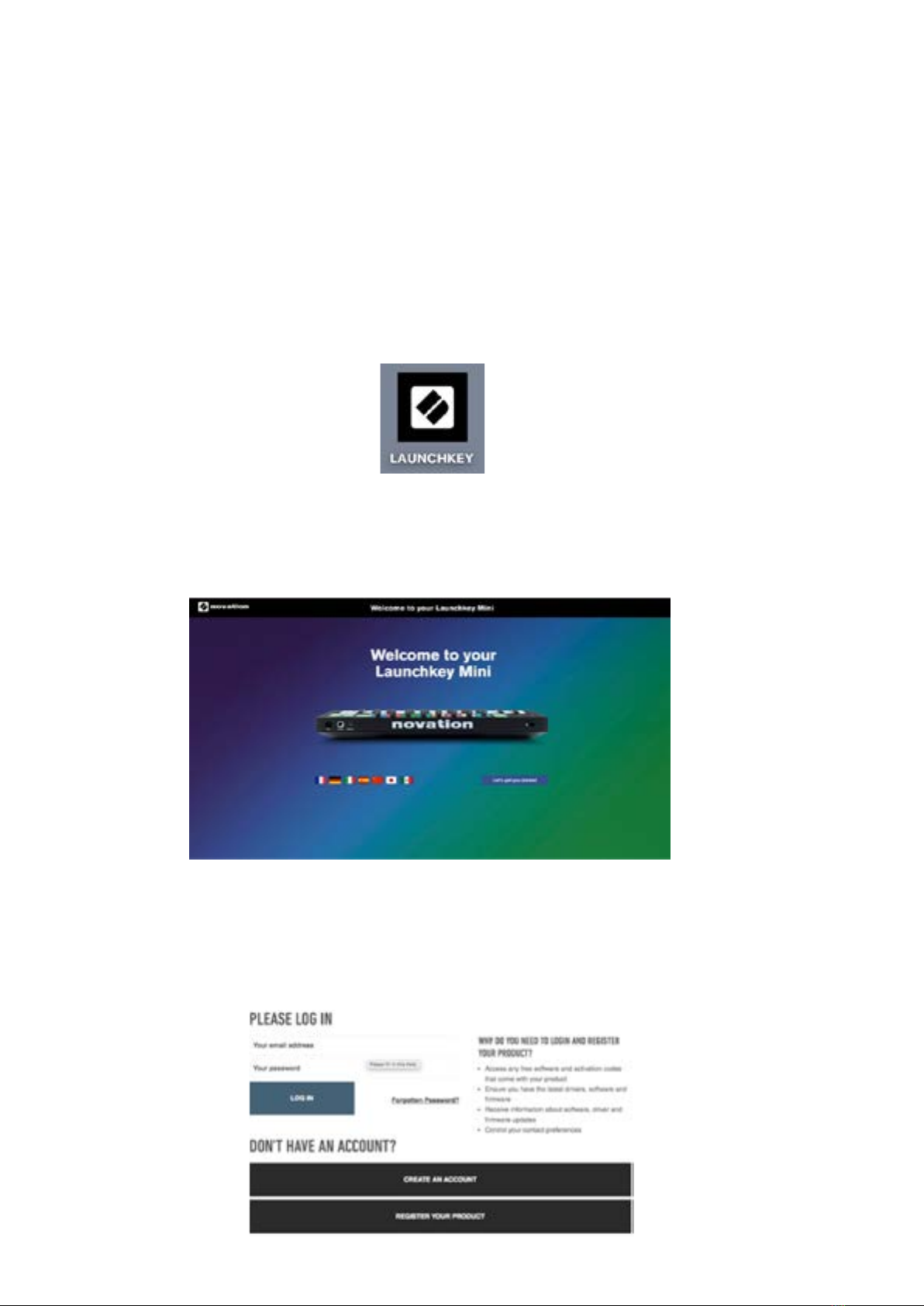
When connecting Launchkey Mini to your computer, it will appear as a ‘Mass Storage Device’, just
like a USB drive. Open this up and click the link ‘Click Here to Get Started.url’.
This will open our online Easy Start Tool, which will get you up and running, or take you straight to
your included software – you choose!
Mass Storage Device icon
As part of this process, you may register your Launchkey Mini [MK3] to get access to your
included software. We give you everything you need to start making tracks.
Easy to Start Tool Welcome page
Alternatively, you can also register your Launchkey Mini by going to
https://customer.novationmusic.com/register (pictured below). You'll then need to make an account
and enter the serial of your Launchkey, which will give you access to the bundled software.

6
Getting Connected
Connecting to a Computer
The Launchkey Mini is bus-powered, meaning it turns on as soon as you connect it to your
computer with a USB cable.
Connecting to Mobile devices
iOS
To operate the Launchkey Mini with an iOS device, use Apple’s Lightning to USB 3 Camera
Adapter with a separate Lightning charger.
Stop
Solo
Mute
Arp Fixed
Chord
Transpose
Shift
Pitch Modulation
Arp
Tempo Swing Gate Mutate
Channel
Octave
ProgramChange
Session Drum Custom Device
Arp Mode
Up Down Up/Down Played Random Chord Mutate
Rate Octave
1/4 1/8 1/16 1/32 Triplet 1 2 3 4 o oxo oxxo
Rhythm Latch
Deviate
Volume Pan Sends Custom
Random Deviate On/Off
Track
CaptureMIDI
+
-
ios
Stop
Solo
Mute
Arp Fixed
Chord
Transpose
Shift
Pitch
Modulation
Arp
Tempo
Swing
Gate Mutate
Channel
Octave
ProgramChange
Session
Drum
Custom Device
Arp Mode
Up Down
Up/Down Played Random Chord
Mutate
Rate
Octave
1/4 1/8
1/16 1/32
Triplet 1 2 3 4 o oxo oxxo
Rhythm Latch
Deviate
Volume Pan Sends Custom
Random Deviate On/Off
Track
CaptureMIDI
+
-

76
Android
To operate the Launchkey Mini with an Android device we recommend a USB OTG
to USB adapter.
Using as a standalone MIDI controller
If you want to use the 3.5mm MIDI output on the Launchkey Mini without a computer, you can
power the unit with a standard USB power supply (5V DC, minimum 500mA).
Note that the Launchkey Mini is only compatible with Circuit using TRS MIDI Type A adapters.
Many other Novation products (such as Launchpad Pro) will also require a Type A adapter to
properly communicate with the Launchkey Mini.
Stop
Solo
Mute
Arp Fixed
Chord
Transpose
Shift
Pitch Modulation
Arp
Tempo Swing Gate Mutate
Channel
Octave
ProgramChange
Session Drum Custom Device
Arp Mode
Up Down Up/Down Played Random Chord Mutate
Rate Octave
1/4 1/8 1/16 1/32 Triplet 1 2 3 4 o oxo oxxo
Rhythm Latch
Deviate
Volume Pan Sends Custom
Random Deviate On/Off
Track
CaptureMIDI
+
-
Android
Android
Stop
Solo
Mute
Arp Fixed
Chord
Transpose
Shift
Pitch Modulation
Arp
Tempo Swing Gate Mutate
Channel
Octave
Program Change
Session Drum Custom Device
Arp Mode
Up Down Up/Down Played Random Chord Mutate
Rate Octave
1/4 1/8 1/16 1/32 Triplet 1 2 3 4 o oxo oxxo
Rhythm Latch
Deviate
Volume Pan Sends Custom
Random Deviate On/Off
Track
Capture MIDI
+
-

8
Hardware Overview
1. Pitch and Modulation touch strips for bending pitch or adding modulation.
2. Press Shift and other buttons to access secondary functions (in grey).
3. Transpose lets you transpose your keyboard plus or minus 11 semitones. Press Shift and
Transpose to select MIDI Channel output for the keyboard.
4. Octave + and - buttons move the keyboard up or down across 7 octaves (C-1 to C5).
5. Rotary knobs control hardware, software parameters, or settings on the Launchkey itself.
6. Pads are great for triggering clips in Ableton Live’s Session View and playing drums.
Holding Shift lights up the top row of pads, with the current pad mode lit the brightest. You
can then switch between the 3 pad modes:
● Session – For triggering clips and navigating Live’s Session View.
● Drum – For playing drums with the velocity-sensitive pads.
● Custom – For playing a custom selection of notes with personalised colours.
Edit custom modes on https://components.novationmusic.com/launchkey-mini-mk3
7. Press the Arp button to enable the Arpeggiator.
8. While holding the Fixed Chord button, press and release the keys that you wish to be
part of the stored, ‘fixed’ chord.
9. This button controls your DAW’s playback.
10. The Record button starts the recording process in your DAW.
Stop
Solo
Mute
Arp Fixed
Chord
Transpose
Shift
Pitch
Modulation
Arp
Tempo
Swing
Gate Mutate
Channel
Octave
Program Change
Session
Drum Custom Device
Deviate
Volume Pan Sends Custom
Track
Capture MIDI
+
-
12
3
4
5
678
910
Arp Mode
Up Down
Up/Down Played Random Chord
Mutate
Rate Octave
1/4 1/8
1/16 1/32 Triplet 1 2 3 4 o oxo oxxo
Rhythm Latch
Random Deviate On/Off

98
Rear view
Top Panel

10
Using the Launchkey Mini [MK3]
The Launchkey Mini is designed to work seamlessly with Ableton Live, offering deep integration
through powerful production and performance controls. Launchkey Mini also boasts a powerful
arpeggiator (‘Arp’) and a ‘Fixed Chord’ mode – both of which can be used with Live, other DAWs,
or standalone with your outboard gear. In addition, you can modify the Launchkey Mini to suit your
needs with Custom Modes. Continue reading for explanations of all of Launchkey Mini’s functionality.
Working with Ableton Live 10
Installation
If you don’t yet own Ableton Live 10, register your Launchkey Mini at novationmusic.com/register
to download and install your included copy of Ableton Live 10 Lite. If you’ve never used Ableton
Live before, we recommend visiting our Easy Start Tool (see ‘Getting Started with your Launchkey
Mini [MK3]’). There you’ll find videos covering installation, the software’s basic features, and how
to get started making music with your Launchkey Mini.
Setup
With Ableton Live installed, get your Launchkey Mini up and running by plugging it into your Mac or
PC’s USB port. When you open Live your Launchkey Mini will be automatically detected and enter
Session mode.
If you press Shift on the Launchkey your pad lights should look like the image below. The first 3
pads (orange) select pad behaviour, while the 5 pads to the right (green) select knob behaviour.
Hold Shift to see these default pad colours
If your pads do not resemble the image above you’ll need to configure Live’s Control Surface
Preferences. To do this, find the ‘Link/MIDI’ Preferences menu in Ableton Live:
Windows: Options > Preferences > Link/MIDI
Mac: Live > Preferences > Link/MIDI
Stop
Solo
Mute
Arp Fixed
Chord
Transpose
Shift
Pitch Modulation
Arp
Tempo Swing Gate Mutate
Channel
Octave
Program Change
Session Drum Custom Device
Deviate
Volume Pan Sends Custom
Track
Capture MIDI
+
-
Arp Mode
Up Down
Up/Down Played Random Chord Mutate
Rate Octave
1/4 1/8 1/16 1/32 Triplet 1 2 3 4 o oxo oxxo
Rhythm Latch
Random Deviate On/Off
Table of contents
Other Focusrite Audio Engineering Recording Equipment manuals