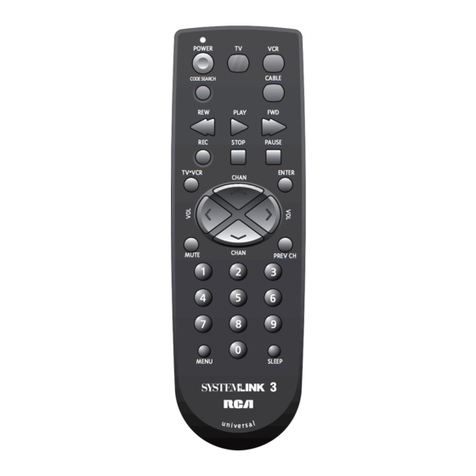
foc.us RM-518 plus User manual

The Magical remote
User Guide
V.990907

- 1 -
Contents
Introduction of Remote Control P. 3
Specification P. 4
Start the Remote control set up P. 5
1 Prepare P. 5
2 Set ID P. 5
3 Notice P. 6
4 Trouble shooting P. 7
Remote Key description P. 8
1 Key location: P. 8
2 Key Description P. 9
How to install Emitta Smart Commander? P. 10
Make sure before Installation P. 10
Start the installation P. 11
After Installation P. 13
Introduction for Key Remap P. 14
Emitta setup Control panel P. 14
1 Find out the control panel P. 14
2 General setting P. 14
2.1 Set Key delay P. 14
2.2 TEXT Typing P. 17
2.3 Characters selection P. 17
2.4 Automatic hint for text typing on window P. 17
2.5 Symbol table setting P. 19
2.6 Caps lock P. 20
3 Hot key setting: P. 21
3.1 Application list P. 21
3.2 Remap keys list P. 22

- 2 -
3.3 Remap key’s Shortcut: P. 23
3.4 Remap key with macro command P. 24
3.4.1 Normal Characters: P. 24
3.4.2 System Characters P. 24
3.4.3 Special Characters P. 25
FCC Information P. 27
Production Notice P. 28

Introduction of Remote Control
This remote is not only a RF 2.4GHz wireless remote, but also it combines the radio
frequency wireless technology and an optical trackball with mouse keys and MCE start Key.
When you use it under Vista platform, you can press the MCE direct keys, and you can use
the multimedia keys as your media controller.
Installation CD Remote control Receiver
- 3 -

- 4 -
Specification:
1 Remote control:
2.4GHz wireless with 8 channels,
ID: 65536 ID per channel.
Working range: 10 meters360 degree navigation
Key numbers: 47 keys included, 2 mouse key, 4 arrow key, 26 function key and 15
characters key.
Trackball: 19mm Optical, 800DPI
Battery: AA size of Alkali batteries x 2pcs
Dimension: 178 x 50 x32 mm
2 Receiver:
USB interface
Dimension: 78 x 21.5 x 10mm
3 Installation CD:
Dimension: 120 x 120mm
Soft program:
Emitta smart commander SC-503
User manual - PDF type
User manual - Flash type
4 Patent No.
ZL 2005 2 0115609.X
ZL 2005 3 0120667.7

Start the Remote control set up:
1 Prepare:
1.1 Turn on the power of computer, and plug USB receiver into USB port of your
computer.
1.2 Open the battery cover under the remote and place 2 AA batteries inside the
battery compartment.
2 Set ID:
2.1 Press the ID button on Receiver, the LED will be flashing; which means receiver
is sourcing ID.
2.2 Continuously, Press the ID button on the back of remote, the LED on receiver will
be off, which means the setting is successful.
ID Button
LED light
- 5 -

3 Notice:
3.1 RF signal LED light on the receiver will be flashing when the remote is being
used.
3.2 When Battery Low LED light on Remote is lighting, it means the remote requires
changing batteries.
3.3 When doing the ID setting, please make sure the distance between the receiver
and remote is within 60 cm (2 feet).
Battery Low caution
LED light
60cm
- 6 -

- 7 -
4 Trouble shooting:
If your remote cannot work after installation, please check followings:
4.1 Make sure you have connected the receiver correctly to the computer, The
receiver has been properly plugged into computer’s USB port.
4.2 Make sure you have inserted two AA batteries into its compartment correctly.
4.3 If without any interference, such as other computer peripherals, the working
distance ( distance between remote and the receiver) is about 10 meters.
4.4 If using more than two unit and interfere occurred, please reset ID again. (see
section at Page 6)

Remote Key description:
1 Key location:
This remote control has 4 areas of keys with different functions
1. First area is the MCE direct keys. (In
the red block)
2. Second area is the Multimedia control
keys. (In the yellow blocks)
3. Third area is the Mouse & arrows
keys. (The keys in blue round)
4. Forth area is the number keys with
TEXT typing function. (In the Green
block) map them as any function
keys.
1
3 2
4
- 8 -

- 9 -
2 Key Description:
2.1 First area is the MCE direct keys. (In the red block)
You can use those keys into Vista Multimedia Center directly before you
remap keys as other function, or you can remap any one of them as your
customized function key.
2.2 Second area is the Multimedia control keys. (In the yellow blocks)
You can use those keys to control your multimedia application, such as
change volume, change channel, record, stop, Play/Pause, backward, forward,
rewind, Mute... or you can remap any one of them as your customized function
key on different application
2.3 Third area is the Mouse & arrows keys. (The keys in blue round)
They are the most convenient and important keys on this remote, you can use
the track ball and mouse keys as a thumb mouse, move the trackball by
thumb to any where on screen, and the arrows keys help you up, down, left
and right, also you can remap the arrows as function keys as you hope.
=key and i key help you back or get information, the functions are same as
backspace on desktop keyboard and the mouse's right key. Also you can
remap them as different functions
2.4 Forth area is the number keys with TEXT typing function. (In the Green block)
They are similar with your cell phone, you can use this remote as a palm
keyboard, easily type characters or numbers, and also, you can remap them
as any function keys
Table of contents
Other foc.us Remote Control manuals