
FLINQ FQC8149 User manual
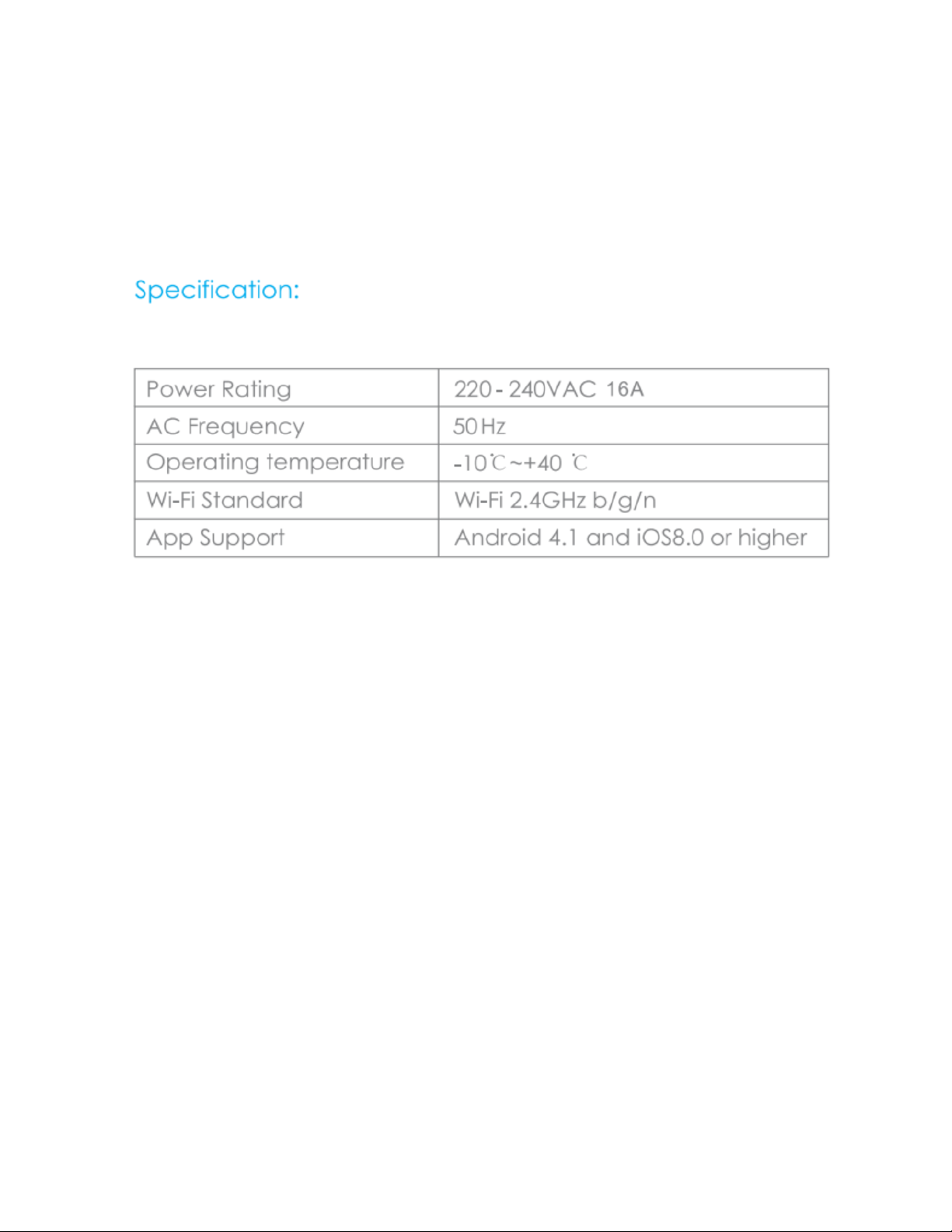
FlinQ 3-Pack Smart Power Plug with Voice Control
Model: FQC8149
Instruction Manual V1
NOTE : Do not install your smart plug till point 4!
1. BEFORE YOU BEGIN
Make sure your mobile device is running: iOS 8.1 & higher or Android 4.4 & higher
Verify your WIFI network/name and ensure your mobile device is connected to the same
2.4 GHz WIFI network/name/Router (5GHZ Networks are NOT supported!)
2. DOWNLOAD THE TUYA SMART APP
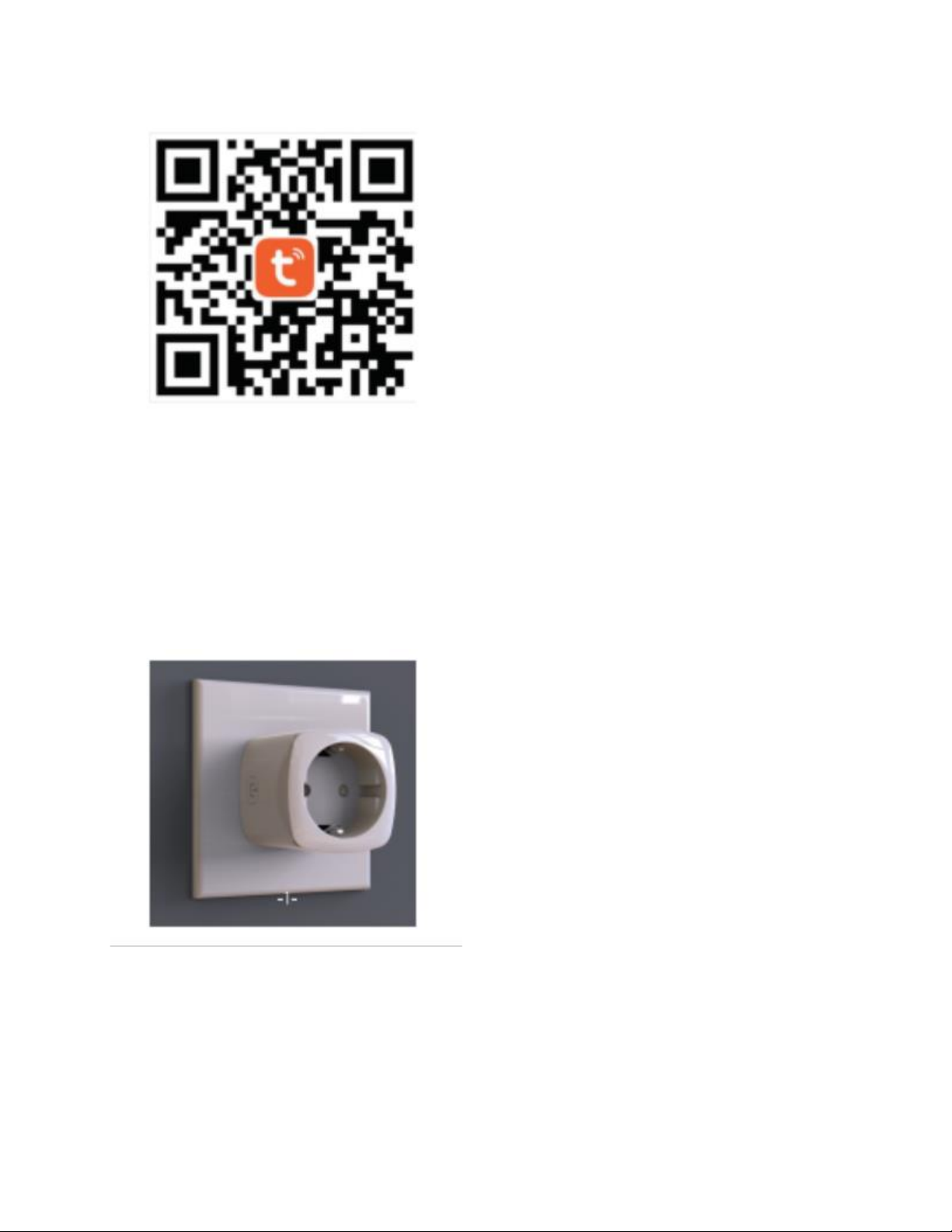
Download the app in the App store or the Google Play store and search for “TUYA SMART”
app. Or Scan the below QR Code below:
3. REGISTER/LOGIN/PROFILE
1. Launch the “TUYA SMART” Application
2. Tap “agree” to confirm the privacy policy
3. To register, enter your mobile phone number or email address.
4. Press “verification code retrieval”
5. Enter the “verification code” that was send by phone number or email address
6. Create a password and login for the new App use or go to Login if you already have
an existing account
(I WILL ARRANGE A NEW PICTURE)
4. SETUP YOUR SMART WIFI PLUGS
1. Install your wifi plug into the grounded power outlet
2. Click on “Add Device” or “+”.
3. Select your product type “wall plug/outlet” (wifi)
4. Click on “CONFIRM” when the wifi plug flashes rapidly.

5. Follow the instructions within the App during connection and configuration
6. Congratulations your are ready to use the FlinQ Smart Plugs!
5. RESET IF NEEDED
In case your Wifi plug is not flashing follow these below steps clearly:
1. Click on “HELP” or use the FAQ inside the App
2. Follow steps 1 till 3 until the wifi plug flashes.
STEP 1: Power ON the device then power OFF after 10 sec and then power ON again.
STEP 2: Hold the reset button for 5 SEC…
STEP 3: Confirm the indicator light is now rapidly flashing, then press “confirm indicator rapidly
blinking” button in the App
6. SETUP VOICE ASSISTANCE
GOOGLE ASSISTANT:
1. Open the “Google Home” app
2. Select the right below “profile/face” button, then select under the section ”Google
assistant” the “more settings” and then go to the tab “assistant” in the top and select
“home control”
3. Select “+” on the right hand side bottom
4. Search for “TUYA SMART” in the search bar or select it in the list when scroll down
5. Follow the instructions to establish the connection link and use your Tuya password and
login when requested during the set-up process.
6. Ready!
THINGS YOU CAN SAY:
“Hey Google, turn on the coffee machine”
“Hey Google, turn on the lights”
AMAZON ALEXA:
1. Open the “Amazon Alexa” app
2. Select “Skills & Games” from your menu
3. Search for “TUYA SMART” and select “Enabale to use”
4. Follow the instructions to establish the connection link and use your Tuya password and
login when requested during the set-up process.
5. Ready!
THINGS YOU CAN SAY:
“Alexa, turn off the fan”

“Alexa, turn of the table lamp”
NOTE/WARNINGS:
•Never connect several wifi plugs in series!
•Make sure the WIFI networks are 2,4Ghz only during setup
•The WIFI authorization method should be set as WPA2-PSK and Encryption type as AES
or set both at AUTO
•Router wireless cannot be set as 802.11N
•If any problems, please restore the plug and set it up again from start!
•For Google assistant and Alexa; if these cannot be found, try to disable the TUYA
function or the home skill app (for Alexa)
•If you need to fully RESET the Smart Plug follow the RESET instructions in the TUYA
app or the FAQ.
•Do not open the Smart Plug yourself
•This Smart plug is not waterproof! ONLY USE IT INDOOR!
•This Smart Plug is not a TOY, Keep away from children!
•Do not exceed the total power capacity (16A) from the smart plug with the used
appliances/devices!
•Only use this smart plug with earthed power outlets and not with extension cables
•Do not use with appliances that could cause any fire in unattended use (like irons etc)
•This Smart Plug does not have any safety disconnection
•Any other use as the intended way for this Smart plug is not validated for any warranty or
liability.
•This Smart Plug is only used for private use
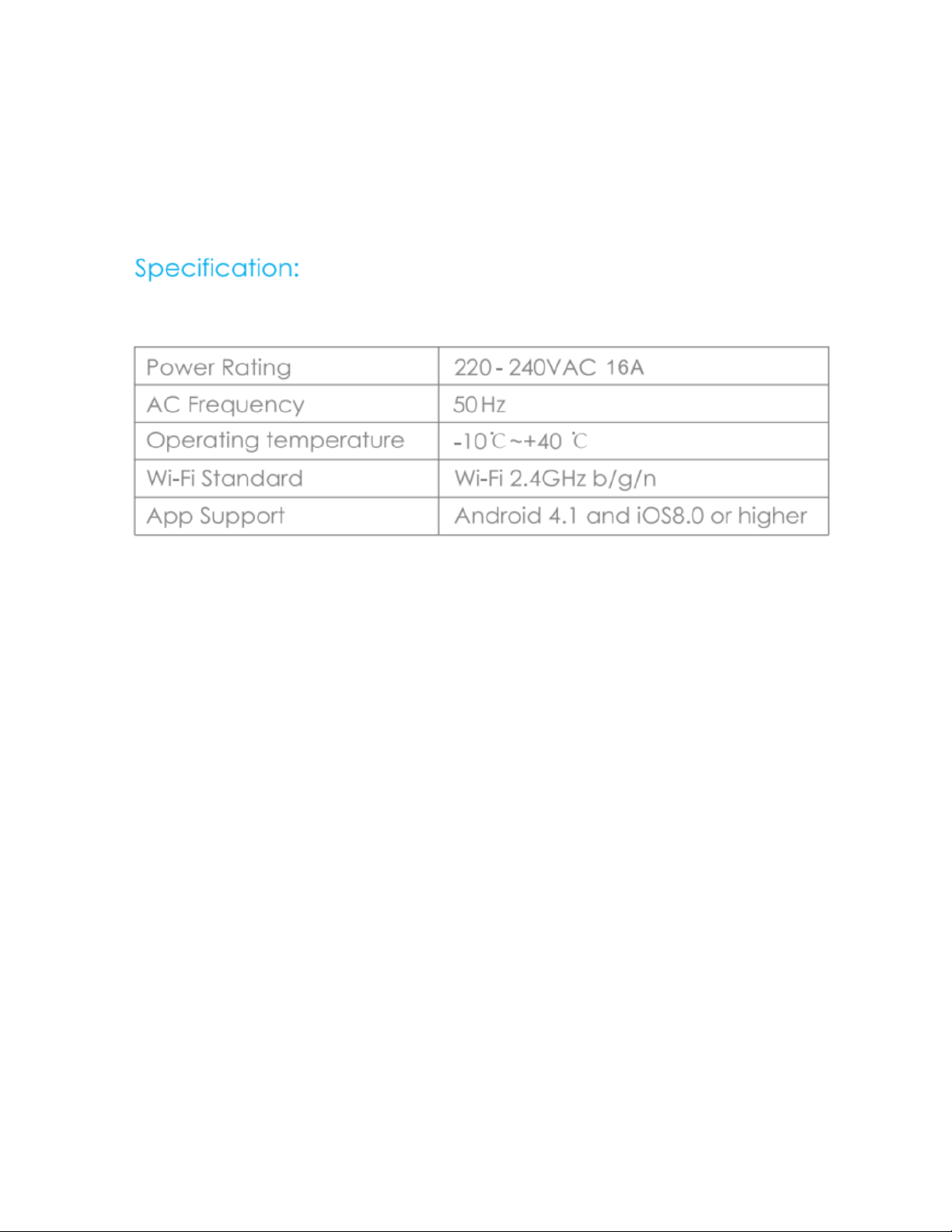
FlinQ 3-Pack Slimme Stekker met Spraakbesturing
Model: FQC8149
Gebruikershandleiding V1
Let Op : Installeer uw slimme stekker niet tot punt 4!
1. VOORDAT JE BEGINT
Zorg ervoor dat uw mobiele apparaat actief is: iOS 8.1 en hoger of Android 4.4 en hoger
Controleer uw wifi-netwerk / naam en zorg ervoor dat uw mobiele apparaat is verbonden
met hetzelfde 2.4 GHz wifi-netwerk / dezelfde naam / router (5 GHz-netwerken worden
NIET ondersteund!)
2. DOWNLOAD DE TUYA SMART APP
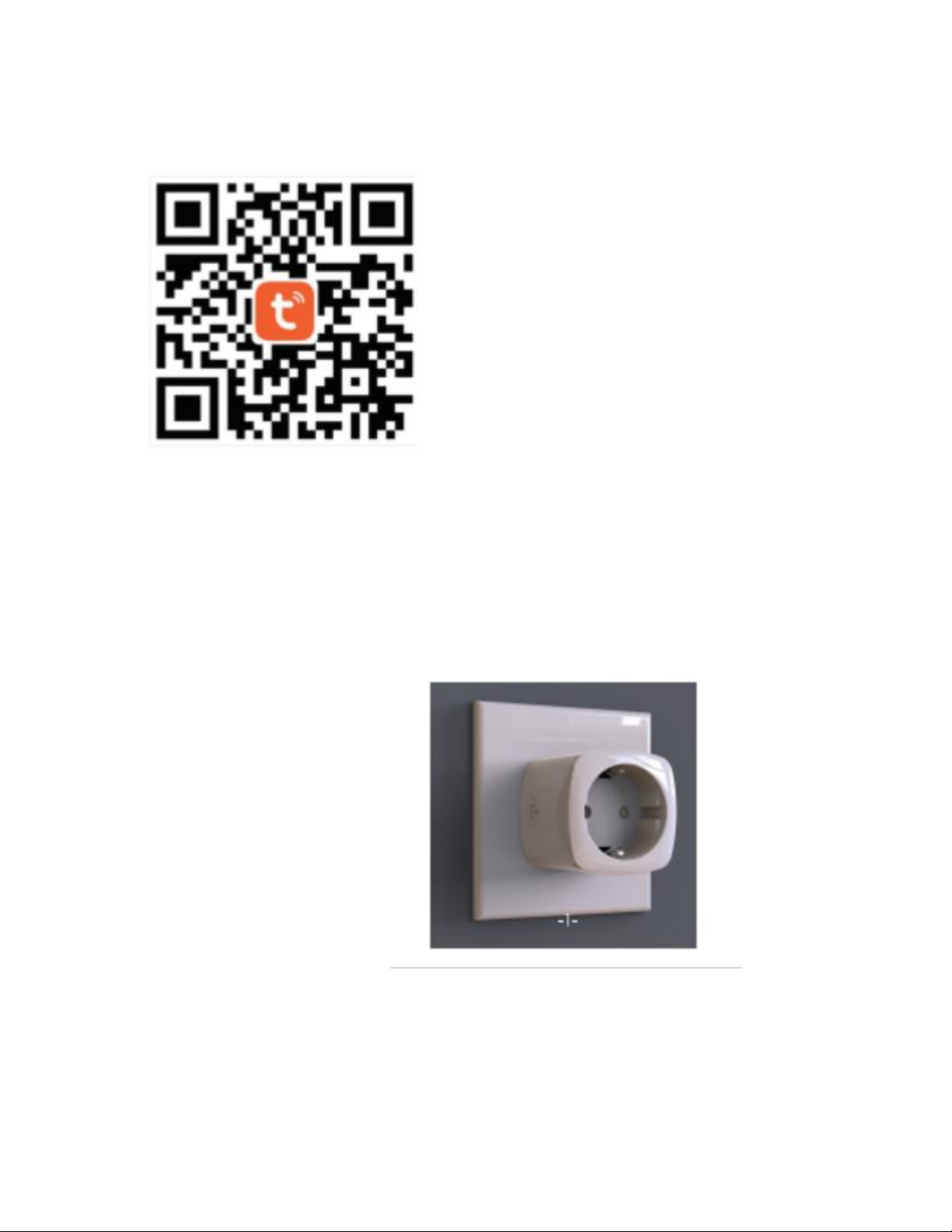
Download de app in de App store of de Google Play store en zoek naar de "TUYA SMART" -
app. Of Scan de onderstaande QR-code hieronder:
3. REGISTREER/INLOGGEN/PROFIEL
1. Start de toepassing "TUYA SMART"
2. Tik op "Akkoord" om het privacybeleid te bevestigen
3. Voer uw mobiele telefoonnummer of e-mailadres in om u te registreren.
4. Druk op "verificatiecode ophalen"
5. Voer de "verificatiecode" in die is verzonden via telefoonnummer of e-mailadres
6. Maak een wachtwoord en log in voor het gebruik van de nieuwe app of ga naar Inloggen
als u al een bestaand account heeft
4. STEL UW SLIMME STEKKER PLUGS IN
1. Installeer uw wifi-stekker in het geaarde stopcontact
2. Klik op "Add Device" of "+".
3. Selecteer uw producttype "stekker / stopcontact" (wifi)

4. Klik op "BEVESTIGEN" wanneer de wifi-plug snel knippert.
5. Volg de instructies in de app tijdens het verbinden en configureren
6. Gefeliciteerd, u bent klaar om de FlinQ Smart Plugs te gebruiken!
5. RESET INDIEN NODIG
In het geval dat uw wifi-stekker niet knippert, volgt u deze onderstaande stappen duidelijk:
1. Klik op 'HELP' of gebruik de veelgestelde vragen in de app
2. Volg stappen 1 tot 3 totdat de wifi-stekker knippert.
STAP 1: Schakel het apparaat in, schakel het na 10 sec uit en schakel het vervolgens opnieuw in.
STAP 2: Houd de resetknop 5 SEC ingedrukt ...
STAP 3: Bevestig dat het indicatielampje nu snel knippert en druk vervolgens op de knop
"Bevestig indicator knippert snel" in de app
6. STEMSTEUN INSTELLEN GOOGLE ASSISTANT:
1. Open de app 'Google Home'
2. Selecteer rechts onder de knop "profiel / gezicht", selecteer vervolgens onder de sectie
"Google-assistent" de "meer instellingen" en ga vervolgens naar het tabblad "assistent" bovenaan
en selecteer "home control"
3. Selecteer "+" rechts onderaan
4. Zoek naar "TUYA SMART" in de zoekbalk of selecteer het in de lijst wanneer u naar beneden
bladert
5. Volg de instructies om de verbindingskoppeling tot stand te brengen en gebruik uw Tuya-
wachtwoord en login wanneer hierom wordt gevraagd tijdens het installatieproces.
6. Klaar!
DINGEN DIE JE KUNT ZEGGEN:
"Hey Google, zet de koffiemachine aan"
"Hey Google, doe het licht aan"
AMAZON ALEXA:
1.. Open de app "Amazon Alexa"
2. Selecteer 'Skills & Games' in uw menu
3. Zoek naar "TUYA SMART" en selecteer "Inschakelen om te gebruiken"
4. Volg de instructies om de verbindingskoppeling tot stand te brengen en gebruik uw Tuya-
wachtwoord en login wanneer hierom wordt gevraagd tijdens het installatieproces.
5. Klaar!
DINGEN DIE JE KUNT ZEGGEN:
"Alexa, zet de ventilator uit"
"Alexa, draai van de tafellamp"

WAARSCHUWINGEN:
• Verbind nooit meerdere wifi-stekkers in serie!
• Zorg ervoor dat de WIFI-netwerken alleen 2.4 GHz zijn tijdens de installatie
• De WIFI-autorisatiemethode moet worden ingesteld als WPA2-PSK en het coderingstype als
AES of beide worden ingesteld op AUTO
• Draadloze router kan niet worden ingesteld als 802.11N
• Herstel bij problemen de stekker en stel deze opnieuw in vanaf het begin!
•Voor Google-assistent en Alexa; Als deze niet kunnen worden gevonden, probeer dan de
TUYA-functie of de app voor thuisvaardigheden uit te schakelen (voor Alexa)
• Als u de Smart Plug volledig moet RESETTEN, volg dan de RESET-instructies in de TUYA-
app of de FAQ.
• Open de Smart Plug niet zelf
• Deze slimme stekker is niet waterdicht! GEBRUIK HET ALLEEN BINNEN!
• Deze slimme stekker is geen SPEELGOED, buiten bereik van kinderen houden!
• Overschrijd de totale stroomcapaciteit (16A) van de smart plug met de gebruikte apparaten /
apparaten niet!
• Gebruik deze slimme stekker alleen met geaarde stopcontacten en niet met verlengkabels
• Niet gebruiken met apparaten die brand kunnen veroorzaken bij onbeheerd gebruik (zoals
strijkijzers, enz.)
• Deze Smart Plug heeft geen veiligheidsuitschakeling
• Elk ander gebruik als de beoogde manier voor deze slimme stekker is niet gevalideerd voor
enige garantie of aansprakelijkheid.
• Deze slimme plug wordt alleen gebruikt voor privégebruik.
FlinQ 3er-Pack Smart Plug mit Sprachsteuerung
Modell: FQC8149
Bedienungsanleitung V1
Hinweis: Installieren Sie Ihren Smart Plug erst unter Punkt 4!
1. BEVOR SIE BEGINNEN
Stellen Sie sicher, dass Ihr Mobilgerät aktiv ist: iOS 8.1 und höher oder Android 4.4 und höher
Überprüfen Sie Ihr WLAN-Netzwerk / Ihren WLAN-Namen und stellen Sie sicher, dass Ihr
Mobilgerät mit demselben 2,4-GHz-WLAN-Netzwerk / demselben WLAN-Namen / Router
verbunden ist (5-GHz-Netzwerke werden NICHT unterstützt!)
2.LADE DIE TUYA SMART APP HERUNTER
1.Laden Sie die App im App Store oder im Google Play Store herunter und suchen Sie
nach der App "TUYA SMART". Oder scannen Sie den unten stehenden QR-Code:
2. REGISTRIEREN / ANMELDEN / PROFIL
1. Starten Sie die Anwendung "TUYA SMART"
2. Tippen Sie auf "Zustimmen", um die Datenschutzbestimmungen zu bestätigen
3. Geben Sie Ihre Handynummer oder E-Mail-Adresse ein, um sich zu registrieren.
4. Drücken Sie "Bestätigungscode abrufen".
5. Geben Sie den "Bestätigungscode" ein, der per Telefonnummer oder E-Mail-Adresse gesendet
wurde
6. Erstellen Sie ein Passwort und melden Sie sich an, um die neue App zu verwenden, oder gehen
Sie zu Anmelden, wenn Sie bereits über ein Konto verfügen (I WILL ARRANGE A NEW
PICTURE)
3. RICHTEN SIE IHRE SMART PLUG-STECKER EIN
1. Stecken Sie Ihren WLAN-Stecker in die geerdete Steckdose
2. Klicken Sie auf "Gerät hinzufügen" oder "+".
Table of contents
Languages:


