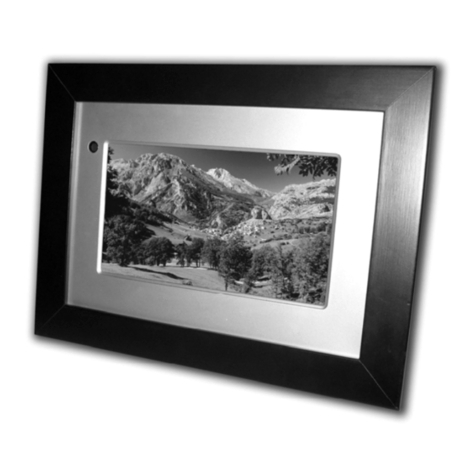
Fidelity Electronics DPF-5600F User manual

1
BRING DIGITAL PICTURES TO LIFE
5.6 INCH DIGITAL PICTURE FRAME
File Name: DPF5600F_Manual_CJ1362_EG Size: 210mm (W) x 297mm (H) Colour: CMYKDate: 07-04-06 Version: 03
SmartMedia
SmartMedia
SmartMedia
SmartMedia
DPF-5600F - USER,S MANUAL
©2006 Fidelity Electronics Inc. All rights reserved.

2
Table of Contents
INTRODUCTION
MAIN FEATURES
PRECAUTIONS & MAINTENANCE
CLEANING THE LCD SCREEN
GETTING STARTED
PACKAGE CONTENTS
INSTALLING YOUR UNIT
LOCATE CONTROL KEYS
INSERTING MEMORY CARDS
VIEWING PICTURES
VIEWING PICTURES FROM THE MENU
WATCHING VIDEO
ADVANCED SETTINGS
PICTURE CONTROL MENU
CHANGING THE ORIENTATION (ROTATE)
ZOOMING THE PICTURE
SLIDE SHOW
DELETE
SETUP
MOVIE CONTROL MENU
REPEAT THE MOVIE
SLIDE SHOW
DELETE
SETUP
COPYING PICTURES TO YOUR MEMORY CARD
USING YOUR USB CABLE
CONNECTING YOUR DIGITAL PICTURE FRAME TO YOUR TV
UPGRADING YOUR FIRMWARE
TECHNICAL SUPPORT
FREQUENTLYASKED QUESTIONS
TROUBLESHOOTING
4
4
5
5
6
6
7
8
8
9
9
11
12
12
12
12
12
12
12
14
14
14
14
14
15
15
16
17
18
18
19
5.6 INCH DIGITAL PICTURE FRAME
SmartMedia
SmartMedia
SmartMedia
SmartMedia

3
SERVICE AND WARRANTY
YOUR WARRANTY
SPECIFICATIONS
REGULATORY COMPLIANCE
BANNED SUBSTANCE DECLARATION
CE DECLARATION OF CONFORMITY
FEDERAL COMMUNICATIONS COMMISSION (FCC) NOTICE (U.S. AND CANADA ONLY)
FCC DECLARATION OF CONFORMITY
COMMISSION FEDERALE DE LA COMMUNICATION (FCC DECLARATION)
END-OF-LIFE DISPOSAL
20
20
21
22
22
22
22
23
23
24
5.6 INCH DIGITAL PICTURE FRAME
SmartMedia
SmartMedia
SmartMedia
SmartMedia

Introduction
Congratulations on your purchase of Fidelity Electronics Digital Picture Frame, model DPF-5600F.
Before operating the unit, please read this manual thoroughly, and retain it for future reference. This
manual will help you use many of the exciting and useful features that will make your Digital Picture
Frame viewing more enjoyable.
This Digital Picture Frame lets you view digital pictures directly from your camera's memory cards.
You will be able to create a slideshow using multiple transition effects or display one picture at a time.
No computer, digital camera or Internet connection is required.
This Digital Picture Frame is compatible with the following popular memory card formats:
SD™, MultiMediaCard™, SmartMedia®, CompactFlash®, and Memory Stick®.
Main Features
• Displays digital pictures (JPEG) and AVI Movies without a computer.
Simply insert a compatible memory card into the Digital Picture Frame to show photos. (Memory
card not included).
• Compatible memory cards include Secure Digital Card (SD), MultiMedia Card (MMC),
SmartMedia (SM), Memory Stick (MS), and Compact Flash (CF).
• Supports up to 10 Mega Pixels image files (JPEG format).
• Compatible with most digital cameras’ stored JPEG images and motion JPEG files.
• Bright 5.6” TFT active matrix LCD screen.
• Automatic slide show with multiple transition effects and display times.
• User-friendly on-screen display lets you access all controls easily.
• USB interface to connect to a computer.
4
5.6 INCH DIGITAL PICTURE FRAME
SmartMedia
SmartMedia
SmartMedia
SmartMedia

Precautions & Maintenance
• The Digital Picture Frame is for indoor use only.
• To reduce the risk of fire or electric shock; do not expose this appliance to rain or moisture.
• Do not block the ventilation holes on the back of the Digital Picture Frame at any time.
• Keep your Digital Picture Frames out of sunlight. Direct sunlight may cause damage.
• Do not open the case of the Digital Picture Frame. There is a risk of electric shock, and there are
no user serviceable parts inside. Opening the case will void your warranty.
• Do not use the Digital Picture Frame if conditions could allow condensation to occur, or damage
may result.
• Your Digital Picture Frame is a complicated electronic device and cannot withstand shock from
drops.
Cleaning the LCD screen
• Treat the screen gently. The screen on the Digital Picture Frame is made of glass and can be
scratched or broken.
• If fingerprints or dust make the LCD screen dirty, we recommend using a soft, non-abrasive cloth
such as the camera lens cloth to clean the LCD screen.
• If you use the LCD Cleaning Kit sold on the market, apply the cleaning liquid to the cloth. Do not
apply the liquid directly to your LCD screen.
5
5.6 INCH DIGITAL PICTURE FRAME
SmartMedia
SmartMedia
SmartMedia
SmartMedia

Getting Started
Package Contents
6
5.6 INCH DIGITAL PICTURE FRAME
Digital Picture Frame TV Cable
USB Cable Digital Picture Frame Stand
Power Adaptor
Quick Start Guide
SmartMedia
SmartMedia
SmartMedia
SmartMedia
5.6 INCH DIGITAL PICTURE FRAME
MODEL DPF-5600F - QUICK GUIDE
©2006 Fidelity Electronics Inc. All rights reserved.

• Open the package and remove the protective foam. Remove the protective sleeve from the unit.
• Install the Digital Picture Frame stand as the back of the unit.
• Plug in the AC adapter into power outlet. Plug the other end into the unit.
• After the content is stored on the target flash media; insert the media into the correct slot.
• Turn power to ON position via the ON/OFF switch.
Installing your unit
7
5.6 INCH DIGITAL PICTURE FRAME
SmartMedia
SmartMedia
SmartMedia
SmartMedia
•Place the stand, as directed in the above
diagram, in the socket until the stand locks in
place
• Connect the supplied power cable
from the photo display to a power
outlet

Inserting Memory Cards
The Digital Picture Frame is compatible with the following memory cards:
• Secure Digital™Card (SD)
• MultiMedia™Card (MMC)
• SmartMedia™Card
• Memory Stick™
• CompactFlash™(CF) Card
Insert the memory card with the front label facing AWAY from you. Do not force the memory card into
the memory slot. If you are not able to easily insert the memory card completely, you may have
inserted it the wrong way.
Note:
The Digital Picture Frame will ONLY recognize digital pictures stored in JPEG format. Digital pictures
stored in other formats will be ignored by the device.
Make sure you have at least one picture stored on the memory card. The Digital Picture Frame will
not function properly without a stored picture.
8
Locate Control Keys
5.6 INCH DIGITAL PICTURE FRAME
Function Button Guide
STOP/ ESC
ENTER/ MENU
LEFT
RIGHT
DOWN
UP
SmartMedia
SmartMedia
SmartMedia
SmartMedia

9
5.6 INCH DIGITAL PICTURE FRAME
Viewing Pictures
• Use the on-board buttons to control the Digital Picture Frame.
• Insert a Memory Card and Press Power ON.
• The Slideshow will start automatically.
• Highlight the Camera Icon and press Enter.
• Choose the Pictures Format menu.
Viewing Pictures from the Menu
Press on the Stop Button several times until you see the following screen: (Setup Screen)
Use right slot for Compact
Flash card or left slot for SD/
MMC/ MS card.
After a few seconds slide
show will start automatically.
View photos from your memory card
After you insert the Memory
Card, a menu will be displayed.
CF SM SD MS
SmartMedia
SmartMedia
R
TM
CF
R
CompactFash
CF
R
CompactFash
SmartMedia
SmartMedia
R
TM
SmartMedia
SmartMedia

10
• Use Left/ Right to display the next/ previous picture.
5.6 INCH DIGITAL PICTURE FRAME
• Highlight and select the picture you want to watch by pressing the direction keys and the
Enter button.
SmartMedia
SmartMedia
SmartMedia
Interface 2
View Digital photo Menu
View individual photo piece by piece by pressing the
buttons to choose this Menu and then press Enter/
Menu button.
Interface 3
SmartMedia
Other manuals for DPF-5600F
1
Table of contents
Other Fidelity Electronics Digital Photo Frame manuals

Fidelity Electronics
Fidelity Electronics DPF-7005F Quick start guide

Fidelity Electronics
Fidelity Electronics DPF-7005F User manual

Fidelity Electronics
Fidelity Electronics DPF-5600F User manual

Fidelity Electronics
Fidelity Electronics DPF-7005F User manual

Fidelity Electronics
Fidelity Electronics DPF-1500PRO User manual