
FIBARO Home Center Lite User manual


Instructions
Support
Dbając o ekologię, wydrukowaliśmy niniejszą instrukcję tylko w wersji angielskiej. Inne
wersje językowe dostępne są na naszej stronie w dziale wsparcie.
http://www.fibaro.com/pl/wsparcie-techniczne
PL
Should you require help configuring Home Center Lite, use tutorials and technical presentations
which can be found at www.fibaro.com. Should you need a professional to configure Home Center
Lite for you, contact a closest certified Fibaro installer. List of certified Fibaro installers can be found
at www.fibaro.com
Note:
Some of the Fibaro System components installation may involve mains voltage connection. It can
be dangerous. If you are not sure how to install the devices, use a certified installer's services.
Unserer Umwelt zuliebe haben wir auf ein mehrsprachiges Benutzerhandbuch verzichtet.
Das englische Handbuch liegt bei. Alle weiteren Spachen stehen Ihnen im Supportbereich
unserer Homepage zum Download zur Verfügung.
http://www.fibaro.com/de/unterstutzen
DE
Considering the environment protection we have printed this Quick Manual in English only.
Other language versions are available for download from our web site, in Support section.
http://www.fibaro.com/en/support
EN
Med tanke på miljön har vi endast tryckt bruksanvisningen på engelska. Andra språkver-
sioner finns tillgängliga för nedladdning via vår hemsida, under sektionen “support".
http://www.fibaro.com/se/support
SE
Afin de protéger l'environnement, nous avons imprimé le manuel d'utilisation en Anglais
seulement. Des versions dans d'autres langues sont disponibles en téléchargement à partir
de notre site web, dans la section Support. http://www.fibaro.com/fr/support-technique
FR

AC/DC Adapter Network Cable
Antenna Home Center Lite
Contents
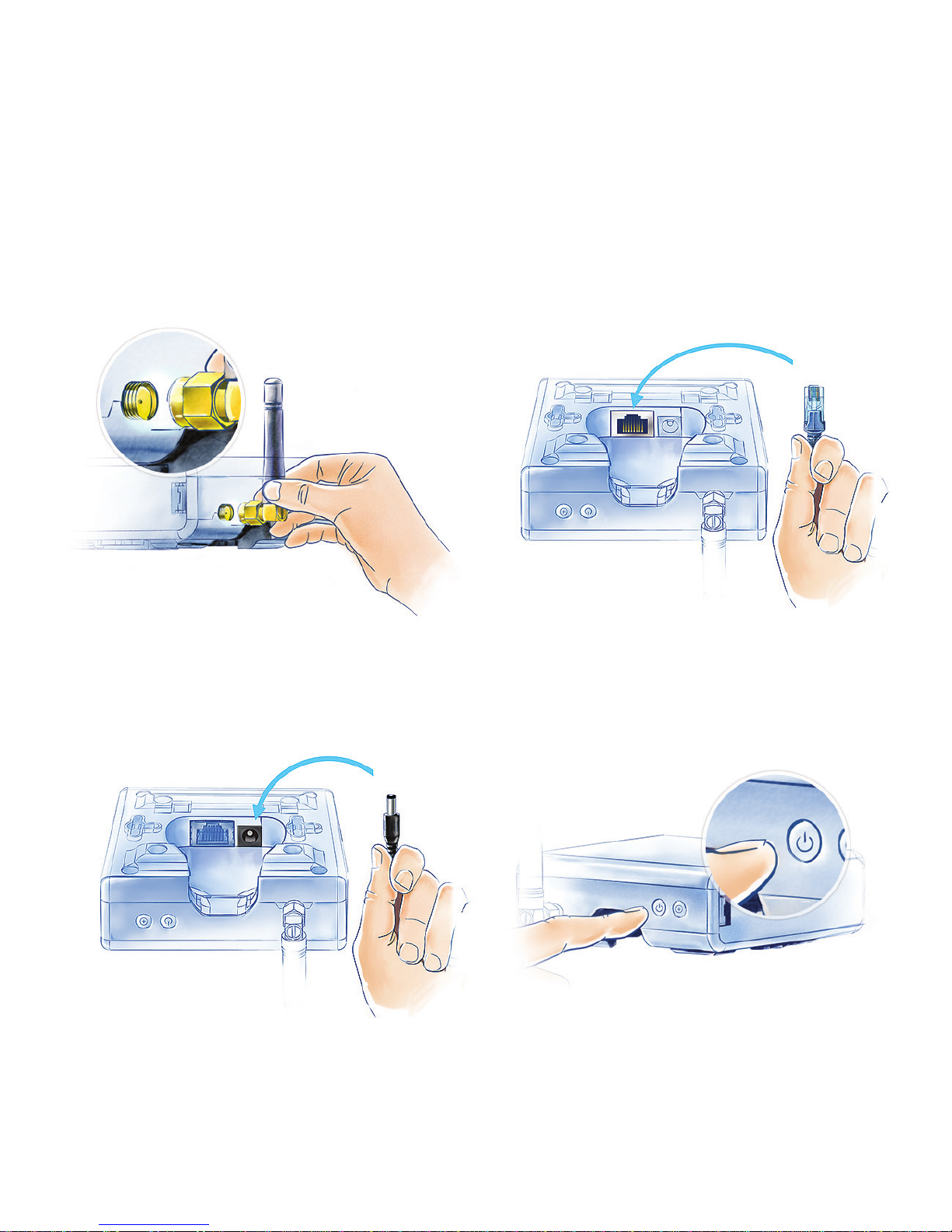
1. Connect antenna 2. Connect ethernet cable
3. Connect power adapter 4. Turn on Home Center Lite
Start from connecting the antenna, turning
the mounting screw clockwise.
Using the included ethernet cable, connect
Home Center Lite's LAN port to a router in
order to connect the controller to internet.
Connect the included power adapter to
Home Center Lite and plug it to the main
socket.
Press the POWER button briefly. Your
Home Center Lite will be ready to work in a
second.

Your Local Network
Connect your Home Center Lite with a router using the
included LAN cable and start the controller. From now
on Home Center Lite will be visible to all devices within
your local area network (LAN).
Remote Access
By default the Home Center Lite is visible only within your local network.
To enable remote access, from outside of your local network, configure
a home.fibaro.com account as described further in this manual.
Internet
Smartphone
Tablet
Modem
Computer
Home Center Lite

Home Center Lite is set to DHCP client mode by
default. To find its IP within your local network, download
a Fibaro Finder application, in a version appropriate for
your operating system, using the links on the right.
Create Intelligent Home
To determine a Home Center Lite IP, go to
www.fibaro.com and download Fibaro Finder
application. Log in to Home Center Lite.
Install and run Fibaro Finder. Click REFRESH to see
Home Center Lite's IP within your local network.
Find Home Center Lite
Login panel
After successful connection
you will access HC Lite
control panel. Choose your
language version, enter
user name and password.
Defaults are:
Login: admin
Password: admin
www.fibaro.com/finder-win
www.fibaro.com/finder-os

When setting up your intelligent home start
with creating rooms in HCL menu to reflect
the layout of your home in it.
Create Rooms
Section is a group of rooms in your home.
Section may be whole floor or a few rooms.
Create sections
Name the room and then choose the section
to which you would like to add it.
Add a room
Each room can be represented by the unique
icon. You can change the icons in the
advanced room’s settings.
Change an icon
Create Section
Add Room

Add devices
NOTE:
After creating the rooms you can start
adding the devices.
Click Devices in the main menu screen.
Find and click ADD button to start
adding devices (learning mode) on the
left-hand menu.
The menu will count down the time (30 sec
by default) for you to add a new device to
the Z-Wave network (inclusion).
Note that the device needs to be located
within direct range of the Home Center Lite
during the inclusion process.
Please refer to each device's manual for
further information on how to include it into
the Z-Wave network.
Danger of electrocution! If you are not sure
how to connect a device to the wires,
please contact a qualified installer.

Wall plug
FIBARO Wall Plug with power metering feature
is an intelligent, ultimate plug & play, extremely
compact, remotely controlled outlet adapter.
This highly functional wall plug can be applied
wherever you want to control electrical devices
(max permissible load 2,5kW), while monitoring
power consumption in a convenient and
maintenance-free way.
more information
projector coffee television iron lamp

Door/Window Sensor
is a compact sensor used for monitoring the
status of doors, windows, garage gates and
such. The sensor is available in seven colour
versions to match your interior design.
The Door/Window Sensor is best used to
control lights and as a component of access
control and security systems.
more information
door windows roof window garage gate
3x clicks
Other manuals for Home Center Lite
2
Table of contents


