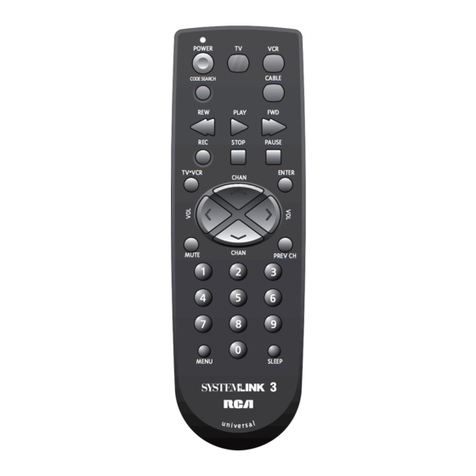
Faroudja SRC-2010 User manual

SRC-2010
Programmable Remote
Operation manual

The Smart Remote Control User’s Manual
ii
PrefacePreface
About this manual
This manual is designed to make using the SRC-2010 Smart Remote Control as easy as possible. Information in
this document has been carefully checked for accuracy; however, no guarantee is given to the correctness of the
contents. The information in this document is subject to change without notice.
The SRC-2010 comes preprogrammed with commands to control various Faroudja products. See each product’s
operations manual for details on the available functions. These commands can be changed if using the setup soft-
ware from a PC. The original program can be downloaded from www.faroudja.com . For instructions on using the
PC setup software, see the Help menu in the software.
Copyright
© Copyright 2003
This document contains proprietary information protected by copyright. All rights are reserved. No part of this
manual may be reproduced by any mechanical, electronic or other means, in any form, without prior written per-
mission of the manufacturer.
Trademarks
All trademarks and registered trademarks are the property of their respective owners.

iii
Table of Contents
PREFACE..................................................................................................................I
CHAPTER 1.............................................................................................................1
Unpacking the Smart Remote Control ................................2
Smart Remote Control features..........................................3
Identifying components......................................................4
CHAPTER 2.............................................................................................................7
Power supply......................................................................7
Inserting the batteries............................................................................8
Power supply precautions....................................................................9
Power supply tips...................................................................................9
Battery low icon......................................................................................9
The LCD............................................................................10
Turning the Smart Remote Control on............................................10
Touch screen precautions..................................................................11
The Information screen.......................................................................12
Smart Remote Control buttons..........................................13
Direct access buttons..........................................................................13
Touch screen buttons..........................................................................14
CHAPTER 3..........................................................................................................15
The main menu ................................................................15
The device menu..............................................................16
The setup menu................................................................17
CHAPTER 4..........................................................................................................18
Setting the clock...............................................................19
Using the timer.................................................................20
Timer view.............................................................................................21
Timer setup............................................................................................21
Relabeling timers.................................................................................22
Using the program menu..................................................23
Using the learning function...............................................................23
Clearing a key......................................................................................26
Clearing a device................................................................................27
Clearing all devices............................................................................27
Changing the LCD layout..................................................28
Resizing or adding buttons on the main menu...............................29
Relabeling buttons on the main menu.............................................33
Deleting buttons on the main menu.................................................35
Adjusting buttons on the device menu.............................................36
Relabeling device menu buttons.............................................................37
Using recall.............................................................................................38
Using macros....................................................................39
Macro setup..........................................................................................40
Relabeling a macro.............................................................................41

The Smart Remote Control User’s Manual
iv
Deleting a macro .................................................................................42
The duplicate menu..........................................................43
Making LCD adjustments..................................................44
Adjusting the LCD contrast...............................................................45
Adjusting the LCD backlight.............................................................46
Calibrating the LCD...........................................................................47
APPENDIX A........................................................................................................48
Specifications...................................................................48
APPENDIX B........................................................................................................50
Troubleshooting................................................................50

v
Table of Figures
Figure 1-1: Front view..........................................................................................4
Figure 1-2: Rear view............................................................................................6
Figure 2-1: Inserting the batteries......................................................................8
Figure 2-2: Turning the LCD on.......................................................................10
Figure 2-3: The Information Screen.................................................................12
Figure 2-4: Direct access buttons....................................................................13
Figure 2-5: Touch screen buttons....................................................................14
Figure 3-1: The main menu................................................................................15
Figure 3-2: The TV device menu.......................................................................16
Figure 3-3: The setup menu...............................................................................17
Figure 4-1: The clock menu...............................................................................19
Figure 4-2: Timer list..........................................................................................20
Figure 4-3: The timer menu...............................................................................20
Figure 4-4: Setting up timer options...............................................................21
Figure 4-5: The program submenu...................................................................23
Figure 4-6: Using the Learning eye.................................................................24
Figure 4-7: Programming devices....................................................................25
Figure 4-8: Programming the direct access buttons....................................25
Figure 4-9: The adjust menu..............................................................................28
Figure 4-10: Adjusting main menu buttons....................................................29
Figure 4-11: Adjusting buttons on the device menu.....................................36
Figure 4-12: The macro list...............................................................................39
Figure 4-13: The macro menu...........................................................................39
Figure 4-14: The “other” menu........................................................................44
Figure 4-15: Adjusting the contrast.................................................................45
Figure 4-16: Adjusting the backlight..............................................................46


Chapter 1Chapter 1
Introducing the Smart Remote Control
Congratulations on the purchase of your SRC-2010 Smart Remote Control.
The Smart Remote Control is a digital universal remote control that is easy to
use and configure, enabling you to control all your IR equipped electronic de-
vices.
One feature of the Smart Remote Control is the touch screen control panel,
which reduces the number of buttons on the device, making it easy for you to
find the function you want. You can control up to 10 devices, including a
VCR, DVD, amplifier, TV, and LD/VCD.
The Smart Remote Control is easy to set up. With the “Learning eye” you
can easily configure each device in your household or office. You can also eas-
ily edit the device list, make changes to the LCD appearance, and adjust other
settings. In addition, with the Macro function, you can initiate a chain of up
to 25 commands with the touch of a button.
Most universal remote controls have a set list of devices and static functions
that don’t provide you with a lot of flexibility. The Smart Remote Control
enables you to add and delete devices, relabel device buttons, and change the
size and shape of LCD panel buttons. With this convenient and easy to use
Smart Remote Control, you can control all your devices with one remote con-
trol solution. No longer will you have to search for several different remotes!

The Smart Remote Control User’s Manual
2Faroudja
This manual will help you learn how to use all the ad-
vanced features of the Smart Remote Control. It will not
explain how to use the functions for your devices. Please
refer to your device’s user manual for information related to
your device.
Unpacking the Smart Remote Con-
trol
After you have unpacked the Smart Remote Control, check the contents to
make sure the following items are included.
lSmart Remote Control
lThis user’s manual
lSLC-2081 Connecter
lTransmission cable
If any of the above items are missing or appear damaged, contact your dealer
immediately. Do not throw the shipping carton away in case you need to
ship your Smart Remote Control.

Introducing the Smart Remote Control
Faroudja 3
Smart Remote Control features
This section provides an overview of the key features of the Smart Remote
Control. For more information on getting the most from these features, refer
to Chapter 2.
•Large touch screen display with automatic backlighting for visibility
in dim lighting
•Direct access buttons for accessing frequently used functions such as
volume, channel, play, mute, and stop
•Macro button stores 12 macros—each macro can store 25 commands
•Controls up to 10 devices including LD/VCD, TV, Satellite, VCR and
CD
•Popup information screen provides you with time, date, and battery
charge information
•Uses the IR codes from your existing remote controls to quickly set
up devices

The Smart Remote Control User’s Manual
4Faroudja
Identifying components
Please refer to the following illustrations to identify the components of the
Smart Remote Control. This section provides an overview of the Smart Re-
mote Control’s features and controls. Refer to Chapter 4 for a detailed
description on operating and getting the most from these features.
Figure 1-1: Front view
Table of contents