TABLE OF CONTENTS
1DATA ACQUISITION IN WINDOWS VERSION 1
1.1 The CyberComm DAS Package 1
1.2 System Requirements 1
1.2.1 Setting the Communication Parameters 1
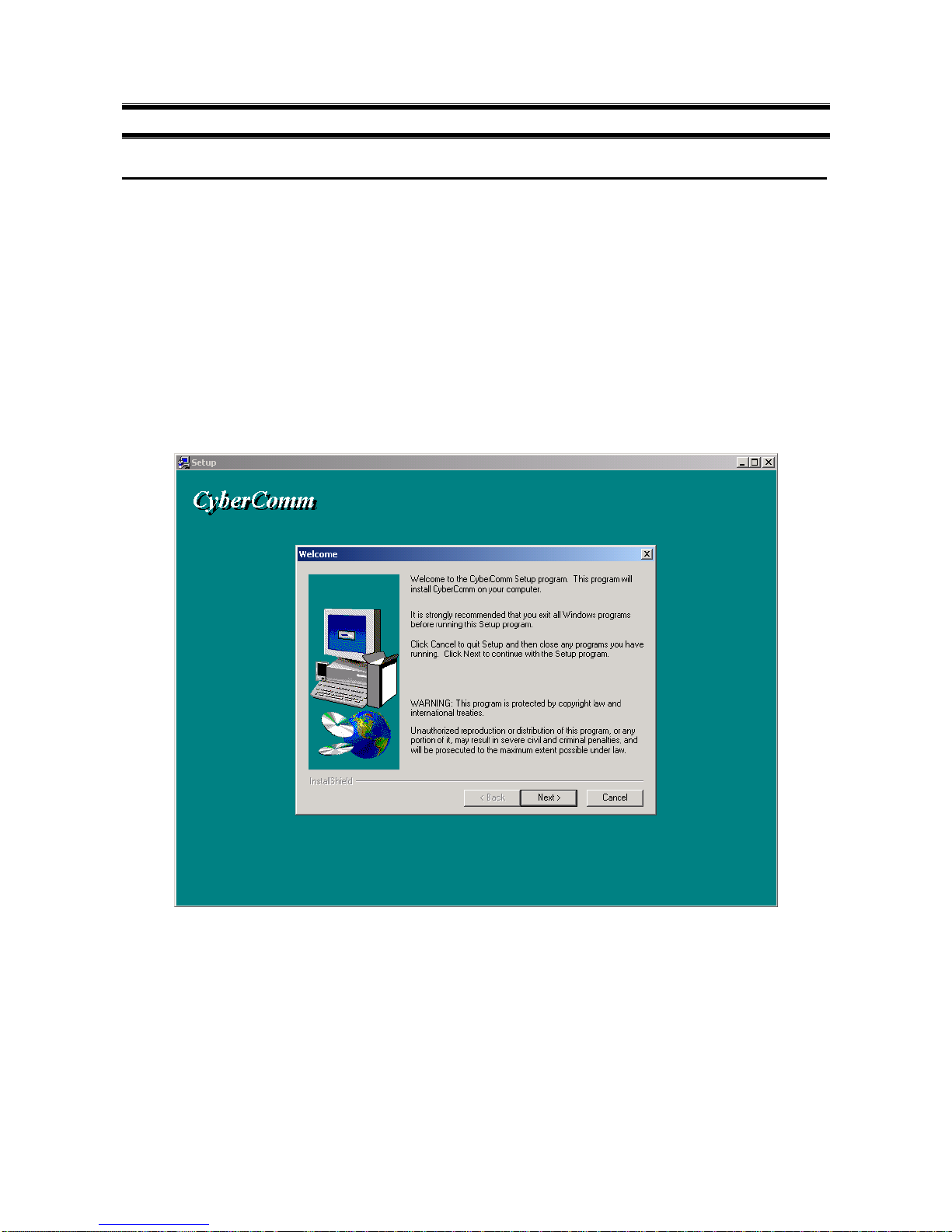
2INSTALLATION OF CYBERCOMM DATA ACQUISITION SOFTWARE (DAS) 2
2.1 Loading of CD-ROM 2
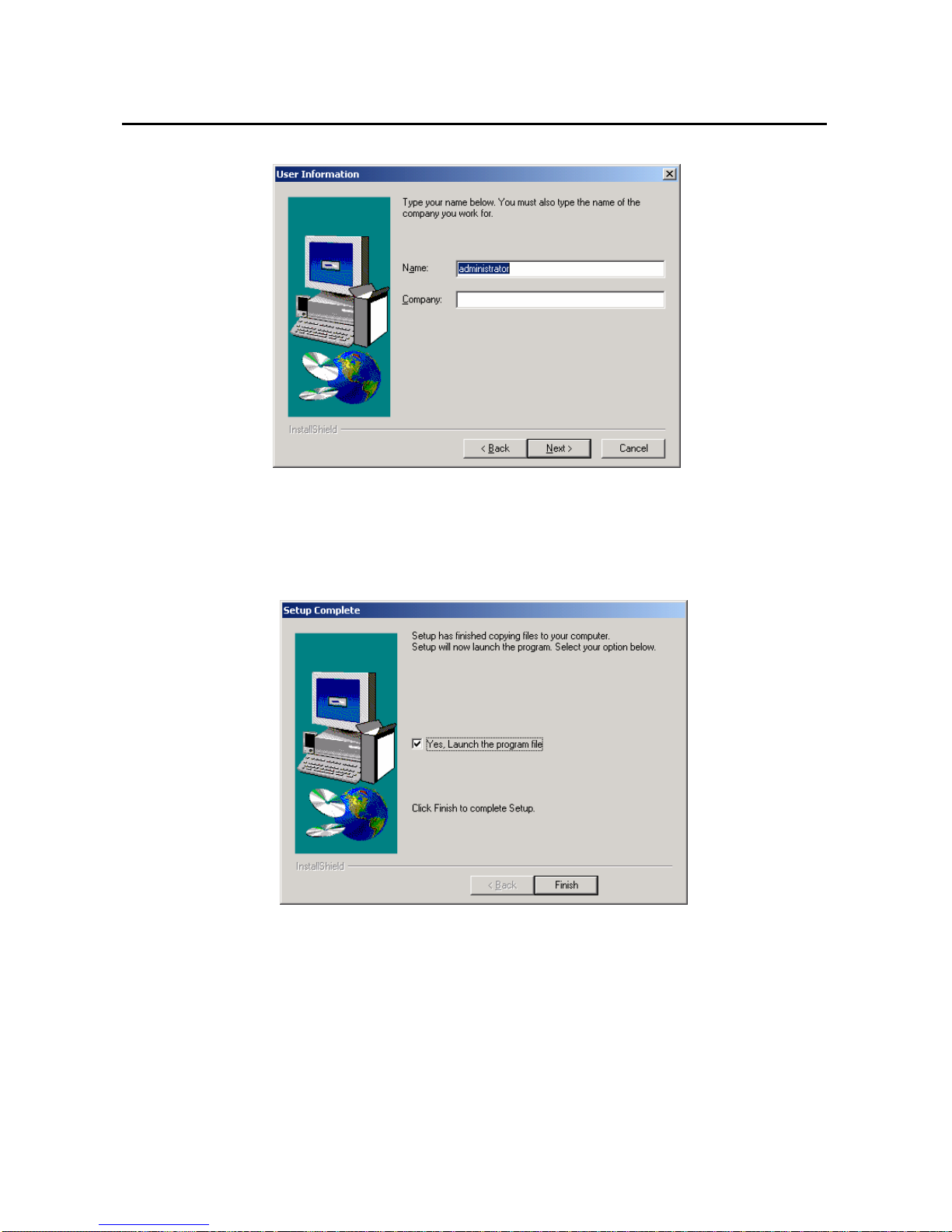
2.2 User Name and Organisation Entry 3
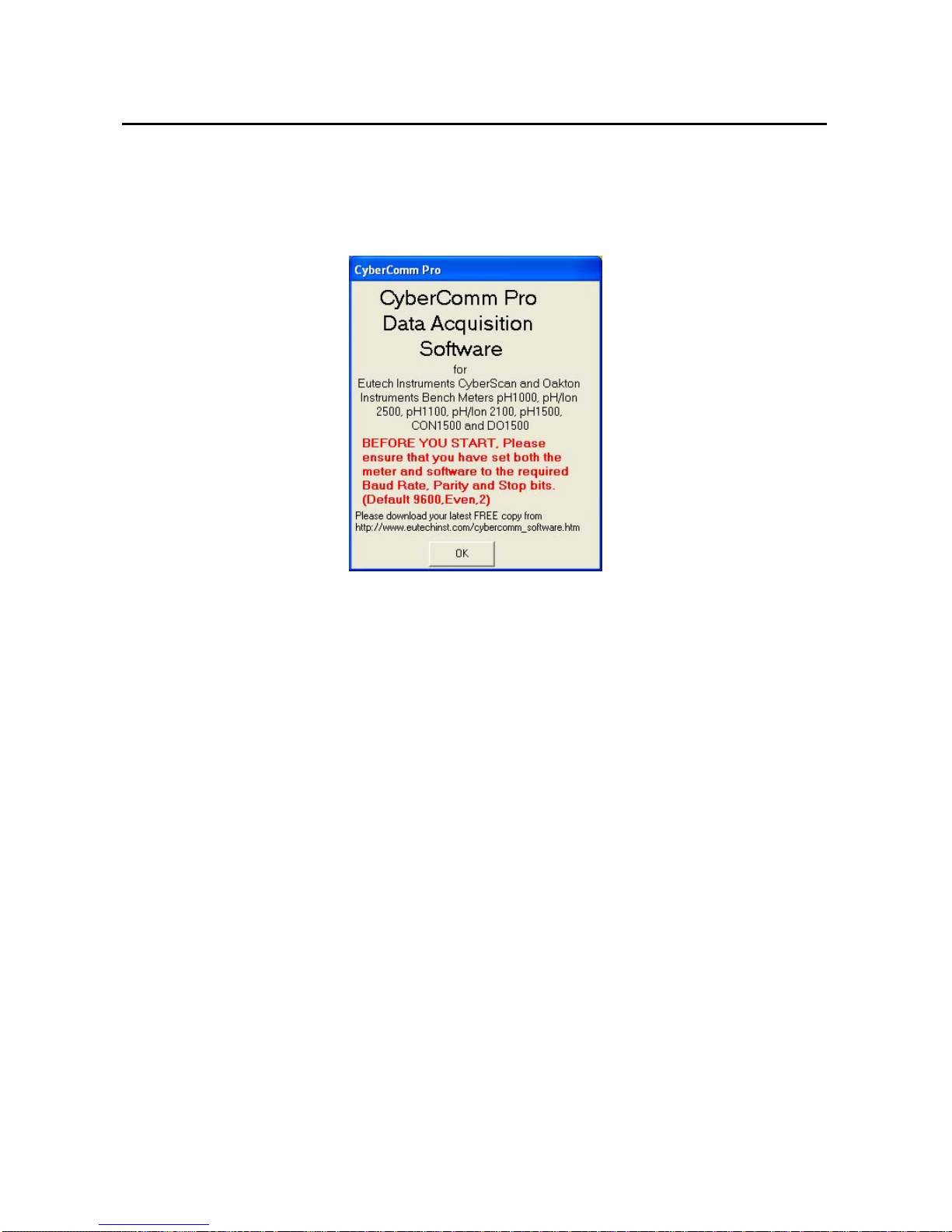
2.3 Splash Screen 4
3CYBERCOMM PRO MAIN MENU 5
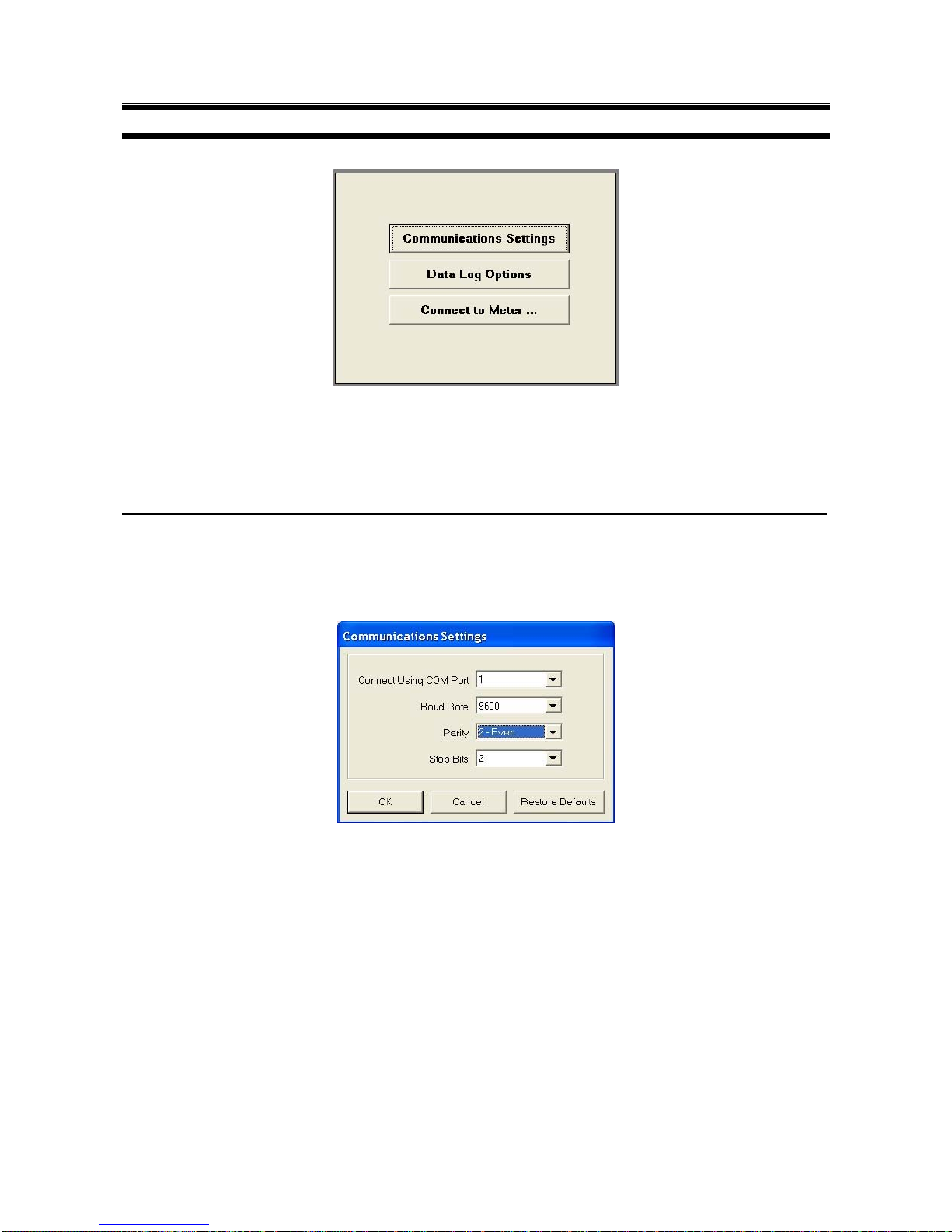
3.1 Communication Settings (File) 5
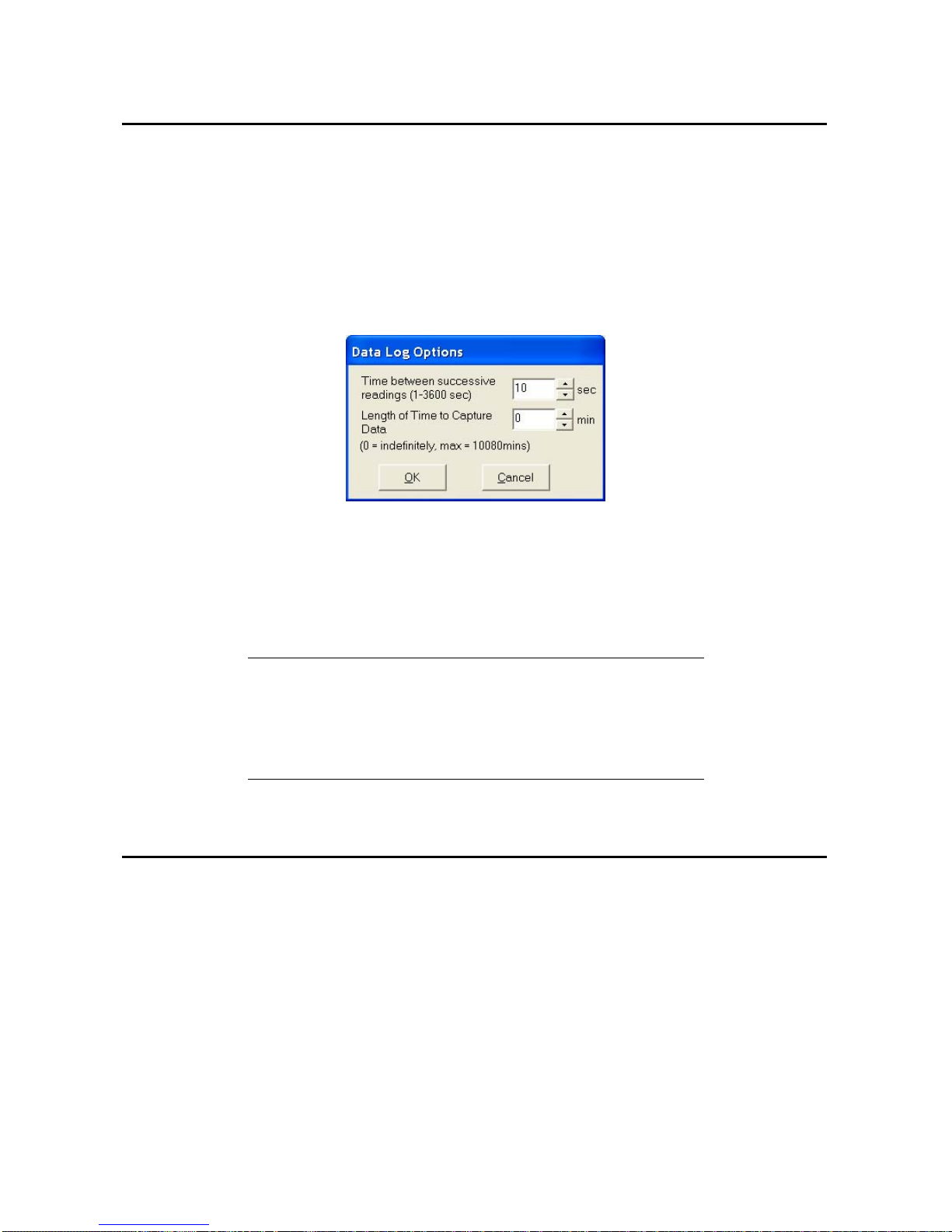
3.2 Data Log Options (File) 6
3.3 Connect to Meter (File) 6
4MAIN WINDOW (AFTER CONNECTING METER TO COMPUTER) 7
4.1 CyberComm Pro Manuals (Help) 7
4.1.1 File Options (File) 8
4.1.2 About CyberComm Pro (Help) 8
4.2 Sub menus & Function Icons on the CyberComm Program 9
4.3 Function Icons 10
4.3.1 Measurement Mode 15
4.3.2 Show Cursor 15
4.3.3 Information 15
4.3.4 Data Reading 15
4.3.5 Temperature Reading 16
4.3.6 Mode Drop down Menu 16
4.3.7 Store and Recall 16
4.4 To quit CyberComm Program 16
5RETRIEVE RECORDED DATA 17
6EXPORT DATA READINGS 19
6.1 Steps to export data readings from CyberComm Professional: 19
6.2 Paste data in Microsoft Word
©
19
6.3 Paste data in Microsoft Excel
©
, WordPad and Notepad 20
7PRINT READINGS 22
7.1 Printing using a serial printer 22
7.2 Setting Up the Printer 22
7.3 Connecting the Cable to the Computer 22