Entone Janus 300&350 User manual

300 & 350 SERIES
SETUP GUIDE
© 2011 Entone, Inc. Entone, Janus and connecting the home are trademarks of Entone, Inc. Other company, product, and service names may be trademarks or
service marks of others. All information contained in this document is subject to change without notice. Information contained in this document is provided on an
as is basis. In no event will Entone be liable for damages arising directly or indirectly from any use of the information contained in this document. Subject to
change without notice.
®
®

SETUP GUIDEJANUS MEDIA HUB
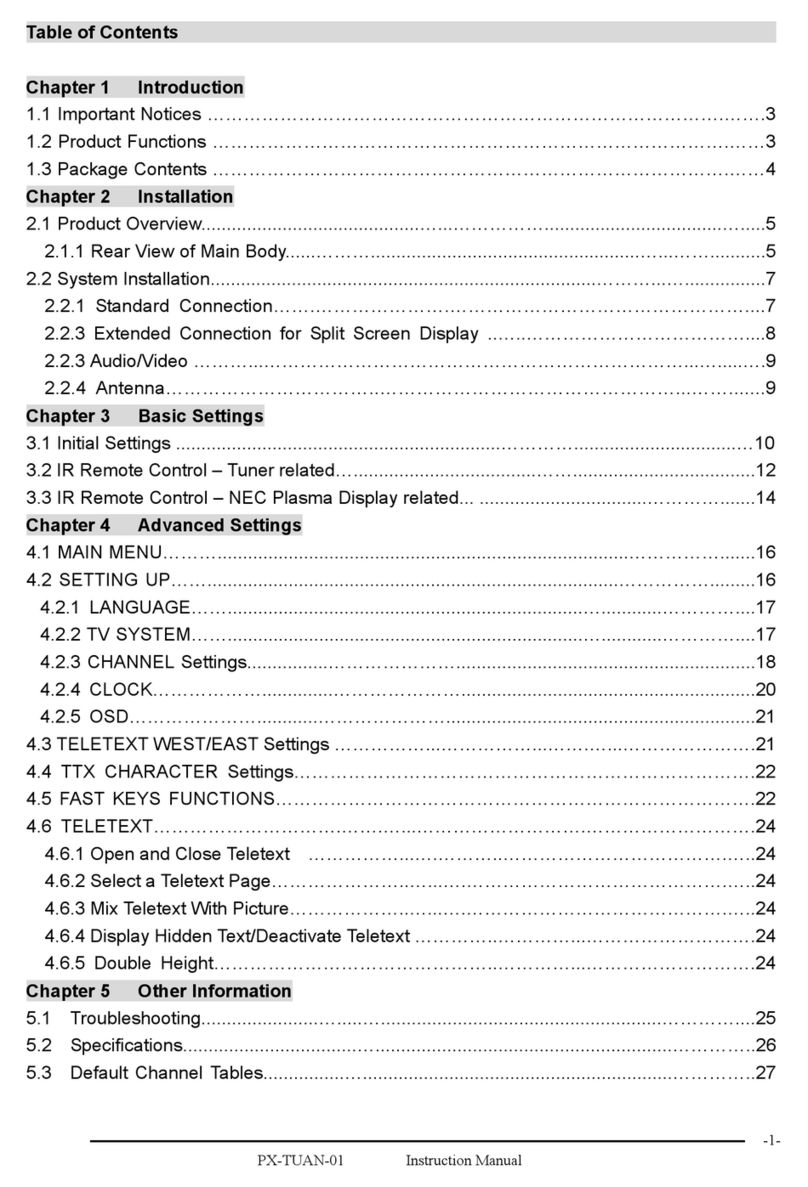
TABLE OF CONTENTS
Safety Instructions
What’s Included
Front Panel
Back Panel
Remote Control
2
4
6
7
8
OVERVIEW
High-Denition TVs
Standard Denition TVs
10
12
CONNECTING VIDEO
Cable or ATSC Antenna15
CONNECTING TV SOURCE
TV (Stereo)
A/V Receiver (Surround Sound)
16
17
CONNECTING AUDIO
Wired
Wireless
18
19
CONNECTING NETWORK
Declaration of Conformity22
Setting up Remote Control
Connecting to Power Source
20
21
POWERING UP
1
COPYRIGHT
©2011 Entone, Inc. All rights reserved. This document contains proprietary information protected by copyright. No part of this publication may
be reproduced, stored in a retrieval system, or transmitted in any form or by any means, electronic, mechanical, photocopying, recording or
otherwise, without the prior written consent of Entone, Inc., 20863 Stevens, Creek Blvd, Suite 300, Cupertino, CA 95014, U.S.A.
DISCLAIMER
IF THIS PRODUCT DIRECTS YOU TO COPY MATERIALS, YOU MUST HAVE PERMISSION FROM THE COPYRIGHT OWNER OF THE MATERIALS TO
AVOID VIOLATING THE LAW WHICH COULD RESULT IN DAMAGES OR OTHER REMEDIES.
TRADEMARKS
Entone and the tagline“Connecting the Home” are trademarks of Entone, Inc. All other trademarks or registered trademarks belong to their
respective owners.
CHANGES
The material in this document is for information only and is subject to change without notice. While reasonable eorts have been made in the
preparation of this document to assure its accuracy, Entone, Inc. assumes no liability resulting from the use of the information contained herein.
Entone, Inc. reserves the right to make changes in the product design without reservation and without notication to its users.
P/N: 95-861000-06 - v2.0

SETUP GUIDE JANUS MEDIA HUB
SETUP GUIDEJANUS MEDIA HUB
IMPORTANT SAFETY INSTRUCTIONS
To help prevent electric shock, plug the power cable into properly
grounded sources. Use only properly grounded extension cords and
adaptors, if they are needed.
The AC main plug is used as the disconnect device, the disconnect
device shall remain readily operable.
Make sure nothing is lying on any of the cables.
Be sure the cables are located where they will not be stepped on or
tripped over.
Do not spill food or liquids onto the unit.
Do not push any objects into the free slots. Doing so will damage
the unit, can cause re or electrical shock, and can short out interior
components.
Do not install near any heat sources such as radiators, heat registers,
stoves, or other apparatus (including ampliers) that produce heat.
Do not block cooling vents.
Do not place the equipment in a closed-in wall unit.
When you disconnect a cable, pull on its connector or on its strain
relief loop, not on the cable itself. Some cables have a connector with
locking tabs; if you are disconnecting this type of cable, press in on the
locking tabs before disconnecting the cables.
When you connect a cable, make sure both connectors are correctly
oriented and aligned before connecting to avoid bending connector pins.
For PLUGGABLE EQUIPMENT, the socket-outlet shall be installed near
the equipment and shall be easily accessible.
Changes or Modications not expressly approved by the party
responsible could void the user’s authority to operate this device.
•
•
•
•
•
•
•
•
•
•
•
•
•
3
IMPORTANT SAFETY INSTRUCTIONS
WARNING: To prevent re or shock hazard, do not expose this product
to rain or moisture.
Read these instructions.
Keep these instructions.
Heed all warnings.
Follow all instructions.
Do not use this apparatus near water.
Clean only with dry cloth.
Do not block any ventilation openings. Install in accordance with the
manufacturer’s instructions.
Do not defeat the safety purpose of the polarized or grounding-type
plug. A polarized plug has two blades with one wider than the other.
A grounding type plug has two blades and a third grounding prong.
The wide blade or the third prongs are provided for your safety. If the
provided plug does not t into your outlet, consult an electrician for
replacement of the obsolete outlet.
Protect the power cord from being walked on or pinched particularly
at plugs, convenience receptacles, and the point where they exit from
the apparatus.
Only use attachments/accessories specied by the manufacturer.
Use only with the cart, stand, tripod, bracket, or table specied by the
manufacturer, or sold with the apparatus. When a cart is used, use
caution when moving the cart/apparatus combination to avoid injury
from tip-over.
Unplug this apparatus during lightning storms or when unused for long
periods of time.
Refer all servicing to qualied service personnel. Servicing is required
when the apparatus has been damaged in any way, such as
power-supply cord or plug is damaged, liquid has been spilled or
objects have fallen into the apparatus, the apparatus has been exposed
to rain or moisture, does not operate normally, or has been dropped.
To reduce the risk of electric shock, DO NOT remove cover or back
panel. No user serviceable parts inside. Refer servicing to
qualied personnel.
•
•
•
•
•
•
•
•
•
•
•
•
•
•
•
2

SETUP GUIDE JANUS MEDIA HUB
SETUP GUIDEJANUS MEDIA HUB
5
ADDITIONAL ITEMS THAT MAY BE REQUIRED:
• HDMI Cable
• S-Video Cable
• Digital Optical Cable
• Network Router
• IR Blaster
Component Video Cable
(For HD Video)
Composite Audio/Video Cable
(For SD Video and Stereo Audio)
RF Coaxial Cable
(For TV Sources)
Ethernet Cable
(For Wired Networking)
AC Power Adapter + Power Cord
(100-240V, Output 12V/5A)
WHAT'S INCLUDED
4
AA Batteries for
Remote Control
Wi-Fi Antennas for
extended range
(3 x Antenna)
Janus Media Hub
Universal IR Remote Control
Janus Setup Guide

SETUP GUIDE JANUS MEDIA HUB
SETUP GUIDEJANUS MEDIA HUB
JANUS MEDIA HUB BACK PANEL
7
CABLE/ANT IN
Wi-Fi
COMPONENT VIDEO
DIGITAL AUDIO
10/100 ETHERNET
eSATA
RF PASS-THROUGH
TV OUT
CableCARDTM
VIDEO
AUDIO
S-VIDEO
HDMI
USB 2.0
POWER IN
Name Description
67
1
8912 13
10 11 14
5
15
4
3
2
1
2
3
4
5
7
9
10
12
13
14
15
11
8
6
Availability of certain features is dependent on your provider.
For Cable TV Source and ATSC Antenna
Attach Wi-Fi Antennas for extended range and coverage
Component Video Output (Y, Pb, Pr) (Supports HD Video)
Digital Audio Output - Optical Connection (Supports 5.1
Surround Sound)
Ethernet Port
External Serial ATA Connector (Supports External Hard
Drive options)
Antenna / Cable TV Pass-Through
Connection to RF TV Output
CableCARD Slot – Use only M-CARD (optional feature)
Composite Video (Supports SD Video)
Stereo Audio Output (Left / Right)
S-Video Output (Supports SD Video)
HDMI Output (Supports HD Video and Multi-Channel Audio)
USB Connector
Power connection to AC Adapter
JANUS MEDIA HUB FRONT PANEL
6
12 3 4 5
Availability of certain features is dependent on your provider.
SIDE PANEL RIGHT SIDE
8
POWER
LINK
HD
RECORD
5-way Navigation
+ MENU
USB
SD/MS/MMC
IR
Button
Status LED
Status LED
Status LED
Capacitive
Touch Panel
USB 2.0
Connector
Memory
Card Slot
IR Blaster
Name Function Description
Solid Blue indicates the unit is on
Solid Red indicates the unit is in standby mode
Flashing Blue indicates the unit is starting up
Press button once to put unit in standby mode, press
again to resume
To restart the device, press and hold for at least 5
seconds or longer
Green light indicates that Ethernet or Wi-Fi network
connection is active
Blue light indicates current program is playing in HD
(720p or higher) resolution
Red light indicates a TV program is currently recording
Use Menu, OK and Directional buttons to help with
navigating the user interface without a remote control
To connect USB devices such as USB Flash Drive,
External USB Hard Drive
To read or transfer content from SD / MS / MMC
ash memory card
To connect IR Blaster cable to control other devices
1
2
3
4
5
6
7
8
SIDE PANEL LEFT SIDE 6
7

SETUP GUIDE JANUS MEDIA HUB
SETUP GUIDEJANUS MEDIA HUB
9
POWER
DEVICE CONTROL
TRANSPORT KEYS
SHORTCUT
MENU
INFO
NAVIGATION
EXIT
GUIDE
CH/PG
LAST
NUMBER KEYS
CC
INPUT
MUTE
VOL + /-
BACK
OPTIONS
Switches the power on / o for the currently selected device
Switches STB to power on / standby mode
TV: Select to control TV (if programmed)
STB: This button is pre-programmed to control the Janus Media Hub
AUX: Select to control another device (if programmed)
Controls video program for LIVE TV / DVR / VOD
REPLAY: Go back a few seconds
REW: Rewinds video quickly
FF: Fast forwards video quickly
SKIP: Skips ahead in 30 second increments
REC: Starts recording program
PAUSE: Pauses video
PLAY: Plays video or resumes a paused program
STOP: Stops playback of video
Color-code buttons correspond to features that are enabled by
your service provider (contact service provider for more details)
Shows on-screen menu or home screen
Shows on-screen information about the current TV / VOD /
DVR program
ARROW KEYS: Navigates up, down, left and right within the
on-screen guide or menus
OK: Executes the currently selected menu option
Exits the current menu item or out to LIVE TV
Shows the on-screen program guide
Changes channel up or down or goes page up or down within
on-screen program guide
Changes channel to the most recently viewed channel
Allows direct access to specic channels and menu items
Toggles closed captioning on or o
Changes the current A/V input of the selected device programmed
(i.e. TV or AUX)
May be used when entering a period in certain channels
On select applications use to bring up on-screen keyboard in
web browser
Turns the volume of the currently selected device o and on
Increases or decreases volume of the currently selected device
Goes back one level within menus *
Provides additional options for given on-screen menu or
highlighted item*
Button(s) Description
1
2
3
4
5
7
9
10
12
13
14
15
16
17
18
11
8
6
* Availability of certain features is dependent on your provider
8
REMOTE CONTROL
1
2
3
4
5
6
8
10
11
13
14
15
16
17
18
12
9
7

SETUP GUIDE JANUS MEDIA HUB
SETUP GUIDEJANUS MEDIA HUB
S-VIDEO
11
OPTION #2
Connect to Component Video Component Video
Delivers excellent
picture quality
S-VIDEO
CONNECTING VIDEO HDTV High-Denition
Select only one Video option and then proceed to TV Source
10
OPTION #1 (Recommended)
Connect to HDMI*
(HDMI Cable not included)
*This connection handles both Video and Multi-Channel Audio. If you have selected HDMI for your Video then
proceed to page 15.
HDMI
Connects both Video & Audio to
deliver best
entertainment
experience
with a single cable

SETUP GUIDE JANUS MEDIA HUB
SETUP GUIDEJANUS MEDIA HUB
OPTION #2
Connect to Composite Video
13
S-VIDEO
Please use Yellow
Connector for
Video Connection
Composite Video
Delivers good picture quality
S-VIDEO
CONNECTING VIDEO SDTV Standard-Denition
OPTION #1
Connect to S-Video
12
S-Video
Delivers great picture quality
S-VIDEO
Select only one Video option and then proceed to TV Source
(Cable not included)

SETUP GUIDE JANUS MEDIA HUB
SETUP GUIDEJANUS MEDIA HUB
15
OPTION #2
Connect to ATSC Antenna Source (Outdoor or Indoor Antenna)
CONNECTING TV SOURCE CABLE OR ATSC ANTENNA
OPTION #1
Connect to Cable TV Source using RF Coaxial Cable
Select only one TV Source option and then proceed to Audio
TV OUT
14
CONNECTING VIDEO SDTV Standard-Denition
Select only one Video option and then proceed to TV Source
OPTION #3
Connect to Coaxial
S-VIDEO
Coaxial Cable
Delivers good picture quality
ANT IN

SETUP GUIDE JANUS MEDIA HUB
SETUP GUIDEJANUS MEDIA HUB
17
OPTION #2
Connect to A/V Receiver for Digital 5.1 Surround Sound
(Cable not included)
CONNECTING AUDIO A/V RECEIVER Surround Sound
16
CONNECTING AUDIO TV Stereo
OPTION #1
Connect to TV's Stereo Audio
S-VIDEO
Select only one Audio option and then proceed to Networking
Use Red/White
Connectors for Audio
Connection if you've
selected Component
Video, S-Video or
Composite Video
This manual suits for next models
2
Table of contents
Other Entone TV Receiver manuals

Entone
Entone Amulet 200 User manual

Entone
Entone Amulet User manual

Entone
Entone Kamai 410 User manual

Entone
Entone FusionTV User manual

Entone
Entone Amulet 200 User manual

Entone
Entone Hydra HD User manual

Entone
Entone Amulet User manual

Entone
Entone Kamai 400 Series User manual

Entone
Entone Hydra II User manual

Entone
Entone Kamai 400 Series User manual