Enphase Customer Support: http://enphase.com/global/contact/
SAFETY
Safety and Advisory Symbols
DANGER: This indicates a hazardous situation, which if not avoided,
will result in death or serious injury.
⚠WARNING: This indicates a situation where failure to follow instruc-
tions may be a safety hazard or cause equipment malfunction. Use
extreme caution and follow instructions carefully.
✓NOTE: This indicates information particularly important for optimal
system operation. Follow instructions carefully.
Safety Instructions
DANGER: Risk of electric shock. Risk of re. Do not attempt to repair
the Envoy-S; it contains no user-serviceable parts. Tampering with
or opening the Envoy-S will void the warranty. Warranty void if cover
removed. If the Envoy-S fails, contact Enphase Customer Support for
assistance (http://enphase.com/global/contact/).
DANGER: Risk of electrocution! Do not install CTs when current ow-
ing in the sensed circuit. Always install CT wires in the terminal blocks
before energising the sensed circuit.
DANGER: Risk of electric shock. Do not use Enphase equipment in a
manner not specied by the manufacturer. Doing so may cause death
or injury to persons, or damage to equipment.
DANGER: Risk of electric shock. Be aware that installation of this
equipment includes risk of electric shock. If you wire the Envoy-S at
the sub-board, always de-energise the sub-board before beginning.
DANGER: Risk of electric shock. Risk of re. Only qualied personnel
should troubleshoot, install, or replace the Envoy-S.
DANGER: Risk of electric shock. Risk of re. Do not wire unused termi-
nals or terminal blocks on the Envoy-S.
⚠WARNING: Before installing or using the Envoy-S, read all instructions
and cautionary markings in the technical description and on the
Envoy-S.
⚠WARNING: Risk of equipment damage. If installing the Envoy-S in an
enclosure, choose area for installation where ambient temperature
does not exceed 46º C.
✓NOTE: Do not install the CTs in a panel where they exceed 75% of the
wiring space of any cross-sectional area within the panel, or refer to
local standards for guidance.
✓NOTE: Perform all electrical installations in accordance with all nation-
al and local electrical codes.
✓NOTE: To ensure optimal reliability and to meet warranty require-
ments, the Enphase Envoy-S must be installed according to the
instructions in this guide.
TROUBLESHOOTING
aLED overview
LED State Description
All Flashing amber in unison The Envoy-S is booting up
Flashing green sequentially Software upgrade in progress
Network
communica-
tions
Solid green Communicating with Enlighten
Flashing green WPS connection in progress or the Envoy-S
is attempting to connect to Enlighten
Solid amber Local network connection only
Off No network connection
AP mode
Solid green AP mode enabled:
Envoy-S Wi-Fi network available
Off AP mode disabled:
Envoy-S Wi-Fi network unavailable
Power
production
Solid green All communicating microinverters are
producing
Flashing green Microinverter upgrade in progress
Solid Amber At least one microinverter is not producing
Off Microinverters are not producing or com-
municating (low light or night time)
Device
communica-
tions
Solid Green All devices are communicating
Flashing Green Device scan in progress
Solid Amber At least one device is not communicating
Off Devices are not communicating
(low light or night time)
bDevice detection issues
If the Device Communications LED lights solid amber, it may be a result of low
light levels. If there isn’t enough sunlight to power up the microinverters, they can’t
communicate with the Envoy.
If there is sufcient daylight for the microinverters to power up, the issue may be that
the Envoy-S is having difculty communicating over the power lines. To troubleshoot
this issue:
• Check the Installer Toolkit mobile app to see which devices are not
communicating.
• Check that the circuit breaker(s) for the PV array are in the “ON” position.
• Verify that the PV modules are connected to the microinverters.
• Verify the PV module DC voltage is within the allowable range for the microinverter.
cPower production issues
If the Power Production LED lights solid amber, check the Installer Toolkit mobile
app to see which microinverters are not producing:
• If none of the microinverters are producing power, there may be a grid or wiring
issue. First, verify that there is proper input voltage and frequency from the grid.
Next, check the breaker and wiring, starting at the switchboard.
• If all of the non-productive microinverters are on the same branch, check the
breaker and wiring starting at the junction box for the affected branch.
• If only one or scattered microinverters are not producing power, rst check to see
that the AC connectors are fully seated in the Engage Cable connectors. Next,
check that each module is providing the required startup voltage for the micro-
inverter (22V). A PV module that is failing or that is undersized may not generate
enough power for AC conversion.
dInternet connection issues
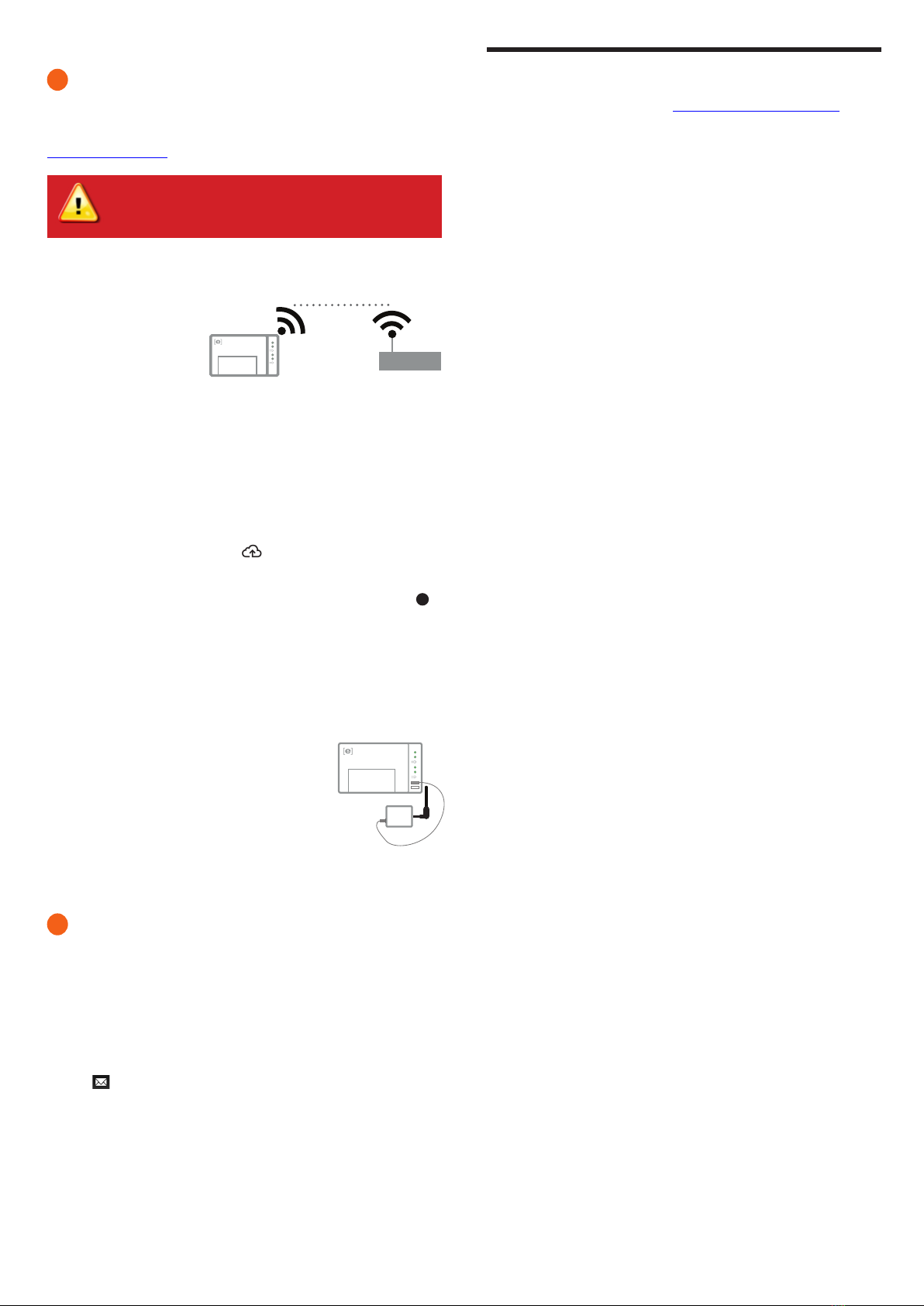
If you are using Wi-Fi and the Network Communications LED remains off:
• The WPS connection window may have timed out. Retry the connection steps.
• Make sure that the broadband router is operational by checking that other devic-
es at the site can access the network.
• Be aware that metal enclosures or obstructions impede wireless communication.
• If you cannot see your router or access point in the list on the Envoy, or cannot
maintain a connection, it may be necessary to add a wireless repeater to extend
the network range.
If you are using Wi-Fi and the Network Communications LED lights solid amber, make
sure that the broadband router is connected to the Internet by checking that other
devices at the site can access the Internet.
If you are using the Enphase Mobile Connect modem and the Network Communica-
tions LED remains off or lights solid amber, see Troubleshooting in the Enphase Mobile
Connect Installation Guide.
For any connection method, you can troubleshoot network issues with the Installer
Toolkit mobile app by tapping the Network button, then Diagnostic Tools.
If you replace the broadband router, congure the Envoy-S Wi-Fi settings for the new
Wireless Network Name (SSID) and password.
© 2016 Enphase Energy. All rights reserved.