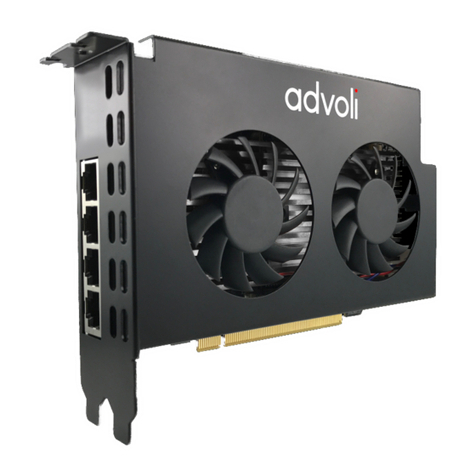
EMS Imaging XtremeVision-Pro+ User manual

XtremeVision-Pro+
User Guide
Version 01.0.0

2
Contents
Introduction. ............................................................................................................................ 4
Specifications. ............................................................................................................................................................ 4
XtremeVision-Pro+. .................................................................................................................. 5
Installation. .............................................................................................................................. 6
System Requirements. ............................................................................................................................................... 6
Unpacking. .................................................................................................................................................................. 6
Installing the Display Drivers ........................................................................................................................................ 7
Installing the Additional XtremeVision-Pro+ Cards. ..................................................................................................... 8
Connecting up to 64 Screens .................................................................................................... 9
DisplayPort
O
UTPUTS
.
....................................................................................................................................................... 10
Display Driver
Configuration
Tool (DDCT). ............................................................................................. 11
Non Standard Device Reporting - XDDM Driver ............................................................................................................ 14
EMS
L
IMITED
.
......................................................................................................................... 15

3
Introduction
The XtremeVision-Pro+ is based upon a single, powerful graphics processor that is complemented by faster memory and
higher pixel transfer bandwidth over its
16-
LANE
second generation PCIexpress interface. Up to 16 XtremeVision-Pro+ cards
can be supported by the EMS XDDM display driver and up to 12 XtremeVision-Pro+ cards can be supported by the EMS
WDDM display driver, providing
flexible
system
configurations
up to 64 screens.
•
DisplayPort connectors allow full-size, locking cables capable of driving next generation displays
•
DVI support using EMS DPadapt modules (powered via graphics card)
•
Up to 40m cable support using EMS DPextend modules (powered by graphics card).
Specifications:
Card format Gen 2,
X
16
lane PCI express
Card size
110
MM
x 177mm (incl heat sync)
Max output resolution 4 x 2560 x 1600 @ 60Hz (Max 359 Mpixels/s) or
2 x 3840 x 2160 @ 30Hz
Max number of cards per system 16 (64 display channels) using the XDDM Driver on Windows 7 and 12 (48
display channels) using the WDDM Driver on Windows 7 and Windows 10
Graphic card memory 2GB total
Max current at +3.3V 0.25A (+1.8A when powering four channels of DPextend + DPadapt)
Max current at +12V 1.2A
Max Power 15 watts
Operating temperature 0 to 35 deg C / 32 to 96 deg F
Storage temperature -20 to 70 deg C / -4 to 158 deg F
Relative humidity 5% to 90% non-condensing
MTBF 180,000 hrs
Warranty 3 years

4
XtremeVision-Pro+
The XtremeVision-Pro+ PCI Express graphics card supports the display of digital video capture windows. It is ideal for high end
video/ data walls, signage or display wall applications.
•
Gen 2, X16 lane PCI express graphics card
•
Digital outputs 4 x 2560 x 1600 x 32BITS/PIXEL @ 60Hz or 2 x 3840 x 2160 @ 30Hz
•
Low power
•
High Performance 2D and 3D graphics
•
High performance DMA image load (upto 2GB/S)
•
Support for Windows® 10 and Windows® 7
•
RGB, SD and HD video window support by adding the EMS XtremeVision-Pro+ range of capture cards.
•
HDCP is supported with EMS capture cards
•
Up to 16 cards (64 display channels) per system using the XDDM Driver on Windows 7 and up to 12 cards (48 display
channels) using the WDDM Driver on Windows 7 and Windows 10

5
Installation
This section deals with installing XtremeVision-Pro+ cards and spreading the Windows desktop across all the screens. If
you are intending to use the XtremeVision-Pro+ cards with other EMS products, you should follow this section to get the
Windows desktop working correctly first.
System Requirements
•
A Pentium PCI Express bus computer with sufficient free PCIe slots.
•
At least 2GB of RAM, up to 8Gb for multiple cards
•
Support for Windows® 10 or Windows 7®
Unpacking
Your packing box should contain the following items:
•
The XtremeVision-Pro+ PCIe plug-in card.
•
4 x DVI Adapters (XtremeVision-Pro+/DVI only)
•
4 x HDMI Adapters (XtremeVision-Pro+/HDMI only)
It is recommended that all XtremeVision-Pro+ cards and any XtremeVision-Pro+ cards are installed in the system prior to
installing the drivers. Otherwise as cards are installed the drivers may need to be reinstalled as the card’s PCI bus numbers
change.
Note:
All plug-in cards are static sensitive and packed in antistatic materials. Please keep the card in its packaging until you are
ready to install.
It is recommended that you do not discard the packing box until you are completely satisfied with the XtremeVision-Pro+
card, and it is fully installed and working correctly. We also recommend that you make note of the serial number of the
card in a prominent place before you plug the card into the computer. This should hasten any query should you need to
contact us
Technical Support Department. The serial number is displayed on the card and the box label.
•
Power down the PC (including peripherals), switch off at the mains and disconnect all the cables connected to the
computer, noting the positions for accurate reconnection. Remove the PC cover.
•
Locate a vacant PCIe slot for the XtremeVision-Pro+ on the motherboard and remove the backing plate (retain all screws).
•
Remove the card from its packaging and secure it firmly into the empty PCIe slot. Extreme care should be taken when
securing the card into the slot as some motherboards may have components that impede the siting of the card.
Screw the card bracket to the back panel of the PC and replace the cover.
Connect screens to all the outputs from the card. If there are other graphics devices in the system, connect screens to them
(even if you don’t intend to use all the outputs in your final configuration).
Switch all the screens on then switch the machine on. You should see the boot messages on one of the screens. The screen on
which the system will boot is dependent on how the system is configured and the motherboard BIOS. It is not possible to control
which of the XtremeVision-Pro+ outputs the system will boot on.

6
Installing the Display Drivers
Once the XtremeVision-Pro+ card has been installed and the boot messages are appearing on the correct monitor, you can start
Windows.
The Found New Hardware Wizard will announce that new hardware has been found. Do not use the Found New Hardware
Wizard to install the XtremeVision-Pro+ drivers. Install the XDDM or the WDDM display drivers from the Software Installation
Media supplied with the XtremeVision-Pro+ card.
If your final configuration has less than four screens select the number of screens required, otherwise select four screens.
Restart the machine.
When Windows starts up, the desktop should be spread over all the screens connected to the XtremeVision-Pro+.
Note:
The XtremeVision-Pro+ requires the EMS Display Driver Install V4.1.1 or later.
Multi Screen Drivers
XDDM
The XDDM Display Driver places the Windows desktop across all the screens connected to XtremeVision-Pro+ cards in the
system. XDDM is the legacy driver architecture used by graphics drivers from Windows 2000 through to Windows 7 and Windows
Server 2008 R2. It is not supported by Windows 10 or Windows Server 2012. The EMS XDDM drivers provide a robust,
multi-screen platform with advanced video capture and display capabilities.
The XDDM driver currently supports up to 16 XtremeVision-Pro+ cards (64 display outputs) in a single system.
WDDM
The WDDM Display Driver places the Windows desktop across the screens connected to the XtremeVision-Pro+ cards. WDDM is
the driver architecture used by modern Windows Operating Systems such as Windows 10. It aims to provide improved graphics
performance, additional functionality and operating system stability improvements.
The EMS WDDM driver currently provides support for up to 12 XtremeVision-Pro+ cards (48 display outputs) in a single system.

7
Installing the Additional XtremeVision-Pro+ Cards
As the number of required screens increase, the likelihood of reaching a system limitation or encountering a problem increases.
The system limitations are the amount of address space available and the capacity of the power supply.
Please consult EMS support if you have any problems installing multiple cards.
Power
The amount of current a power supply can deliver on each voltage rail is limited. Often there is also a limit on the total power.
Each XtremeVision-Pro+ card requires 0.25A at +3.3V and 1.2A at +12V.
You can calculate the amount of current and the amount of power required for the XtremeVision-Pro+ cards. For example, the
requirements for a
16-
SCREEN
system of XtremeVision-Pro+ cards are calculated as follows:
Current
+3.3V 4 x 0.25A =
1.
O
A
+12V 4 x 1.2A = 4.8A
Power
( 3.3V x 1.0A ) + ( 12V x 4.8A ) = 60.9W
These are just the requirements for the XtremeVision-Pro+ cards; you must take into account the requirements of all the other
devices in the system.

8
Connecting up to 64 Screens
To connect up to 64 screens (XDDM Display Driver on Windows 7) or 48 screens (WDDM Display Driver on Windows 7 or
Windows 10) to XtremeVision-Pro+ cards,
configure
the links as shown in the diagram below:
Card Ordering
The links control the order in which the display driver uses the XtremeVision-Pro+ cards. Knowing the order in which the
XtremeVision-Pro+ cards are used is useful when connecting the screens and the outputs from video switches.
Note that if you have not configured your system to boot-up on on-board VGA graphics device or another plug-in VGA card the
system will boot-up on the master head of one of the XtremeVision-Pro+ cards but it is not possible to control which output will
be used, this is motherboard BIOS dependent.
If the WDDM driver is selected on installation, then an on board or third-party graphics adaptor must be configured as the boot
up display.
Insert the XtremeVision-Pro+ cards into the PCIe slots.
Connect the screens to the cards. The first card should be connected to the first group of four screens; the second should be
connected to the second group of four screens and so on.
Switch the screens on then switch the machine on.
Log on as a user with administrative access rights.
The Found New Hardware Wizard will announce that new hardware has been found. This will happen once for each slave
XtremeVision-Pro+ card you have added to the system. Do not use the Found New Hardware Wizard to install the XtremeVision-
Pro+ drivers.

9
DisplayPort Outputs
The EMS XtremeVision-Pro+ has four DisplayPort connectors which allow full size, locking cables capable of driving next
generations displays. When used in conjunction with the EMS DPextend modules (powered via the XtremeVision-Pro+) cable
lengths of up to 40m can be achieved.
The XtremeVision-Pro+ outputs are numbered as follows:

10
Display Driver Configuration Tool (DDCT)
The DDCT Is a configuration tool designed to guide you through the design and creation of your video wall. The DDCT is
installed automatically as part of the driver install.
To access the DDCT, right click on your desktop, select Display Driver Configuration Tool then select the Set Up Wizard.
Alternatively select:
Start | Programs | EMS Drivers | Display Driver Configuration Wizar
(1)
It is recommended that you read the information on each page carefully.
Click on the “Information Icon” (1) to open a sliding window which gives version details and copyright information. The latest
version of the DDCT is available to download from the EMS website.
To commence your wall
configuration,
click on “Start Wizard” (2). “Import Layout” is covered later.
(3)
(4)
(5)
Display Technology
Select the type of displays being used on your wall:
•
Displays With Bezels – Monitors, TV’s and DLP Cubes. (3)
•
Overlapable Displays – Projectors (4)
•
LED Displays. (5)
Click on “Continue”.
The tool will then display a configuration page for the type of display you selected;
(2)
Table of contents
Other EMS Imaging Video Card manuals

Popular Video Card manuals by other brands

Gainward
Gainward GeForce GTX 690 4GB brochure

ATI Technologies
ATI Technologies RADEON 137-40225-20 user guide

MSI
MSI N220GT series user manual

ATI Technologies
ATI Technologies RADEON 7000 MAC EDITION user guide

SIIG
SIIG aurora Quick installation guide
ClearSpeed
ClearSpeed ClearSpeed Advance e720 user guide