EMPORIA ACTIVE glam User manual
Eveline Pupeter, emporia Telecom
www.emporia.eu
Thank you for purchasing an emporia product!
Please read this user guide before attempting to use your phone.
English
ACTIVE
glam
Mobile data
tariff required
2
1
3 4 10
13
15
14
11 125
7 66
8
9
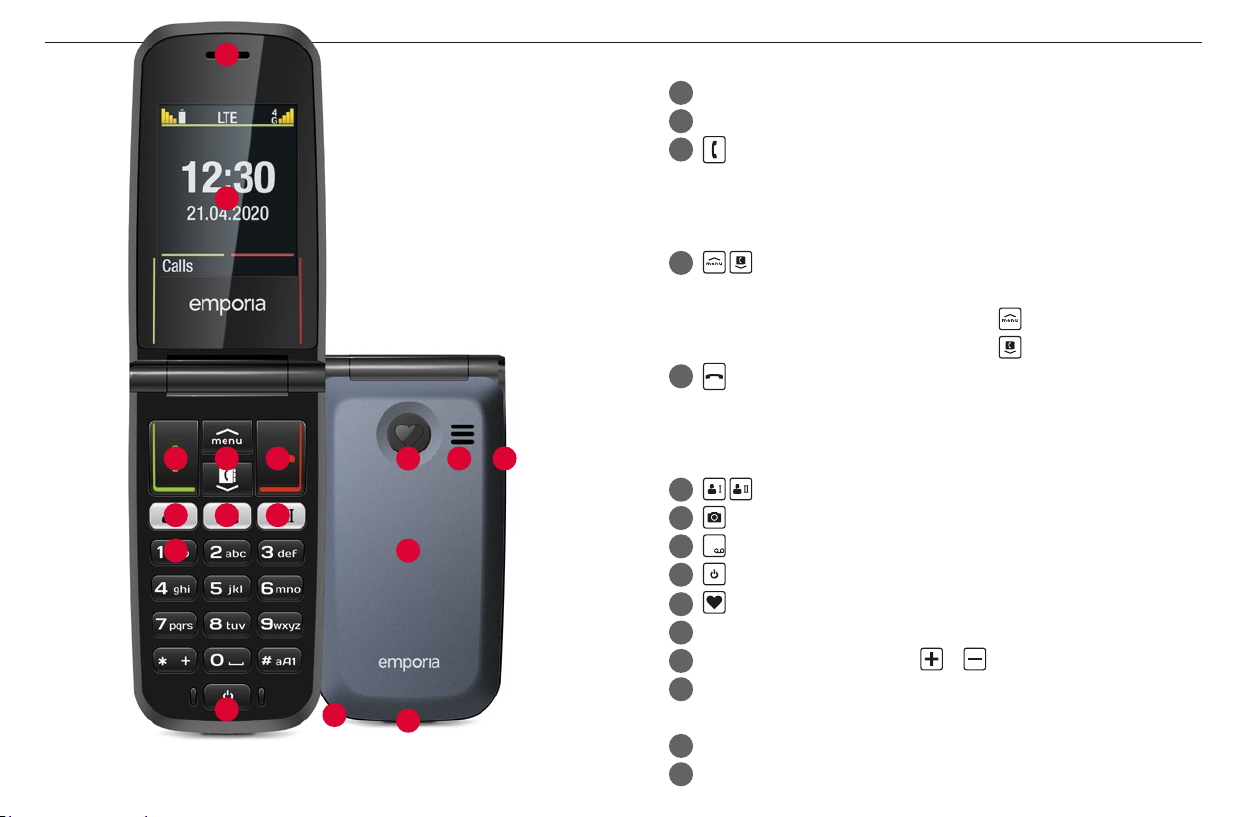
› YOUR MOBILE PHONE AT A GLANCE
1Speaker
2 Display (screen)
3 Green key
• Start or accept a call
• In the menu: Conrm selection
• On standby: Access Call history
4 Arrow keys
• Use these to ick through your Contacts and the Menu.
• When the phone is on standby, press to call up the Menu.
• When the phone is on standby, press to access Contacts.
5 Red key
• When in a call: End
• When in the menu: One step back
• When entering digits or letters: Delete
6 Speed dial keys
7 Camera key
8
1
key (voicemail)
9 On/O key
10 Emergency button (optional)
11 Speaker
12 Handset volume controls &
13 Battery cover (two versions: one with the emergency button
and one without it)
14 Opening for removing the battery cover
15 Port for USB charging cable
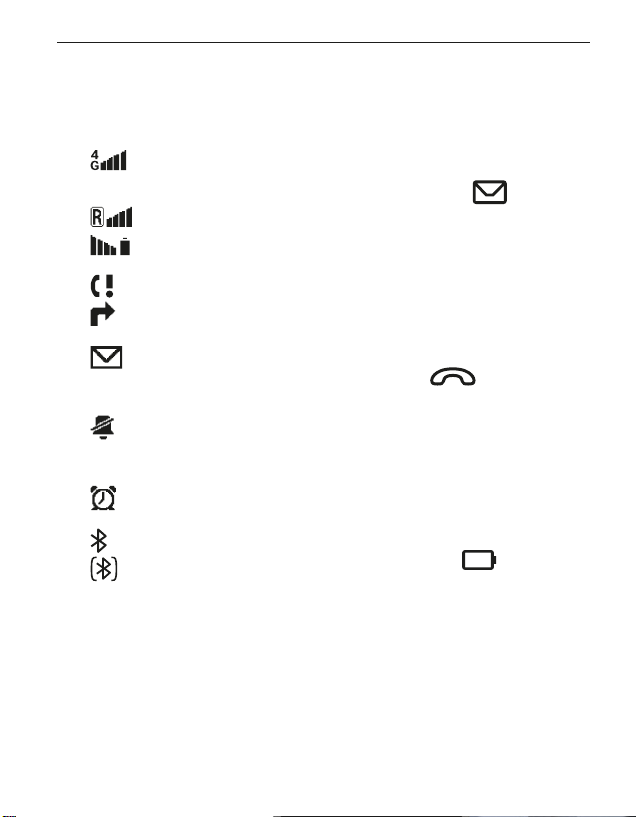
›Symbols on the screen
Network signal
strength
Roaming (abroad)
Battery indicator
Missed call
Call forwarding
New text (SMS)
message
Prole: Silent/Sleep
mode
Alarm on
Bluetooth activated
Bluetooth connected
›Symbols on the
external display
Message LED
• Flashes when a new message
is received
• Stops ashing as soon as
thereceived message has
been read
Call LED
• Flashes when there is a
missed call
• Stops ashing as soon as
your Call history has been
viewed
Battery LED
• Slow ashing: Battery
ischarging
• On constantly: Battery is
fullycharged
• Rapid ashing: Battery is out
of charge
ENGLISH–04
1. PUTTING THE PHONE INTO OPERATION
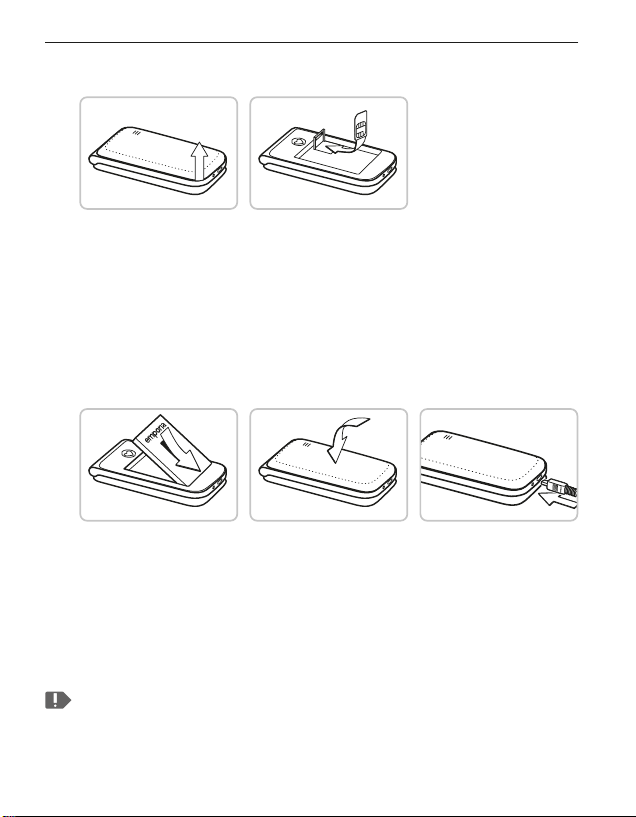
1.1 Inserting a SIM card
1. Remove the battery cover (opening in the bottom
left-hand corner).
2. Open the SIM card holder (slide and lift up the ap).
3. Insert the SIM card into the SIM card holder with the gold
contacts facing down and lock the ap back into place.
1.2 Inserting and charging the battery
1. Insert the battery, making sure that the battery contacts touch
the phone's gold contacts.
2. Place the battery cover over the battery and click it into place.
3. Insert the charging cable into the USB port of the phone and
the power plug into a mains outlet.
Charge the battery for at least 4 hours before the rst time you use
it. Only use batteries and chargers that are permitted for use with
this specic model.

ENGLISH–05
1.3 Turning on the phone
• Press and hold the key for at least two seconds until
theemporia logo appears. It will take a few seconds for
thehome screen to be displayed.
1.4 Entering a PIN code
Enter the four-digit PIN code for your SIM card when asked to
do so and conrm the entry.
You have a maximum of three attempts to enter the correct
number. If you enter the wrong number three times in a row, you
will only be able to unblock the SIM card with the PUK code. You
will nd your original PIN code and PUK code in the documents
supplied with your SIM card by your network operator.
1.5 Setting the language, time and date
1. Use to select a language and then conrm your selection
bypressing OK.
2. Set the time and date and then save these settings.
1.6 Saving battery power
After a few seconds of inactivity, the display will turn o to
save battery power. In the event of an incoming call or you
pressing any key, the screen will light up again.
ENGLISH–06
2. USING THE PHONE
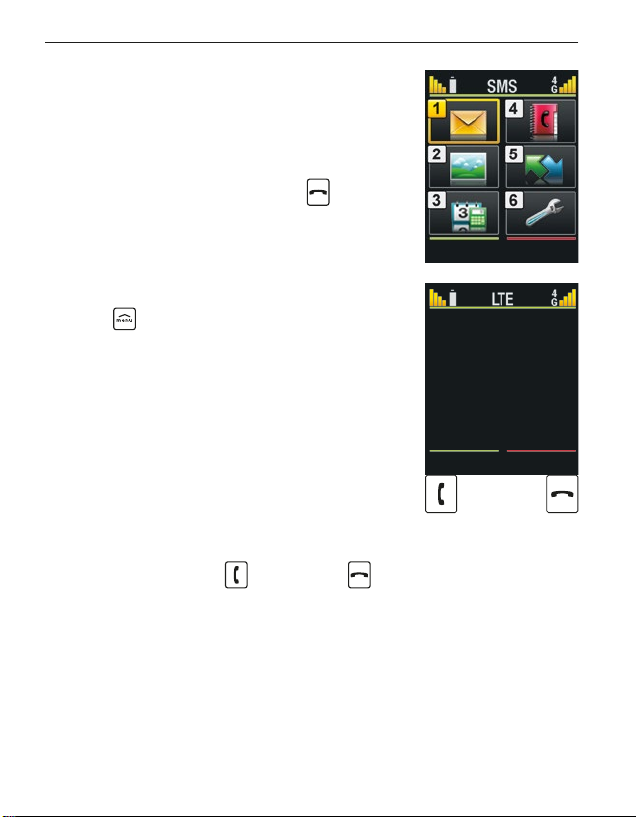
2.1 Home screen
If your phone is on but not using a
function, it will display the home screen.
You can return to the home screen any
time by pressing the redkey several
times.
2.2 Menu
The keywill display the menu. The
menu is a list that enables you to manage
the phone's various functions and adapt
the phone to your needs.
• Use the arrow keys to scroll through the
menu.
• The items available in the menu are
Messages, Photo album, Tools,
Contacts, Call history and Settings.
• Use the green key and red key beneath the screen to
conrm your selection or to return to the home screen.
OK Back
Call history
12:30
21 April 2020
ENGLISH–07
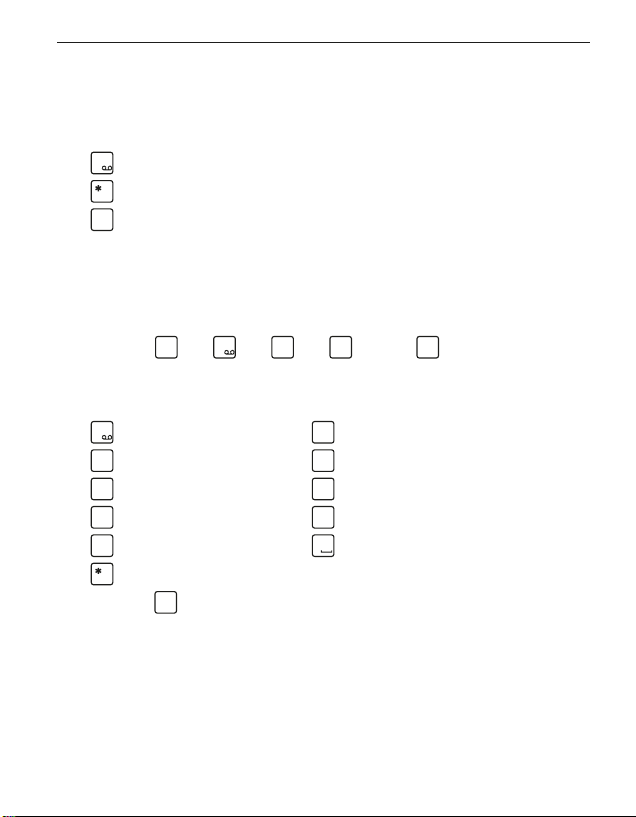
2.3 Dual-function keys
Some keys have additional functions if they are pressed
andheld down for a few seconds:
1
key: Listen to your voicemail
+
key: + for country codes, e.g. +49 for Germany
#
aA1
key: Turn on Silent/Sleep mode
2.4 Writing text
You enter text using the keypad.
• To input text, press a number key multiple times
(e.g. 2 ×
4
ghi
, 1 ×
1
, 3 ×
5jkl
, 3 ×
5jkl
and 3 ×
6
mno
for Hallo)
• Special characters and symbols have been assigned to the
various keys, but can dier in some languages:
1
. ,- ?!1 '@ : ; ( ) *
2
abc
abc2äáçåâāæć
3
def
def3ëéèê€đē
4
ghi
ghi4îïíìğι
5jkl
j k l 5 £
6
mno
m n o 6 ö ñ ô œ ó ò
7
pqrs
pqrs7ß$ş
8
tuv
t u v 8 ü ù û ú
9
wxyz
wxyz9ŵýÿ
0
Space 0
+
., ?! '" () @\ /: _; +- *= %& <> ₤$ ¥§ €¤ [ ]{ }~ #
• Use the
#
aA1
key to switch between the abc, ABC, Abc and
123input methods.

ENGLISH–08
3. CALLS
3.1 Accepting, rejecting or ending a call
• To answer: Open the phone and press Accept.
• To reject or end a call: Press the red button or
close the phone.
• To mute the ringtone temporarily,
press the volume control button.
The open-to-answer-calls function is preset to be o, but can be
enabled in Menu _Settings _Open to answer calls _On.
3.2 Calling someone
›Dialling a number
1. Enter the phone number you want to dial (incl. the area code)
using the keypad.
2. Start the call by pressing .
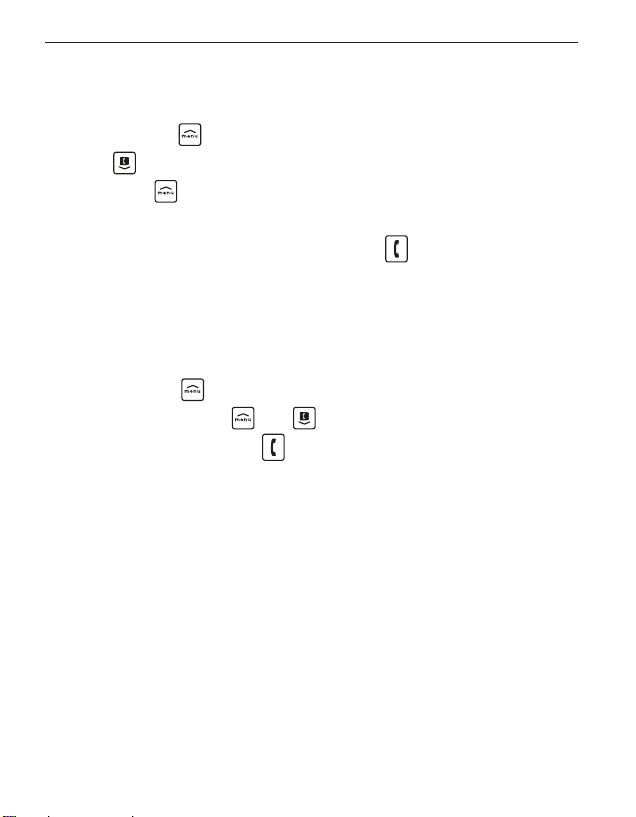
›Using the redial function
1. When on the home screen, press the green key .
Your call history will be displayed.
2. Use the arrow keys and to select a number.
3. Start the call by pressing .
To go hands-free during a call, open Options and turn on
thespeaker.

ENGLISH–09
4. MESSAGES (SMS)
›Menu items available: Write message, History and
Message settings
4.1 Writing and sending a message
1. Open Menu _Messages.
2. Select Write message.
3. Enter the text using the keypad.
4. To specify a recipient for the SMS, open Options and
select Send.
5. You can now select a Contact from the phone book,
type in a Phone number using the keypad or
select a number from your Recent calls list.
4.2 Reading a message
1. When you receive a new message, a symbol will appear
on the home screen.
2. Press the greenkey for View to read
the message immediately.
3. You can nd the text message again later on in Menu
_Messages _History.
4. To read a message, tap on it.
ENGLISH–10
5. CAMERA AND PHOTO ALBUM
5.1 Taking a photo
1. When on the home screen, press the camera key or
open Menu _Tools _Camera.
• The arrow key will open Options (Self-timer and Size).
2. Press the arrow key to take a photo.
3. The photo you've taken will immediately be stored in
thePhoto album. Press the green key to go straight
fromthe camera to the Photo album.
5.2 Viewing photos
• All the photos you take will be sorted chronologically.
1. Open Menu _Photo album.
2. Use the arrow keys and to scroll through the photos.
3. Pressing the green key will open Options for the
selectedpicture.
5.3 Backing up photos on your PC
1. Plug the USB connector end of the USB cable supplied with
thephone into your PC and the other end into your phone.
2. Select Transferles from the list displayed.
3. The PC will now detect your phone and display the phone's
internal memory.
4. You can then select les and copy them onto the PC.
Table of contents
Other EMPORIA Telephone manuals