Eminent EM7680 User manual

EM7680
TV Streamer powered by LibreELEC Kodi

2
|
ENGLISH
EM7680 - TV streamer powered by LibreELEC
Kodi
Table of contents
1.0 Introduction ...........................................................................................................2
1.1 Introduction TV streamer...................................................................................3
1.2 LibreELEC and Kodi introduction.......................................................................3
1.3 Packing contents...............................................................................................3
2.0 Explanation of the remote control ..........................................................................4
3.0 Explanation of the connections..............................................................................5
3.1 Connections of the EM7680...............................................................................5
4.0 Connecting the TV streamer..................................................................................5
5.0 Setting up the TV streamer....................................................................................6
6.0 Change Kodi language interface............................................................................8
7.0 Audio passthrough setup.....................................................................................10
7.1 Connect the EM7680 with an HDMI and/or S/PDIF cable via your Home cinema
set to your TV........................................................................................................11
7.1.1 Connect the EM7680 to an AV receiver by “HDMI”....................................11
7.1.2 Connect the EM7680 to an AV receiver by HDMI and optical cable...........12
7.2 Audio passthrough setup for HDMI and S/PDIF...............................................12
8.0 Stream your media files.......................................................................................14
8.1 Stream your media through Windows..............................................................14
8.2 Stream your media trough NAS.......................................................................19
8.3 Stream your video’s through USB drive ...........................................................23
9.0 Audio and Subtitle selection.................................................................................24
9.1 Download and add subtitles.............................................................................25
10.0 Extra features....................................................................................................29
11.0 Frequently Asked Questions and other related information................................29
12.0 Service and support...........................................................................................29
13.0 Warning and points of attention .........................................................................29
14.0 Warranty conditions...........................................................................................31
1.0 Introduction
Congratulations with the purchase of this high-quality Eminent product! This product
has undergone extensive testing by Eminent’s technical experts. Should you
experience any problems with this product, you are covered by Eminent
warranty. Please keep this manual and the receipt in a safe place.
Register your product now on www.eminent-online.com and receive product updates!

3
|
ENGLISH
1.1 Introduction TV streamer
With the Eminent EM7680 TV streamer you can stream files from the internet or from
your home network, watch all your movies in full HD, view your high quality photo
albums and listen to your music collection. The Eminent EM7680 TV Streamer comes
with a five year warranty.
1.2 LibreELEC and Kodi introduction
LibreELEC is an operating system build around “Kodi”: An open source entertainment
media hub. Because of its open source system, Kodi supports a large amount of Add-
ons, which are provided by third parties. Within Kodi you are able to add these Add-
ons from the default Kodi repository or by adding additional repositories from the
internet. The functionalities and the availability of the Add-ons solely depends on
these third parties. If a third party decides to make changes to a certain Add-on or
decides to stop supporting Add-ons, Eminent cannot guarantee the continued
functionalities and the availability of the Add-ons! Eminent does not support any of
these Add-ons and will direct you to Kodi, LibreELEC or the forum/website of the third
party manufacturer.
For Kodi support please visit:
http://kodi.wiki
For LibreELEC support please visit:
http://wiki.libreelec.tv
EM7680 Source code GitHub:
https://github.com/Eminent-Online/OpenELEC.tv
1.3 Packing contents
The following parts need to be present in the packing:
•EM7680 TV Streamer
•Power supply
•Remote Control + 2x AAA batteries
•HDMI High Speed cable
•Quick Installation Guide

4
|
ENGLISH
2.0 Explanation of the remote control
Coloured buttons description when video is playing:
Red: Subtitle search.
Green: In movie video settings.
Yellow: In movie audio & subtitle settings.
Blue: Bookmarks.
Coloured buttons description when Kodi has boot:
Red: Change the view how the icons will be displayed.
Green: Go to Video section.
Yellow: Go to favourites.
Blue: Go to pictures section.
Colored Hotkeys. See the
below descriptions
10 sec. back in movie
Pause/play
Rewind
Stop
Go to Music section
Go to Video section
Go to the previous screen
Navigation keys
Go to Kodi Settings menu
Volume Up and Down
Numeric keypad
Audio offset
Mute
Go to LibreELEC settings
10 sec. forward in movie
In movie menu
Fast forward
Go to Pictures section
Go to TV shows
Show Favorites
Enter / confirm
Return to previous screen
Go to Home Screen
Subtitle offset
Drop-down settings menu
Return to previous screen/Delete text
Power On/Off

5
|
ENGLISH
3.0 Explanation of the connections
3.1 Connections of the EM7680
•On/Off Switch.
•DC In: Connection for the power cable (5V).
•Optical S/PDIF connection: Audio connection to connect to your digital audio
receiver.
•LAN: Connection used to connect to your LAN network.
•Micro SD card reader: Connection for external memory cards such as Micro-SD
and Micro-SDHC cards.
•HDMI connection: HDMI High speed. Used to connect to your HD television or
HDMI AV receiver.
•USB 2.0 host:Used to connect USB devices such as a USB hard disk, USB
memory sticks, wireless keyboard and Wifi network adapters.
4.0 Connecting the TV streamer
1. Connect the HDMI cable to the HDMI connection of the EM7680 and connect the
other side of the HDMI cable to a free HDMI connection on your television.
2. Connect a network cable to the LAN connection of the EM7680. Connect the other
side of the network cable to your modem/router or switch.
3. Set the television to the corresponding HDMI channel.
4. Connect the cable of the power supply to the ‘Power’ of the EM7680.
5. Connect the power supply to a wall outlet.
If you want to connect your TV streamer to your HDMI AV receiver, please follow the
steps described in chapter 7 Audio Passthrough setup.
DC in
Optical
LAN
Card Reader
HDMI 2.0a connection
USB 2.0 host
ON/OFF

6
|
ENGLISH
5.0 Setting up the TV streamer.
1. Make sure the “On/Off” switch is switched to ‘On’ to start up the TV streamer.
2. Once the EM7680 has booted, a wizard appears. This wizard can be used to
setup the TV streamer.
During the start of the wizard, you will notice some default add-ons, like subtitle and
weather add-on being updated when you have connected the streamer to the Internet.
3. Click “Next”. The following screen appears.

7
|
ENGLISH
4. You have the option to change the name of your TV streamer. If you wish to
change the TV streamers name, you can change the name so it will be
recognizable when you see the TV streamer in your network. Click “Next”. The
following screen appears:
5. If you choose to setup your network connection wirelessly, then please select your
wireless network name and fill out the corresponding security key. Click “Next”.
The following screen appears:
6. You will notice that Samba and SSH for sharing and remote access are at default
enabled. We advise you to leave these options enabled. Click “Next”. The
following screen appear:

8
|
ENGLISH
7. Click “Next”. Your TV Streamer is now ready to use.
All these settings you have entered or changed can also be changed in the “Settings”
menu.
6.0 Change Kodi language interface
1. Use the navigation buttons to go to the cog-wheel icon.

9
|
ENGLISH
2. Click on the ‘OK’ button on your remote control. The following screen appears:
3. Select ‘Interface settings’and press the “OK’’ button on your remote control.
The following screen appears:
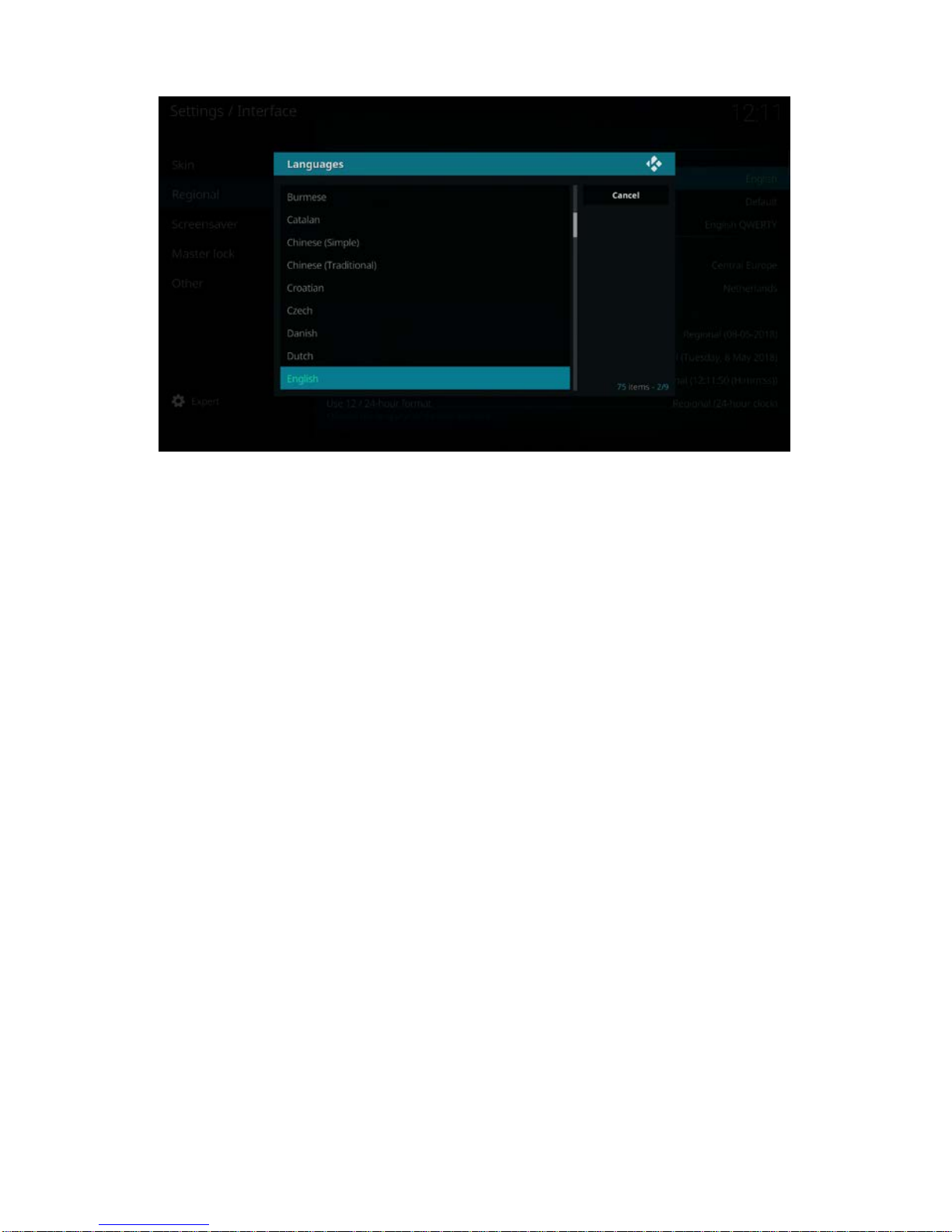
4. Select ‘Regional’. With the navigation buttons go to the right side and click on
‘Language’with the ‘OK’ button. The following screen appears:
10
|
ENGLISH
5. Choose your desired Language and enter with the ‘OK’ button.
6. Use the navigation buttons again to go to “Country and languages settings”
7. You will notice that all settings for language will be automatically changed except
for time zone.
8. Click on ‘Time zone’ country to add the corresponding country for proper time
zone.
7.0 Audio passthrough setup
If your EM7680 is connected to a AV receiver by HDMI or S/PDIF connection, you will
need to “enable passthrough” so your AV receiver will be able to decode the audio
streams such like DTS or Dolby Digital.
Before you power on the TV streamer, please make sure to setup properly the
connection between TV and AV receiver as described in the following steps.
Other manuals for EM7680
3
Table of contents