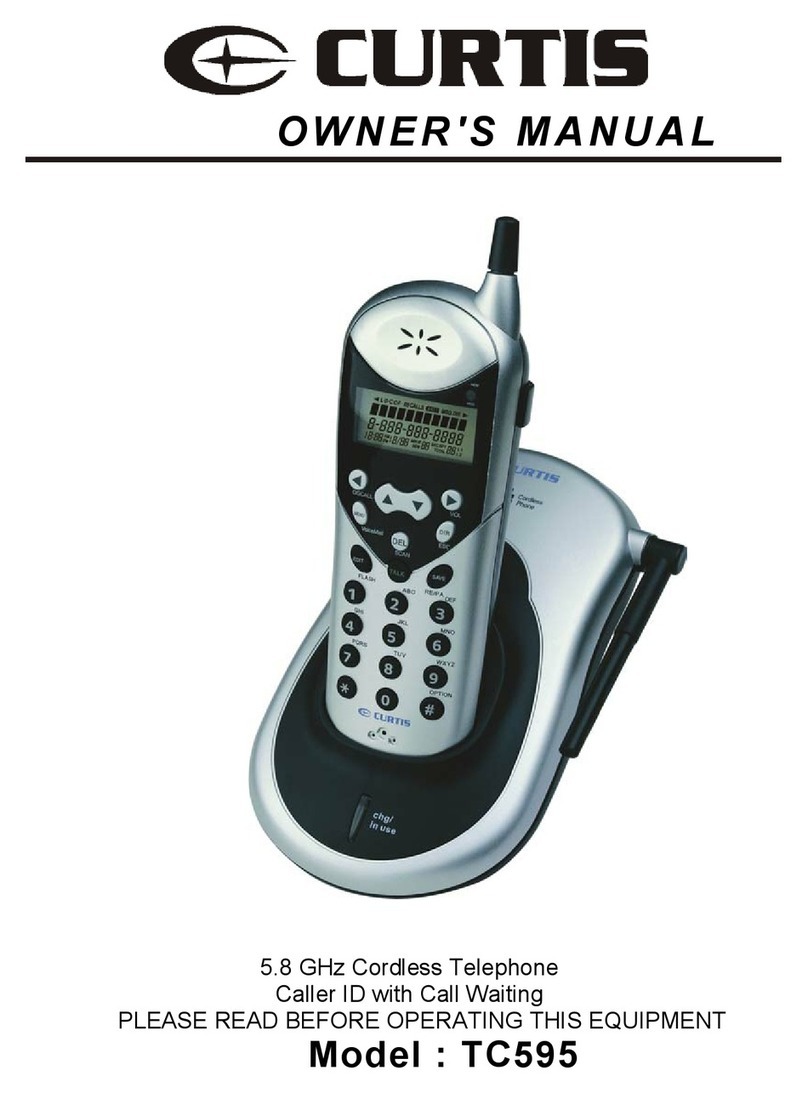
Emerson EM6000 User manual

Lighted Display
Speakerphone
Expandable
Digital Cordless Phone
_
User Guide
EM6000

In the box
BaseHandset
BracketLine Cord
LightedDisplay
Speakerphone
Expandable
User
Guide
Rechargeable
Battery
AC
Adapter

Getting started
Installing the battery
1. Open the battery cover.
2. Insert the battery. Be sure to
insert exactly as shown.
3. Close the battery cover.
4. Place the handset on the base
to charge.
Installing the bracket
1. Before installing the bracket, connect the line cord and AC adaptor to
the back of the base (see “Connecting”).
2. Snap the bracket to the back of the base as shown below.
3. Place the base on a flat surface.
Wall Mounting
To mount your telephone on a wall plate (not included), follow the
instructions below:
1. Plug the line cord into a modular phone jack.
2. Align the holes on the base with the mounting studs on the wall plate.
3. Pull the base down onto the studs until the telephone is secure.
wall plate
Before using for the
first time, charge the
handset for 12-16 hours

Connecting
1. Plug one end of the line cord into the jack at the back of the phone’s base,
and the other end into a modular phone jack.
2. Connect the AC adaptor as shown above, and plug into a standard
AC outlet.
3. The handset will display “Searching”, wait until “Handset 1” is displayed.
4. Press on the handset and confirm you hear the dial tone.
Wall Mounting
To mount your telephone on a wall plate (not included), follow the
instructions below:
1. Plug the line cord into a modular phone jack.
2. Align the holes on the base with the mounting studs on the wall plate.
3. Pull the base down onto the studs until the telephone is secure.
wall plate
Jack
AC adapter
modular
phone jack
AC Outlet
line cord
insert here

Standby Screen
The handset

volume screen
• to use the speakerphone,
press the button,
this can be done before
or during a call
• during a call or while using
the speakerphone, use the
▲ and ▼buttons to increase
or decrease the volume
Volume
Reviewing Caller ID information:
• In the standby mode, use the ▲and ▼buttons to
review the Caller ID history
• you can select a number and press to dial it
• to save a number to the phonebook, press the
softkey and then select “Save Number” and press the
softkey to confirm and save
• to redial a number, press and HOLD the button,
then use the ▲and ▼buttons to select from a list of
recently dialed numbers, and press to make the call
redial screen
Option
555-555-1111
555-555-2222
555-555-3333
555-555-4444
Redial
Using the phone
Speaker

Phonebook
The phone can store up to 50 names and numbers in its phonebook.
Caller information may be saved from the received calls in the Caller ID
memory (see "Reviewing Caller ID information"), or entered manually.
Adding numbers to the phonebook:
1. Press the button to enter the phonebook.
2. Press the softkey, and select “New Entry”
from the phonebook options screen and press the
softkey.
3. Use the handset keypad to enter a name for the entry
by multi-pressing a key until the desired letter is displayed.
4. Press to add a space and the softkey to
go back.
5. When finished entering the name, press the
softkey.
6. Enter the number using the handset keypad.
7. When finished entering the number, press the
softkey.
8. Select a ring tone and press the softkey to
save the number in the phonebook.
9. It is possible to edit and delete numbers in the
phonebook from the phonebook options screen.
John Smith
Mike Hayes
Paul Williams
Angela Dotson
phonebook screen
open phonebook
small letters /
capital letters
add space
multi-press
for a,b, or c
phonebook screen
spk
John Smith
Mike Hayes
Paul Williams
Angela Dotson
Option
phonebook options screen
spk
New Entry
Edit Entry
Show Details
Delete Entry
entry screen (name)
spk
Name: abc
John Smith
entry screen (number)
spk
Number:
555-555-1234
Soft Keys
Soft Keys
Dialing a number from the phonebook:
1. Press the button to enter the phonebook.
2. Use the ▲and ▼buttons to navigate up or down.
3. Press the button to dial the selected number.
• to redial a number, press and HOLD the button,
then use the ▲and ▼buttons to select from a list of
recently dialed numbers, and press to make the call

Connecting
1. Plug one end of the line cord into the jack at the back of the phone’s base,
and the other end into a modular phone jack.
2. Connect the AC adaptor as shown above, and plug into a standard
AC outlet.
3. The handset will display “Searching”, wait until “Handset 1” is displayed.
4. Press on the handset and confirm you hear the dial tone.
Wall Mounting
To mount your telephone on a wall plate (not included), follow the
instructions below:
1. Plug the line cord into a modular phone jack.
2. Align the holes on the base with the mounting studs on the wall plate.
3. Pull the base down onto the studs until the telephone is secure.
1. Press the button to enter the menu.
2. use the ▲and ▼buttons to navigate from the
following selections: Phonebook, Handset, Base
Settings, Time, and Tools.
3. Press the softkey to select an option.
4. Press the softkey to go back.
Phonebook
Handset
Base Settings
Time
menu screen
spk
Soft Keys
Menu
Use the menu to customize various settings such as ringer volume, ring
tones, language, display settings and more.

Press the soft key to
mute or disable mute
• answer a call
• start a call
• dial a number from the phonebook or Caller ID history
Answer calls
• end a call
• in the menu, escape to
the standby screen
00:30
talk screen
spk
Mute Soft Key
To answer an incoming call while having a conversation:
After you hear the Call Waiting tone, press and release the
button. The first call is placed on hold and the second
call is answered.
To return to the first call and put the second call on hold:
Press and release the button again to return to the
first call, the second call will be put on hold.
To activate Three Way Calling:
Press and release the button while on the first call,
you will hear a dial tone. Dial a second number, and press
the button again to connect the two calls.
End calls

Call Waiting / Flash
The Flash feature is used to activate calling services available through your local phone
company, such as Call Waiting, and Three Way Calling. To use the features below you
must subscribe to these services from your local telephone company.
You can delete a number, or all numbers from the Caller ID history in the Caller ID
options screen
Reviewing Caller ID information:
• In the standby mode, use the ▲and ▼buttons to
review the Caller ID history
• you can select a number and press to dial it
• to save a number to the phonebook, press the
softkey and then select “Save Number” and press the
softkey to confirm and save
Caller ID / Call Waiting Caller ID
IMPORTANT: In order to use this unit’s Caller ID features, you must subscribe to
either the standard Name/Number Caller ID Service or Call Waiting Caller ID Service
from your local telephone company.
This telephone automatically displays an incoming caller’s name and telephone
number, as well as the date and time of the call. It can record and store the
information of up to 30 calls into the phone’s Caller ID memory.
EMERSON
877-768-8483
Aug 20 12:30
New
Option
spk
Save Number
Delete
Delete All
spk
Caller ID screen Caller ID options screen
Soft Keys
Table of contents
Other Emerson Cordless Telephone manuals