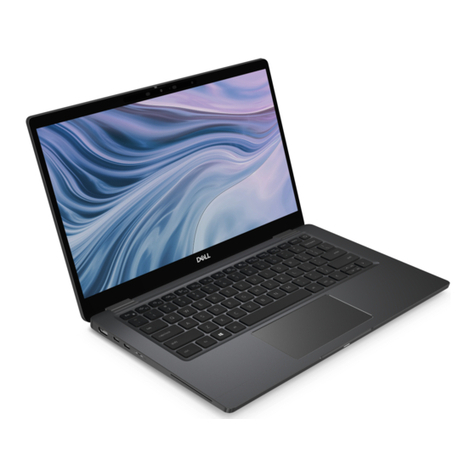
Emdoor X11 User manual

深圳市亿道信息股份有限公司
EMDOOR INFORMATION CO.,LTD
1
X11 Win10 OS Operation Instruction
Foreword:
Dear user, thanks for you use our company product. In order to faster know about the product for
you, please refer file instruction when you have question . The file mainly introduce X11 item body
interface and system use instruction. Through picture sign information , user can faster know about
the use way of product. Please connect our company technology staff to solve when you encounter
question that you can’t deal with, thanks for your Trust
Content

深圳市亿道信息股份有限公司
EMDOOR INFORMATION CO.,LTD
2
1. Product appearance six views
1.1 close six views
File name
X11 Win10 OS Operation Instruction
File number
0001
Version
V1.0
Issue date
2017-09-26
Pages
Change records
Change
record
Change record
Change
record
Change record
Change record
Change
record
1
YDXX-01
V1.0
2017-09-26
First published
Service FAE
department

深圳市亿道信息股份有限公司
EMDOOR INFORMATION CO.,LTD
3
1.2 unfold six views

深圳市亿道信息股份有限公司
EMDOOR INFORMATION CO.,LTD
4
2. Product external interface
2.1 Product ports on left side
1.TF card 及
SIM card slot
2.HDMI and headphone port
slot
8.RJ45 网口接口
7.USB2.0 接口
4.DC 电源接口
3.USB3.0
port
6.DC 充电接口
5.GPS 外接天线接口

深圳市亿道信息股份有限公司
EMDOOR INFORMATION CO.,LTD
5
1. The TF card and SIM card slot, insert TF card here can extend storage space , insert SIM
card can use mobile data traffic to surf the Internet;
2. HDMI and headphone jack - HDMI for transmission to the projector or HDTV video
file;Interface is 3.5 mm standard headsets, can use the 3.5 mm audio cables to connect
speakers to play audio files
3. USB3.0 interface - USB high speed data transmission interface, can connect USB storage
devices and connect to plug and play USB devices
4. 12 v 4 a power supply interface - The host DC power supply interface, after connecting the
power supply can work directly from the battery or to recharge the battery.
5. GPS module in external antenna - when using external antenna of the keyboard can use this
interface to external connect antenna port
6.
Keyboard terminal DC power supply interface - 12 v 4 a DC power supply interface, after
connecting the power supply can work directly from the battery or to recharge the battery.
7. USB2.0 interface - USB data transmission interface, connect USB storage devices and plug and
play USB devices
8. RJ45 Internet interface --Can be directly connect the network cable to this interface to access
the network
2.2 Product ports on right side
4.RS232 接口
3.RS485 接口
2.USB2.0 接口
1.触控笔

深圳市亿道信息股份有限公司
EMDOOR INFORMATION CO.,LTD
6
1.Stylus - can be directly used for touch screen, handwriting and so on, can be used for drawing
in the drawing software
2.USB2.0 interface (keyboard) - USB data transmission interface, connect USB storage devices
and plug and play USB devices
3.RS485 interface - used in PC and intelligent communications equipment by means of RS232 and
RS485, Ethernet, etc;
4.RS232 interface - used in computer peripherals connect the serial interface.Connecting cable
and mechanical, electrical properties, signal functions and transmission
2.3 Product Front side
1. F function keys - is used to control the switch 1d / 2 d scanning module
2. The keyboard buttons - when the host and the keyboard in separation can use this button to
calls a virtual keyboard
3. VOLUME - Button - used to adjust volume to reduce the volume
4. volume + button used to adjust volume to increase the volume
5. Windows "HOM button - used to open the Windows shortcuts
6. The power button - used to sleep wake up the device and the switch on/off equipment;
10
13
12
9
11
8
7
6
5
4
3
2
1

深圳市亿道信息股份有限公司
EMDOOR INFORMATION CO.,LTD
7
7. Keyboard lock - for host connected after the keyboard locked, to prevent fall off
8. Keyboard area - used for text input and control system function
9. The fingerprint - used for log in Windows or file encryption
10. Touchpad - used to simulate the mouse operate and work computer, two fingers sliding at the
same time online simulation mouse wheel
11. indicator Light - used to show the battery, the system working status and network status;
12. Left button - the mouse left function key;
13. Right button - the mouse right function key;
1.Device initialize Setting
1.1 language choice
According to different international customers with the use of different language, when you first
meet language Settings page after starting , where users can define customer language according
to demand (system default in English and Chinese two languages commonly, can be customized
as the required language)

深圳市亿道信息股份有限公司
EMDOOR INFORMATION CO.,LTD
8
1.2 User agreement
CLICK and accept and enter into Next Step
1.3 Network setting
下一步
接受

深圳市亿道信息股份有限公司
EMDOOR INFORMATION CO.,LTD
9
1.4 Quick start
User can choose quick setting or user-defined
jump

深圳市亿道信息股份有限公司
EMDOOR INFORMATION CO.,LTD
10
1.5 Account setting
User can user-defined set account code, or directly set account without set code entering the next
step:
Quick setting
user-defined setting
Table of contents
Other Emdoor Laptop manuals