
EAVISION Thor EA2021A Global Offline Version User manual

1
Thor
(EA2021A-Global Offline
Version)
User Manual (V1.0)
2021.07.15
Suzhou EAVISION Robotic Technologies Co., Ltd.

2
Table of Contents
1 Disclaimer........................................................................................................................................... 3
2 Product Overview................................................................................................................................3
2.1 Brief Introduction.....................................................................................................................3
2.2 Application Scenarios...............................................................................................................3
3 Introduction to System........................................................................................................................ 4
4 Introduction to Module Parts.......................................................................................................6
4.1 Base station.............................................................................................................................. 6
4.2 Survey tool............................................................................................................................... 7
4.3 App........................................................................................................................................... 8
5 Check List before Use......................................................................................................................... 8
6 Operation Steps................................................................................................................................. 10
6.1 Preparation before use............................................................................................................10
6.2 Offline module ID setting ...................................................................................................10
6.3 Enter the offline mode............................................................................................................10
6.4 New requirement and new plot.............................................................................................. 11
6.5 Surveying and mapping..........................................................................................................12
6.6 Send the plot information.......................................................................................................12
6.7 Open the EAVISION Smart Agriculture................................................................................ 13
6.8 Offline networking................................................................................................................. 14
6.9 Connect the WLAN................................................................................................................14
6.10 Start operation...................................................................................................................... 15
6.11 Appendix: firmware upgrade................................................................................................15
7 Cautions.............................................................................................................................................16
8 Appendix........................................................................................................................................... 17

3
1 Disclaimer
Thanks for choosing the EA2021A (global offline version) developed and manufactured by Suzhou
EAVISION Robotic Technologies Co., Ltd. (hereinafter referred to as "EAVISION"). Please read and
abide by the relevant requirements of this manual carefully, operate in strict accordance with the
instructions in actual operation process and maintain in a timely and detailed manner. The use of this
product shall be deemed as the approval and acceptance of the entire contents of this manual.
This product is not suitable for people under 18. Before using this product, please accept the formal
training of EAVISION and obtain the qualification certificate. While using the product, the user
promises to be responsible for his/her actions and all consequences arising therefrom.
EAVISION shall not be borne by all losses caused by the user's failure to use the product in
accordance with this document and user manual, and shall not be liable for any indirect,
consequential, punitive, incidental, special or punitive damages.
EAVISION shall not be borne by any loss or injury caused by non-use, modification or disassembly
of the original parts.
EAVISION shall not be liable for any consequences arising from the use of this product in violation
of laws and regulations.
EAVISION reserves the right to update this disclaimer.
2 Product Overview
2.1 Brief Introduction
EA2021 realizes the data transmission between the UAV and the ground station through the 4G
signals. In some areas with the weak or no 4G signals, the UAV fails to receive mission data from the
ground station and cannot operate autonomously. EA2021A-global offline version connects all the
devices in the system to realize the autonomous operation in offline state via the mobile base station
and survey tool.
2.2 Application Scenarios
EA2021A-global offline version is suitable for autonomous operations in areas with weak or no 4G
signal.
4
3 Introduction to System
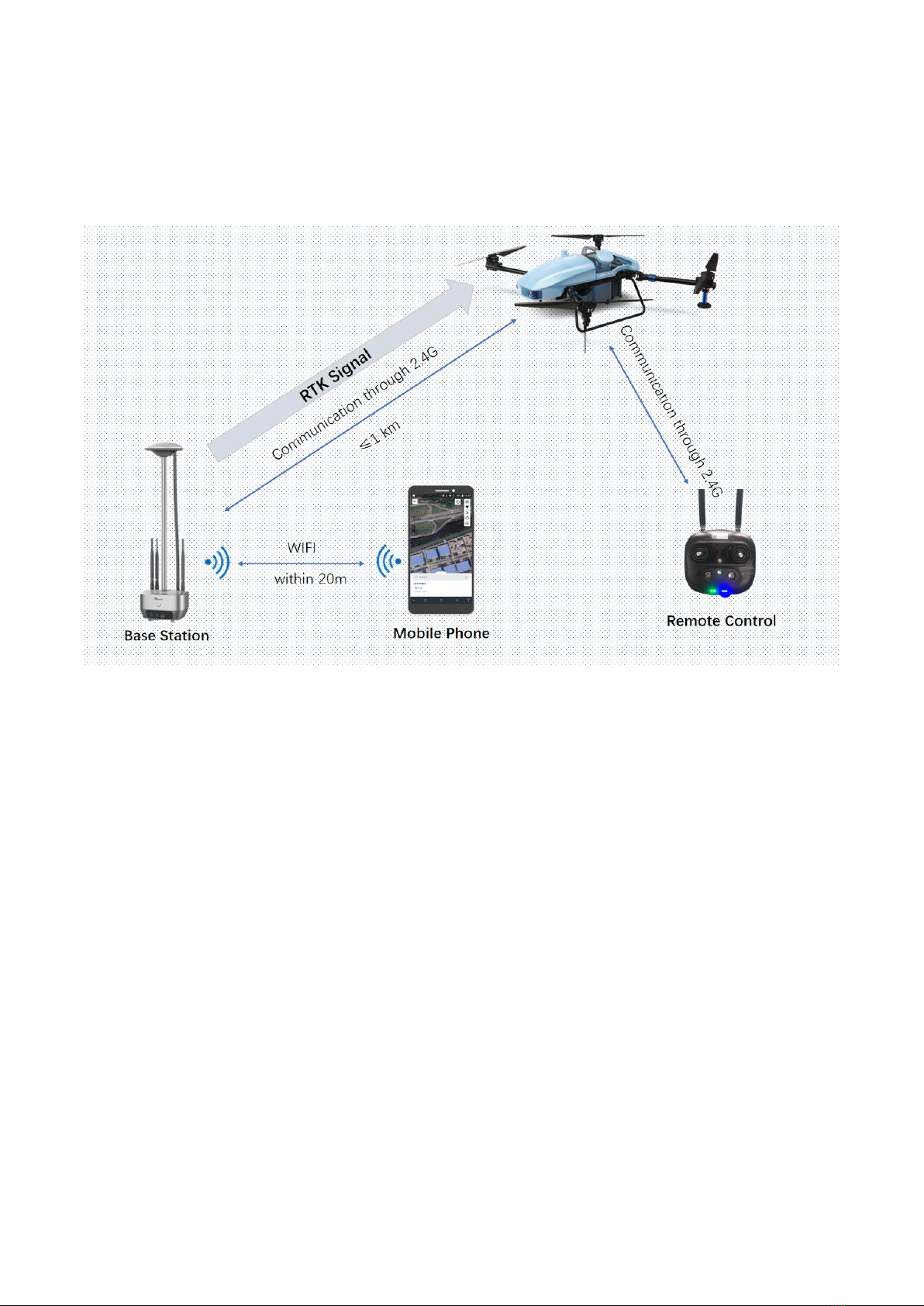
Mode 1
Application condition: No survey tool is required with the existing operation plot.
Communication link: Set up the base station. The base station communicates with the UAV in real
time through 2.4G and communicates with the phone through WIFI. The UAV receives the flight
data from the phone and RTK signals from the base station to realize the autonomous flight of the
UAV in offline mode.
5
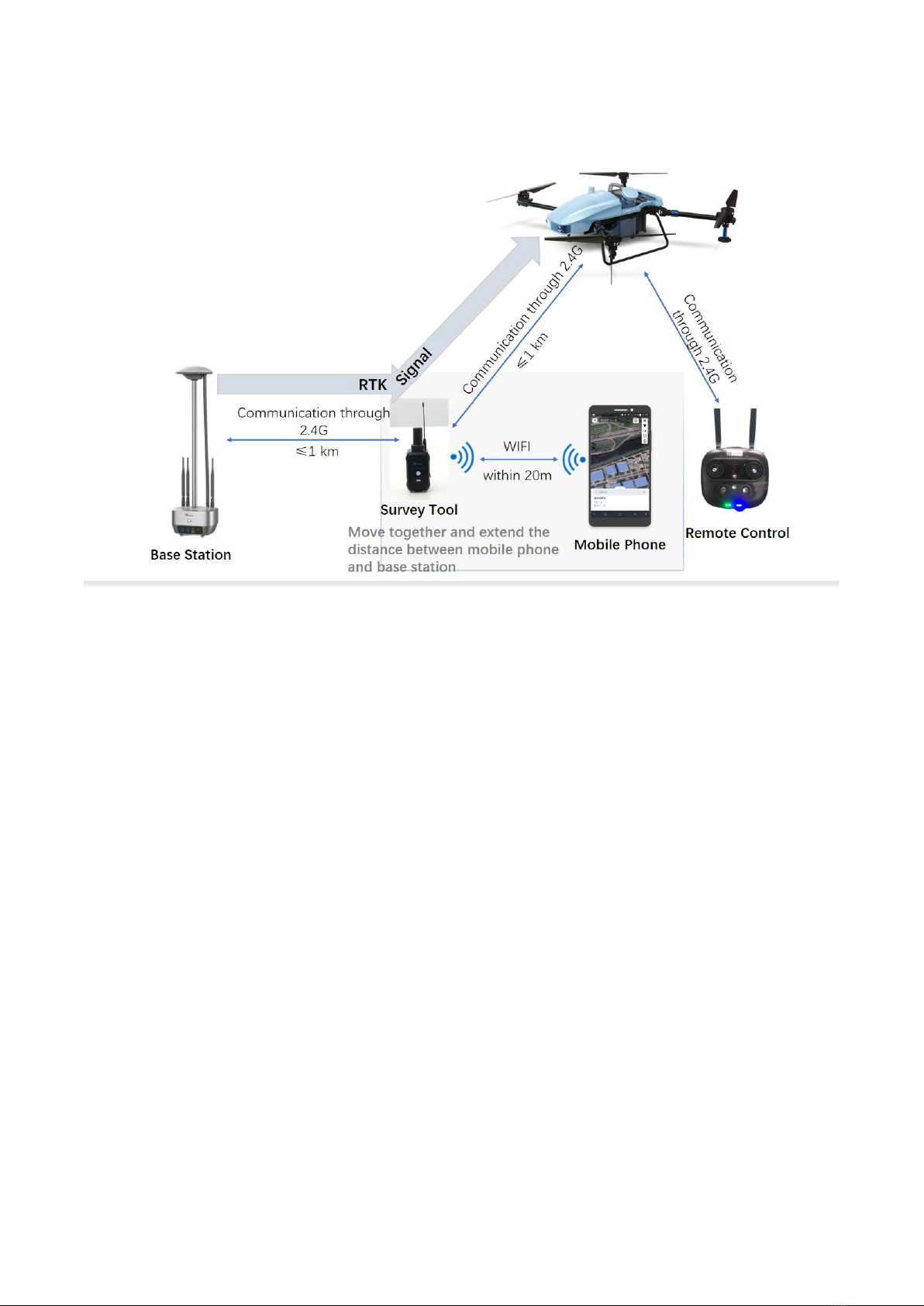
Mode 2
Application condition: The survey tool is required for plot surveying.
Communication link: Set up the base station. The base station communicates with the survey tool
through 2.4G and the survey tool connects the phone through WIFI. The survey tool receives the
RTK signal for locating and surveying. With the survey tool as the relay, the communication
distances between the phone and the base station, the UAV and the base station can be improved. The
network communication among the base station, survey tool, mobile phone and UAV can realize the
autonomous flight of UAV under the off-line mode
6
4 Introduction to Module Parts
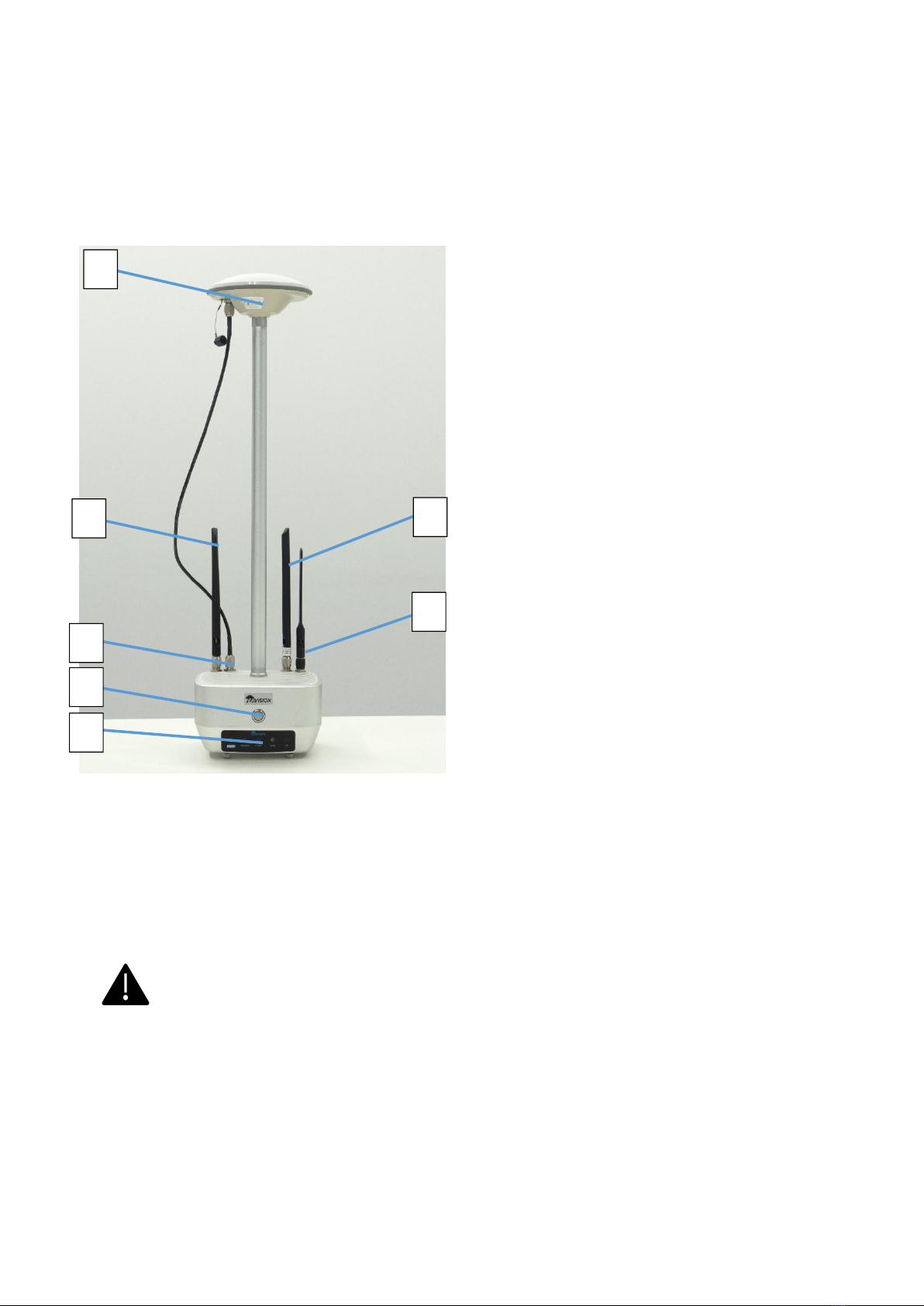
4.1 Base station
1. GPS antenna
2. 2.4G antenna
3. GPS antenna interface
4. Power button
5. LED lights
(Power, Network, WIFI/Bluetooth,
Acquisition/DGPS, Fault)
6/7. Antenna
Basic operation
Long press the power button to turn on/off the power of the base station.
Short press the power button to check the electricity level of the survey tool.
Set up the base station in the location away from trees, obstacles, telegraph poles,
high-voltage power lines, etc.
No object in the inverted cone range of 120 degree directly above the base station.
Coverage ≤ 1 km
1
2
3
4
5
6
7
7
4.2 Survey tool
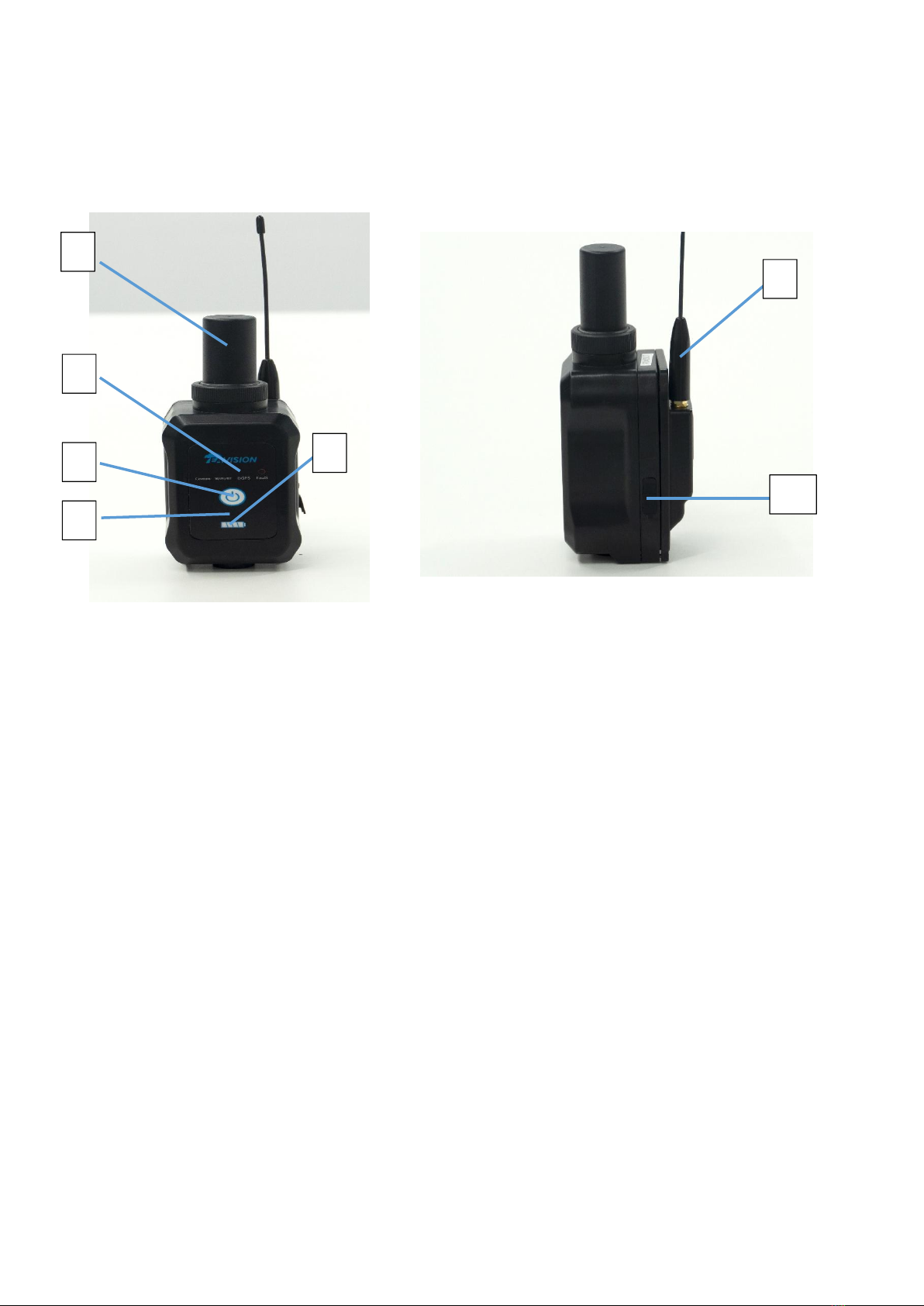
Introduction to components
Fig.1 Fig.2
1. RTK antenna 5. Electricity level indicator
2. LED lights (communication, WIFI /Bluetooth, DGPS, Fault) 6. Antenna
3. Power button 7. Charging port
4. Power indicator
Basic operation
Long press the power button until that all LED lights are on/off at the same time to turn on/off
the power of the base station.
Short press the power button to check the electricity level of the survey tool.
1
2
3
4
5
6
7
8
4.3 App
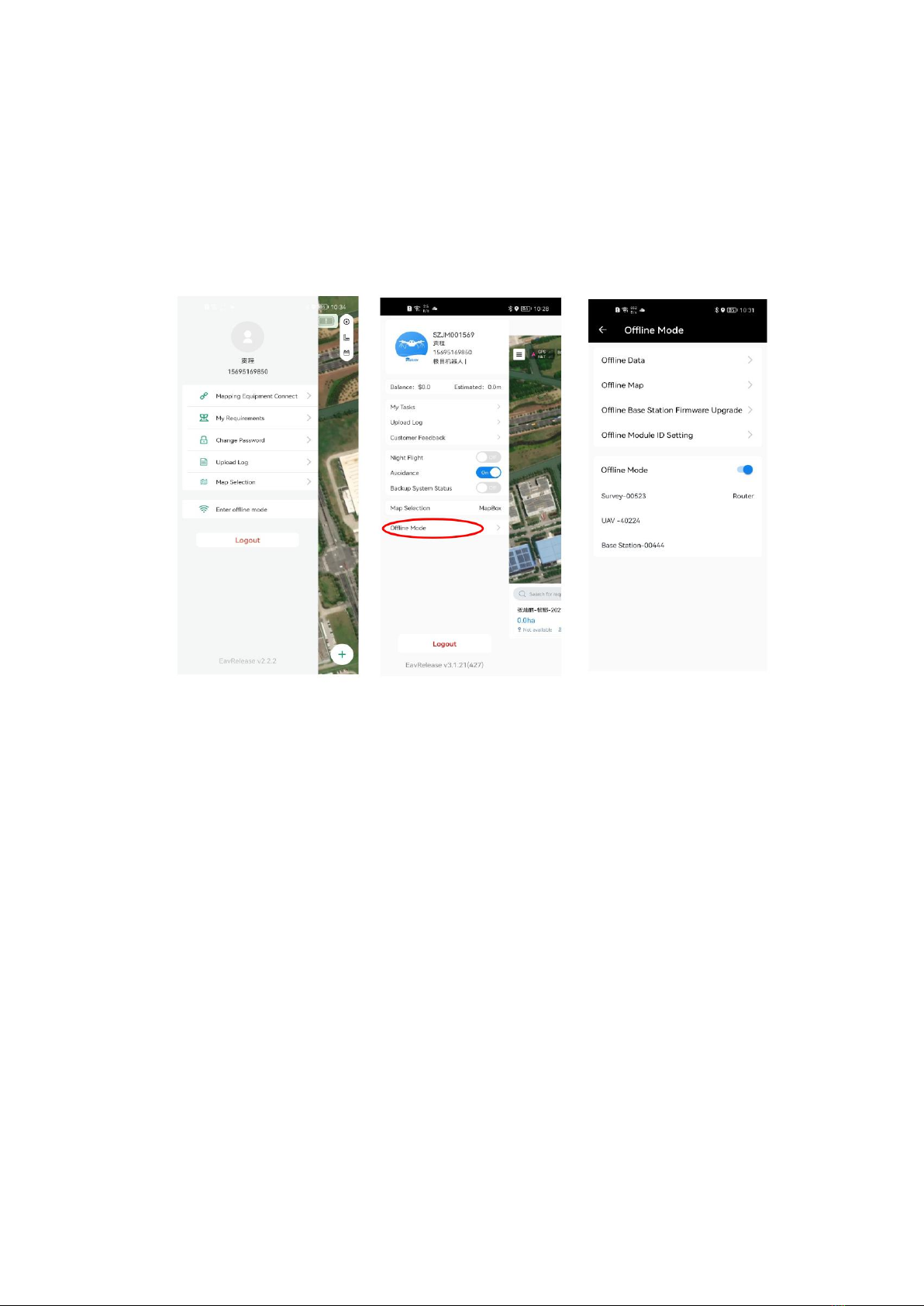
“Offline Mode” is added in the left sidebar in the EAVISION Survey APP.
“Offline Mode” is added in the left sidebar in the EAVISION Smart Agriculture APP. Enter the
“Offline Mode” to see the connection conditions of various devices in the offline system. (See
Fig. 1)
Fig. 1
Compared the old APP, the function of offline base station firmware upgrade is added here.
5 Check List before Use
UAV
Check the screws of the UAV arms, motor fixing screws and propeller fixing screws. Please
tighten the screws if they are loose.
Check the camera lens and distance sensor to see whether there are stains, dust, and damage, etc.
If there is any stain, wipe it with soft towel and alcohol pad; please replace the lens in time if it
is damaged.
Check whether there are foreign materials in the height sensor. If there are, please clean them

9
with soft towel.
Battery
Check the battery power before operation.
Check whether the battery is bruised, damaged, or inflated. If the battery is abnormal, please do
not use it and replace it in time.
Survey tool
Check the power of the survey tool. If the power is lower than level 2, please charge the battery
in time.
Check whether the RTK antenna of the survey tool is loosened. If it is loose, please tighten it
before use.
Keep the surface of the antenna of the survey tool clean; otherwise, the GPS signal will be
affected.
Check whether the antenna is loosened. If it is loose, please tighten it before use.
Base station
Check the battery power of base station. Ensure the battery power is greater than level 1.
Check the mobile phone antenna, GPS feeder, GPS antenna and antenna screws of base station.
Check the tripod to make sure it is firmly erected and no screws are loose.
Ground station
Check the power of the mobile phone. If the power is low, please operate it after charging.
APP
Before entering an area without network, please log in the APPS of “EAVISION Surveying” and
“EAVISION Smart Agriculture” in the area of network.
10
6 Operation Steps
(Mode 2)
6.1 Preparation before use
Please log in the “EAVISION Survey” and “EAVISION Smart Agriculture” before entering the
area with no network.
Enter the operation area and erect the base station in the appropriate positions.
Turn on all the devices in the offline system.
6.2 Offline module ID setting
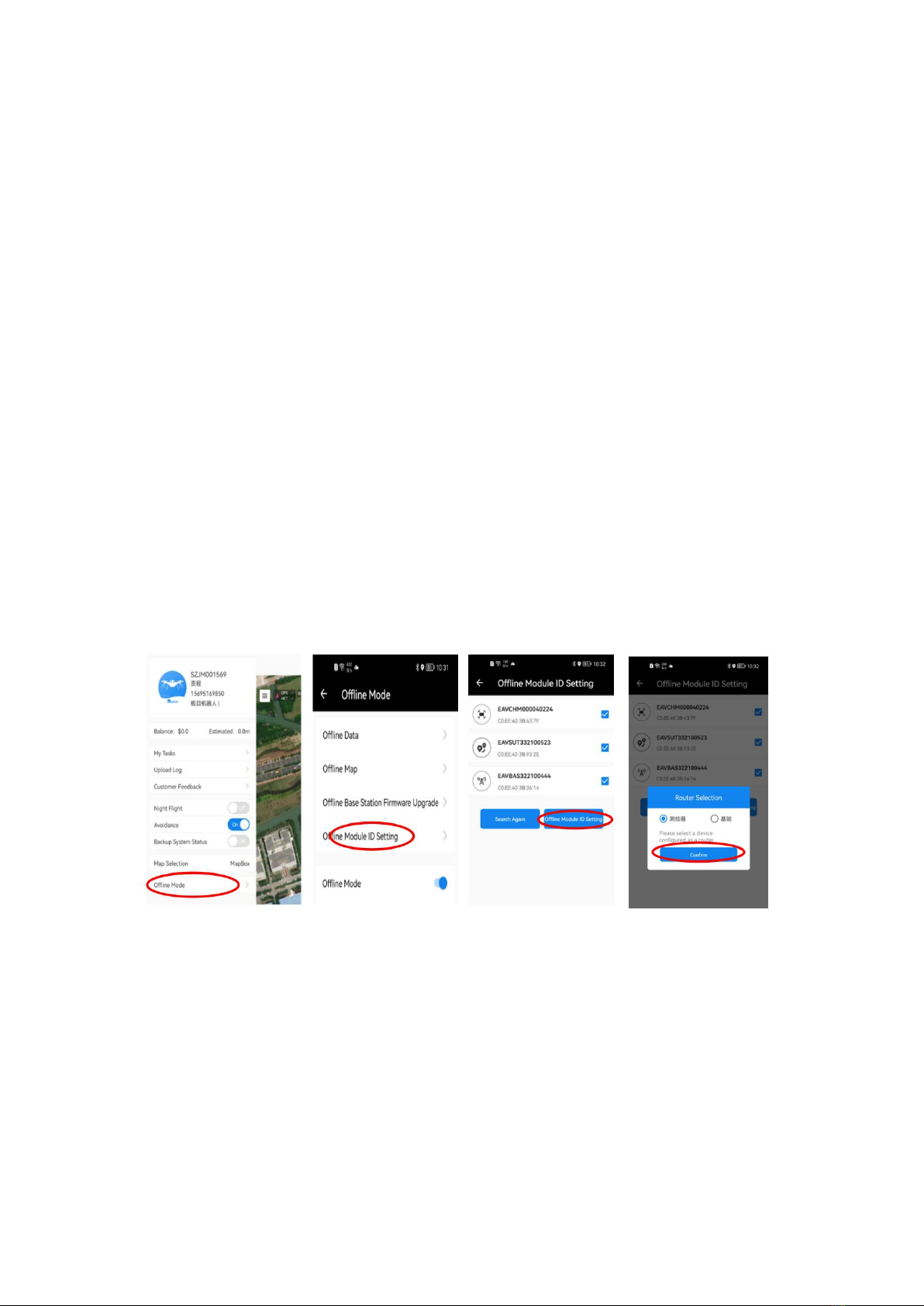
Enter the APP “EAVISION Smart Agriculture” and click on the “Offline Mode” on the left bar
to enter the offline mode. Click on the “Offline Module ID Setting” and tick the base station,
survey tool and UAV required. Click on “Offline Module ID Setting” and the page for selecting
the router appears. Select the “Survey Tool” as the router (In case of mode 1, select the base
station). Click “Confirm” and set automatically the parameters. (See Fig.2)
Fig. 2
6.3 Enter the offline mode
For mode 1, please switch to 6.8.
Enter the EAVISION Survey APP. Click the left sidebar on the main screen to open the menu
bar.
Click the “Enter Offline Mode” and then click on “Mapping Equipment Connect”. After the
Table of contents
Other EAVISION Drone manuals


