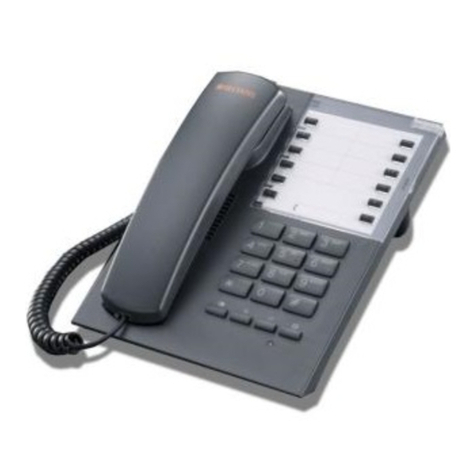
E-Tel freeride FR200 User manual

The FreeRide Users Guide
The quickest way to get the most out of your FR200 & FR210
© Copyright 2000, 2001 e-tel corporation. All rights reserved.

Quick Start:
Using the speakerphone: press , then press number buttons to enter the number and make a
call without the handset. Face the FreeRide and speak in a normal voice. Press to end the call.
To switch from speakerphone to handset during a call, lift the handset.
Adjust volume during a call by pressing either – or +.
Press M to mute or ‘unmute’ your own voice.
Redialing: press Dial twice.
Putting a call on hold: press Hold. To get the call back, press the Line button on which the call
is held. If FreeRide rings and you can’t answer, you’ve probably pressed a button. Press Cancel
several times, until nothing happens in the display. Then answer. If FreeRide asks for Station
Name Here, ignore it until you get to “Entering Station Name” on page 10.
BUT before anything else, you need to know...
HOW THE ARROW BUTTONS WORK
HOW SHIFT, PRIMARY, AND SECONDARY BUTTON FUNCTIONS WORK
HOW THE CANCEL BUTTON WORKS
HOW THE SELECT BUTTON WORKS
HOW THE SAVE BUTTON WORKS
If you try to figure this out on your own, you’ll be here all day. If you use the Guide it’ll take half
an hour.
So read on....
You need to know...
How primary and secondary button functions work
Every FreeRide button can have a primary and a secondary function. For example, on the Dial
button, the secondary function is Callers. To use the primary function, press the Dial button. To
use the secondary function, press Shift, then Callers.
How the Shift button works
Whenever you press Shift, an up arrow appears at the lower right end of the display. If you
change your mind, press Shift again to cancel.
How the Save button works
You have to press Shift first, then press the Save button, to save entries or finish things.

How the Cancel button works
Press Cancel to exit from a menu or function. You can also press Cancel when you are entering
names or numbers, to throw away changes instead of saving them. In fact, if you can’t figure out
what’s going on, you can press Cancel to get you out of anything and start again.
How the Select button works
Press the Select button to choose the option, or to work with a displayed item or menu. When
scrolling through lists of things, or looking through menu items, press Select to choose
something. It’s like clicking on something with a mouse button to select it.
How the buttons work
Use these buttons to select things, to scroll through lists, or to move the cursor in the display.
You’ll also need to know this, but maybe later...
How to set your FreeRide with time, date, and name. Page 10
How lists work Page 13
How to use the directory and speed dialing Page 14
Auto redialing Page 19
How to edit numbers before dialing Page 20
How to display information about calls Page 21
How to change button functions Page 22
A DETAILED TABLE OF CONTENTS IS NEXT.
AN INDEX IS AT THE BACK OF THE GUIDE.

Table of Contents
INTRODUCTION TO FREERIDE ..............................................................................................................................5
•F
REERIDE EXPLAINED ........................................................................................................................................ 5
•HOW FREERIDE WORKS ..................................................................................................................................... 5
•H
OW THE BUTTONS WORK ................................................................................................................................. 6
•HOW THE DISPLAY WORKS................................................................................................................................. 7
•ICONS................................................................................................................................................................. 8
•MOVING AROUND IN THE DISPLAY ..................................................................................................................... 8
SETTING BASICS......................................................................................................................................................... 9
•I
NTRODUCTION................................................................................................................................................... 9
•C
HANGING SETTINGS........................................................................................................................................ 10
•S
ETTING TIME .................................................................................................................................................. 10
•SETTING DATE ................................................................................................................................................. 11
•E
NTERING STATION NAME................................................................................................................................ 12
•A
DJUSTING RING .............................................................................................................................................. 13
•L
ABELING A BUTTON........................................................................................................................................ 14
USING LISTS ............................................................................................................................................................... 14
•H
OW LISTS WORK ............................................................................................................................................ 14
•D
IRECTORY STRUCTURE ................................................................................................................................... 15
•FIXING A PARTIAL DIRECTORY ITEM................................................................................................................. 16
•CHANGING DIRECTORY ITEMS .......................................................................................................................... 16
•LOCKING AND UNLOCKING DIRECTORY ITEMS.................................................................................................. 17
•L
INKING SPEED DIAL BUTTONS ........................................................................................................................ 17
•USING THE DIRECTORY..................................................................................................................................... 18
•USING THE DIALED LIST ................................................................................................................................... 18
•U
SING THE CALLERS LIST................................................................................................................................. 18
•D
ELETING FROM LISTS ..................................................................................................................................... 19
•COPYING FROM DIALED OR CALLERS LIST TO DIRECTORY ................................................................................ 19
•C
HANGING ITEMS IN THE DIALED AND CALLERS LISTS...................................................................................... 19
CALLING...................................................................................................................................................................... 20
•M
AKING CALLS................................................................................................................................................ 20
•USING THE HANDSET ........................................................................................................................................ 20
•U
SING THE SPEAKERPHONE .............................................................................................................................. 21
•A
DJUSTING HANDSET AND SPEAKERPHONE VOLUME........................................................................................ 21
•TRANSFERRING CALLS ..................................................................................................................................... 21
•R
EDIALING ....................................................................................................................................................... 21
•R
EDIALING A BUSY NUMBER ............................................................................................................................ 21
•E
DITING A NUMBER BEFORE DIALING .............................................................................................................. 22
ANSWERING ............................................................................................................................................................... 22
•A
NSWERING CALLS .......................................................................................................................................... 22
•D
ISPLAYING CALLER INFORMATION ................................................................................................................. 22
•H
OLDING AND RETRIEVING A CALL .................................................................................................................. 23
•A
NSWERING SECOND CALLS............................................................................................................................. 23
•D
ISPLAYING ACTIVE AND HELD CALLS ............................................................................................................ 23
•U
SING DO NOT DISTURB .................................................................................................................................. 23
•CHECKING VOICE MAIL.................................................................................................................................... 24
BUTTONS MENU........................................................................................................................................................ 24
•B
UTTON FUNCTIONS......................................................................................................................................... 24
•C
HANGING BUTTON FUNCTIONS ....................................................................................................................... 25
FREERIDE SAFETY AND WARRANTY................................................................................................................. 25
•S
AFETY INSTRUCTIONS ..................................................................................................................................... 25
•P
RODUCT WARRANTY ...................................................................................................................................... 26
INDEX ...........................................................................................................................................................................26

Introduction to FreeRide
• FreeRide Explained
FreeRide is a smart phone, flexible, and powerful. You can set up speed dialing, and a list of your
most-often called telephone numbers. Make calls with the handset, or hands-free with the
speakerphone. Adjust the volume as you speak, and mute FreeRide for privacy. Built into
FreeRide are all sorts of functions, provided by the Gateway. Every button has two functions,
most of which you can change to suit your own needs. The FreeRide display is easy to read, and
tells you a great deal about what happens on your own FreeRide while you’re out.
• How FreeRide Works
The illustration shows the basic grouping of FreeRide buttons by function. Your FreeRide may
have different labels on some buttons.
Press a line button to select an external line. FreeRide has two lines.
Press a speed dial button to dial a linked Directory item.
Press number buttons for numbers, letters, or special characters.
Press control buttons to operate many basic functions of FreeRide.
A description of each button and button type is in the following pages.

• How the Buttons Work
To use the primary function, press the button. To use the secondary function, press Shift, then
when an up arrow appears in the display, press the button.
BUTTON FUNCTIONS
Line 1, Line 2 - Select an external line.
Display more information, or move the cursor in the display.
Cancel Exit from a menu or function, or reject an editing change.
Del Delete single characters or list entries.
Select Select the displayed option.
Save Save entries or choices.
Shift Select the secondary function of a button by pressing this button first.
Speed Dial Speed dial a linked Directory item.
Voice Mail Linked to a directory entry, which redials voice mail system
Directory Display the Directory.
Auto Rdl Redial a busy number.
Dial Call a displayed number or display the Dialed list.
Callers Display the Callers list.
Flash Signal that special instructions will follow.
DND Turn the Do Not Disturb function on or off.
Setup Display the setup menu.
Transfer Put a call on hold to transfer it.
Hold Put an outside call on hold. Press sound control buttons to control sound on the speaker and
handset.
+–Adjust the volume of the handset, speakerphone, or ringer.
M Mute. Turn the handset or speaker microphone on or off.
Speakerphone. Turn on the speakerphone instead of the handset.

• How the Display Works
The display shows text and icons to give information about the status of FreeRide. The display is
blank only if FreeRide is not receiving power. The illustration shows an example of a FreeRide
that is powered, and in use. Text can display name, number, time, date, length of call, prompts,
and menu options. If you have a long FreeRide, the display looks like this:
If you have a short FreeRide, the display looks like this

• Icons
Icons show the status of lines, handset, speakerphone, batteries, and use of the Shift button.
Twenty seconds after a power failure, all flashing display icons stop flashing.
Line Status Icons
Icons for line status appear above the Line buttons. Line icons are always present in the display.
If no icon appears above a line, the button function has not been assigned.
Battery Icon
Normal operation is when the FreeRide is receiving power through the line cord. No battery icon
appears when FreeRide operates normally with good batteries. Replace the NiCad batteries every
five years.
Shift Icon
Whenever you press Shift, an up arrow appears at the lower right end of the display

• Moving Around in the Display
To enter or edit information in the display, press or to move the cursor.
When you open a list or a menu, the first item is displayed. Press or to scroll through the
items.
Three periods after a menu option mean you need to press Select to display the next level of
options.
For example, in the Setup menu, when you see
Buttons… press Select to see the options.
Setting Basics
• Introduction

The basic settings of a FreeRide are: time, date, and station name. These settings can be easily
changed.
• Changing Settings
Set up a FreeRide for a new user by changing the basic settings for time, date, and station name.
Getting out of things
Press Cancel repeatedly to get out of something and start again.
Using Set Up Mode
Use setup mode to set and change the time, the date, the station name, and the functions of
buttons.
Press Shift, then Setup to put the FreeRide into setup mode.
Press Cancel to get out of setup mode.
Tip: Press Cancel repeatedly to return to the basic display.
• Setting Time
The displayed time can be either 24 hour or 12 hour.
This manual suits for next models
1
Table of contents