EZAir allows you to share your music, photos, and videos
on your TV.
*EZAir function is only compatible with Macs that
support AirPlay®Mirroring.
1. Tap EZAir
2. Choose from your personal gallery of photos, music, or
videos to mirror onto your TV.
EZAir
1. Visit www.iezvu.com/download to download and install the
EZCast software.
2. Reboot your computer once the installtion has completed.
3. Launch the application and follow the prompts to connect to
MediaBeam by Wi-Fi.
4. Enter the password shown at the top of your TV.
You can now send media to your TV.
Play music, videos, and movies on your TV while
freeing up your device for other uses.
1. Click the DLNA icon. Your internet browse will open
with a list of supported media players and how to set
them up.
2. Open your media player and select which media you
want to play. Right click it and choose “Play to
MediaBeam”
EZMirror allows you to share your music, photos, and
videos on your TV.
*EZ Mirror function is only compatible with Windows 8.1
and compatible hardware.
1. First go to your Settings Charm.
2. Click Change PC Settings.
3. Select Devices.
4. Select Add a Device.
5. Your computer will search for devices. Select Media-
Beam when found.
6. Go back to your Devices Charm.
7. Select Project
You can now begin projecting your monitor to your TV.
EZMirror
1. Visit www.iezvu.com/download to download and install
the software.
2. During installation you will be prompted to also install
Soundlfower. Soundflower allows you to send audio.
3. Restart your computer when the installation is
complete.
4. Connect to MediaBeam by Wi-Fi using the password
shown at the top of your TV.
5. Launch the EZCast app and click the On button to
mirror or extend your screen on your TV.
©2014Ematic. Google, GooglePlay and othermarks are trademarks of Google Inc.The Androidrobot is
reproduced or modified fromwork createdand shared by Google and usedaccordingto terms described in
the Creative Commons 3.0 AttributionLicense. Mac,AirPlay, Appleand the Applelogo are trademarks of
AppleInc., registered in the U.S. and othercountries.App Store isa service markof Apple Inc.IOS is a
trademark or registered trademark of Cisco in the U.S.and other countries. Miracast andWi-Fi® are
registered trademarks of theWi-Fi Alliance. DLNAis a trademark of Digital Living NetworkAlliance.
ScreenShare is a trademark ofQuickbiz Holdings Ltd.Skifta is a trademark of Qualcomm Atheros, Inc.
Ematicis not affiliated withWi-Fi Alliance, Googleand Apple,Inc., or DLNA. HDMI extenderand AC power
adapter sold separately. This device complieswith Part15of the FCC Rules.Operationis subject to the
following two conditions:(1) this devicemay not causeharmful interference,and (2) this device must accept
any interferencereceived,including interferencethat may causeundesiredoperation.
Visit ematic.us/support for customer support regard-
ing your device.
To submit a request, fill out the required information
online. You will be provided a ticket number regard-
ing your issue, which you can refer to when contact-
ing us further.
Customer Support
Update to the newest version of MediaBeam, or
change the resolution, password, or language.
Use the MediaBeam back button to navigate back
through your settings.
Use your device’s back button to return to the
MediaBeam Home screen.
SettingsEZCast Icons for Android & iOS Windows Setup
What do they do?
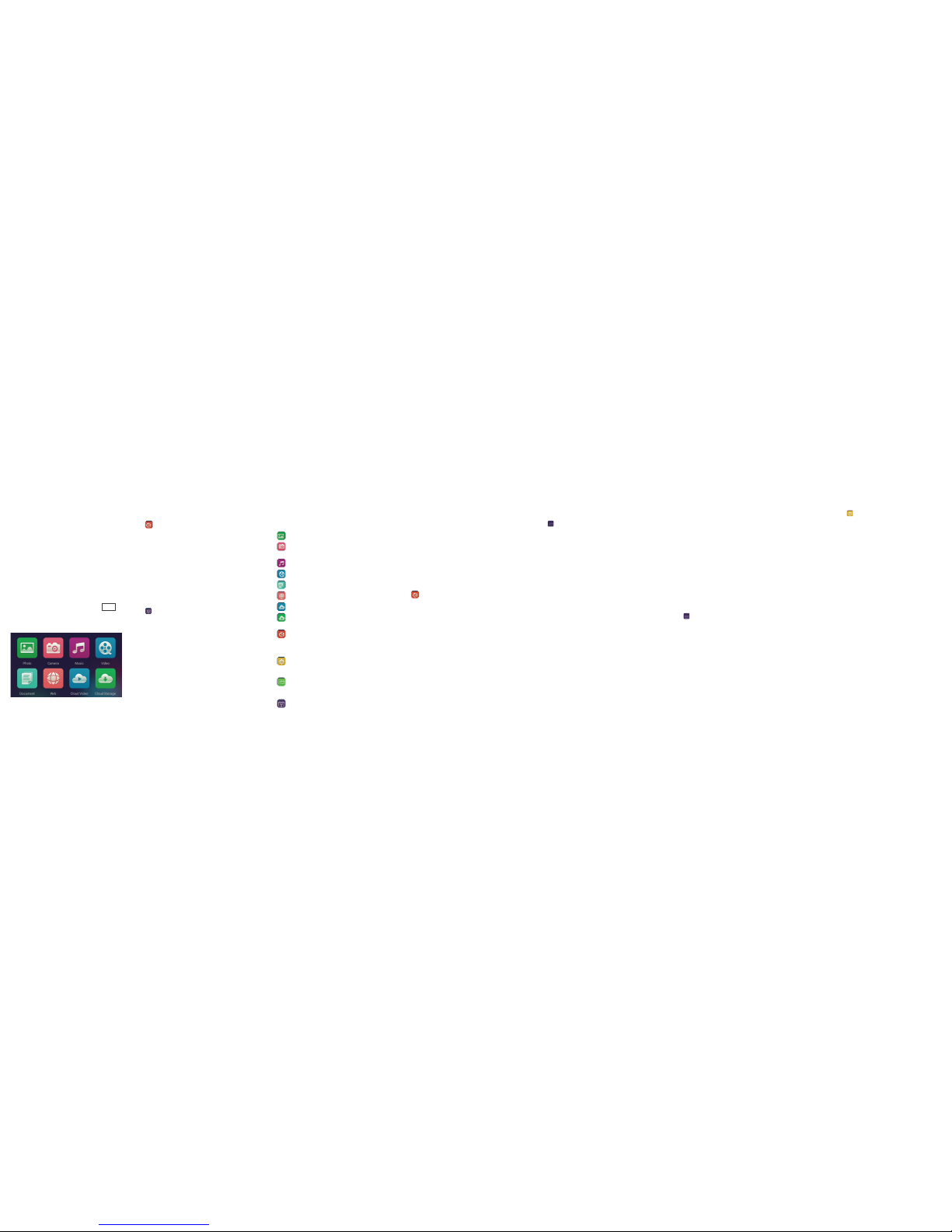
Photo - Share your gallery to your TV.
Camera - Display a feed from your camera on your
TV.
Music - Play your music through your TV.
Video - Play your videos on your TV.
Documents - View your documents on your TV.
Web - Browse the internet on your TV.
Cloud Video - Play video from online sources.
Cloud Storage - Display and annotate files from a
cloud storage service.
DLNA - Play music, videos, and movies on your TV
while freeing up your device for other uses. You
must have a DLNA compatible device with a DLNA
compatible app.
Settings - Change MediaBeam settings and
manage Wi-Fi networks.
Android
EZMirror - Mirror your device’s screen on your TV.
Your device must have Miracast to use this feature.
iOS
EZAir - Share your music, photos, and videos on
your TV while freeing up your device for other
uses.
Initial Setup
Mac Setup
Initial Setup
DLNA
iOS® Setup
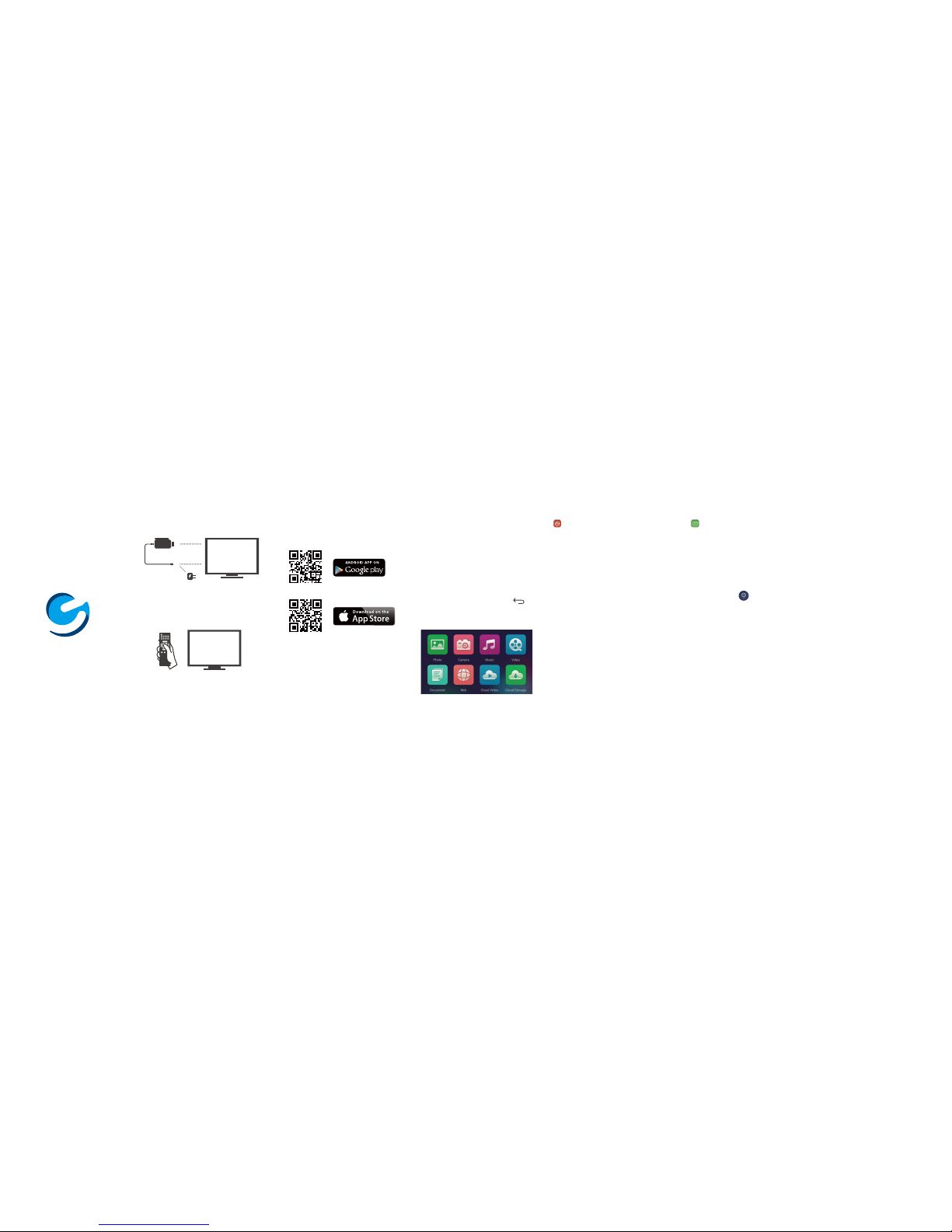
First setup EZCast
1. Go to your settings and choose the MediaBeam
network.
2. Enter the password shown at the top of your TV.
3. Go to your home screen and launch the EZCast app.
Swipe through the walkthrough showing you the
steps to get started. Tap START
4. Use the on-screen remote to select your home Wi-Fi
network.
5. Connect to your home Wi-Fi network.
Tap back once the connection is complete.
You can now beam via the EZCast buttons
at the top of the app home screen.
Play music, videos, and movies on your TV while
freeing up your device for other uses.
You must have a DLNA compatible device with a DLNA
compatible app. We recommend Skifta™.
1. Tap the DLNA icon.
2. Choose your DLNA App.
3. Choose MediaBeam as your playback device.
You are now ready to beam by DLNA.
The EZAir feature allows you to share your music,
photos, and videos on your TV while freeing up your
device for other uses.
1. Tap EZAir in the EZCast App
2. Choose from the gallery of music and videos to play.
3. Swipe up from the bottom edge of your screen.
4. Tap AirPlay® and select MediaBeam. Your media is
now play on your TV.
To stop playback swipe up from the bottom edge of
your screen, tap AirPlay and select your iOS device.
EZAir
Back
DLNA