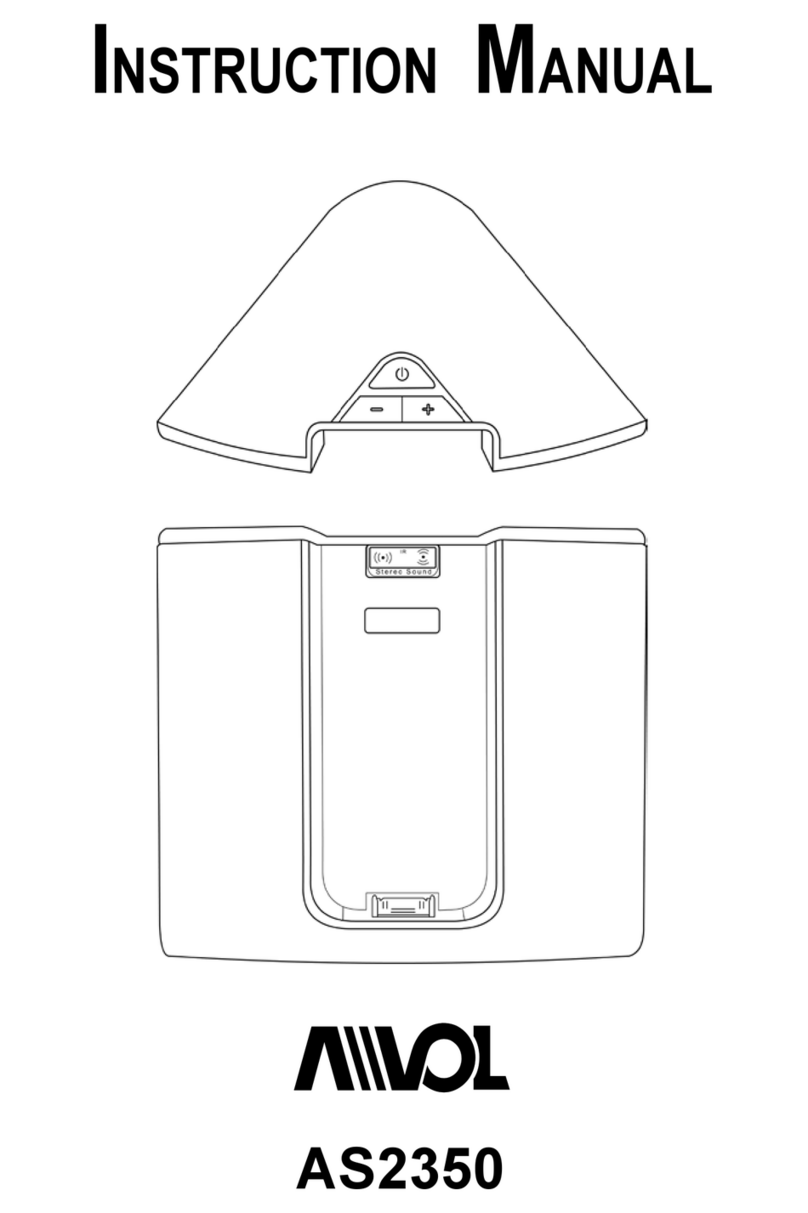
Dynex DX-IPDR3 User manual

iPod®/iPhone® Audio/Video
Dock with Remote Control
DX-IPDR3
USER GUIDE
DX-IPDR3_11-1053_Man_V3_EN.fm Page 1 Thursday, September 22, 2011 8:50 AM

2iPod®/iPhone® Audio/Video Dock with Remote Control
Dynex DX-IPDR3
iPod®/iPhone® Audio/Video
Dock with Remote Control
Contents
Important safety instructions ...................................2
iPod/iPhone Audio Video dock components .............3
Setting up the iPod/iPhone dock ..............................7
Using the iPod/iPhone dock ....................................12
Specifications .........................................................16
Legal notices ...........................................................16
One-year limited warranty .....................................19
Important safety instructions
• Do not disassemble the dock or remote control. There are no user
serviceable parts inside, and you may damage the dock or
remote control.
• Do not use the dock or AC power adapter in a wet environment.
• Keep the dock away from children.
DX-IPDR3_11-1053_Man_V3_EN.fm Page 2 Thursday, September 22, 2011 8:50 AM

DX-IPDR3 3
iPod/iPhone Audio Video dock
components
Package contents
• iPod/iPhone Audio Video dock
• AC power adapter
•USBsynccable
•AVcable
• Remote control
• iPod/iPhone dock adapters (6)
Jacks and connectors
Front
# Component Description
1 IR (remote) receiver Receives signals from your remote control. Do not
block.
DX-IPDR3_11-1053_Man_V3_EN.fm Page 3 Thursday, September 22, 2011 8:50 AM

4iPod®/iPhone® Audio/Video Dock with Remote Control
Back
# Component Description
1 30-pin connector Plug your iPod/iPhone into this connector.
2 AV jack Connect the included AV cable to this jack and to
the composite connections on a television or
home theater system. For more information, see
“Connecting to a TV” on page 10.
3 USB mini-B jack Connect the included USB cable to this jack and to
a USB port on a computer or to the included AC
power adapter. For more information, see
“Connecting to a computer” on page 9.
DX-IPDR3_11-1053_Man_V3_EN.fm Page 4 Thursday, September 22, 2011 8:50 AM

DX-IPDR3 5
iPod/iPhone adapters
The iPod/iPhone dock comes with six adapters. Make sure that you select
the correct adapter for your iPod/iPhone type.
Note: The adapter numbers are near the top of the adapter back.
Insert the correct adapter into the Audio Video dock prior to docking your
iPod or iPhone.
iPod/iPhone model Adapter
Touch 2G, Touch 3G 16
Touch 4G 20
Nano 4G 17
Nano 5G 18
iPhone 3G, 3GS 15
iPhone 4 19
DX-IPDR3_11-1053_Man_V3_EN.fm Page 5 Thursday, September 22, 2011 8:50 AM

6iPod®/iPhone® Audio/Video Dock with Remote Control
Remote control
#Button Description
1 MENU Press to go to the previous menu.
2 (List up ) Press to go up in a list of songs, photos, or videos.
3 + (Volume up) Press to increase the volume.
DX-IPDR3_11-1053_Man_V3_EN.fm Page 6 Thursday, September 22, 2011 8:50 AM

DX-IPDR3 7
Setting up the iPod/iPhone dock
Activating the remote control battery
The battery comes pre-installed in the remote control.
To activate the battery:
• Pull the plastic insert out of the battery compartment.
Insert the correct adapter into the Audio Video dock, then insert your iPod
or iPhone into the dock.
4 (previous) Press to go to the previous song or photo.
Press and hold to fast reverse through the songs or
videos.
5–(Volume down) Press to decrease the volume.
6 (List down ) Press to go down in a list of songs, photos, or videos.
7 (Enter) Press to select a song, photo, or video that is highlighted
in the list of songs, photos, or videos.
8 (next) Press to go to the next song or photo.
Press and hold to fast forward through the songs or
videos.
9 (play/pause) Press to wake up the iPod/iPhone.
Press to play or pause playback.
Press and hold to switch the iPod/iPhone to sleep mode.
#Button Description
DX-IPDR3_11-1053_Man_V3_EN.fm Page 7 Thursday, September 22, 2011 8:50 AM

8iPod®/iPhone® Audio/Video Dock with Remote Control
Connecting the AC power adapter and charging
your iPod/iPhone
The USB cable is also a charging cable. One side has a USB mini-B
connector. The other side has a standard USB connector.
To connect the AC power adapter:
1Plug the USB mini-B connector on the USB cable into the USB
mini port on the iPod dock.
2Plug the standard USB connector on the USB cable into the AC
power adapter.
3Plug the other end of the AC power adapter into an AC power
outlet.
Note: If the iPod/iPhone battery does not completely charge within
eight hours, contact Dynex technical support.
Mini-B USB port
USB cable
Standard USB
port on the
charger
AC charger
DX-IPDR3_11-1053_Man_V3_EN.fm Page 8 Thursday, September 22, 2011 8:50 AM

DX-IPDR3 9
Connecting to a computer
You can connect the dock to a computer so you can sync your iPod/iPhone
with your computer and charge your iPod/iPhone at the same time.
To connect to a computer:
1Connect the USB cable to the docking jack on the back of the
dock. For the location of the docking jack, see “Jacks and
connectors” on page 3.
2Connect the other end of the cable to a USB port on a computer.
The dock automatically finds iTunes on the computer.
3Copy files to and from the computer in the same way you would if
you connected the iPod/iPhone directly to your computer. Your
iPod/iPhone is charging while it is connected to your computer.
Mini-B USB port
USB cable
Standard USB
port
DX-IPDR3_11-1053_Man_V3_EN.fm Page 9 Thursday, September 22, 2011 8:50 AM

10 iPod®/iPhone® Audio/Video Dock with Remote Control
Connecting to a TV
You can connect a TV to the dock using the one-to-three composite
audio/video cable.
To connect a TV:
1Connect the end of the included one-to-three AV cable that has a
single plug to the AV jack on the back of the dock.
2Connect the other end of the video cable to the composite AV
jacks on the TV.
Note: The cables are color coded. Connect the yellow cable connector
to the yellow video jack, the red cable connector to the right audio
jack, and connect the white cable connector to the left audio jack.
Video
L
R
Audio
DX-IPDR3_11-1053_Man_V3_EN.fm Page 10 Thursday, September 22, 2011 8:50 AM
Other manuals for DX-IPDR3
2
Table of contents
Other Dynex Docking Station manuals