Dukane 8412 User manual

DUKANE CORP AV DIVISION
USER MANUAL MODEL 8412
DATA VIDEO PROJECTOR
Information in this Guide may change due to product improvements. To obtain the latest
manuals, literature,and software please visit the Dukane web site at; www.dukane.com/av
and look at the specific model SUPPORT or DOWNLOADS section.
DUKANE CORP AV SERVICE DEPT
2900 Dukane Drive
St Charles, IL 60174
800-676-2487 / 630-762-4032
Fax 630-584-5156
avservice@dukane.com
www.dukane.com/av
File M: PRODUCTS / Projectors / 8408 / Manual


1English
Table of Contents ............................1
Usage Notice...................................2
Safety Information...............................2
Precautions.........................................3
Eye Safety Warnings ..........................5
Product Features ................................5
Introduction......................................6
Package Overview..............................6
Product Overview ...............................7
Main Unit.............................................. 7
Control Panel ....................................... 8
Input/Output Connections .................... 9
Remote Control.................................. 10
Installation ..................................... 11
Connecting the Projector ..................11
Connect to Computer/Notebook ........ 11
Connect to Video Sources ................. 12
Powering the projector On / Off ........13
Powering On the Projector................. 13
Powering Off the Projector................. 14
Warning Indicator............................... 14
Adjusting the Projected Image..........15
Adjusting the Projector’s Height ........ 15
Adjusting the Projector’s Focus ......... 16
Adjusting Projection Image Size ........ 16
User Controls ................................18
Control Panel & Remote Control ......18
Control Panel ..................................... 18
Remote Control.................................. 19
On-screen Display Menus ................24
How to operate ................................. 24
Menu Tree.......................................... 25
IMAGE ............................................... 27
IMAGE | Advanced ............................ 29
DISPLAY............................................ 31
DISPLAY | 3D ................................... 34
SETUP............................................... 35
SETUP | Signal (RGB)....................... 38
SETUP | Security ............................... 39
SETUP | Advanced ............................ 41
SETUP | Network............................... 42
OPTIONS........................................... 47
OPTIONS | Advanced........................ 48
OPTIONS | Lamp Settings................. 49
Appendices....................................50
Troubleshooting ................................50
Replacing the lamp ...........................55
Compatibility Modes .........................57
Computer Compatibility ..................... 57
Video Compatibility ............................ 58
RS232 Commands and Protocol
Function List .....................................59
RS232 Pin Assignments .................... 59
RS232 Protocol Function List ............ 60
Ceiling Mount Installation..................64
Optoma Global Ofces .....................65
Regulation & Safety Notices .............67
Table of Contents

2
English
Usage Notice
Safety Information
The lightning ash with arrow head within an equilateral triangle is
intended to alert the user to the presence of uninsulated “dangerous
voltage” within the product’s enclosure that may be of sufcient
magnitude to constitute a risk of electric shock to persons.
The exclamation point within an equilateral triangle is intended to alert
the user to the presence of important operating and maintenance
(servicing) instructions in the literature accompanying the appliance.
WARNING: TO REDUCE THE RISK OF FIRE OR ELECTRIC SHOCK, DO NOT
EXPOSE THIS APPLIANCE TO RAIN OR MOISTURE. DANGEROUS HIGH
VOLTAGES ARE PRESENT INSIDE THE ENCLOSURE. DO NOT OPEN THE
CABINET. REFER SERVICING TO QUALIFIED PERSONNEL ONLY.
Class B emissions limits
This Class B digital apparatus meets all requirements of the Canadian
Interference-Causing Equipment Regulations.
Important Safety Instruction
1. Do not block any ventilation openings. To ensure reliable operation of
the projector and to protect from over heating, it is recommended to
install the projector in a location that does not block ventilation. As an
example, do not place the projector on a crowded coffee table, sofa,
bed, etc. Do not put the projector in an enclosure such as a book case
or a cabinet that restricts air ow.
2. Do not use the projector near water or moisture. To reduce the risk
of re and/or electric shock, do not expose the projector to rain or
moisture.
3. Do not install near heat sources such as radiators, heaters, stoves or
any other apparatus such as ampliers that emits heat.
4. Clean only with dry cloth.
5. Only use attachments/accessories specied by the manufacturer.
6. Do not use the unit if it has been physically damaged or abused.
Physical damage/abuse would be (but not limited to):
Unit has been dropped.
Power supply cord or plug has been damaged.
Liquid has been spilled on to the projector.
Projector has been exposed to rain or moisture.
Something has fallen in the projector or something is loose inside.
Do not attempt to service the unit yourself. Opening or removing covers
may expose you to dangerous voltages or other hazards. Please call 'XNDQH
before you send the unit for repair.
7. Do not let objects or liquids enter the projector. They may touch
dangerous voltage points and short out parts that could result in re or
electric shock.
8. See projector enclosure for safety related markings.
9. The unit should only be repaired by appropriate service personnel.

3English
Usage Notice
Precautions
Please follow all warnings, precautions and
maintenance as recommended in this user’s
guide.
▀■Warning- Do not look into the projector’s lens when the lamp is
on. The bright light may hurt and damage your eyes.
▀■Warning- To reduce the risk of re or electric shock, do not
expose this projector to rain or moisture.
▀■Warning- Please do not open or disassemble the projector as
this may cause electric shock.
▀■Warning- When replacing the lamp, please allow the unit to
cool down. Follow instructions as described on pages
55-56.
▀■Warning- This projector will detect the life of the lamp itself.
Please be sure to change the lamp when it shows
warning messages.
▀■Warning- Reset the “Lamp Reset” function from the on-screen
display “OPTIONS | Lamp Settings” menu after
replacing the lamp module (refer to page 49).
▀■Warning- When switching the projector off, please ensure
the cooling cycle has been completed before
disconnecting power. Allow 90 seconds for the
projector to cool down.
▀■Warning- Do not use lens cap when projector is in operation.
▀■Warning- When the lamp is approaching the end of its lifetime,
the message “Lamp Warning: Lamp life exceeded.”
will show on the screen. Please contact your local
reseller or service center to change the lamp as soon
as possible.
▀■Warning- Do not look into or point the laser pointer on your
remote control into your or someone’s eyes. Laser
pointer can cause permanent damage to eyesight.
When the lamp
reaches the end
of its life, the pro-
jector will not turn
back on until the
lamp module has
been replaced.
To replace the
lamp, follow the
procedures listed
under “Replacing
the Lamp” section
on pages 55-56.

4
English
Usage Notice
Do:
Turn off and unplug the power plug from the AC outlet before
cleaning the product.
Use a soft dry cloth with mild detergent to clean the display
housing.
Disconnect the power plug from AC outlet if the product is
not being used for a long period of time.
Do not:
Block the slots and openings on the unit provided for
ventilation.
Use abrasive cleaners, waxes or solvents to clean the unit.
Use under the following conditions:
- In extremely hot, cold or humid environments.
Ensure that the ambient room temperature is within
5 - 35°C.
Relative Humidity is 5 - 35°C, 80% (Max.),
non-condensing.
- In areas susceptible to excessive dust and dirt.
- Near any appliance generating a strong magnetic eld.
- In direct sunlight.

5English
Usage Notice
Eye Safety Warnings
▀■Avoid staring/facing directly into the projector beam at all
times. Keep your back to the beam as much as possible.
▀■When projector is used in a classroom, adequately supervise
students when they are asked to point out something on the
screen.
▀■In order to minimize the lamp power, use room blinds to
reduce ambient light levels.
Product Features
▀■XGA (1024x768) Native resolution /
WXGA (1280x800) Native resolution
▀■HD compatible – 1080p supported
▀■VGA monitor loop through
(works on standby mode > 1W)
▀■BrilliantColorTM Technology
▀■Security Bar and Kensington Lock
▀■RS232 control
▀■Rapid shutdown
▀■ Built-in speakers
▀■ Network support
Monitor loop
through only sup-
port in VGA1-In/
SCART/YPbPr.

6
English
Introduction
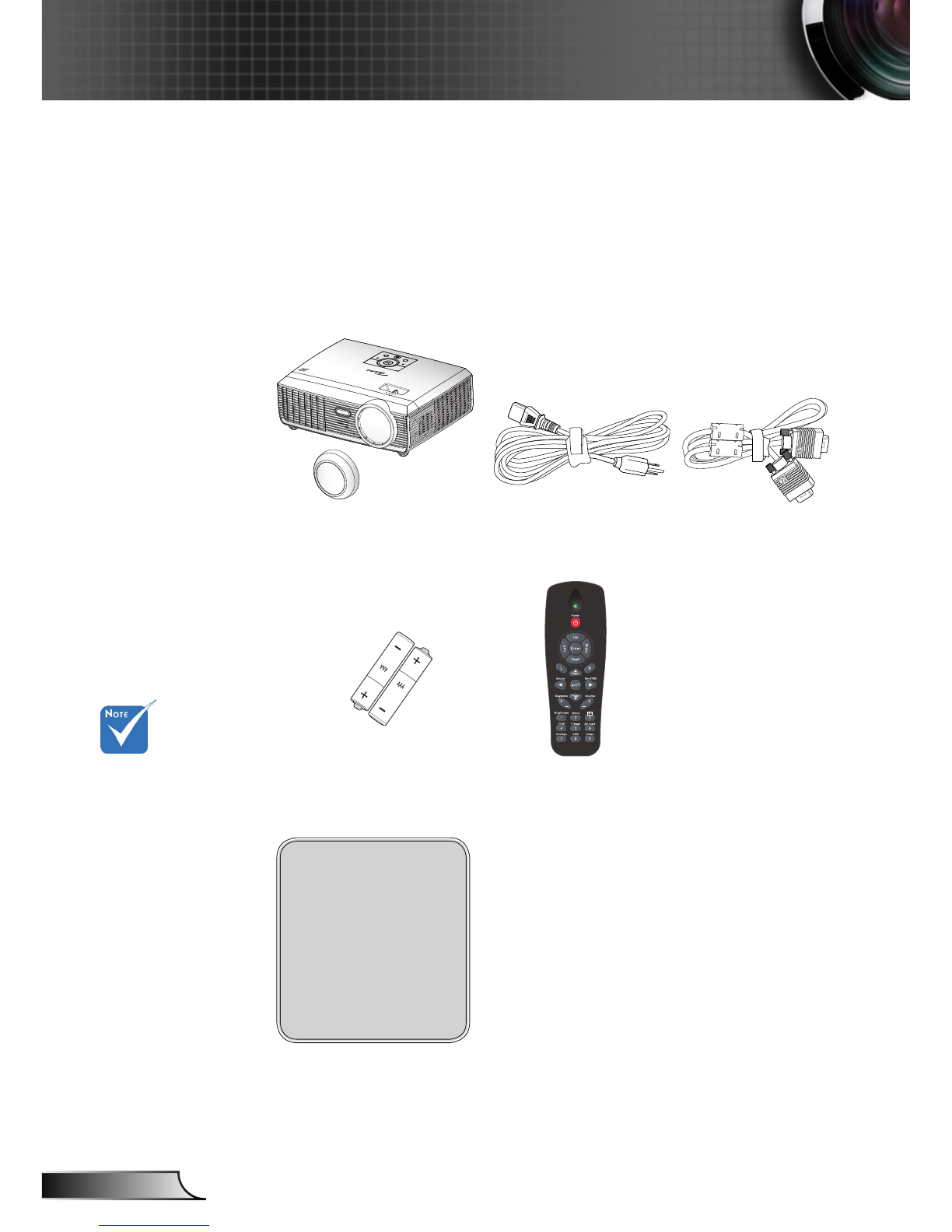
Documentation :
User’s Manual
Warranty Card
Quick Start Card
WEEE Card
(for EMEA only)
Due to different
applications in
each Country,
some regions
may have
different
accessories.
Power Cord 1.8m
IR Remote Control
Package Overview
Unpack and inspect the box contents to ensure
all parts listed below are in the box. If something
is missing, please contact your nearest customer
service center.
2 × AAA Batteries
Projector with lens cap VGA Cable 1.8m

7English
Introduction
Product Overview
1. Control Panel
2. Focus Ring
3. Speaker
4. Tilt-Adjustment Feet
5. Lens
6. IR Receiver
7. Input / Output
Connections
8. Power Socket
9. Security Bar
10. Ventilation (inlet)
11. Ventilation (outlet)
3
6
8
Main Unit
5
2
1
4
4
6
4
4
7
9
4
11
10
Air Flow

8
English
Introduction
LAMP TEMP
HELP
POWER/STANDBY
MENU
S
O
U
R
C
E
7
2 31
910
4
1. Source
2. Enter
3. Re-Sync
4. IR Receiver
5. Temp LED
6. Help
7. Four Directional Select Keys
8. Power/Standby button and LED
9. Keystone Correction
10. Menu
11. Lamp LED
Control Panel
511
68
Table of contents
Other Dukane Projector manuals

Dukane
Dukane 8974WU User manual

Dukane
Dukane ImagePro 8781 User manual

Dukane
Dukane 9100WUSS User manual

Dukane
Dukane 8926H-RJ User manual

Dukane
Dukane ImagePro 7300 User manual

Dukane
Dukane ImagePro 8044 User manual

Dukane
Dukane ImagePro FastFax 28A8909 User manual

Dukane
Dukane 8970 User manual

Dukane
Dukane 8755K User manual

Dukane
Dukane 8928C User manual

Dukane
Dukane 8963 User manual

Dukane
Dukane 8104HW User manual

Dukane
Dukane ImagePro 8761A User manual

Dukane
Dukane CP-X2015WN/8755N User manual

Dukane
Dukane 8934 User manual

Dukane
Dukane 8788 User manual

Dukane
Dukane ImagePro 68100WUSS User manual

Dukane
Dukane ImagePro 8077 User manual

Dukane
Dukane 6135W User manual

Dukane
Dukane ImagePro 6662UL User manual