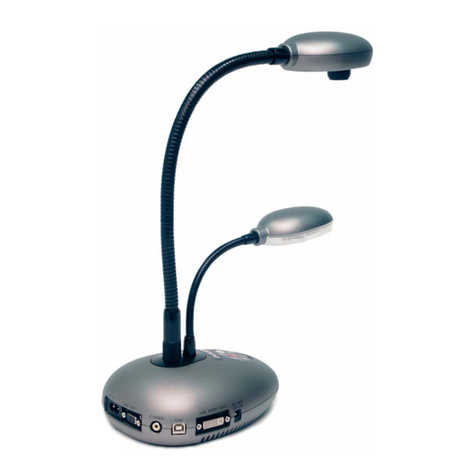
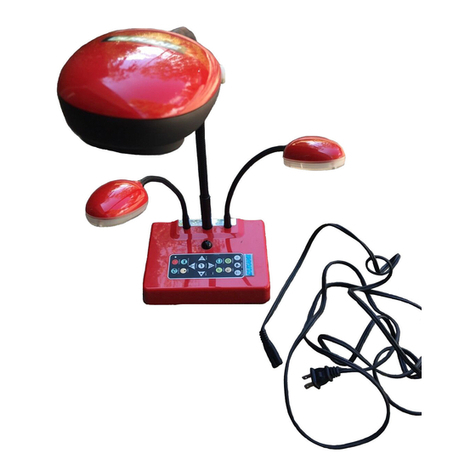
Dukane 446 User manual

English
Document Camera
User Manual
CAMERA 446 and 446A
SEE THE LATEST DOCUMENTS AND
MANUALS AT WWW.DUKANEAV.COM

English - 1
Table of Contents
Copyright Information....................................................................................... 3
Chapter 1 Safety Instructions .......................................................................... 4
Precautions .................................................................................................. 5
FCC Warning................................................................................................ 5
EN55022 (CE Radiation) Warning ............................................................... 5
Chapter 2 Package Contents............................................................................ 6
Chapter 3 Product Overview ............................................................................ 7
3.1 Relative position of the presenter and document............................... 8
Chapter 4 Installation and Connections.......................................................... 9
4.1 System diagram.................................................................................. 9
4.2 Installation and setup........................................................................ 10
4.3 Connecting to a projector or monitor ................................................ 10
4.4 Connecting to an HDTV ................................................................... 11
4.5 Connecting to a computer and use Dukane AV software ................ 11
4.6 Connecting to a computer and projector or monitor simultaneously 12
4.7 Connecting to a computer and USB disk simultaneously .................... 12
4.8 Connecting to an Interactive Whiteboard (IWB)............................... 13
4.9 Connecting to a speaker .................................................................. 13
4.10 Connecting to a computer with RS232............................................. 14
4.11 Connecting to a TV........................................................................... 14
4.12 Installing application software........................................................... 15
Chapter 5 Start Using...................................................................................... 16
Chapter 6 Control Panel/Remote Control and Setting Menu ...................... 17
6.1 Functions of control panel and remote control ................................. 17
6.2 Setting menu .................................................................................... 19
Chapter 7 Descriptions of Major Functions.................................................. 25
7.1 I would like to automatically adjust the image to have the best
brightness and focusing performance .............................................. 25
7.2 I would like to switch image sources ................................................ 25
7.3 I would like to switch the image mode.............................................. 25
7.4 I would like to make text clearer and photos more colorful .............. 25
7.5 I would like to zoom in/out images ................................................... 26

English - 2
7.6 I would like to use the auto focus ..................................................... 26
7.7 I would like to adjust the brightness ................................................. 26
7.8 I would like to turn on/off the lamp.................................................... 26
7.9 I would like to freeze images ............................................................ 26
7.10 I would like to rotate the image......................................................... 27
7.11 I would like to capture images .......................................................... 27
7.12 I would like to record images............................................................ 28
7.13 I would like to view captured/recorded images ................................ 29
7.14 I would like to delete the captured/recorded images........................ 30
7.15 I would like to automatically delete the stored images whenever
it is turned off (Auto Erase)............................................................... 30
7.16 I would like to enlarge a part of the image (PAN) ............................. 30
7.17 I would like to use the MASK and Spotlight function ........................ 31
7.18 I would like to play the slides (Slide Show) ...................................... 32
7.19 I would like to compare images (compare live images with
stored image files (PIP))................................................................... 32
7.20 I would like to reduce the image noise (Projector Type) .................. 33
7.21 I would like to resume the factory default setting (Factory Reset) ... 34
7.22 I would like to change the power on image ...................................... 34
7.23 Computer-related functions .............................................................. 34
Chapter 8 Connecting to Microscope ........................................................... 36
Chapter 9 DIP switch setting.......................................................................... 37
9.1 Connecting to a projector or monitor ................................................ 37
9.2 Connecting to a TV........................................................................... 38
Chapter 10 Troubleshooting........................................................................... 39

English - 3
Copyright Information
Dukane is a trademark that is currently being registered by Dukane Corp .
Copying, reproducing or transmitting this file is not allowed if a license is not
provided by DUKANE CORP . unless copying this file is for the purpose
of backup after purchasing this product.
In order to keep improving the product, Dukane Corp. hereby
reserves the right to make changes to product specifications without prior notice.
The information in this file is subject to change without prior notice.
To fully explain or describe how this product should be used, this manual may
refer to names of other products or companies without any intention of
infringement.
Disclaimer of warranties: Dukane Corp. is neither responsible for any
possible technological, editorial errors or omissions, nor responsible for any
incidental or related damages arising from providing this file, using, or operating
this product.

English - 4
Chapter 1 Safety Instructions
Always follow these safety instructions when setting up and using the Document Camera:
1. Do not place Document Camera in tilted position.
2. Do not place the Document Camera on an unstable trolley, stand or table.
3. Do not use the Document Camera near water or source of heat.
4. Use attachments only as recommended.
5. Use the type of power source indicated on the Document Camera. If you are not sure
of the type of power available, consult your dealer or local electricity company for
advice.
6. Place the Document Camera on a place that it can be unplugged easily.
7. Always take the following precautions when handling the plug. Failure to do so may
result in sparks or fire.
Ensure the plug is free of dust before inserting it into a socket.
Ensure that the plug is inserted into the socket securely.
8. Do not overload wall sockets, extension cords or multi-way plug boards as this may
cause fire or electric shock.
9. Do not place the Document Camera where the cord can be stepped on as this may
result in fraying or damage to the lead or the plug.
10. Unplug the Document Camera from the wall socket before cleaning. Use a damp
cloth for cleaning. Do not use liquid or aerosol cleaners.
11. Do not block the slots and openings in the Document Camera case. They provide
ventilation and prevent the Document Camera from overheating. Do not place the
Document Camera on a sofa, rug or other soft surface or in a built-in installation
unless proper ventilation is provided.
12. Never push objects of any kind through cabinet slots. Never allow liquid of any kind
to spill into the Document Camera.
13. Except as specifically instructed in this User Manual, do not attempt to operate this
product by yourself. Opening or removing covers may expose you to dangerous
voltages and other hazards. Refer all servicing to licensed service personnel.
14. Unplug the Document Camera during thunderstorms or if it is not going to be used for
an extended period. Do not place the Document Camera or remote control on top of
vibrating equipment or heated objects such as a car, etc.
15. Unplug the Document Camera from the wall outlet and refer serving to licensed
service personnel when the following situations happen:
If the power cord or plug becomes damaged or frayed.
If liquid is spilled into it or the Document Camera has been exposed to rain or
water.
<Note> Using an incorrect battery type in the remote control may result in
breakdown. Follow local instructions on how to dispose of used batteries.

English - 5
Precautions
Warning: To reduce the risk of fire or electric shock, do not expose this appliance to
rain or moisture.
This Document Camera has a 3-wire AC line Plug. This is a safety feature to ensure that
the plug will fit into the power outlet. Do not try to disable this safety feature.
If the Document Camera will not be used for an extended time, unplug it from the power
socket.
Caution: To reduce the risk of electric shock, do not remove cover (or back). No
user-serviceable parts inside. Refer servicing to licensed service personnel.
This symbol indicates that
this equipment may contain
dangerous voltage which
could cause electric shock.
This symbol indicates that
there are important operating
and maintenance
instructions in this User
Manual with this unit.
FCC Warning
This Document Camera has been tested and found to comply with the limits for a Class A
computer device, pursuant to Article 15-J of FCC Rules. These limits are designed to
provide reasonable protection against harmful interference in a commercial installation.
EN55022 (CE Radiation) Warning
This product is intended for use in a commercial, industrial, or educational environment. It
is not intended for residential use.
This is a Class A product. In a residential environment it may cause radio interference, in
which case the user may be required to take adequate measures. The typical use is in a
conference room, reception room or hall.
Note
Risk of Electric Shock
DO NOT OPEN

English - 6
Chapter 2 Package Contents
446
Quick Start Guide
(For download of other
language versions, please
visit Dukane website)
VGA cable
USB cable
Power cord
Appearance may vary
depending on country/region
Remote control
Remote Control
Holder
Microscope Adapter
Note ; In this manual the 446 refers to both
the Camera 446 and the 446A versions.

English - 7
Chapter 3 Product Overview
5. LED indicator
(Bottom)
3. Lamp
7. Remote sensor
1. Gooseneck
2. Auto focus
9. LED lamp
8. Lens
10. DIP switch setting
4. Control panel
6. Built-in microphone

English - 8
3.1 Relative position of the presenter and document

English - 9
Chapter 4 Installation and Connections
4.1 System diagram
Computer or TV
Computer
USB disk
Earphone or
speaker
Computer, projector or monitor
This manual suits for next models
1
Table of contents
Other Dukane Document Camera manuals

Dukane
Dukane 220C User manual

Dukane
Dukane Camera 105 User manual

Dukane
Dukane Camera 445 User manual

Dukane
Dukane 101 User manual

Dukane
Dukane Camera 106 User manual

Dukane
Dukane Camera 445 User manual

Dukane
Dukane Camera 250 User manual

Dukane
Dukane Document Camera Manual

Dukane
Dukane 220E User manual

Dukane
Dukane Camera 336B User manual

Dukane
Dukane 210 User manual

Dukane
Dukane DV-P505A User manual

Dukane
Dukane DV-P505A User manual

Dukane
Dukane DVP510B User manual

Dukane
Dukane DVP508 User manual

Dukane
Dukane 220C User manual

Dukane
Dukane Camera 335 User manual

Dukane
Dukane Camera 335B User manual

Dukane
Dukane Camera 150 User manual

Dukane
Dukane DVP507 User manual