
Dual XGPS170 User manual
OWNER'S MANUAL
GPS + ADS-B Weather
and Traffic Receiver
XGPS170

XGPS170
2
Introduction
Thank you for purchasing the XGPS170 GPS +
ADS-B Weather and Trafc Receiver from Dual
Electronics.
The XGPS170 is designed to receive signals from
the FAA’s ADS-B ground network, and from other
aircraft operating 978 MHz ADS-B transponders
(UAT transceivers). The XGPS170 also includes a
WAAS-enabled GPS receiver and can determine
your location anywhere in the world.
The XGPS170 can wirelessly transmit GPS and
ADS-B information to many kinds of devices which
have Bluetooth connectivity and support the Blue-
tooth Serial Port Prole (SPP). This includes:
• the iPod touch (2nd through 5th generations)
• the iPhone 3, iPhone 3GS, iPhone 4, iPhone
4s, and iPhone 5
• the iPad (1st through 4th generations)
• the iPad mini
You can also connect the XGPS170 to many
Android smart phones and tablets.
NOTE: Not all manufacturers include SPP in their
devices, even if the device has Bluetooth. Please
consult the owner’s manual for your specic de-
vice to determine whether it supports SPP. Some
devices, like Android-based devices, may need a
helper app to connect to the XGPS170. See Pair-

XGPS170
3
A Note on ADS-B
ing with your device for more information.
The ADS-B network provides weather data as
well as a growing amount of air trafc information.
However, ADS-B is an emerging system which still
has coverage gaps. The FAA’s intended plan is
to have coast-to-coast coverage across the con-
tinental United States by the end of 2013. The cur-
rent coverage map is available on the FAA website
at http://www.faa.gov/nextgen.
Weather. The ADS-B ground system broadcasts
regional NEXRAD weather information every 2.5
minutes and continental NEXRAD information ev-
ery 15 minutes. Both weather broadcasts are re-
ceived by the XGPS170.
Trafc. The XGPS170 will also receive ADS-B
trafc information from both the ADS-B ground
system and from other aircraft operating 978 MHz
ADS-B Out transponders. Trafc information in-
cludes position, heading, speed and altitude for
each aircraft.
However, it is important to know that trafc infor-
mation offered through the ADS-B ground system
is only broadcast in response to a signal from an
ADS-B Out transponder. Since not all aircraft are
equipped with ADS-B transponders at this point,
please be aware that the trafc information provid-

XGPS170
4
ed by the ADS-B network is only a partial picture
of trafc. Until all aircraft are ADS-B out equipped,
always assume there is air trafc around you that
is not being reported by the ADS-B system.
NOTE: The XGPS170 is not an ADS-B Out trans-
mitter.
Additionally, not all electronic ight bag (EFB)
apps currently display trafc information even if it
is available from an ADS-B source and received
by the XGPS170. Please refer to the documenta-
tion for your EFB app to determine whether or not
trafc information is displayed.
Lastly, please be aware that the signal from an
ADS-B ground transmitter usually cannot be
picked up on the ground. In some areas, you may
need to be above 2000 feet AGL in order to reliably
receive broadcasts from an ADS-B ground trans-
mitter. Terrain and proximity to the nearest ground
transmitter will affect your reception.
XGPS170
5
Controls and Indicators
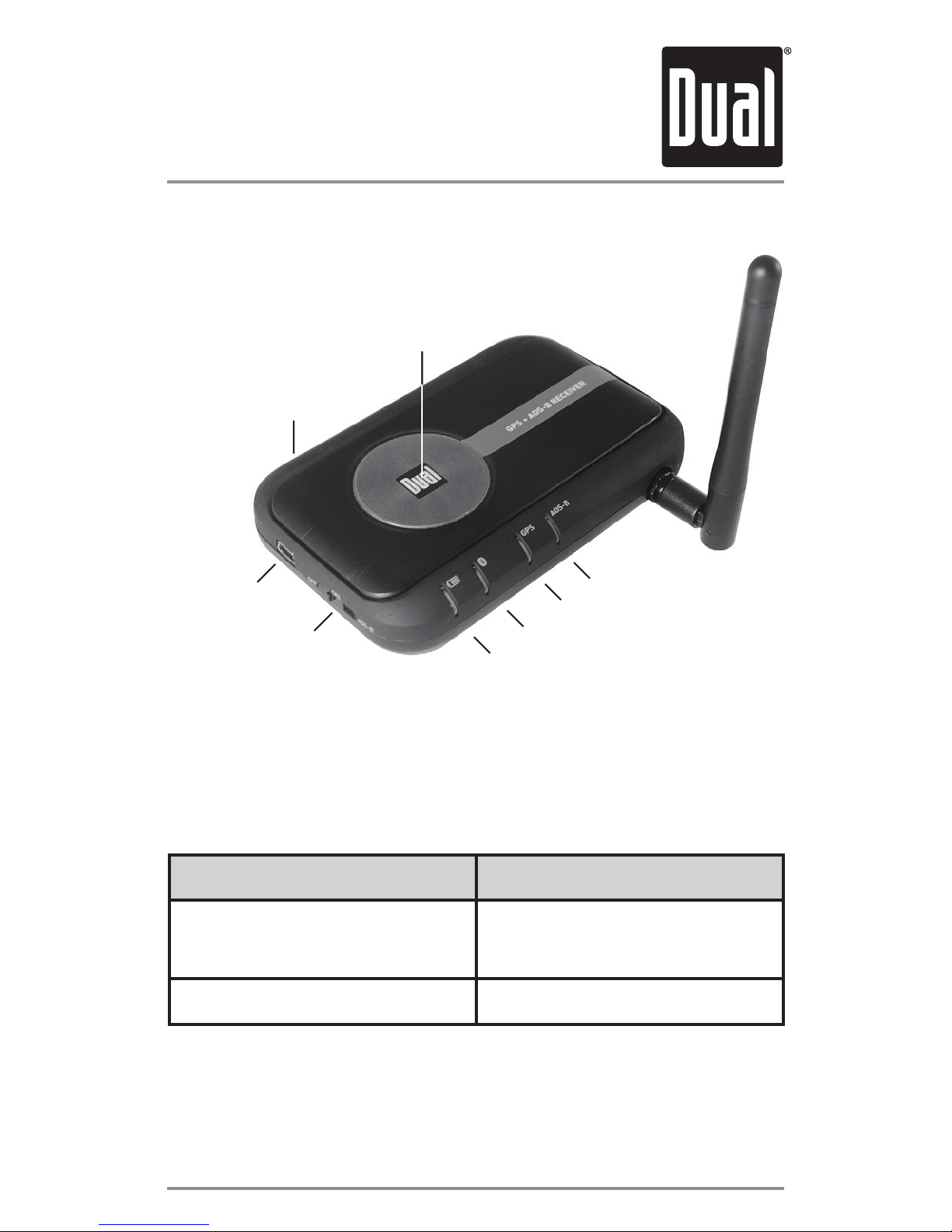
Please refer to the diagram above to locate the
controls and indicators on the XGPS170.
Mode switch. The mode switch must be set for
the device you want to use the XGPS170 with:
Switch Position For these devices:
Apple • iPod touch, iPad and
iPhone.
Other • All other devices
USB connector. The USB connection is used to
recharge the XGPS170.
Power switch. Slide the power switch from “OFF”
ADS-B antenna
GPS antenna
Mode switch
(on back)
USB
connector
Power switch
Battery status
GPS status
Bluetooth status
ADS-B status

XGPS170
6
to the “ADS-B” position to receive both GPS and
ADS-B signals. If you only need GPS information,
slide the switch to the middle position, “GPS”.
Battery status light. This light will ash red when
the battery level is low and the device requires
recharging. (See Charging on page 15.) During
charging, the light will glow solid red and it will
change to green when charging is complete. This
light is normally off while the XGPS170 is running.
Bluetooth status light. This blue light will indicate
whether the XGPS170 is searching for a device to
connect to, or has successfully paired to a device.
A slow blue ash (about once per second) indi-
cates the XGPS170 is not connected to any de-
vices but is ready to connect. A solid blue glow in-
dicates that the XGPS170 has successfully paired
with at least one device.
GPS status light. The GPS indicator will ash
green while the XGPS170 is searching for satel-
lite signals. The light will change to a steady green
when your location is successfully determined.
NOTE: when paired with an iPad, iPod touch or
iPhone the GPS status light will not illuminate until
an app is actively requesting information.
ADS-B status light. This light glows solid white
when the ADS-B receiver is active. The indicator
will quickly pulse brighter when it is receiving ADS-

XGPS170
7
B data. PLEASE NOTE: the ADS-B system is not
an “always-on” broadcast like a conventional radio
station. ADS-B data is only broadcast when infor-
mation is available.
ADS-B antenna connection. The included ADS-B
antenna will need to be attached to the XGPS170
before use. Remove the protective rubber cap on
the front side of the XGPS170 to expose the ADS-
B antenna connector.
An external antenna can also be used with the
XGPS170. A dedicated, passive 978 MHz tran-
sponder antenna mounted on the bottom of the
aircraft is an ideal external antenna option.
IMPORTANT: DO NOT connect the XGPS170 to
the existing transponder antenna on your aircraft.
This will irreparably damage the XGPS170.
GPS antenna. The GPS antenna in the XGPS170
is located under the red disc. For best GPS recep-
tion, position the XGPS170 so that it has an unob-
structed view of the sky.

XGPS170
8
Step 1) Remove the rubber cap on the front side
of the XGPS170 to expose the antenna connector.
Attach the included ADS-B antenna, or connect an
external non-amplied antenna using a high qual-
ity shielded coaxial cable.
Step 2) Move the Mode switch on the XGPS170 to
the setting for the type of device you will be using.
Step 3) Pair the XGPS170 to your iPad or Android
tablet (see Pairing with your device below). The
XGPS170 will work with up to two iOS or Android
devices simultaneously, but not one of each kind.
Step 4) Position the XGPS170 on the glare shield
or afx it to a window using the included non-slip
pad.
Step 5) Download the free ADS-B Status Tool
app from the iTunes App store. This app will give
you information about your XGPS170, such as
battery level, charging status and GPS reception
status.
PLEASE NOTE: The XGPS170 is intended to be
used with popular EFB apps. A current list of com-
patible EFB apps is available on the web at http://
xgps170.dualav.com.
Step 6) Open a compatible EFB app and conrm
that the app is receiving data from the XGPS170.
Please see the help section of your preferred EFB
Setup

XGPS170
9
app for answers to specic questions about using
the XGPS170 with that app.
Non-slip pad
The included non-slip pad is designed to hold the
XGPS170 securely in place on most surfaces.
The XGPS170 can be inserted into the pad with
the red dot facing up (when using the pad on at
surfaces) or facing down (when using the pad on
a window).
When inserting the XGPS170 into the pad face
down, ensure that the red disc on the top of the
XGPS170 lines up with the hole in the bottom of
the pad.
If the bottom of the pad looses its stickiness from
an accumulation of dirt/dust, simply wash the pad
with warm water and a mild soap and allow the
pad to air dry.
Important note about heat
The XGPS170 has been designed to work at high
temperatures, and it is normal for the XGPS170
to become noticeably warm to the touch when
operating. It will also absorb additional heat from
the direct sun or when sitting on a hot glare shield
so please use caution when handling the
XGPS170 after it has been running in the direct
sun because it may be hot.

XGPS170
10
Pairing with your device
When powered on, the XGPS170 will automatical-
ly try to reconnect to the last device(s) it was paired
with. Keep this in mind when trying to use it with
multiple devices: if you are having trouble getting
another device to recognize the XGPS170, make
sure the last device you used with the XGPS170 is
turned completely off or is out of Bluetooth range.
However, in order for the XGPS170 to automati-
cally reconnect, the other device(s) must already
be turned rst. So it is a good habit to turn on
your tablet/smart phone rst, then turn on the
XGPS170.
If the Bluetooth connection is interrupted while
communicating, either because a device is turned
off or because the distance between the two de-
vices is too great, you must turn the XGPS170 off
and back on in order for it to automatically recon-
nect. Alternatively, you can go into your device’s
settings menu and manually reactivate the link.
NOTE: Activating Airplane Mode on the iPad/
iPhone/iPod (which is recommended when ying)
automatically turns off Bluetooth, so it must be
manually turned back on. The recommended
procedure with the iPad/iPhone/iPod is to activate
Airplane Mode, turn Bluetooth back on and then
turn on the XGPS170.
Other manuals for XGPS170
2
Table of contents
Popular Weather Station manuals by other brands


National Geographic
National Geographic VA Colour RC instruction manual

Renkforce
Renkforce 1208067 operating instructions

Levenhuk
Levenhuk Discovery Report WA40 quick start guide

Instant Transmission
Instant Transmission MA 10410 instruction manual

Lutron Electronics
Lutron Electronics PHB-318 Operation manual

WAREMA
WAREMA EWFS Weather station eco Operating and installation instructions