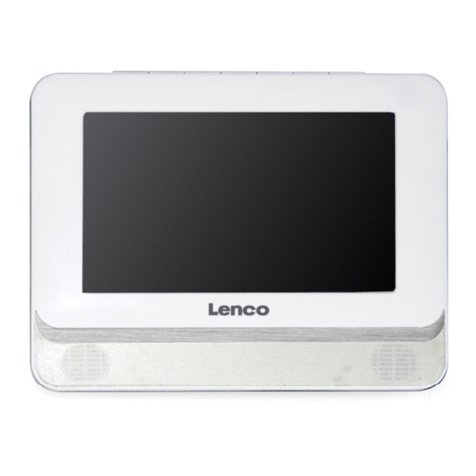
DP Audio Video PBDV704DVDB User manual

Playtime Pad DVD Combo
7” HD Kid Safe Tablet & DVD Player
PBDV704DVDB
USER MANUAL

2
Table of Contents
Section 1: Tablet Overview
Tablet Overview
Icon Glossary
Charging
Touch Screen Basics
Section 2: Initial Setup
Lock Screen
User Setup
Option A: Email Verification
Option B: Credit Card Verification
G-sensor
Section 3: Basics
Playtime Home
Parent Mode Overview
Adding and Removing Apps
Exiting Playtime Mode
Downloading New Apps
Uninstalling Apps
Removing Apps from Home Screen
Closing Background Apps
Parent Dashboard
Connecting to a Computer
Factory Restore
Resetting Your Device
Adding Music & Movies
Widgets
Wireless & Network Settings
Device Settings & Personal Settings
System Settings
4
5
5
6
7
7
8
8
9
10
10
11
11
11
12
12
12
13
14
15
15
15
16
16
17
17

3
Table of Contents
Section 4: Apps
Included Apps
Section 5: DVD Player
Main Features
Main Controls
Connecting to a Monitor
Basic Operation
Section 6: Google Services
Why Use a Google Account?
Adding a Google Account
Removing a Google Account
Google Play
Google Now
Google Now Cards
Location Access
Google Now Settings
Voice Actions
Voice Commands
Section 7: Miscellaneous
Tips and Tricks/FAQs
Care
Specifications
Important Safety Information
Customer Support
Warranty Information
18
21
21
22
23
25
26
26
27
27
28
28
29
29
30
33
34
35
35
36
36

4
I. Tablet Overview
Micro USB
Port HDMI
Port
Audio Jack
Reset Microphone
Screen
Speakers
DVD Player
Built-in
Kickstand
Micro SD
Card Slot
Volume
Control
Power

5
I. Tablet Overview
Battery Level: The white battery level indicator will
decrease and change to red as the battery is drained.
Wi-Fi Signal: As the Wi-Fi signal strength decreases,
the white bands will change to grey.
Settings: Tap to adjust settings for Wi-Fi, screen
brightness, security settings, language options, and
more.
Icon Glossary
Charging
Turning On Your Playtime Pad
Fully charge your Playtime Pad for 6 hours before
the first use.
Use the included wall charger. The battery
indicator will show that your device is charging.
Note: Charging your tablet using the USB port on
your computer will be slow. We recommend using
the included wall charger.
To turn on your Playtime Pad, press and hold the power key for
2 seconds. The PBS KIDS logo indicates the software is loading.

6
I. Tablet Overview
Touchscreen Basics
Tap an app icon once to activate or open an app. Touch and
hold to move an item by dragging.
In many apps, touch and hold can offer more options.
Zooming: Double tap quickly to zoom into a webpage, picture,
or map. Some apps allow you to zoom in and out by touching
the screen with two fingers, and pinching them together.
TIP: You can flick the screen with your finger to quickly scroll
through a long list, such as a library of music.
Tap a specific location on the screen where you would like to
enter text. The on-screen keyboard will pop up.
Touch and hold a letter for special characters.
To hide
keyboard

7
II. Initial Setup
Lock Screen
Slide the padlock icon up to unlock the screen.
User Setup
Follow the steps upon initial startup to begin using your
Playtime Pad.
Choose your language and then your Wi-Fi network. Enter your
Wi-Fi password, then tap “Connect.”
Set Date and Time, and tap “Next” when done. Then create a
Playtime Pad account.
DPAV Wi-Fi
DPAV Wi-Fi

8
II. Initial Setup
Option A: Email Verification
If choosing to verify by email address, please follow these steps:
Option B: Credit Card (Optional)
If choosing to verify with a credit card, please follow these
steps:
Note: A one-time nonrefundable fee of 50¢ will be charged to
your credit card.
Select “Email Verification”
to prove that the information
is submitted by an adult.
Select “Credit Card” to
prove that the information is
submitted by an adult.
Tap “Send”, then follow the
instructions sent to your email.
Enter your credit card
information, then tap
“Continue”.

9
II. Initial Setup
Why do you need my credit card to verify my kid’s account?
To comply with the U.S. Children’s Online Privacy Protection
Act (COPPA), kids younger than 13 years old must have parents’
permission to join. There are only a few approved ways we can
obtain parental consent according to these regulations & the
quickest way to do that is to verify your identity using a credit
card.
G-Sensor
The G-Sensor allows the tablet to detect screen rotation. You
can view the home screen in either a landscape or portrait
format as you use the apps.
Note: Some functions in the Playtime Pad only display in
landscape format.
Note: You can add another child at any time by clicking
your child’s avatar.
Enter your child’s first name
and birthday. Tap “Create”.
You are all set!
Tap “Next”.

10
III. Basics
Playtime Home
Parent Mode Overview
Parent Dashboard
Exit Playtime Mode
Swipe up near the bottom
of the screen to reveal the
navigation bar
Swipe up to reveal
more apps.
Battery
Back Home Multi-tasking
Swipe down to reveal your notifications.
Swipe down again to reveal your settings.
Swipe left or right to switch
between home screens.
Table of contents