dji Phantom 3 Advanced User manual

2015.10
PHANTOM 3
ADVANCED
V1.6
User Manual

2
©2015 DJI. All Rights Reserved.
Using this manual
Legends
Warning Important Hints and Tips Reference
Read Before the First Flight
Read the following documents before using the Phantom 3 Advanced:
1. In the Box
2. Phantom 3 Advanced User Manual
3. Phantom 3 Advanced Quick Start Guide
4. Phantom 3 Professional / Advanced Safety Guidelines and Disclaimer
5. Phantom 3 Professional / Advanced Intelligent Flight Battery Safety Guidelines
We recommend that you watch all tutorial videos on the official DJI website and read the Disclaimer
before you y. Prepare for your rst ight by reviewing the Phantom 3 Advanced Quick Start Guide and
refer to the User Manual for more detailed information.
Video Tutorials
Please watch the tutorial videos at the link below, which demonstrates how to use Phantom 3 Professional
safely:
http://www.dji.com/product/phantom-3/video
Download the DJI GO app
Download and install the DJI GO app before using the aircraft. Scan the QR code to the right
to download the latest version.
The Android version of the DJI GO app is compatible with Android 4.1.2 or later.
The iOS version of the DJI GO app is compatible with iOS 8.0 or later.
Searching for Keywords
Search for keywords such as “battery” and “install” to nd a topic. If you are using Adobe Acrobat
Reader to read this document, press Ctrl+F on Windows or Command+F on Mac to begin a search.
Navigating to a Topic
View a complete list of topics in the table of contents. Click on a topic to navigate to that section.

©2015 DJI. All Rights Reserved.
3
Contents
Using this manual
Legends 2
Read Before the First Flight 2
Video Tutorials 2
Download the DJI GO app 2
Product Prole
Introduction 6
Feature Highlights 6
Preparing the Aircraft 6
Aircraft Diagram 8
Remote Controller Diagram 8
Aircraft
Flight Controller 11
Flight Mode 11
Flight Status Indicator 11
Return-to-Home (RTH) 12
Smart RTH 12
Low Battery RTH 13
Failsafe RTH 14
Vision Positioning System 15
Flight Recorder 16
Attaching and Detaching the Propellers 17
DJI Intelligent Flight Battery 18
Remote Controller
Remote Controller Prole 23
Using the Remote Controller 23
Remote Controller Status LED 27
Linking the Remote Controller 28
Remote Controller Compliance Version 29

4
©2015 DJI. All Rights Reserved.
Camera and Gimbal
Camera Prole 31
Gimbal 32
DJI GO app
Camera 35
Director 38
Store 38
Discovery 38
Flight
Flight Environment Requirements 40
Flight Limits and No-Fly Zones 40
Preight Checklist 44
Calibrating the Compass 44
Auto Takeoff and Auto Landing 45
Flight Test 46
Starting/Stopping the Motors 46
Troubleshooting (FAQ)
Appendix
Specications 54
Firmwares Update 56
Intelligent Flight Mode 56
After-Sales Information 56
FCC Compliance 57

©2015 DJI. All Rights Reserved.
5
Product Prole
This section introduces the Phantom 3
Advanced and lists the components of
the aircraft and remote controller.
Camera and Gimbal
Camera Prole 31
Gimbal 32
DJI GO app
Camera 35
Director 38
Store 38
Discovery 38
Flight
Flight Environment Requirements 40
Flight Limits and No-Fly Zones 40
Preight Checklist 44
Calibrating the Compass 44
Auto Takeoff and Auto Landing 45
Flight Test 46
Starting/Stopping the Motors 46
Troubleshooting (FAQ)
Appendix
Specications 54
Firmwares Update 56
Intelligent Flight Mode 56
After-Sales Information 56
FCC Compliance 57

6
©2015 DJI. All Rights Reserved.
Product Profile
Product Prole
Introduction
The Phantom 3 Advanced represents the next generation of DJI quadcopters. It is capable of capturing
1080p video and transmitting an HD video signal out of the box. The built-in camera has an integrated
gimbal to maximize stability while minimizing both weight and size. Even when no GPS signal is available,
the Vision Positioning System allows the aircraft to hover accurately in place.
Feature Highlights
Camera and Gimbal: Phantom 3 Advanced has a fully integrated camera that shoots 1080p video at up to
60 frames per second and captures 12 megapixel photos. An enhanced sensor gives you greater clarity,
lower noise, and better pictures than any previous ying camera.
HD Video Downlink: The low-latency long range HD downlink is powered by an enhanced version of DJI
Lightbridge.
DJI Intelligent Flight Battery: The 4480 mAh DJI Intelligent Flight Battery features upgraded battery cells
and an advanced power management system.
Flight Controller: The next-generation ight controller has been updated to provide a safer, more reliable
ight experience. A newly implemented ight recorder stores critical data from each ight and the Vision
Positioning System enhances hovering precision when ying indoors or in environments where GPS is
unavailable.
Preparing the Aircraft
Removing Gimbal Clamp
Remove the gimbal clamp by sliding it to the right (when facing the nose of the aircraft), as shown below.

©2015 DJI. All Rights Reserved.
7
Product Profile
Phantom 3 Advanced User Manual
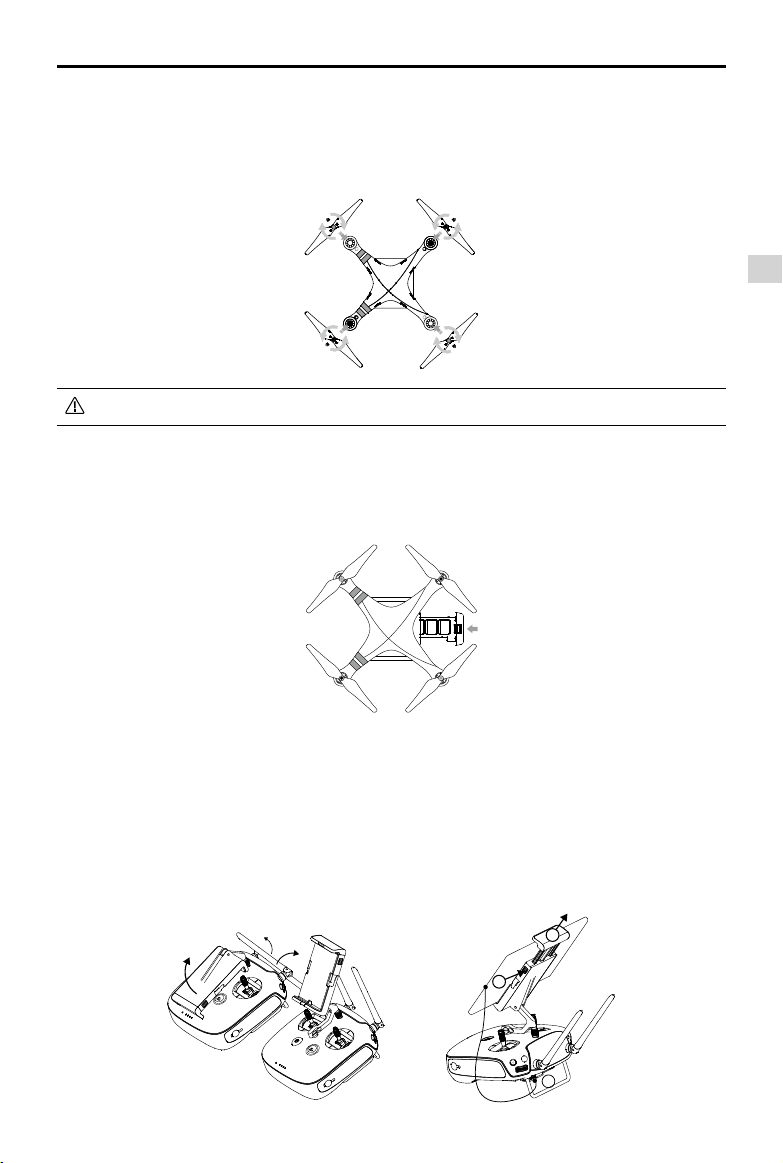
Attaching the Propellers:
Mount the propellers with black dots on to motors with black axes and spin counter-clockwise to secure.
Mount the propellers with sliver dots on to motors with sliver axes and spin clockwise to secure. Be sure
all propellers are securely in place.
Place all propellers onto the correct motors and tighten by hand to lock them in position.
Preparing the Remote Controller:
The mobile device holder is designed for securing tablet or mobile device. Tilt the mobile device holder to
the desired position, then adjust the antennas so they are facing outward.
1. Press the button on the top right side of the mobile device holder to release the clamp, then adjust the
clamp to t the size of your mobile device.
2. Secure your mobile device in the clamp by pressing down, and connect your mobile device to the
remote controller using a USB cable.
3. Plug one end of the cable into the mobile device, and the other end into the USB port on the back of
the remote controller.
1
3
2
Battery Installation
Slide battery into the battery compartment according to the arrow’s direction shown below. Make
sure that you hear a click sound indicates the battery is rmly installed. Failure to do so may affect
the ight safety of your aircraft.

8
©2015 DJI. All Rights Reserved.
Product Profile
Phantom 3 Advanced User Manual
Aircraft Diagram
Remote Controller Diagram
[1] Antennas
Relays aircraft control and
video signal.
[2] Mobile Device Holder
Securely mounts your mobile
device to the remote controller.
[3] Control Stick
Controls the orientation and
movement of the aircraft.
[4] Return Home (RTH) Button
Press and hold the button to
initiate Return to Home (RTH).
[1]
[2]
[4]
[5]
[6]
[7]
[8]
[3]
[1] GPS
[2] Propeller
[3] Motor
[4] Front LED Indicator
[5] Landing gear
[6] Gimbal and Camera
[7] Camera Status Indicator
[8] Aircraft Micro-USB Port
[9] Aircraft Status Indicator
[10] Intelligent Flight Battery
[11] Vision Positioning Sensors
[12] Antennas
[13] Camera Micro-SD Card Slot
[14] Camera Micro-USB Port
[15] Link Button
[1]
[2]
[3]
[4]
[5]
[9]
[12]
[10]
[11]
HD
[13]
[15] [14]
[6]
[8]
[7]

©2015 DJI. All Rights Reserved.
9
Product Profile
Phantom 3 Advanced User Manual
[5] Battery Level LEDs
Displays the battery level of the remote
controller.
[6] Status LED
Displays the remote controller's system status.
[7] Power Button
Used to turn the remote controller on and off.
[8] RTH LED
Circular LED around the RTH button displays
RTH status.
[17]
[19]
[18]
[9] Camera Settings Dial
Turn the dial to adjust camera settings.
(Only functions when the remote controller is
connected to a mobile device running the DJI
GO app. )
[10] Playback Button
Playback the captured images or videos.
(Only functions when the remote controller is
connected to a mobile device running the DJI
GO app.)
[11] Shutter Button
Press to take a photo. If burst mode is
selected, the set number of photos will be
taken with one press.
[12] Flight Mode Switch
Switch between P-mode, A-mode, and
F-mode.
[13] Video Recording Button
Press to start recording video. Press again to
stop recording.
[14] Gimbal Dial
Use this dial to control the tilt of the gimbal.
[15] Mircro-USB Port
Reserved port.
[16] USB Port
Connect to mobile device or to a USB port for
rmware upgrade.
[17] C1 Button
Customizable through the DJI GO app.
[18] C2 Button
Customizable through the DJI GO app.
[19] Power Port
Connect to the DJI Phantom 3 Charger to
charge the battery of the remote controller.
[10]
[11]
[15] [16]
[9]
[12]
[13]
[14]

10
©2015 DJI. All Rights Reserved.
Aircraft
This section introduces the features of
the Flight Controller, Vision Positioning
System, and the Intelligent Flight Battery
Other manuals for Phantom 3 Advanced
10
Table of contents
Other dji Drone manuals

dji
dji MAVIC 2 PRO User manual

dji
dji PHANTOM 4 User manual

dji
dji Inspire 1 V1.2 Operator's manual

dji
dji AGRAS MG-1 User manual

dji
dji MAVI 3 CLASSIC User manual

dji
dji Phantom 4 RTK User manual

dji
dji AGRAS T30 User manual

dji
dji DSLRPros Nighthawk Aerial Kit User manual

dji
dji Phantom 4 Pro V2.0 User manual

dji
dji Agras T25 User manual