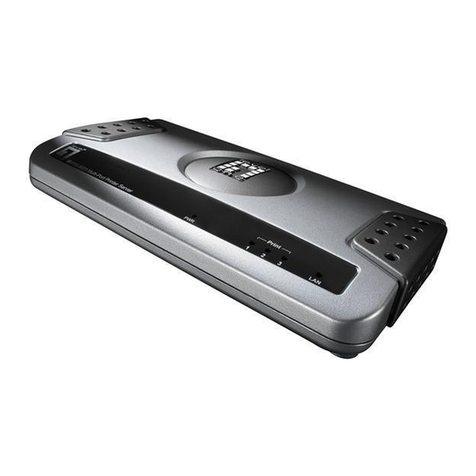
Digitus DN-13007 User manual

1
2-Port USB 2.0 Hi-Speed MFP Server
DN-13007
Quick Installation Guide
English
Deutsch
Fig1 Physical Description
USB Port 1
USB Port 2
Init Button
Power Adaptor
Connector
Ethernet
Connector
Indicators
Power
LinkStatusUSB1
USB2

2
Fig2 Autorun
Fig3 MFP Server Control Center Software

3
Fig4 Set Server Name and Code Page

4
Fig5 TCP/IP Setting
Fig6 Add Printer

5
Fig7 Printer Setting for MFP Server Control Center
Fig8 Printer Setting for Local Port
Fig9 Network Scan Button

6
Fig10 Network Scanner Interface
English
①. Introduction
This document describes the steps for installation and configuration of
DN-13007 USB MFP server as a Print/File/Scan server in Windows environment.
Refer to the User’s Manual in the bundled CD-ROM for more details.
-This Setup Guide is only for Windows users.
-If you use DN-13007 in Unix/Linux, please refer to the User’s Manual in the
bundled CD-ROM for more details.
②. Package Contents

7
If any item is missing, please contact the shop where you bought this product.
-One DN-13007 USB MFP Server.
-One DN-13007 MFP Control Center Software CD.
-One DC IN 12V/1A Adaptor.
-This Quick Installation Guide.
③. OS Requirements
1. Windows 98 SE/ME/2000/XP/2003
2. Unix, Linux , Apple OS X 10.3x and RFC-1179 LPD System
④. Physical Description
Please refer to Fig 1, Physical Description.
1. Power Adaptor Connector: DC IN 12V/1A adaptor
2. Init Button: print the configuration page and initialize the server
3. Ethernet Connector: a twisted pair category 5 cable
4. USB Host Ports: USB 1.1/2.0 low, full and Hi-Speed compliant
5. Indicators
Power Indicator is lit while power is applied. If it is not lit, or if it blinks,
there is a problem with the MFP server or Power Adapter.
Link Status is lit while network is applied. If it is not lit, it indicates that
the server does not connect the network.
Status Indicator blinks to indicate network activity.
USB1 Indicator is lit while an USB device connects to USB1 Port of the
MFP server. If it is not lit, or if it blinks, there is a problem with the USB
device or the MFP server.
USB2 Indicator is lit while an USB device connects to USB2 Port of the
MFP server. If it is not lit, or if it blinks, there is a problem with the USB
device or the MFP server.
⑤. Connect the DN-13007
1. Connect DN-13007 to the network, such as a LAN switch or a LAN hub,
using a LAN cable.
2. Connect DN-13007 to USB printers, hard drives or flash ROM disks, and HP
all-in-one series printers (AIO/MFP) using USB cables.
3. Connect DN-13007 to the power jack using the power adaptor (included in
this package).
⑥. Install Utility

8
1. Insert the included CD-ROM (DN-13007 USB MFP Server Product CD) into
the personal computer. The Autorun screen as Fig2 should appear.
2. Click Install Product button.
3. Click Next, if you see any Next button in installation windows.
4. Click Finish.
⑦. Configure DN-13007 with Utility
Using MFP Control Center Software (Fig3):
1. Open the MFP Control Center. It will automatically search the existing
servers and display their status.
2. Select the server that you want to configure. Double click the selected server
and enter Administrator (default: admin) and Password (default: admin).
3. Name your DN-13007 server and select a codepage for file server function
as Fig4. Please enter server’s host name and workgroup for Windows
networking by SMB protocol. The default host name is DN-13007 and
workgroup is. If you want to use the file server function, you have to set the
same codepage as that your Windows PC is using.
4. Assign IP address to DN-13007 as Fig5. Please choose the one method to
set the IP address of the server. You can automatically get IP by using DHCP
or manually assign an IP to the server.
⑧. Set Up Printers
You can set up your network printer using steps below.
Note: If you want to install HP all-in-one series printer drivers in Windows, you
Set up Local
Window Printer
Driver
Connect Your Printer to
MFP Server and Connect
MFP Server to Network
Add Network Printer by
-Windows Standard
Method
-PC User Software
Configure Your
MFP Server
Turn on Your
Printer and MFP
Server
Turn on “Online Use
Printer” in Installed
Window Printer
Driver
Step 1 Step 2 Step 3
Step 4Step 5
Step 6

9
are advised to connect the MFP to PC during installation.
Add Network Printer
A. Use Add Printer Function of MFP Control Center Software
1. Start MFP Control Center, select your MFP server and click Add
Printer (Fig 6).
2. Select USB1 Port or USB2 Port in Add printer box, choose to use IP
Address or Host Name to represent MFP Server in printer port, and
select Printing with LPR (Line Printer Remote), Printing with Raw
TCP (JetDirect) or Printing with network Path(SMB) in Select the
network printing protocol box (Fig7).
#If your server is running on a different LAN than your Windows PC,
you have to choose IP address in Select IP Address or Host
Name in printer port box.
#SMB Protocol is compatible for Windows 98 SE/ME/2000/XP/2003.
LPR and Raw TCP protocols are compatible for Windows
2000/XP/2003.
3. Click Apply.
4. Select the desired printer driver and click Set Port to Printer.
5. Click OK.
6. If you can not find any printer driver in Printer List, please install your
printer driver first or click Add New Printer to install the printer driver.
B. Use Standard Windows Add Printer Wizard
-Windows Platform: Windows 98SE/ME/2000/XP/2003
-Network Printing Protocol: SMB
1. Open Printers and Faxes
2. Right-click the printer for which you want to change settings, and then
click Properties
3. Click the Ports tab.
4. Clear Enable bidirectional support and click Create a new port,
and then click Local Port in the Port type section.
5. In the Port Name box, type the path to the printer in the following
format: ”\\ server’s host name\printer name” or ”\\ server’s IP address
\printer name” (Please refer to server’s web pages or MFP Control
Center tool to know exact path). For example: if you set server’s
host name as DN-13007 and printer name (USB1 port) as psc 1300
ser, then the network path is expressed as: \\DN-13007\psc 1300 as

10
shown in Fig8.
#
If your server is running on a different LAN than your windows
PC, you have to type IP address in Port Name box.
6. Click OK, and then select a Windows driver for your printer. If you
already have the printer’s driver installed, you will be asked whether
to keep it or to replace it. Click Next.
7. Choose whether you want to share the printer with other network
users. Do you want to print a test page? Select the appropriate
radio button and click Next and Finish.
⑨. Use File Sharing
-File System: This product supports a file format of FAT12/16/32. It will not
support a drive formatted by NTFS, etc.
-Naming Your Storages: The local drives of the two storages in USB1 port
and USB2 port are named as USBx_DxPx, where USBxrepresents the
USBxport, Dx represents the the x-th Disk and Pxrepresents the x-th
partition.
-Setting MFP Server Code Page: MFP Server supports Windows code
pages. If you want to communicate files with MFP server, you have to set
your MFP server codepage to be same as the codepage that your Windows
PC is using.
-Using SMB Method for Sharing Storages
1. Connect a USB storage device to this product.
2. Select My Network Places
3. Click Display the Computers of Workgroup
4. Double click Microsoft Windows Network icon.
5. Double click the Workgroup that MFP server belongs to. The default
Workgroup name is “ARBEITSGRUPPE”. You can refer to MFP Control
Center or server’s web pages to get it. You will see that the MFP server
will be displayed as the default host name "DN-13007" or the host name
that you set.
6. If you can not find Workgroup name of MFP server in Microsoft
Windows Network, you can select Search Computer in My Network
Places and type the server’s hostname or IP address (eg, default host
name “DN-13007” ) to find it.
7. Double click this host name icon. The folders will be displayed as
USB1_DxPx, and USB2_DxPx where Dx represents the x-th disk and
Px represents the x-th partition with respect to USB1 port and USB2
Other manuals for DN-13007
3
Table of contents
Languages:
Other Digitus Print Server manuals

Digitus
Digitus DN-13006-1 User manual

Digitus
Digitus DN-13003-2 User manual

Digitus
Digitus DN-13003-1 User manual

Digitus
Digitus DN-13006-1 User manual

Digitus
Digitus DN-13014-3 User manual

Digitus
Digitus dn13006w User manual

Digitus
Digitus DN-13014 User manual

Digitus
Digitus DN-13007 User manual

Digitus
Digitus DN-13001-1 User manual

Digitus
Digitus DN-13005 User manual