
Digi TransPort WR44RR User manual

TransPort®WR44RR
Wireless Routers
Installation Guide
90001295_D
September 3, 2013

TransPort®WR44RR Installation Guide
Page 2
Disclaimer
Digi International makes no representations or warranties with respect to the contents or use of this manual,
any software drivers or associated application software provided with this product and specically disclaims
any expressed or implied warranties of merchantability or tness for any particular purpose.
Digi International reserves the right to modify or revise all or part of this document, its contents, and any
products described herein at any time without prior notication and shall not be responsible for any loss, cost
or damage, including consequential damage, caused by reliance on these materials.
Digi Technical Support Contact Information
United States: (952) 912-3444 or (877) 912-3444
Other Locations: +1 (952) 912-3444 or (877) 912-3444
EMEA +44 870 35 000 35
Safety Notices
1. Please read all instructions before installing and powering the unit. You should keep these instructions in
a safe place for future reference.
2. If the power supply shows signs of damage or malfunction, stop using it immediately, turn off the power
and disconnect the power supply before contacting your supplier for a repair or replacement.
3. Changes or modications not expressly approved by the party responsible for compliance could void the
user’s authority to operate the equipment. Use only the accessories, attachments, and power supplies
provided by the manufacturer – connecting non-approved antennas or power supplies may damage the
unit, cause interference or create an electric shock hazard, and will void the warranty.
4. Do not attempt to repair the product. The unit contains no electronic components that can be serviced or
replaced by the user. Any attempt to service or repair the unit by the user will void the product warranty.
5. Products in the TransPort WR®family are designed for indoor use (except for the WR44 R) and should be
used in an environment that is suitable for computers and other electronic equipment.
6. Ports that are capable of connecting to other apparatus are dened as SELV ports. To ensure conformity
with IEC60950 ensure that these ports are only connected to ports of the same type on other apparatus.
Product Disposal Instructions
The WEEE (Waste Electrical and Electronic Equipment: 2002/96/EC) directive has been introduced to ensure
that electrical/ electronic products are recycled using the best available recovery techniques to minimize the
impact on the environment.
This product contains high quality materials and components which can be recycled. At the end of its life this
product MUST NOT be mixed with other commercial waste for disposal. Check with the terms and conditions
of your supplier for disposal information.
Digi International Ltd WEEE Registration number: WEE/HF1515VU

TransPort®WR44RR Installation Guide
Page 3
Special notes on safety for wireless routers
Digi International products are designed to the highest standards of safety and international standards
compliance for the markets in which they are sold. However, cellular-based products contain radio devices
which require specic consideration. Please take the time to read and understand the following guidance. Digi
International assumes no liability for an end user’s failure to comply with these precautions.
Wireless routers incorporate a wireless radio module. Users should ensure that the
antenna(s) is (are) positioned at least 20 cms away from themselves and other persons
in normal operation.
When in a hospital or other health care facility, observe the restrictions on the use of
mobile phones. Do not use the unit in areas where guidelines posted in sensitive areas
instruct users to switch off mobile phones. Medical equipment may be sensitive to RF
energy.
The operation of cardiac pacemakers, other implanted medical equipment and hearing
aids can be affected by interference from cellular terminals such as the wireless routers
when places close to the device. If in doubt about potential danger, contact the physician
or the manufacturer of the device to verify that the equipment is properly shielded.
Pacemaker patients are advised to keep the wireless router away from the pacemaker
while it is on.
Wireless routers must NOT be operated on aircraft. The operation of wireless appliances
in an aircraft is forbidden to prevent interference with communications systems. Failure
to observe these instructions may lead to the suspension or denial of cellular services
to the offender, legal action, or both.
As with any electrical equipment, do not operate the unit in the presence of ammable
gases, fumes or potentially explosive atmospheres. Radio devices should not be used
anywhere that blasting operations are taking place.
Wireless routers receive and transmit radio frequency energy when power is on.
Interference can occur if used close to TV sets, radios, computers or inadequately
shielded equipment. Follow any special regulations and always power off your unit
wherever forbidden or when it may cause interference or danger.
SOS IMPORTANT! - Wireless routers operate using radio signals and cellular networks
cannot be guaranteed to connect in all possible conditions. Therefore, never rely solely
upon any wireless device for life critical communications.

TransPort®WR44RR Installation Guide
Page 4
Table of Contents
1 Package Contents ���������������������������������������������������������������������������������������� 5
2 Introduction �������������������������������������������������������������������������������������������������� 6
2.1 Enclosure Features ................................................................................................................... 7
2.2 Front Panel Features ................................................................................................................. 8
2.3 Rear Panel Features ................................................................................................................. 9
3 Installation �������������������������������������������������������������������������������������������������� 10
4 Conguration���������������������������������������������������������������������������������������������� 12
4.1 Network Settings .................................................................................................................... 12
4.2 Web Interface ........................................................................................................................... 12
4.3 Command Line Interface (CLI) ................................................................................................. 16
5 Troubleshooting ����������������������������������������������������������������������������������������� 18
5.1 Troubleshooting Resources .................................................................................................... 18
5.2 Unable to open the Web Interface ........................................................................................... 18
5.3 Unable to log in to the Web Interface ...................................................................................... 18
6 Specications��������������������������������������������������������������������������������������������� 19
7 Accessories ������������������������������������������������������������������������������������������������ 20
8 Connectors �������������������������������������������������������������������������������������������������� 22
9 Certications ����������������������������������������������������������������������������������������������� 23

TransPort®WR44RR Installation Guide
Page 5
1 Package Contents
If any item is missing or damaged, please contact your supplier. Also, make a record of any damage that may
have occurred during shipping and report it to the carrier.
Depending on model and conguration, the package will also contain additional cables/antennas as appropriate.
TransPort WR44RR
Installation Guide
Ethernet Cable
D
IGI
T
RANS
P
ORT
WR44RR
TransPort WR44RR
Wireless Routers
Installation Guide
Power Supply
SILICONE
DIELECTRIC COMPOUND
Dielectric Grease

TransPort®WR44RR Installation Guide
Page 6
Preface
This guide describes the installation procedure for the TransPort WR family of routers. It is intended to provide
sufcient information to be able to connect the unit to terminal equipment and power-on the unit. A complete
reference guide to the software features that are available on the product is available separately in PDF format
and can be downloaded from the Digi International web site (www.digi.com).
2 Introduction
The Digi TransPort WR family of cellular routers offers an all-in-one mobile communications solution with true
enterprise class routing, security and rewall. These multifunction cellular routers feature a exible design with
an optional integrated Wi-Fi access point (with multi SSID) / Client, USB, serial, and Ethernet, as well as a
variety of conguration options including multiple serial ports (async or sync), GPS or I/O telemetry modules.
The Digi TransPort family also offers an advanced routing, security and rewall feature set including stateful
inspection rewall and integrated VPN. Enterprise class protocols incorporate BGP, OSPF and VRRP+, a
patented technology built upon the popular VRRP failover standard providing true auto sensing, auto failure
and auto recovery of any line drop.
Digi TransPort WR routers are ideal for transportation and mobile applications. Flexible power options include
AC, DC and 4-pin Molex connectors for direct integration into vehicle applications. Also available is the Digi
Remote Manager™ which provides easy setup, conguration and maintenance of large installations of Digi
TransPort devices.
2�1 Enclosure Features
TransPort WR44RR
D
IGI
T
RANS
P
ORT
WR44RR
2
1
2
1. Rugged Enclosure
2. Mounting Tabs

TransPort®WR44RR Installation Guide
Page 7
2�1 Enclosure Features
TransPort WR44RR
D
IGI
T
RANS
P
ORT
WR44RR
2
1
2
1. Rugged Enclosure
2. Mounting Tabs

TransPort®WR44RR Installation Guide
Page 8
2�2 Front Panel Features
1. LED Status Indicator - POWER - Illuminates steady when power is connected.
2. LED Status Indicator - LAN (0, 1, 2, 3) - Illuminates steady when there is a network connection to the LAN
port and ashes when data is transmitted or received.
3. LED Status Indicator - Wi-Fi -Illuminates steady if Wi-Fi activity is present.
4. LED Status Indicator - SERIAL - - Flashes when data is transmitted or received.
5. LED Status Indicator - LINK - Illuminates steady when a wireless data connection has been established.
6. LED Status Indicator - SIM - Illuminates steady when a valid SIM card is installed.
7. LED Status Indicator - ACT - Flashes to indicate that data is being transferred over the wireless network.
8. LED Status Indicator - SIGNAL.
• 0 LEDs illuminated: < -113 dBm (effectively no signal)
• 1 LED illuminated: >= -112 dBm and <= -87 dBm (weak)
• 2 LEDs illuminated: >= -86 dBm and <= -71 dBm (medium)
• 3 LEDs illuminated: >= -70 dBm and <= -51 dBm (strong)
9. SIM / R-UIM Sockets (SIM card models only) - SIM 1 and SIM 2 are for use with the Subscriber
Identication Module(s) (SIMs) or Removable User Identication Module(s) (R-UIMs).
12345678
9
TransPort®WR44RR Installation Guide
Page 9
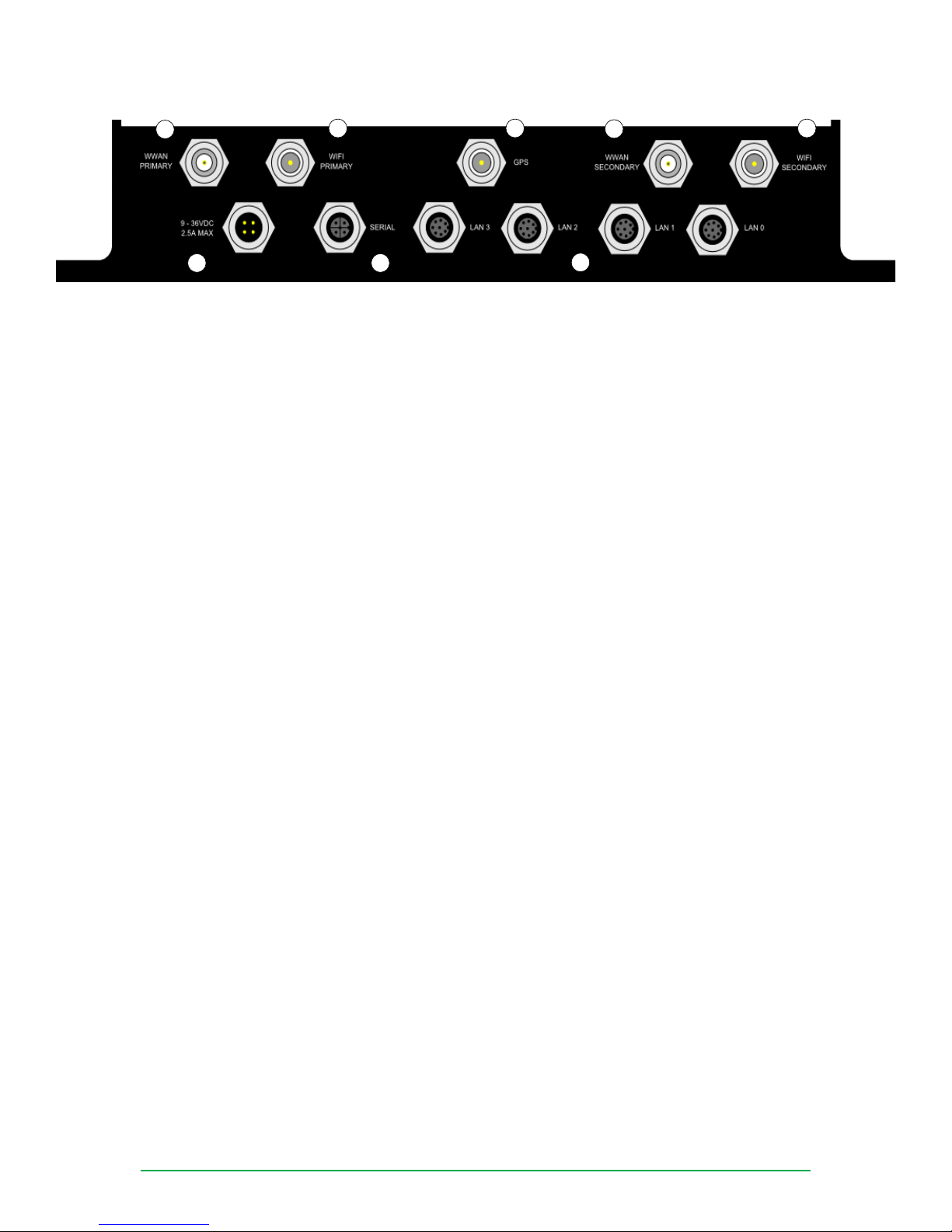
2�3 Rear Panel Features
12 3 45
678
1. Primary Cellular (WWAN) Antenna Connector - This TNC female connector is used to connect the unit’s
primary cellular antenna.
2. Primary Wi-Fi (WLAN) Antenna Connector (Wi-Fi models only) - This TNC male connector is used to
connect the unit’s secondary Wi-Fi antenna.
3. GPS Antenna Connector (GPS models only) – This TNC males connector is used to connector the connect
the unit’s GPS antenna.
4. Secondary Cellular (WWAN) Antenna Connector - This TNC female connector is used to connect the
unit’s secondary cellular antenna. It is highly recommended to use the secondary antenna for diversity. In
most circumstances, dual antennas will provide improved signal strength thus better performance.
5. Secondary Wi-Fi (WLAN) Antenna Connector (Wi-Fi models only) - This TNC male connector is used to
connect the unit’s secondary Wi-Fi antenna.
6. 9-36VDC - This M12 socket is used to connect the unit to an alternative 9-36VDC power supply (not
supplied) using the supplied fused power cable. This cable also contains two programmable GPIO signal
lines.
7. SERIAL - This M12 port provides an asynchronous RS232 serial port which may be used to connect the
unit to a compatible serial device. This is a DCE serial port and allows CLI access to the device by default;
the baud rate is 115200.
8. LAN - These M12 ports are used to connect the unit to a 10/100 base-T LAN. These ports are auto-
sensing for speed and wiring (straight-through or cross-over).

TransPort®WR44RR Installation Guide
Page 10
3 Installation
Mounting Tips
The TransPort WR44RR is designed for indoor and outdoor use. It should be mounted in a position to allow
access for the cables on the rear panel.
D
IGI
T
RANS
P
ORT
WR44RR
Front View
1
4
3
2
76
5
4
3
Rear View
Step 1) Install the SIM card(s): SIM card(s) should be inserted into the SIM sockets as illustrated in the Front
View image. For SIM 1, the contact should be face down. For SIM 2, the contacts should be face up. In Both
cases, the case of the SIM card with the chamfered corner should inserted rst.If the WR44RR is going to be
used in an environment with high vibration levels, it is possible that the SIM contacts will suffer fretting leading
to premature SIM failure. It is recommended that a very thin layer of dielectric grease is applied to the SIM
contacts before inserting it into the SIM socket.
Table of contents
Other Digi Wireless Router manuals

Digi
Digi TransPort WR44v2 User manual

Digi
Digi Digi TransPort WR User manual

Digi
Digi TransPort WR21 User manual

Digi
Digi TransPort WR44v2 User manual

Digi
Digi TransPort WR44 User manual

Digi
Digi IX14 User manual

Digi
Digi TransPort DR64 User manual

Digi
Digi Transport DR64-H User manual

Digi
Digi TransPort WR44 User manual

Digi
Digi TransPort WR21 User manual

Digi
Digi Connect WAN Series User manual

Digi
Digi PortServer TS1 W MEI User manual

Digi
Digi MR4110 User manual

Digi
Digi ConnectPort X2e Wi-Fi User manual

Digi
Digi DR6410W User manual

Digi
Digi TransPort WR44 User manual

Digi
Digi IX20 User manual

Digi
Digi TransPort LR54 Application guide

Digi
Digi WAN 3G User manual

Digi
Digi TransPort WR11 User manual


