DGTEC DG-FV1TBPVR User manual


1
HELP PROVIDED
NEED HELP?
If you are experiencing difficulty operating this product or require set up
assistance please contact the DGTEC Service Centre. The call is free from
anywhere in Australia. Our operators will assist you in plain English without the
technical jargon:
(Australia)
8:OOam-6:OOpm Australian EST
* Subject to change without notice.

2
INDEX
INDEX ............................................................................................................................2
SAFETY AND INSTRUCTIONS ....................................................................................3
ASSEMBLY AND PARTS LIST .....................................................................................4
1.1 PARTS LIST.............................................................................................................4
1.2 FEATURES ..............................................................................................................4
1.3 FRONT PANEL ........................................................................................................5
1.4 REAR PANEL ..........................................................................................................6
1.5 REMOTE CONTROL UNIT......................................................................................7
1.6 INSTALLING THE BATTERIES IN THE REMOTE CONTROL................................8
1.7 CONNECTING TO EQUIPMENT ............................................................................9
GETTING STARTED ................................................................................................... 11
INSTRUCTIONS ..........................................................................................................14
2.1 MENU INFORMATION ..........................................................................................14
2.2 PVR & BOOKING ..................................................................................................14
2.3 UTILITY..................................................................................................................20
2.4 CONFIGURATION .................................................................................................22
2.5 INSTALLATION ......................................................................................................27
2.6 EPG .......................................................................................................................29
2.7 TELETEXT.............................................................................................................30
2.8 TRANSFERRING (COPYING) RECORDED FILES ..............................................31
2.9 SET A RECORDING ..............................................................................................31
2.10 PLAYBACK OPERATION ....................................................................................32
PS1 TROUBLE SHOOTING........................................................................................33
PS2 SPECIFICATION..................................................................................................34
NOTES.........................................................................................................................35


3
SAFETY AND INSTRUCTIONS
CAUTION: TO PREVENT ELECTRICAL SHOCK, DO NOT REMOVE THE COVER.
THERE ARE NO USER SERVICEABLE PARTS INSIDE. REFER
SERVICING TO QUALIFIED SERVICE PERSONNEL.
SAFETY
.Never place the unit in hot, humid or excessively dusty places.
.Do not install the unit where it may be exposed to mechanical vibrations.
.This product should be operated only from the type of power source indicated on the
rear of the unit.
.Do not touch the power cord with a wet hand or continue to use a damaged power
cord. It may cause an electric shock.
.Never open the cover. High voltage in the unit may result in electrocution.
.Disconnect the power cord to the unit before connecting any cables.
CAUTION
.To prevent fire or electrical shock do not expose the appliance to water.
.Ensure that objects filled with liquids, such as vases, are not placed on the
apparatus.
.If an object or liquid gets into the unit, disconnect the plug and ask an approved
technician to check the unit.
.Never place the unit in a confined space such as a bookcase or built-in cabinet
unless proper ventilation is provided. Leave a 10cm gap around the unit.
.The recommended operating temperature is from 0 ~ 40℃℃and humidity should be
under 95%.
.For your own safety, do not touch any part of the unit, power lead or aerial
lead during a lightning storm.
.Use a damp cloth to clean the unit.
.Do not use liquid cleaners, solvent or abrasive products, etc.
This symbol indicates that high voltage is present inside. It is dangerous to
make contact with any part inside the case.
This symbol alerts you of important information concerning operation and
maintenance of this product.

4
ASSEMBLY AND PARTS LIST
1.1 Parts List
Please make sure the following accessories are supplied with the PVR.
① High-Definition Personal Video Recorder (PVR )
② Remote Control
③ RCA Video/Audio Cable
④ Batteries (AAA Size)
⑤User Manual
⑥RF Loop Cable
1.2 Features
zTwin Tuner High Definition Personal Video Recorder.
zRecord two channels at the same time and watch a third channel from the same
bandwidth. For example record channels 7 and 9 and watch either channel 72 or
channel 99.
zRecord two channels at the same time and watch a recorded file in playback.
zChase play a file that is recording.
zTimeshift, press the PAUSE key on the remote to pause Live TV.
zSet your recordings a week ahead using the EPG.
zView JPEG files and play MP3s from a USB drive.
zRecords programs from standby mode.
zCopy files from HDD to USB or USB to HDD.

5
ASSEMBLY AND PARTS LIST
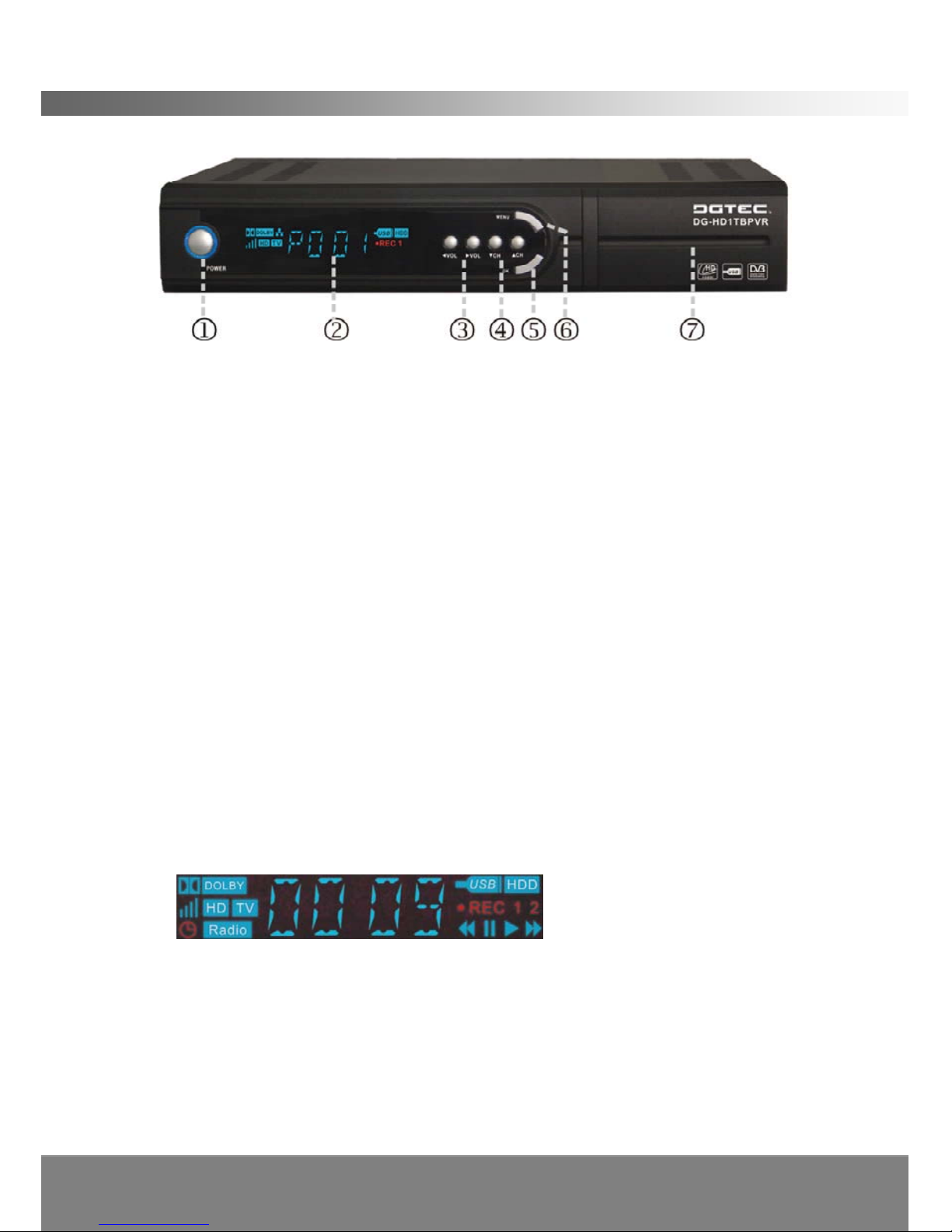
1.3 Front Panel
1. Standby Button
Press to switch between operation and standby modes. The blue LED illuminates
when in the standby mode.
2. Volume Left/Right Button (◄/►)
Moves the cursor left/right when in the menu or adjusts the volume level in
operational mode.
3. CH UP/Down Button (▲/▼)
Moves the cursor up/down when in the menu or changes the current program to the
previous/next channel in operational mode.
4. OK Button (OK)
Press to select an item in the menu or to activate the Channel List in operational
mode.
5. Menu Button (MENU)
Press to display the Main Menu or to exit from the menu.
6. Infrared Remote Sensor (IR)
A hidden sensor senses infrared signal from the remote control.
7. Front Panel Display
Front panel window displays operational information. Not all symbols featured below
can be displayed at the same time.
USB / HDD lights up when there is USB 2.0 Flash Drive / USB 2.0 External Hard
Disk Drives connected to the PVR;
●REC 1 / 2 illuminates when the PVR is recording one or two programs;
///illuminates in accordance with the active function in playback mode;
TV / Radio illuminates the active mode;
HD /DOLBY Displayed when HDTV or Dolby is detected in the program;
lights up when timer events booked in the EPG or timer;
The signal quality and channel number will also be displayed on the front panel.

6
ASSEMBLY AND PARTS LIST
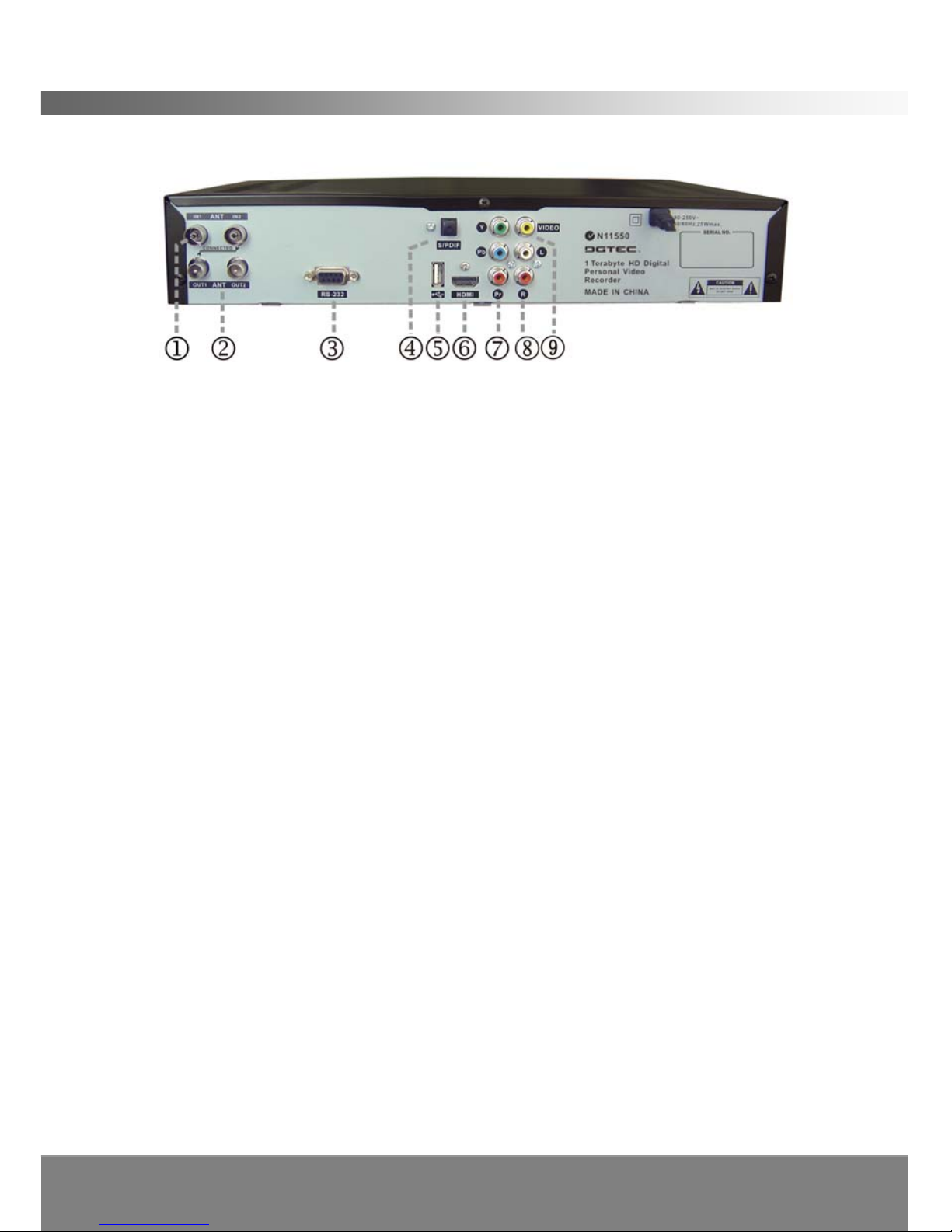
1.4 Rear Panel
1. ANT IN
Antenna feed is connected to this Input. Small loop cable is connected from IN2 to
OUT 1 (diagonally positioned).
2. ANT OUT
Used to connect an extra analogue or digital receiver.
3. RS232 Serial Port
For firmware update, serial communication port (RS-232).
4. DIGITAL AUDIO (S/PDIF / Optical)
Connects to an External Audio Amplifier with S/PDIF /Optical Digital Audio.
5. USB
USB port is used for viewing external files on a memory stick, and for possible
software upgrades. (To be advised by DGTEC technician)
6. HDMI Connector
Connects High-Definition Multimedia output to HD Monitors (HDMI Type).
7. YPbPr
Connects component video to HD Monitors (YPbPr Type).
8. AUDIO L/R (White / Red RCA)
Connects to a TV audio input, HD Monitors audio input or an External Audio
Amplifier.
9. VIDEO (Yellow RCA)
Connects to a TV with video input.

7
ASSEMBLY AND PARTS LIST
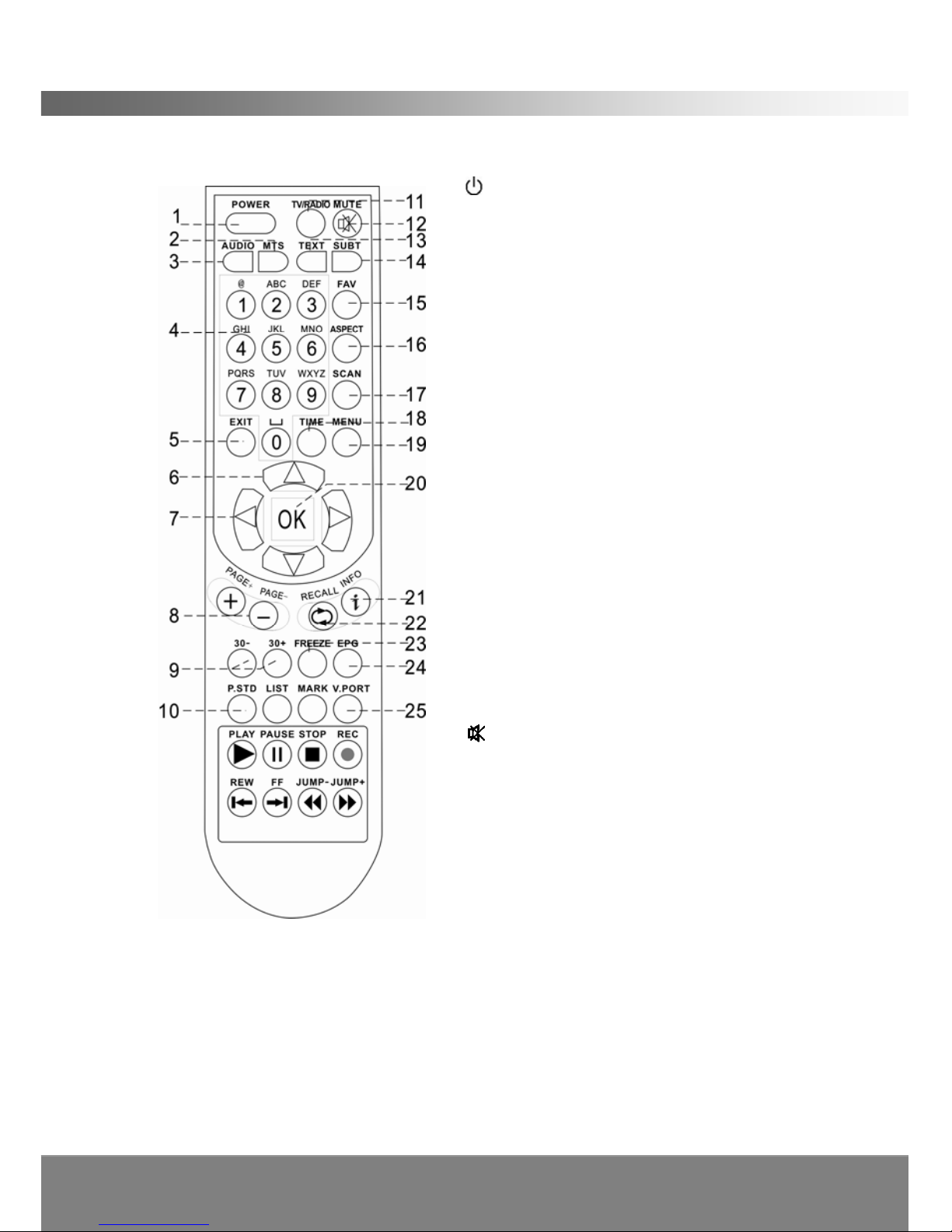
1.5 Remote Control Unit
All PVR features can be operated with the remote control.
1. POWER: Press to switch between
operation and standby mode.
2. MTS: Press to select an item in the sound
mode.
3. AUDIO: Select an item in the audio mode.
4. NUMERIC KEYS: Select channels and input
numbers for codes
5. EXIT: Press to return to the previous menu
or to escape from the current mode.
6. Up▲/ Down▼: Change the channel or
move the cursor in the menu.
7. Left◄/ Right►: Adjust volume or move
cursor in the menu.
8. PAGE +/ PAGE–: Press to navigate to top
and bottom of pages in the channel list and
EPG.
9. 30- (Red) / 30+ (Green): 30sec jump
backwards / forward.
10. P.STD: Selects the display resolution mode
(1080i/720p/576p).
11. TV/RADIO: Press to switch between TV
and RADIO mode.
12. MUTE: Press to mute the sound.
13. TEXT: Display the Teletext information (not
always available).
14. SUBT: Displays Closed Captions (CC).
15. FAV: Press to display Favorite Channel
Mode.
16. ASPECT: Press to select 4:3 or 16:9 aspect
ratio mode.
17. SCAN: Press to automatically scan for digital channels.
18. TIMER: Enters Timer environment.
19. MENU: Displays or exits the Main Menu.
20. OK: Select a highlighted item in the menu or displays the channel list.
21. i: Displays current program information.
22. RECALL: Return the previous channel.
23. FREEZE (Yellow): Freeze the video output of the PVR (this is not Timeshift,
press Pause to activate Timeshift).
24. EPG (Blue): Displays the 8 day Electronic Program Guide.

8
ASSEMBLY AND PARTS LIST
1.6 Installing the batteries in the remote control
1. Press down on the retaining catch on the lid of the battery recess on the remote
control and slide downward to remove the lid.
2. Insert two AAA batteries into the recess.
3. Replace the lid over the recess and gently push down on the lid and slide upward
until it snaps firmly into place.
Caution
1. Keep batteries out of the reach of children.
2. Do not attempt to recharge, short-circuit, disassemble, heat or throw the batteries
into the fire.
3. Always replace both batteries at the same time. Never mix new and old batteries
or batteries of a different type.
4. If you don’t intend to use the remote control for an extended period, remove the
batteries to prevent possible leakage and corrosion.
5. Do not drop, apply shock or step on the remote control.
6. Do not spill water on the remote control.
Note: If the PVR does not respond when operating the remote control from a
close range, you will need to replace the batteries.
Using the Remote Control
1. To use the remote control, point it towards the front of the PVR.
2. The remote control has a range of up to 7 metres from the PVR at an angle of up
to 60 degrees.
3. The remote control will not operate if its path to the sensor on the front panel of
the PVR is blocked.
Note: Sunlight or very bright light will decrease the sensitivity of the remote
control.

9
ASSEMBLY AND PARTS LIST
1.7 Connecting to Equipment
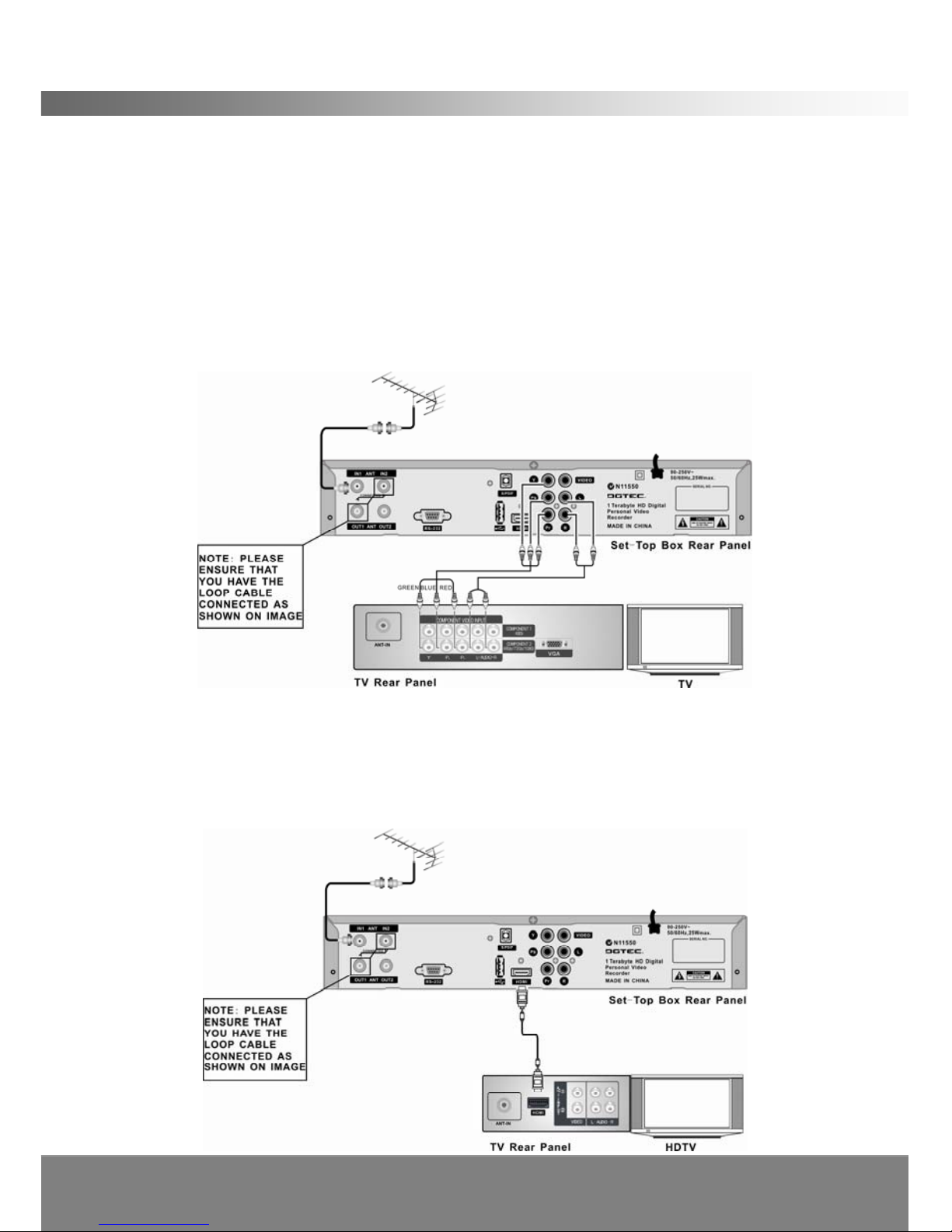
1. Connect your TV antenna cable to the “ANT IN” jack on the back of the PVR using
coaxial RF cable. Make sure the loop cable is connected correctly to activate the
second tuner (see the diagram below)
YPbPr connection
2. Connect the YPbPr output connectors (three RCA connectors - green, red and
blue) for video from the rear panel of the PVR to the COMPONENT IN on your
television matching colour for colour and AUDIO L/R output connectors (two RCA
connectors – red and white) for audio from rear panel of the PVR to the
corresponding audio input of your television.
HDMI
High Definition Multimedia Interface (HDMI) provides both high quality digital video
and audio connection in one cable.
3. Connect the HDMI cable from the HDMI output on the rear panel of the PVR to
the corresponding HDMI input of HDTV or Amplifier using HDMI cable for both
Video and Audio connections.
Table of contents
Other DGTEC DVR manuals