Cyber Acoustics Essential SP-2000 User manual

Quick Start Guide
www.CyberAcoustics.com CA P/N: SP-2000 Rev. A00
2021-03
Speakerphone SP-2000

In the Package
Quick Start Guide
USB Type A to C cable
Note: The USB Type A to C
cable is packed in the inner
tray inside the box.
Speakerphone SP-2000
Quick Start Guide
www.CyberAcoustics.com CAP/N: SP-2000 Rev. A00
2021-03
Speakerphone SP-2000

Table of Contents
Connecting the Speakerphone
Getting Started
Controls
Technical Specifications
Frequently Asked Questions
Customer Support
Safety and Precautions
Pages
1
2,3
5,6
7
8,9,10
11
12
13,14
Compliance Information
Lights 4

Connecting the Speakerphone
Best for Use In
Office Center
Page 1
/ USB

Page 2
Getting Started
Bluetooth connection
Before you start, please fully charge up the speaker.
Switch on the device and it will begin “Bluetooth pairing” mode. With your audio
source (smartphone, tablet, laptop, etc.), find the Bluetooth device list and look
for “CA Essential SP”. Select it to pair/connect with the speaker.
Bluetooth will auto reconnect last connected device after toggle key between
from USB Audio source
Bluetooth will reconnect last connected device after power off and power on
main unit if it paired before.
Bluetooth will reconnect last connected device after moving mobile phone and
devices over
Bluetooth can reconnect last connected device after Bluetooth off and Bluetooth
on in BT setting menu of mobile phone and devices if it paired before.

Page 3
Getting Started
USB connection
Toggle source key to USB source
Insert the end of the USB Type A Cable into the
USB Type A port on your computer as show.
The CA Essential Speakerphone features full plug and play support for
Windows, OSX / MacOS and Chromebooks. After plugging the
speakerphone into the computer, you may start any application that
accepts a speakerphone, such as Skype and begin using your
speakerphone.
If the computer does not automatically recognize the speakerphone when
it is plugged into the USB Type A port, try plugging the USB Cable into a
different USB Type A port. If this does not work, then restart the computer.
This will cause the speakerphone to be recognized in most instances.

Page 4
Lights
Volume LED Indicator
- Volume level Indicator Light - LED is lit solid White (1 to 4 LEDs)
- Mic (Voice) Indicator Light when call active - Light will flash
White (1 to 4 LEDs)
- Mic Muted - LEDs are lit solid Red (All 4 LEDs)
Zoom Meeting/PhoneFunctionality
- Meeting Invite or Incoming Call - Light will
flash Red
- Meeting or Call in Progress - Light will be lit
solid Red
Source LED Indicator
- Working at BT mode - LED is lit solid Blue
- Bluetooth is disconnected or connecting - LED will flash Blue
- Working at USB-C mode - LED is lit solid Green
Power LED Indicator
- The first 3S of power on / battery full - LED is lit solid Red
- Charging/Low battery - LED will flash Red

Page 5
Controls
Press to increase the volume (Long press
the "Vol+" continuously for more than 2
seconds to continuously increase the volume)
In playing music mode or Talk mode,
Short press once the "mic-mute" key
to mute the mic input;
Press to decrease the volume (Long press
the "Vol-" continuously for more than 2
seconds to continuously reduce the volume)
Zoom Meeting/Phone Functionality Not supported for other Applications)
Press to accept a meeting invite or answer a call. During the call, Long press the
"Call" key for 1 seconds to hang up. When the call comes, long press 2 seconds to
reject the call.
Power - In Standby mode, Short press once "Power" key to turn on the
speaker; in Working mode, Long press the "Power" key for 2 seconds
to turn off the speaker.
Source - In Bluetooth mode, long press "BT" key for 3 seconds to
disconnected the Bluetooth and enter pairing mode.

Page 6
Controls
Main unit can’t enter standby mode when inserted DC in or when in USB Audio mode.
Main unit will auto power off mode within 15 minutes if the Bluetooth is disconnected.
Wake up function description
Press “Power” key once in main unit to wake up main unit from standby mode.
If main unit is connected with the computer through the USB type-c cable, it will also wake
up from standby mode.
Auto source switch
When in BT mode, plug in USB type-c and connect with the computer, will auto switch to
USB Audio mode.
When in USB Audio mode, if unplug the USB type-c cable, will auto switch to BT mode.
The Bluetooth SSID name will show in the USB Audio mode, phone can pair and connect.
In the USB Audio mode, the Bluetooth is connected, if a call is incoming or play music in the
phone, the main unit will auto switch to BT mode. When in BT mode, press the source key
will switch back to the USB Audio mode.
Volume control
Volume range: 0-16. It will keep previous vol level when power off/power on again.
BT mode and USB Audio mode use different volume, they are not sync with each other.
Technical Specifications
Page 7
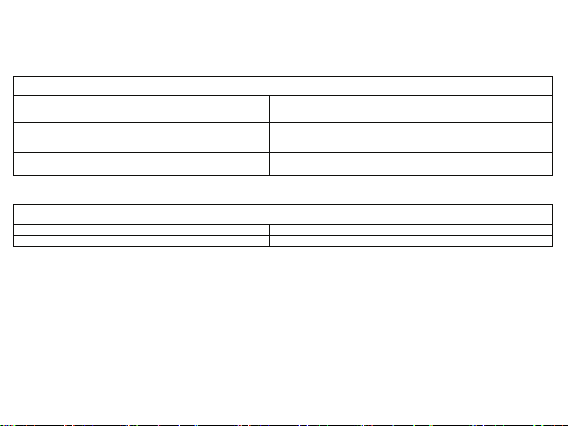
Frequency response
Recommended system requirements
Supported operang system
Operang temperature
Product working at ambient temperature for 0~35°C
Windows 10, Windows 8, Windows 7, Mac OS X 10.4.11, or higher.
• Speaker: 20 - 20,000Hz
• Microphone: 100 - 16,000Hz
• 5W * 1 for Music play
(Mono)
Power:
Impedance • Speaker: 32 ohms
• Microphone: 2.2k ohms
Specificaons
Table of contents
Other Cyber Acoustics Telephone manuals