COOLFORT CF-3201 User manual

MANUAL INSTRUCTION:
COOLFORT APP
ALICE VOICE ASSISTANT
ИНСТРУКЦИЯ ПО ЭКСПЛУАТАЦИИ:
ПРИЛОЖЕНИЕ COOLFORT
ГОЛОСОВОЙ ПОМОЩНИК АЛИСА
INSTRUCȚIUNE DE EXPLOATARE
ПАЙДАЛАНУУ БОЮНЧА НУСКАМА
INSTRUCȚIUNE DE EXPLOATARE
ПАЙДАЛАНУУ БОЮНЧА НУСКАМА
2
12
10
21
www.coolfort.ru
CF-3201
РОБОТ-ПЫЛЕСОС/ROBOT VACUUM CLEANER
Инструкция по использованию
мобильного приложения
COOLFORT

2
ENGLISH
Coolfort MOBILE APP INSTRUCTION
MANUAL
Coolfort is a home mobile AI application
developed for Android and IOS.
Coolfort APP developer provides the
software and technical support for users.
Please, read the user agreement to learn
about the terms of provision of this appli-
cation.
– Your device must support Android 4.0 /
IOS 7.0 or later versions.
– Make sure that your smartphone or tablet
has a stable Wi-Fi, 3G or 4G connection.
– You can scan the QR-code to download
«Coolfort» application or find it in Play
Market or App Store.
Play Market App Store
Let’s take a look at «Coolfort» operation when an Android operated smartphone
is connected to a vacuum cleaner
Note: Smartphone can only be connected to the Wi-Fi hotspot of the vacuum cleaner.
Step 1
Download and install
the «Coolfort» mobile application
and sign up. Click «Login».
Step 2
Read the user agreement
and confirm.
Step 3
Enter your email address.
If your country is different from
the default one, you can change
it by clicking on the indicated area.

3
ENGLISH
Step 3
Enter your email address.
If your country is different from
the default one, you can change
it by clicking on the indicated area.
Step 6
Create a password for logging
in the app.
Step 4
Select your country
of residence.
Step 7
Click «Finish».
Step 5
Click on the «Get a verification
code» button (see step 3)
and enter the received
confirmation code.
Step 8
Confirm the proposed
permissions (check the boxes)
and click «Go to application».
Step 9
You can save your registration
data on the Google service.
Follow further instructions.

4
ENGLISH
Step 12
Activate the Bluetooth function
on your device if it has not yet
been activated.
Click «Allow».
Step 10
Click «Add a device».
Step 11
Follow further recommendations.
Step 13
Click on the «Robot Vacuum
Cleaner (Wi-Fi)» icon.
Activating the Wi-Fi
connection mode
Make sure that your mobile
device has a stable Wi-Fi
connection.
If your router operates at 5 GHz,
then forcibly switch it to 2.4 GHz
before activating the connection
mode.
When activating the device for
the first time, the Bluetooth and
Geolocation services must be
enabled.
Note: During the first
activation the Wi-Fi settings
are transmitted through the
Bluetooth connection. After the
device has been successfully
activated the Bluetooth
connection is no longer
required.
Follow further instructions.
Step 14
Allow the «Coolfort» app
to access your device’s
location data.
Click on the highlighted icon.

5
ENGLISH
Step 16
Select the desired connection
mode. Click on the «EZ Mode»
button and go to the next step.
Note:
– if your smartphone is already
connected to the Wi-Fi
network, the password can
be entered automatically.
Then click «Next». The
display of your mobile device
will show the next page.
– when connecting to the
application, if there is no
password for Wi-Fi (if the
network is easily available),
then there is no need to
enter any characters in
the Wi-Fi password bar,
just click «Next» and then
«Continue».
Connect your device to the Wi-Fi
hotspot of the vacuum cleaner.
To do this, follow the steps
below:
Step 15
Select the Wi-Fi network with a
frequency of 2.4 GHz and enter
the password to connect.
Click «Next».
Step 17
Select the Wi-Fi hotspot
connection mode
of the vacuum cleaner.
Turn the mode of connecting
the vacuum cleaner to a
Wi-Fi network on, to do this,
simultaneously press and hold
the « » button (1) and the « »
button (2) for 5 seconds. The
vacuum cleaner will go into the
Wi-Fi connection mode, and
the illumination of the buttons (1)
and (2) will start to flash slowly
in white. Go to Step 18.
Click «AP Mode», a confirmation
icon will appear on the display.
Go to the next step.
Step 18
Click the highlighted checkbox
to confirm the connection mode.

6
ENGLISH
Step 19
Click «Next» to start the network
setup.
Step 20
Click «Go to Connection»
to connect to the Wi-Fi hotspot
called «SmartLife-XXXX».
Step 21
Click on the highlighted
«SmartLife-dbba» icon.
Step 22
The display will show the connection
status to the «SmartLife-dbba»
access point. Then go back to the
app by clicking on the arrow in the
upper left corner and you will see
that the connection is in progress.
After completing the process, the
device will be successfully added,
and the Coolfort CF-3201 robot
vacuum cleaner icon will appear on
the program’s home page.

7
ENGLISH
Step 23
Click «Finish» in the upper right corner, and the robot control panel
will appear on the display.
Your smartphone is
successfully connected
to the Wi-Fi hotspot
of the vacuum cleaner
Note:
•To maintain the connection
to the mobile application, the
vacuum cleaner must be on
the charging station!
•When the vacuum cleaner
is placed on the charging
station (29), the device
automatically turns on, even if
it was previously turned off.
•If the vacuum cleaner is not on
the charging station, it will turn
off automatically if there are no
commands, if the waiting time
exceeds 30 minutes. In this
case, the connection to the
mobile application will be lost.
•If the device was not
successfully added, please
repeat steps 10-23.
If for some reason the device has lost connection with the mobile application, the Coolfort CF-3201
robot vacuum cleaner icon on the app’s home page (will be displayed in a lightened form).
In this case, click on the highlighted icon of the «Coolfort CF-3201» vacuum cleaner and follow the
instructions of the mobile application. The next page will appear on the smartphone display, click
«Reconnect», the network selection page will appear on the display, select a Wi-Fi network with a frequency
of 2.4 GHz and enter the password to connect, then click «Next».

8
ENGLISH
To reset the vacuum cleaner, first turn it off.
To turn the vacuum cleaner off, press and hold the « » button (2) for more than 3 seconds until you hear a
voice message, the vacuum cleaner will turn off and the illumination of the control buttons will go out. Wait
10 seconds and then turn on the vacuum cleaner again.
Reset the device, for this press and hold the button
« »
(1) for more than 5 seconds, you will hear a short
sound signal. After resetting the vacuum cleaner, click «Next».
On the next page of the mobile application, select the connection mode to the Wi-Fi hotspot
of the vacuum cleaner, to do this, first click «EZ Mode» and then click «AP Mode», a page with
a confirmation icon will appear on the display, then click «Next» and go to the «Reset device» page.

9
ENGLISH
Then follow Steps 20-23 above and the display will show the
vacuum cleaner control panel.
Make sure that the illumination
of the buttons (1) « » and (2)
« » is flashing slowly and click
the highlighted checkbox.
Then click «Next».
Turn the mode of connecting the vacuum cleaner to a Wi-Fi network on, to do this, simultaneously press
and hold the « » button (1) and the « » button (2) for 5 seconds. The vacuum cleaner will go into the
Wi-Fi connection mode, and the illumination of the buttons (1) and (2) will start to flash slowly in white. After
enabling connection mode, click «Next» and go to the next page.
10
ENGLISH
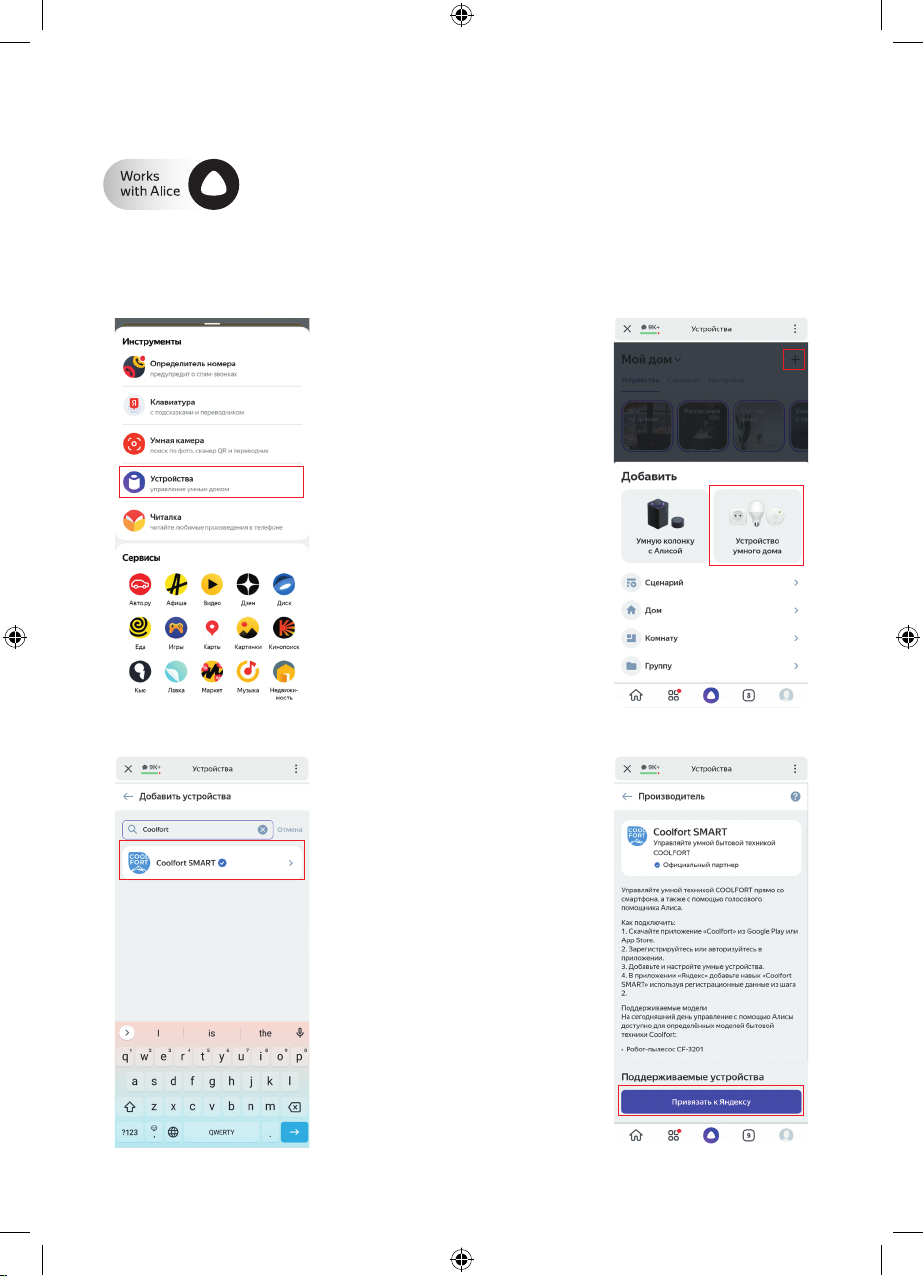
Step 1
Press «Services», then
«Devices» on the main
page of the Yandex
App.
Coolfort CF-3201 Robotic Vacuum Cleaner may be connected to the Alice Voice
Assistant from Yandex Company. For this purpose the device shall be added in the
Coolfort App (see the Instruction).
Step 2
Go to «My Home»
section and press «+»
in the top right corner,
then press «Smart
Home Device».
Step 4
Press «Add to Yandex»
on the Coolfort SMART skill
page.
Step 3
Type «Coolfort» in the search
box and select the «Coolfort
SMART» skill.
Step 5
When opening for the first time,
Yandex requests registration
details (login and password)
from Coolfort App. Follow
the further instructions
of the Application.
In order to connect the skill to Alice and to activate voice control over the device, open the Yandex App
and follow the steps:
Other manuals for CF-3201
1
Table of contents
Languages:
Other COOLFORT Vacuum Cleaner manuals

COOLFORT
COOLFORT CF-3204 User manual

COOLFORT
COOLFORT CF-3040 User manual

COOLFORT
COOLFORT CF-3202 User manual

COOLFORT
COOLFORT CF-3201 User manual

COOLFORT
COOLFORT CF-3001 User manual

COOLFORT
COOLFORT CF-3000 User manual

COOLFORT
COOLFORT CF-3002 User manual

COOLFORT
COOLFORT CF-3005 User manual

COOLFORT
COOLFORT CF-3205 User manual

COOLFORT
COOLFORT CF-3203 User manual