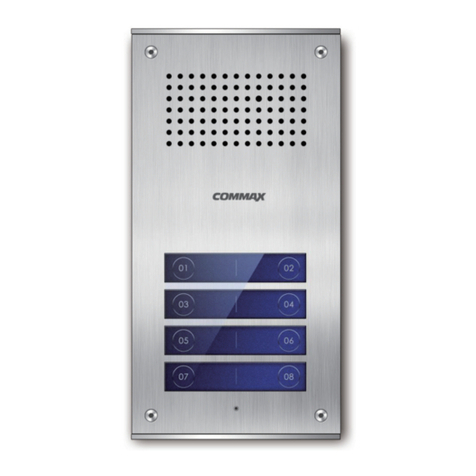
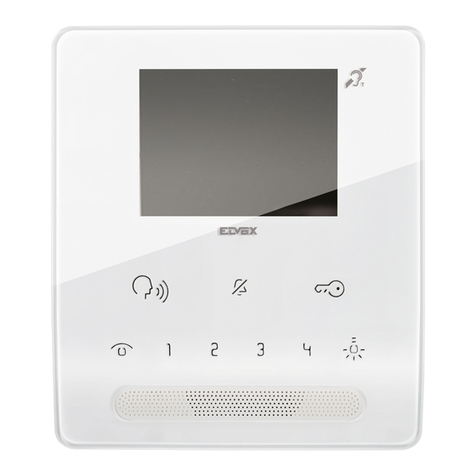
Commax CAV-43MHG User manual

�Thank you for purchasing COMMAX produc s.
�Please carefully read his User’s Guide (in par icular, precau ions for safe y) before using a produc and follow
ins ruc ions o use a produc exac ly.
�The company is no responsible for any safe y acciden s caused by abnormal opera ion of he produc .
Tel.
•Thank you for purchasing COMMAX products.
•Please carefully read this User’s Guide (in particular, precautions for safety) before using a product and follow
instructions to use a product exactly.
•The company is not responsible for any safety accidents caused by abnormal operation of the product.
Color Video Door Phone CAV-43MHG / CAV-43MHG(M)
User Manual

Table of Contents
1.Greeting
●Thank you for purchasing a COMMAX product
●Please, use the product after carefully reading this Manual
●This type of videophone can be used in apartments, villas and other buildings as a
multifunctional device with door opening, telephone conversation and guard station
control function
1
1. Greeting················································································· 1
2. Warnings and caution ································································ 2
3. Part names and functions ··························································· 4
4. Usage instruction ····································································· 4
5. User Setting ············································································ 7
6. System Setting········································································10
7. How to use lobby phone····························································11
8. Installation ·············································································12
9. Wiring method ········································································12
10. Component ··········································································14
11. Specications ·······································································14

2.Warnings and caution
Please follow the things described below in order to prevent any
danger or property damage.
Warning
Caution
Prohibition.
No disassembly
No touch
Must follow strictly.
Shows plugging out the power cord
without an exception
Shows the warning and caution for an electric shock.
Shows the warning and caution for a fire.
It may cause a serious damage or
injury if violated.
It may cause a minor damage or
injury if violated.
Power & Installation
Warning
Please don’t use several
products at the same time on
one power socket.
·It may cause a fire due to an
abnormal overheating.
Please don’tbend the power
cable excessively or it may
cause an electric shock.
·fire when using a damaged
power cable.
Please don’t handle the power
cable with a wet hand.
·It may cause an electric
shock.
Please plug out the power
cable from the socket when
not using it for a long period
of time.
·It may shorten the product
lifespan or cause a fire.
Please don’tinstall the
product in the place where
there is much oil, smoke or
humidity.
·It may cause an electric
shock or fire.
Please don’t install the
product with the lightening
and thunder.
·It may cause an electric
shock or fire.
Please don’tuse and connect
this product with other
products with different rated
voltage
·It may cause a disorder or
fire.
When installing the product
that generates heat, please
install the product away from
the wall (10cm) for the
ventilation.
·It may cause a fire due to
the increased internal
temperature.
2

Cleaning & Use
Please don’tdisassemble,
repair or rebuild this product
arbitrarily (please contact the
service center if a repair is
needed.
·It may cause an electric
shock or fire.
Please plug the power cable
firmly into the inner end
·It may cause a fire.
Please hold the plug tightly
when unplugging the power
cable (a part of the copper
wire may be disconnected if
the grabbing is only made on
the cord when pulling out the
cable).
·It may cause an electric
shock or fire
When connecting the power
cables after cutting the cable,
please install the product with
power off
·It may cause an electric
shock or fire
When installing the product,
please fix it firmly while using
the wall-mounting unit and
screws.
·It may cause an injury from
the falling object.
Please be careful when using
an AC circuit breaker since
there is a possibility of an
electric shock.
When cleaning the product,
please rub it with a soft and
dry cloth after plugging out
the power cable. (Please don’t
use any chemical products
such as wax, benzene, alcohol
or cleanser.)
Please don’t drop the product
on the ground and don’tapply
a shock .
·It may cause a failure.
Please use the designated
connection cable within the
maximum calling distance
designated for the product
·It may reduce the product
performance.
Please check the use voltage
and current for the DC-only
products and use the
appropriate rectifier.
·It may cause a fire.
Please avoid direct rays of the
sun or heating devices at a
time of installation.
·It may cause a fire.
Please don’t install the
product on an unstable place
or small support board.
·It may cause an injury if it
falls down while in use.
If an abnormal sound, burning
smell or smoke is coming out
of the product, please plug out
the power cable and contact a
service center.
·It may cause an electric
shock or fire.
Please don’t insert any
metallic or burnable materials
into the ventilation hole.
·It may cause an electric
shock or fire.
Please use only the designated
batteries for the products of
using DC power.
·It may cause an electric
shock or fire.
Cleaning & UsePower & Installation
Warning
Caution
3

3.Part names and functions
4
MonitorHandset
Power LED
Monitor Button
Guard Button
Door Open Button
Menu Button
Power Switch
4-1. Call from the individual entrance
①When the visitor presses the call button, an electronic chime sound rings and the
visitor’s image appears on the monitor.
②By picking up the handset, you can talk with the visitor. If you press door release
button, door will be released.
(Door release works only while talking and it is possible only when the door camera
is interlocked with door release function.)
③When you receive the call from (Lobby / Guard Station) during the conversation
with the individual entrance, the electronic chime sound rings. Then, press the
(Lobby: monitoring button / Guard Station: guard button) from the video phone
to finish the conversation with the individual entrance and have a conversation
with (Lobby / Guard Station).
④Screen will be turned off after 60 sec automatically, press the monitoring button to
check again.
⑤If you put down the handset, talking is finished and turns to stand-by mode.
.
※ Caution : When you are holding the handset while the hook switch is off and
someone may push the button of camera, you may lose your hearing
because of high volume of calling sound.

5
4-2. Call from the Lobby
①Visitor’s image will be shown on the monitor with emitting chime sound when a
visitor presses the call button.
②By picking up the handset, you can talk with the visitor.
(Screen will be turned off after 60 sec automatically from the beginning of
conversation)
③When you receive the call from individual entrance during the conversation with
Lobby , the electronic chime sound rings. Then, press the monitoring button from
the video phone to finish the conversation with lobby and have a conversation
with visitor.
④When you press the door release button in the middle of conversation, the lobby
gate will be opened with switchgear sound and the conversation will be finished.
4-3. Conversation with Guard
(1) Call from the guard
①The sound of call will be emitted when it has a call from guard.
②By picking up the handset, you can talk with the guard.
③If there is a call from door while you are communicating to a person at guard
station, it chimes and the image of visitors is shown. Then, press the
monitoring button from the video phone to finish the conversation with guard
and have a conversation with visitor
(2) Calling the guard station
①You can talk with guard station by picking up the handset and pressing guard call
button.
②Conversation will begin when a guard station responds.

6
4-4. Monitoring.
When you receive initial call , your device automatically searches for the
door camera and displays OSD accordingly
Display with Door camera
Display with no Door camera
By pressing monitor button, display above appears. If you press button of your
desired
space (monitoring[ ], guard[ ]), you can monitor according space. (Door, Lobby, )
- Monitoring (DOOR/LOBBY)function time is 30secs
- You can talk by picking up the handset while monitoring(DOOR/LOBBY)
- You can monitor only certain lobby with pre-set ID

7
•After Menu screen appears, you can change setting with below 4 buttons
Menu start and finish :[ ] (Menu button -‘[ ] ’)
SELECT : [ ] (Guard button-‘[ ] ’)
Move upward /move right : [ ] (Door release button –‘▲’ / ‘▶’)
Move downward /move left : [ ] ( Monitor button–‘▼’ / ‘◀’)
After pressing MENU button in Video call or monitoring mode, you can change
settings for DOOR(LOBBY), VIDEO SET(BRIGHTNESS / CONTRAST/
COLOR), UTILITY (ADDITIONAL FUNCTION) and INFORMATION (product
information)
5-1. Display setting
DOOR(LOBBY) VIDEO SET (BRIGHTNESS / CONTRAST/ COLOR control
function).
After moving to menu with MENU button, press SELECT button to move to the
menu below.
(you can control LOBBY VIDEO SET while you are talking with lobby.)
(1) BRIGHTNESS : control BRIGHTNESS
(2) CONTRAST : control CONTRAST
(3) COLOR : control COLOR
You can control from 0 to 20 level. Initial level is set for level 10
※ how to set
After moving to menu with your desired MENU from ‘DOOR VIDEO SET’,
press SELECT button to move to the menu below
(you can control ‘LOBBY VIDEO SET’ while you are talking with lobby.)
(4) RESET: reset display setting
※ how to set
.

8
After moving to RESET from DOOR VIDEO SET, press SELECT button for
RESET.
Select YES with move button.
Complete your setting by pressing SELECT button
※ Notice :Display control and reset function adjusts each video(DOOR/LOBBY)
collectively
(5) EXIT: Return to EXIT of initial menu
5-2. UTILITY(additional function)
After moving to MENU with MENU button, press SELECT button to move to
below screen.
(1) CHIME-BELL VOLUME : control ringing tone
You can control from 0(MUTE) to 3 level. Initial level is set for level 2.
※ how to set
After moving to CHIME-BELL VOLUME from UTILITY, press SELECT button
for CHIME-BELL VOLUME.
Select your desired setting.
Complete your setting by pressing SELECT button.
(2)SCREEN MODE: set display ratio
※ how to set
After moving to SCREEN MODE from UTILITY, press SELECT button for
SCREEN MODE.
With ▲/▼ button, select your desired setting.
Complete your setting by pressing SELECT button.
♠ ZOOM :4:3 display is changed into full display mode (default)
♠ 4:3 : actual ratio of camera.
♠ WIDE : display is changed into 16:9 display mode

9
(3)EXIT: Return to EXIT of initial menu
☞Tip: ringing tone simple volume control function
While you are calling or monitoring, there appears volume control icon on
the screen. You can control ringing tone volume by pressing door open
button.
Ringing tone volume control(door open button): Every time you press
button once,
Ringing tone changes 0 ~3 stages. Control your desired volume by
pressing button several times.
(The changed volume is reflected immediately. The according setting
screen disappears automatically.)
5-3. INFORMATION(product information)
After entering to menu by pressing menu button, you can move to
INFORMATION and check product information
(1) MODEL : Shows product name
(2) VERSION : Shows program version
(3) HOME ID : Shows current building No. / Household No
(4) TOUCH : Shows touch program version
(5) VIDEO : Shows current camera output standard. (NTSC / PAL)
(6) SOURCE : This indicates location of current video
(Household door unit & Lobby entrance)
5-4. EXIT
This manual suits for next models
1
Table of contents
Other Commax Intercom System manuals

Commax
Commax CAV-40QG User manual

Commax
Commax CDV-43Q User manual

Commax
Commax dpv-4be User manual

Commax
Commax APV-4RH User manual

Commax
Commax BRYCO DP-LA01 User manual

Commax
Commax DRC-40YFD User manual

Commax
Commax CDV-70MH(M) User manual

Commax
Commax TP-12RM User manual

Commax
Commax DRC-40K User manual

Commax
Commax PI-10LN User manual

Commax
Commax CMA-3L User manual

Commax
Commax DPV-2LH User manual

Commax
Commax DR-2GS User manual

Commax
Commax DRC-703LC/RF1 User manual

Commax
Commax DRC-4BA User manual

Commax
Commax DR-3PK User manual

Commax
Commax CDV-35A User manual

Commax
Commax CDV-43Y User manual

Commax
Commax DR-2R User manual

Commax
Commax DR-24ML User manual