
Cobra Drive HD CCDC4500AUS User manual
1"|"Page"
"
PictureiRadar"
"
"
"
"
"
"
"
"
"
"
"
"
"
"
"
"
"
"
"
"
"
"
!"#$%&'(&)'*+%*+,&
DASH2208"
DASH2308"
DASH2216D"
DASH2316D"
CCDC4500"
CCDC4500AUS"
Record"your"Ride"
USER"MANUAL"
©2018"Cobra"Electronics"Corporation""""""""""""Part"No."480-1145-P"""""""""""""""""""""""""""""""""""""Version"B"

2"|"Page"
"
!"#$%&'(&)'*+%*+,"
INTRODUCTION".............................................................................................................................."3"
DRIVE"HD"DASH"CAM"FEATURES"...................................................................................................."3"
PRODUCT"SERVICE"AND"SUPPORT"................................................................................................."4"
YOUR"DEVICE".................................................................................................................................."5"
WHAT’S"IN"THE"BOX"................................................................................................................................."5"
OPTIONAL"ACCESSORIES"–"available"at"www.cobra.com"........................................................................"5"
CONTROLS"AND"CONNECTIONS"..............................................................................................................."6"
INSTALLATION".........................................................................................................................................."7"
DUAL"CAM"INSTALLATION"......................................................................................................................."8"
BASIC"OPERATION"...................................................................................................................................."9"
INITIAL"SETUP"........................................................................................................................................."10"
LED"FUNCTIONALITY".............................................................................................................................."10"
VIDEO"SCREEN"........................................................................................................................................"11"
VIDEO"SETTINGS"....................................................................................................................................."13"
GENERAL"SETTINGS"................................................................................................................................"15"
iRADAR"SETTINGS"(DASH2308/DASH2316D,"CCDC4500/CCDC4500AUS)".............................................."16"
LANGUAGE"SETTINGS"............................................................................................................................."16"
VIDEO"AND"PHOTO"PLAYBACK"MODE"..................................................................................................."16"
GPS"OPERATION"....................................................................................................................................."17"
Cobra"iRadar®"APP"CONNECTION".........................................................................................................."18"
DOWNLOADING"IRADAR"APP"AND"CONNECTING"TO"DASH"CAM"................................................"18"
CONNECTING"TO"A"COMPUTER"OR"TV"........................................................................................."19"
DOWNLOAD"DRIVE"HD"PLAYER".............................................................................................................."19"
DASH"CAM"SOFTWARE"UPDATE"INSTRUCTIONS".........................................................................."20"
CAMERA"SPECIFICATIONS"............................................................................................................"21"
TROUBLESHOOTING"....................................................................................................................."22"
TRADEMARKS"ACKNOWDLEGEMENT,"WARNINGS,"and"REGULATORY"INFORMATION"..............."23"
"
"&

3"|"Page"
"
-.!/012)!-0.&
Congratulations!""You’ve"made"a"smart"choice"by"purchasing"a"Drive"HD"Dash"Cam"from"Cobra.""
Drive"HD"DASH"Series"cameras"provide"peace"of"mind"by"continuously"recording"the"road"in"
beautiful"1296P"Super"HD"video.""With"cutting"edge"features,"phenomenal"video"quality,"and"an"
industry-leading"focus"on"user"experience,"Drive"HD"Dash"Cams"are"the"best"solution"to"Record'
Your'Ride.''This"User"Manual"covers"the"following"Drive"HD"models"which"share"a"common"
video"platform"but"include"varying"add-on"features:"
13456678&9&Drive"HD®"Super"HD"Dash"Cam"
13456:78&9&Drive"HD®"Super"HD"Dash"Cam"with"iRadar®"
134566;<1&9&Drive"HD®"Dual"View"Dash"Cam"System"
13456:;<1&9&Drive"HD®"Dual"View"Dash"Cam"with"iRadar®"
))1)=>77&9&Drive"HD®"Dual"View"Dash"Cam"with"iRadar®"Costco"Club"Pack"
))1)=>77324&9&Drive"HD®"Dual"View"Dash"Cam"with"iRadar®"Costco"Australia"Club"Pack"
1/-?@&51&1345&)3A&B@3!2/@4&
;6C<D&4EF%G&51&H&All"Drive"HD"DASH"Series"cameras"record"the"road"ahead"in"1296P"Super"HD"
featuring"excellent"image"quality,"nighttime"performance,"and"advanced"dynamic"range"
6I7J&K)1&4LG%%*&H&Large"LCD"Display"with"video"playback"directly"on"the"device"as"well"as"on"
your"TV"or"computer"
;<7M&?N%ON*P&3*P$%&H&Ultra"wide-angle"view"gives"you"a"full"view"of"the"road"and"your"
peripherals"while"at"the"same"time"minimizing"edge"distortion."
)'*+N*E'E,&K''F&/%L'GQN*P&H&Footage"is"stored"in"3,"5,"or"10"minute"clips.""When"the"memory"
card"fills"up,"the"camera"automatically"deletes"the"oldest"segment"to"make"room"for"new"ones.""
@R%GP%*LS&/%L'GQN*P&H&3E+'R"+NL&'G&A"*E"$&H&If"you"don’t"want"a"clip"to"be"overwritten,"
simply"click"the"Emergency"Recording"button"and"the"clip"will"be"protected.""Clips"are"
automatically"protected"if"an"impact"is"detected."
TH4%*,'G&H&3-axis"accelerometer"senses"sudden"accelerations,"stops,"and"collisions"and"
automatically"protects"footage"surrounding"the"incident."
D"GUN*P&A'Q%&H&While"in"Parking"Mode,"Drive"HD"cameras"will"only"record"video"when"motion"is"
detected.""This"feature"is"helpful"for"vehicles"that"have"an"always-on"accessory"port"or"units"that"
are"hardwired"to"power."

4"|"Page"
"
1S*"RNL&/"*P%&H&Optimized"to"automatically"maximize"video"clarity"in"daylight"or"nighttime"
conditions"
4NRF$%&-*,+"$$"+N'*"H&Mount"the"unit"on"the"windshield,"apply"power,"and"forget"about"it.""Drive"
HD"cameras"will"automatically"start"recording"without"the"need"for"complex"configuration."
/%"QS&+'&2,%&H&Includes"a"MicroSD"memory"card,"vehicle"power"adapter,"and"adhesive"
windshield"mount"so"the"unit"is"ready"to"use"out-of-the-box."
4*"F4V'+&H&The"SnapShot"button"is"always"available"so"that"you"can"capture"a"still"image"at"any"
time."""
WEN$+HN*&ANLG'FV'*%&X&4F%"U%G&H&Records"and"plays"back"audio"along"with"video."""The"
microphone"can"easily"be"toggled"off"if"you"prefer"not"to"record"audio."
3E+'H/%L'GQ&"*Q&3E+'HD'O%G&0((&H&As"soon"as"power"is"applied"the"dash"cam"turns"on"and"
starts"recording.""When"power"is"removed"the"dash"cam"will"safely"stop"recording"and"shut"
down.""
4LG%%*&4"Y%G&H&Turns"the"screen"off"after"a"set"time"of"no"activity"to"prevent"driver"distraction.""
The"unit"continues"recording"and"the"screen"can"be"woken"up"by"pressing"any"button."
4EFF'G+,&C&K"*PE"P%,Z&
o English"
o Spanish"
o French"
o German"
o Dutch"
o Portuguese"
o Russian"
o Simplified"Chinese"
o Traditional"Chinese
D/012)!&4@/?-)@&3.1&42DD0/!&
For"any"questions"about"operating"or"installing"this"new"Cobra"product,"PLEASE"CONTACT"
COBRA"FIRST…do"not"return"this"product"to"the"retail"store."The"contact"information"for"Cobra"
will"vary"depending"on"the"country"in"which"you"purchased"and"utilize"the"product."For"the"
latest"contact"information,"please"go"to"www.cobra.com/support.""For"products"purchased"in"
the"U.S.A."you"may"also"call"1-800-262-7212"(1-800-COBRA-12).""
For"products"purchased"in"the"U.S.A.,"if"your"product"should"require"factory"service,"please"go"
to"www.cobra.com/support"and"follow"the"instructions"for"returning"your"product"to"the"Cobra"
Factory"Service"Department.""
For"products"purchased"in"Australia,"you"may"call"(03)"96867866,"email"to"
wr.[email protected]"or"visit"www.who-rae.com.au"
For"products"purchased"in"Europe,"you"may"call"0333"1212252"or"visit"www.snooperneo.co.uk""

5"|"Page"
"
[02/&1@?-)@&
WHAT’S"IN"THE"BOX"
• All"Models"
• Dash"Cam"
• MicroSD"Card"(size"varies"by"model)"
• Adhesive"Windshield"Mount"
• 12V"Vehicle"Power"Adapter""
• 10ft"Micro"USB"Cable"(for"power"only)"
• 1.5ft"Micro"USB"Cable"(for"connection"to"computer)""
• Dual"View"Models"Only"
• CAM2"2nd"Camera""
• 13ft"Extender"Cable"for"CAM2""
• Y-Splitter"Cable"
"
"
OPTIONAL"ACCESSORIES"–"available"at"www.cobra.com"
• Low"Profile"Adhesive"Mount:")3HA'E*+H77;"–"Great"for"discreet"and"semi-permanent"
installations."
• Suction"Cup"Mount:")3HA'E*+H77>"–"Removeable"windshield"mount"that"you"can"take"
on-the-go."
• GPS"Mount:")3HA'E*+H776"–"Enables"dash"cams"to"embed"GPS"location,"speed,"G-
sensor,"and"compass"information"into"videos.""
• Hardwire"Kit:")3HANLG'24WH77;"–"Wires"your"dash"cam"directly"into"the"fuse"box"for"a"
quick"and"clean"installation"without"any"dangling"wires"
• Extended"USB"Cable:")3HANLG'24WH776"(for"power"only)"–"20ft"USB->Micro"USB"cable"
helps"with"hiding"wire"and/or"mounting"further"from"a"power"source."
" "
6"|"Page"
"
CONTROLS"AND"CONNECTIONS"
"
"
"
"
"
"
"
"
"
"
""
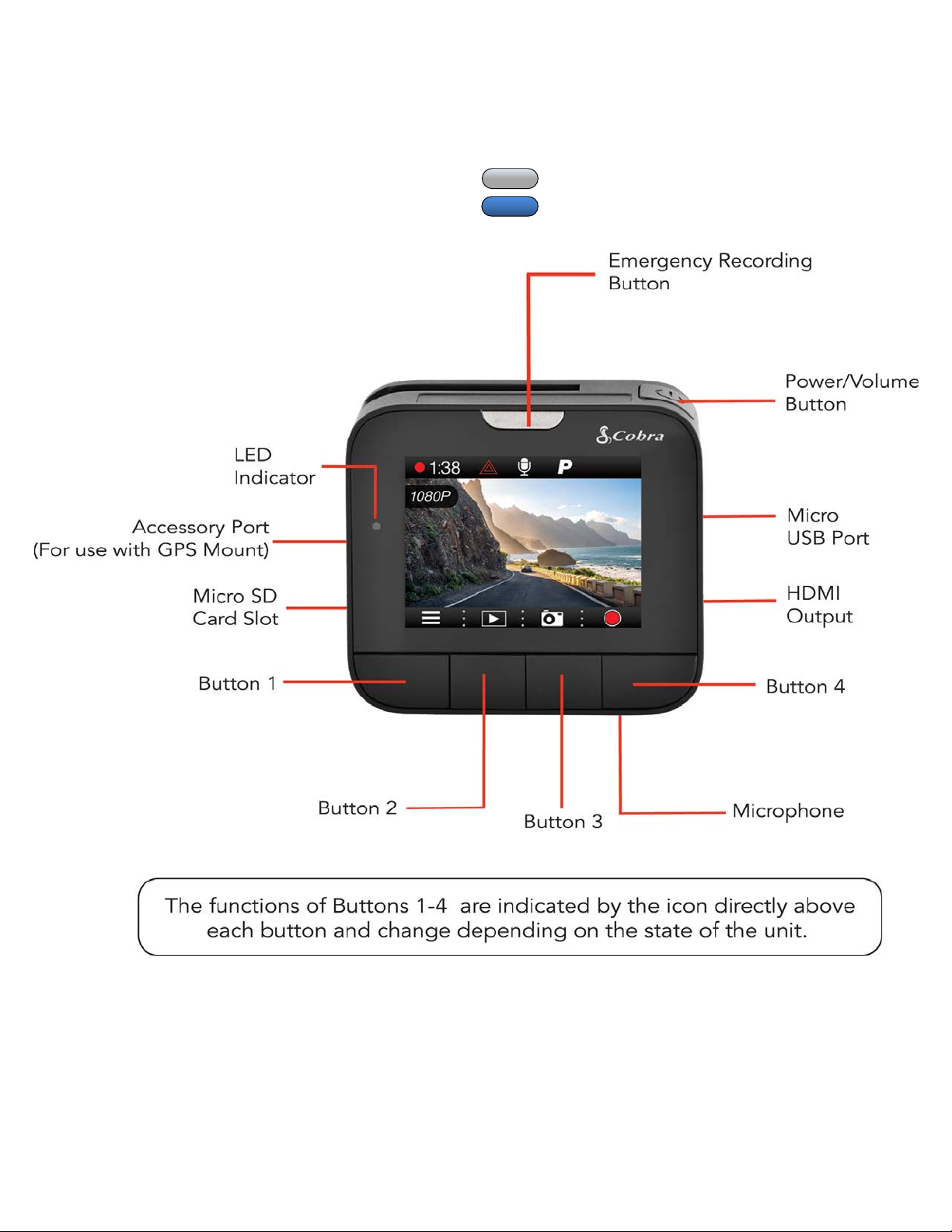
Silver"for"Non-Bluetooth"(DASH2200"Series)"Models"
Blue"for"Bluetooth"(DASH2300"Series/CCDC4500/"
CCDC4500AUS)"Models"
7"|"Page"
"
SINGLE"CAM"
INSTALLATION"
"
A02.!&
&
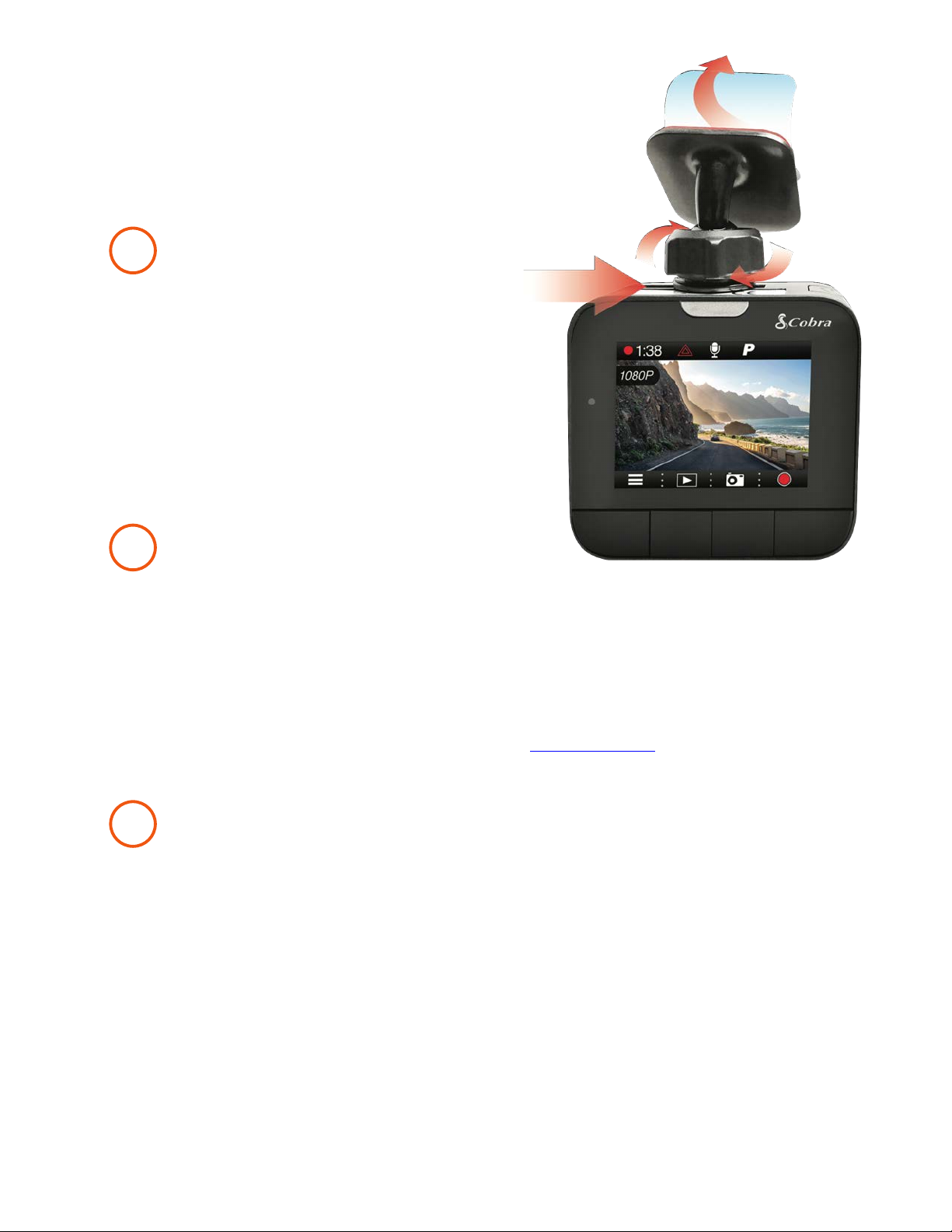
To"install"the"3QV%,NY%&\N*Q,VN%$Q&A'E*+]&slide"the"
dash"cam"onto"the"mount"and"twist"to"tighten"the"
cam"in"desired"location."Find"the"spot"on"your"
windshield"where"you"would"like"to"mount"the"
camera"and"confirm"the"placement."Reminder,"this"
is"an"adhesive"mount"so"it"is"important"to"mount"
correctly"the"first"time."Next,"peel"the"plastic"film"off"
the"3M"adhesive"and"press"the"mount"B-/AK["onto"
the"windshield."
"
"
D0\@/&
&
Plug"one"end"of"the"supplied"12V"Vehicle"Power"Adapter"into"your"vehicle’s"cigarette"lighter,"
and"the"other"end"into"the"micro"USB"port."The"unit"will"automatically"turn"on"and"start"
recording."To"manually"power"on"the"device"PRESS"AND"HOLD"the"D'O%G"button"until"the"
display"activates."When"the"power"button"is"used"to"power"on"the"unit"recording"must"be"
started"manually."
"
Note:"A"Hardwire"Kit"(CA-MicroUSB-001)"is"available"at"www.cobra.com"for"a"more"permanent"
installation"that"allows"for"discrete"routing"of"the"power"cable.""
"
"
1/-?@^&
&
Drive"HD"Dash"Cams"are"designed"to"set"and"forget.""After"initial"setup"the"unit"will"turn"on"and"
start"recording"as"soon"as"power"is"applied.""When"the"Micro"SD"Card"is"full"the"oldest"footage"
will"be"deleted"to"make"way"for"the"new.""If"you"witness"something"that"you"don’t"want"to"be"
deleted"simply"press"the"Emergency"Record"button"and"it"will"be"saved"forever." "
1
"
2
"
3
"

8"|"Page"
"
DUAL"CAM"INSTALLATION""
"" A02.!"
"
)3A&;"-"Slide"the"dash"cam"onto"the"adhesive"mount"
and"twist"to"tighten"the"cam"in"desired"location."Find"
the"spot"on"your"windshield"where"you"would"like"to"
mount"the"camera"and"confirm"the"placement."
Reminder,"this"is"an"adhesive"mount"so"it"is"important"
to"mount"correctly"the"first"time."Next,"peel"the"plastic"
film"off"the"3M"adhesive"and"press"the"mount"B-/AK["
onto"the"windshield."
)3A&6"–"Attach"CAM"2"to"the"windshield"using"the"
adhesive"tape.""CAM"2"is"most"commonly"installed"
facing"out"the"rear"on"the"top"center"of"the"rear"
windshield.""It"can"also"be"mounted"on"the"front"
windshield"to"record"the"interior"of"the"vehicle."""
D0\@/&
"
The"Dual"View"Models"utilize"a"Y-Splitter"and"CAM"2"Extender"Cable"to"offer"maximum"flexibility"
and"clean"installation"without"dangling"wires."""
• Plug"the"Y-Splitter"into"the"Micro"USB"Port"on"CAM"1."
• Connect"the"Micro"USB"end"of"the"power"cord"into"the"Y-Splitter."""Connect"the"USB"end"
of"the"power"cord"in"the"Cigarette"Lighter"Adapter"and"then"plug"into"your"vehicle."
• Plug"CAM"2"into"the"Y-Splitter.""Use"the"Extender"Cable"if"necessary."
• Organize"and"tuck"away"cables"to"make"sure"that"the"driver’s"view"is"not"obstructed.""In"
most"vehicles"it’s"possible"to"tuck"Y-Splitter"and"cables"into"the"headliner"and"cleanly"
hide"the"extender"cable"along"the"top"wall"all"the"way"to"the"rear"of"the"vehicle.""
Professional"installation"is"recommended."
"
If"CAM"2"videos"appear"upside-down"enter"the"Video"Settings"Menu"on"CAM"1"and"turn"Flip"
Cam"2"to"ON."""
"
If"you"have"mounted"CAM"2"facing"forward"enter"the"Video"Settings"Menu"on"CAM"1"and"turn"
Mirror"CAM"2"to"OFF."
2
"
1
"
CAM 2 Extender
Cable (Op!onal)
CAM 2
Y-Spli"er Cable
Power Cord
10 Ft. (3M)
CAM 1

9"|"Page"
"
"
1/-?@^&
Drive"HD"Dash"Cams"are"designed"to"set"and"forget.""After"initial"setup"the"unit"will"turn"on"and"
start"recording"as"soon"as"power"is"applied.""When"the"Micro"SD"Card"is"full"the"oldest"footage"
will"be"deleted"to"make"way"for"the"new.""If"you"witness"something"that"you"don’t"want"to"be"
deleted"simply"press"the"Emergency"Record"button"and"it"will"be"saved"forever."
"
BASIC"OPERATION"
POWERING"ON"THE"DEVICE"
The"device"will"power"on"automatically"when"plugged"in"and"can"also"be"powered"by"PRESSING"
AND"HOLDING"the"0*_0(("button"until"the"display"activates"(when"connected"to"power).&&
&
THE"MICRO"SD"MEMORY"CARD"
The"device"comes"with"a"Micro"SD"memory"card."To"remove"the"SD"card,"press"firmly"on"the"SD"
card"to"push"it"further"into"the"slot.""There"will"be"a"click"and"the"SD"card"will"pop"out"on"
release.""Extract"the"card"and"replace"as"necessary"by"inserting"a"card"into"the"slot"and"pressing"
until"it"locks"in"place."These"cameras"are"compatible"with"Micro"SD"cards"up"to"64GB."Please"be"
sure"to"format"the"card"in-camera"before"use."Class"10"high"endurance"cards"from"reputable"
brands"are"recommended"for"constant"video"recording"of"a"dash"camera."
"
CONTINUOUS"LOOP"RECORDING:""
Once"the"memory"card"is"full,"the"camera"will"continuously"overwrite"the"oldest"footage"
recorded."To"protect"a"clip"so"that"it"will"not"be"overwritten,"press"the"@R%GP%*LS&/%L'GQ"
WE++'*."The"emergency"record"icon"will"show"on"the"screen."Files"can"also"be"locked"from"the"
playback"menu"in"?NQ%'&D$"S#"LU&A'Q%I&
&
EMERGENCY"RECORDING"
An"Emergency"Recording"is"triggered"when"the"Emergency"Record"Button"at"the"top"of"the"unit"
is"pressed"or"when"the"G-Sensor"registers"an"impact."""Emergency"Recordings"create"locked"files"
that"are"not"overwritten"by"Continuous"Loop"Recording.""To"ensure"that"important"footage"isn’t"
lost"surrounding"an"incident,"adjacent"video"clips"are"locked"if"the"incident"happens"within"30"
seconds"of"the"beginning"or"end"of"a"clip.""""
&
NAVIGATING"MENUS"
When"in"a"menu,"press" "or" &to"navigate"to"the"menu"item"you"want"to"select"or"change"
and"then"press" "to"select"or"change"the"option"associated"with"that"item.""Pressing" "at"
any"time"will"exit"the"menu"without"saving"changes."
"
VOLUME"ADJUST"
Briefly"press"the"Power/Volume"button"to"enter"the"volume"menu.""There"are"5"volume"settings"
and"mute"(no"Volume)"
3
"

10"|"Page"
"
INITIAL"SETUP"
When"the"Dash"Cam"is"powered"on"for"the"first"time"it"will"ask"you"to"enter"basic"setup"
information.""
"
You"will"be"asked"to"set"the"Year,"Month,"Day,"Time"Zone,"Daylight"Saving"Time,"and"Time.""This"
information"is"needed"so"that"file"names"will"be"created"correctly"and"time"stamps"will"be"
accurate"in"your"videos."
"
On"subsequent"startups"the"unit"will"proceed"directly"to"the"Video"Screen"
"
LED"FUNCTIONALITY"
The"LED"Indicator,"located"near"the"top"left"of"the"screen,"communicates"power"and"recording"
status"even"if"the"screen"is"off.""LED"operation"is"detailed"in"the"table"below:"
"
)"R%G"&4+"+%&
K@1&&
Unit"ON/"
Recording"
Blinking"Red/Green"
Alternating"(1s"on-1s"off)"
Unit"ON/"
Not"Recording"
Solid"Red"
Unit"OFF/"
Power"Connected"
Solid"Green"
Unit"OFF/"
Power"Disconnected"
No"LED"
"
"
"
"
""
This manual suits for next models
5
Table of contents
Other Cobra Dashcam manuals


Cobra
Cobra SC400 User manual

Cobra
Cobra CDR 840 User manual

Cobra
Cobra Drive HD CDR 900 User manual

Cobra
Cobra CDR 830 User manual

Cobra
Cobra CDR 840 User manual

Cobra
Cobra SC400 User manual

Cobra
Cobra SC200 User manual

Cobra
Cobra Drive HD CDR 900 User manual

Cobra
Cobra CDR835 User manual

Cobra
Cobra CDR 820 User manual


