Clear One CONVERGE Matrix User manual

CONVERGE®Matrix
Quick Start Guide

CLEARONE CONVERGE MATRIX
What you Receive .................................................................................................................................................................1
CONVERGE Matrix System Diagram....................................................................................................................................1
Connections..........................................................................................................................................................................2
Expansion Cards ..................................................................................................................................................................2
Expansion Card Installation ................................................................................................................................ 3
USB Connection ...................................................................................................................................................................4
Status LED’s .........................................................................................................................................................................4
Terminal Control ....................................................................................................................................................................4
CONVERGE MATRIX CONSOLE
Installing the Software...........................................................................................................................................................5
Creating a Solution File.........................................................................................................................................................6
Setting Up Resources...........................................................................................................................................................8
Naming Tool ......................................................................................................................................................... 8
Channel Groups................................................................................................................................................... 9
Macro Commands.............................................................................................................................................. 10
GPIO Control and Status ................................................................................................................................... 10
Timers................................................................................................................................................................. 11
Configuration ......................................................................................................................................................................11
Properties Tab .................................................................................................................................................... 11
Matrix Tab ........................................................................................................................................................... 13
Filter View........................................................................................................................................................... 14
Event Action Tab ................................................................................................................................................ 15
CONVERGE Matrix Events Tab.......................................................................................................................... 15
Creating Presets ................................................................................................................................................ 16
Saving the Solution .............................................................................................................................................................16
CONNECTING TO CONVERGE MATRIX AND PUSHING A SOLUTION
Device Discovery ................................................................................................................................................................17
Pushing a Solution..............................................................................................................................................................18
Editing a Live Configuration................................................................................................................................................19
Configuration ..................................................................................................................................................... 19
Safety Mute ........................................................................................................................................................ 19
Macros and Presets........................................................................................................................................... 19
Synchronizing the CONVERGE Matrix.............................................................................................................. 20
Redundancy Operation ......................................................................................................................................................20
COMPLIANCE
European Compliance........................................................................................................................................................21
FCC Part 15/ICES-003 Compliance ...................................................................................................................................22
Table of Contents

Quick Start Guide 1
ClearOne CONVERGE Matrix
The ClearOne CONVERGE®Matrix is an audio mixer and router that provides 64x64, 128x128,
256x256 or 512x512 networked audio channels through Dante™ digital audio-over-IP networking
technologies. It works with ClearOne CONVERGE products through CONNECT Dante interface
products and other 3rd party Dante enabled products.
WHAT YOU RECEIVE
When you receive your CONVERGE Matrix, please check to be sure all components are in good
order. If you have concerns contact your ClearOne representative.
Power Cable
1X
USB Cable
1X
CONVERGE Matrix
1X
#10-32 Rack
Mounting Screws
and Plastic Washers
4X
Orange 3.5mm
Terminal Block
6X
Black 3.5mm
Terminal Block
6X
Cables required for connecting to the networks are not provided.
CONVERGE MATRIX SYSTEM DIAGRAM
The following illustration shows an installation where a CONVERGE Matrix is operating within a Dante
network that interfaces to CONVERGE Pro units using the CONNECT Dante network interfaces.
Primary Network
CONVERGE Pro/SR #1 CONVERGE Pro/SR #2
CONNECT Dante #1
ClearOne proprietary
link (Expansion bus)
Primary network
Secondary network
3rd Party Dante Device #n
CONNECT Dante #2
Secondary Network
Ethernet LAN Network (Dante)
CONNECT Dante #3
CONVERGE Pro/SR #3
CONVERGE MATRIX

2 technical Support: 800.283.5936
CONNECTIONS
• Six analog audio input and six audio output channels using terminal block connections.
• Dante Audio channels: Bidirectional @ 48kHz per pair of Dante Primary and Secondary ports
@ 48kHz/96kHz sample rate with Ethernet RJ45 connector.
The Dante Primary connects to the Dante audio network and the Secondary connects to a
separate, redundant Dante audio network. If a redundant audio network is not deployed the
Secondary connection is not used.
• Optional Primary & Secondary network Expansion card: Additional 256 x 256 bidirectional
channels @ 48kHz over Dante Primary and Secondary ports.
• An additional Ethernet connection provides CONVERGE Matrix Console connectivity and control
via LAN. The Ethernet port supports DHCP or a static IP Address.
6-Analog
Audio
Inputs
6-Analog
Audio
Outputs
Dante Primary and
Secondary Ports
Expansion Dante Primary
and Secondary Ports
Expansion Card
RS-232 Port
Redundant
Matrix Link
IN/OUT
MAC Address
Labels
AC
Power
GPIO Port
Ethernet Port
Selection Switch
(Set to 0)
»Note: the Redundant Matrix Link IN and Link OUT are only for connection to redundant
matrix units. These are not compatible with CONVERGE Pro Expansion buses.
EXPANSION CARDS
The CONVERGE Matrix main unit can be expanded to double its Dante channels by adding a
corresponding Expansion card. A main unit can only receive an expansion of identical size.
For example: a CONVERGE Matrix 64x64 unit can have an 64x64 expansion card added to make
the unit a 128x128 channel unit. A 128x128 Main unit can have add an expansion card of the same
channel size (128x 128) to make it a 256x256 channel unit. Similarly, a 256x256 channel Main unit
can be upgraded to a 512x512 channel unit.
In case of Redundancy units, then both Main unit and the Redundant unit must have identical chan-
nel count size. That is, a 64x64 Main unit can have only a 64x64 channel Redundant unit.
The network ports for both the Main and Expansion card must be connected to the corresponding
network.
Quick Start Guide 3
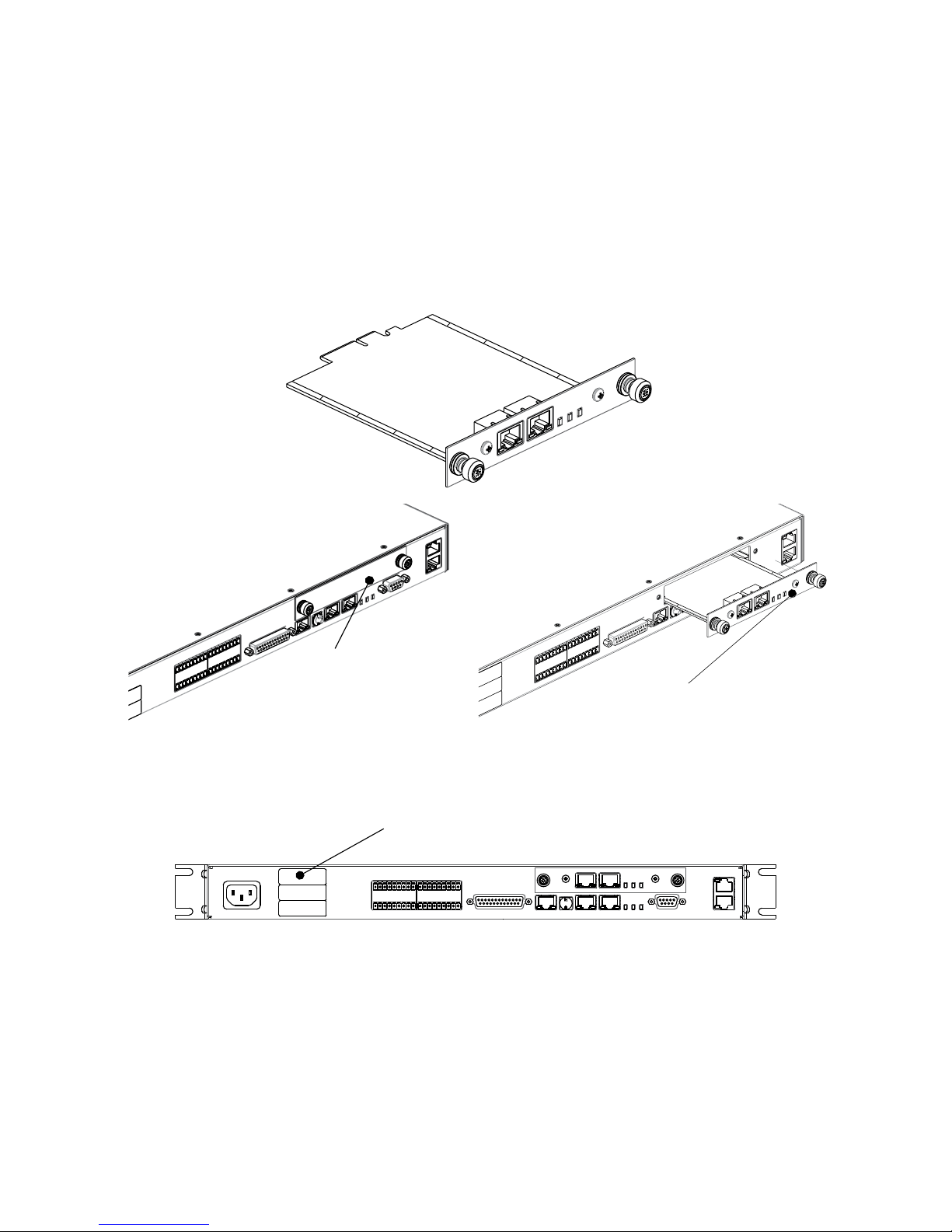
expanSion card inStallation
There is no need to send a CONVERGE Matrix back to ClearOne to add the expansion card, this
can be done on-site by the system integrator.
1. Power off the main unit.
2. On the back of the unit, loosen the thumb screws and remove the card guide cover.
3. Insert the Expansion card and tighten the thumb screws.
4. Add expansion card sticker to back of the unit.
5. Power On the unit.
Remove card guide cover
using attached thumb screws.
Slide expansion card into slot
using internal card guides.
Secure using attached thumb screws.
in space provided.
provided with expansion card
Attach MAC address label

4 technical Support: 800.283.5936
TERMINAL CONTROL
The CONVERGE Matrix RS-232 functionality provides an interface for direct control of the hardware
using a terminal program such as PuTTY or Tera Term, or for a third party controller to integrate with
the system. The default serial port settings are:
Port: COM1 Stop: 1 Bit
Baud Rate: 57600 Flow Control: None
Data: 8 Bit Transmit Delay: 0
Parity: None Local Echo: Enabled
USB Port
USB CONNECTION
If the Ethernet port is not used to connect the PC running CONVERGE Matrix Console to the unit, a
USB port is provided at the front of the unit for this connection.
»Note: the Locate button (appearing as a “C” with a dot in the middle, is for future use.
STATUS LED’S
The CONVERGE Matrix Status LED’s on the front of the unit give indications of the processes and
status of the unit in both standalone and redundant operation:
All LED’s Purple System is booting.
Top LED blinking blue,
bottom two are solid blue
System is idle/working normally. Or, if redundancy is active,
this system is the main unit and is passing audio
All LED’s solid blue System is in redundancy mode and standing by.
This device is Not passing audio.
Top LED is blinking RED
bottom two are solid blue
Failover has happened and this device is now passing
audio.

Quick Start Guide 5
CONVERGE Matrix Console
A software solution file defining all the connections must be pushed down to the CONVERGE Matrix
to enable the system to control all connections. These solutions are created using the CONVERGE
Matrix Console. Changes or additions to the solution are also performed in the console, then
pushed to the CONVERGE Matrix
INSTALLING THE SOFTWARE
When you receive your CONVERGE Matrix, you can then download the application from the
ClearOne website at:
http://www.clearone.com/resources#professional_audio.
After downloading, run the Setup_ClearOne_Converge_Matrix_Console application.
If you are installing CONVERGE Matrix Console on a Windows®computer that also has CONVERGE
Console, the installation program will replace the drivers with updated versions that support the
CONVERGE Matrix.
You are given installation options for directory placement of the program and start icons that support
the CONVERGE Matrix, then the installation wizard can be started by clicking on Next.
Once installed you can start the CONVERGE Matrix Console application.

6 technical Support: 800.283.5936
The CONVERGE Matrix Console Home Screen is displayed.
»Note: Non-English interfaces are selectable using the Help menu.
The Home screen has display areas for:
• CONVERGE Matrix Configurations - Solution files recently accessed by CONVERGE Matrix
Console.
• CONVERGE Matrix devices - Entry and connect area for specific IP address of CONVERGE
Matrix unit.
• Recent - History of connections to CONVERGE Matrix units.
• Discovered on current LAN subnet - CONVERGE Matrix Console examines the subnet it is
attached to and lists the powered-on CONVERGE Matrix units it finds. Any units attached to the
Console computer’s USB connections are also found.
These are empty at present since this is a new installation.
CREATING A SOLUTION FILE
From the CONVERGE Matrix Home Screen, click on the New button displayed in the “CONVERGE
Matrix Configurations” area.

Quick Start Guide 7
You will be asked to fill in a Solution Name, Author, Version (Major/Minor often used to identify
version of solutions), Description, and then select the Device Type of the Matrix device to receive
the solution. These can be customized or left at default.
After Clicking OK a solution file is created in CONVERGE Matrix Console. You are taken to the
System>Home page underneath Edit File with information about the solution file you are creating.
Check that the Device Type matches your device and the Expansion Card checkbox is selected
if you have expanded your Matrix over 64 channels. Otherwise a solution file cannot be pushed to
the device.

8 technical Support: 800.283.5936
Navigating to the System>Stack Settings page provides an area where you can supply a custom
Username and Password. The defaults are ‘clearone’ and ‘converge’ respectively.
SETTING UP RESOURCES
The Resources area under Edit File allows you to create channel groups, macros, timers, GPIO
labels, and channel labels. This includes the microphone inputs and outputs. Dante-based inputs
and outputs are not created in the CONVERGE Matrix, but are used by the CONVERGE Matrix for
grouping, switching, macros, and other operations.
The Dante Controller software, provided by Audinate™, is used to discover, control, and configure
all devices and services on the Dante network. This software and its documentation can be obtained
from the ClearOne website:
http://www.clearone.com/resources#professional_audio
CONVERGE Matrix Console utilizes name dependent Endpoint Architecture when combining
resources. Once a name is selected, it is best practice not to change it or it could create invalid
commands.
naminG tool
A naming tool is provided to aid with multiple names with a similar base.
Setting a Base Name will allow the renaming of all microphone and/or line outputs with the base
and then an increasing number.
Table of contents
Other Clear One Music Mixer manuals