
Clear One CONNECT CobraNet User manual

CONNECT CobraNet and CONNECT AVB
Network Audio Bridge for CONVERGE PRO & SR Products
Quick-Start Guide

THE CONNECT COBRANET AND CONNECT AVB..........................1
QUICK-START OVERVIEW ................................................................1
Quick-Start Summary...........................................................................3
UPDATE THE CONVERGE PRO FIRMWARE....................................3
SET THE DEVICE ID ..........................................................................4
CONNECTING THE CONNECT COBRANET/AVB UNIT ..................5
UPDATING THE CONNECT COBRANET/AVB FIRMWARE..............6
ADDING CONNECT NETWORK BRIDGES TO SITES......................7
adding the Bridge ................................................................................7
editing the cOnnect netwOrk Bridge in Site ....................................7
cOBranet SettingS ..........................................................................8
aVB SettingS ................................................................................10
UPGRADING FROM OLDER VERSIONS
OF CONVERGE FIRMWARE ...........................................................12
upgrading frOm cOnVerge prO 3.X firmware .................................12
upgrading frOm cOnVerge prO 2.X firmware .................................13
upgrading frOm cOnVerge prO 1.X firmware .................................13
PART NUMBERS..............................................................................14
CLEARONE LOCATIONS ................................................................14
Table of Contents

QUICK-START GUIDE
1
THE CONNECT COBRANET AND CONNECT AVB
The CONNECT CobraNet®and CONNECT AVB network bridges add
networked audio capabilities to CONVERGE PRO and CONVERGE SR
products enabling them to transmit audio through Ethernet networks.
IMPORTANT: The CONNECT CobraNet and CONNECT AVB
bridges only can be used with CONVERGE Pro/SR systems
operating at version 4.2 or higher software and firmware.
The latest version of the CONVERGE Pro firmware can be found on the
ClearOne website at:
http://www.clearone.com/resources#professional_audio
QUICK-START OVERVIEW
Installing and using the CONNECT CobraNet and CONNECT AVB
bridges in your CONVERGE Pro/SR site is subject to the following rules:
1. The CONNECT CobraNet and CONNECT AVB can only be used
with CONVERGE Pro/SR systems operating at version 4.2.X or
greater, and requires that the firmware on the CONVERGE Pro/SR
be updated.
2. You must have a CONVERGE Pro 840T, 880, 880T, 880TA, 8i, TH20,
VH20 and/or SR1212, SR1212A in the site.
3. The CONNECT CobraNet and AVB bridges support only 8 Ethernet
audio channels in and 8 Ethernet channels out.
4. Either the CONNECT CobraNet or AVB can be used, depending on
the particular networks architecture.

CONNECT NETWORK BRIDGES
2
Ethernet LAN
Network 1
CONVERGE Pro/SR
CONNECT
Network Bridge
CONNECT
Network Bridge
Ethernet LAN
Network 2
CobraNet
CONNECT
Network Bridge
CONNECT
Network Bridge
Connecting CONVERGE Pro/SR units in different
rooms that are on different networks using
multiple CobraNet
and AVB network bridges
AVB
CobraNet
AVBAVB
CobraNet
Link IN
Link IN
Link OUT
Link IN
Link IN
AVB
Network
Connection
AVB
Network
Connection
CobraNet
Network
Connection
CobraNet
Network
Connection
CONVERGE Pro/SR
CONVERGE Pro/SR
Up to eight CONNECT units can be attached to a single CONVERGE
Pro/SR stack with each set to a unique Device ID using the DID selector
rotary switch
Both CobraNet and AVB networks can be audio sources to CONVERGE
Pro/SR mixers using the appropriate types of audio network bridges. The
following diagram shows how several CONVERGE Pro/SR stacks can
connect over AVB and CobraNet networks.

QUICK-START GUIDE
3
Quick Start Summary
These steps must be done in the following order to use the CONNECT
network audio bridge in your CONVERGE Pro Site:
1. Update the CONVERGE Pro firmware to version 4.2.X using
CONVERGE Console.
2. Set the Device ID of the CONNECT CobraNet and/or CONNECT
AVB using the Device ID rotary selector switch at the back of the
bridge.
3. Connect the CONNECT CobraNet and/or CONNECT AVB to the
updated CONVERGE Pro/SR via the Expansion bus (E-bus).
4. Update the CONNECT network bridge firmware
5. Configure the CONNECT CobraNet and CONNECT AVB with
CONVERGE Console.
UPDATE THE CONVERGE PRO FIRMWARE
Update your CONVERGE Console to version 4.2 or higher. CONNECT
CobraNet and CONNECT AVB network audio bridges are not recognized
by systems running older versions and the 4.2.X versions offer significant
upgrades from previous versions.
ClearOne strongly encourages users to upgrade all firmware to the latest
release version.
Instructions for updating from version 1.X 2.X and 3X are detailed later in
this document.

CONNECT NETWORK BRIDGES
4
Device ID Rotary
Selection Switch
SET THE DEVICE ID
Set each CONNECT CobraNet and CONNECT AVB unit to a unique ID
using the Device ID selector rotary switch on the back of the unit. (Range
0-7) Each CONNECT unit in any site needs a unique Device ID. Only 8
units are allowed in any site.
NOTE: Save the CONVERGE Console site file before performing
any firmware upgrade.
1. Download the 4.2.X firmware file to the stack of units.
2. The units will default and reboot after the download of 4.2.X
firmware.
3. Units are fully upgraded.
4. Verify units have been upgraded by checking the firmware version
on the front panel.
Reconnect all E-bus cables, if needed, to complete the stack of units.

QUICK-START GUIDE
5
CONNECTING THE CONNECT COBRANET/AVB
UNIT
Connect the CONNECT CobraNet/AVB units to the CONVERGE Pro/
SR stack via the E-bus connections using CAT5/CAT6-24AWG solid
conductor RJ45 cables. Power to the CONNECT CobraNet/AVB is
supplied by a standard power adapter supplied with the unit.
Device ID
Switch
E-bus LINK IN from Stack
E-bus LINK OUT
(Not required if the bridge
is at the end of the stack)
Bridge connection
to Ethernet Network
(CobraNet shown)
5V DC
Power
Input
NOTE: The network connectors for the CONNECT CobraNet and
the CONNECT AVB appear to be identical but they are not. Each is
electronically unique to the type of network being bridged. Only use
the CONNECT CobraNet with CobraNet networks, and CONNECT
AVB with AVB networks.

CONNECT NETWORK BRIDGES
6
UPDATING CONNECT COBRANET/AVB FIRMWARE
NOTE: All CONNECT CobraNet/AVB Pro units in the site must be
running firmware level 4.X to be compatible with the CONVERGE
Pro/SR units in the site.
1. Connect the E-bus cable between the CONVERGE Pro units and
the CONNECT audio network bridge.
2. Connect the CONVERGE Pro units with CONVERGE Console.
3. Open the Firmware Loader screen.
4. Browse for the CONNECT firmware file: cobranet.mdo for the
CONNECT CobraNet, and avb.mdo for the CONNECT AVB.
5. Download the CONNECT audio network bridge firmware.
6. The CONNECT audio network bridge will default and reboot after
the download of the firmware. (The version of the firmware can be
verified later using the Unit Properties screen for the CONNECT
network bridge.)
7. Units are fully upgraded. (All units connected via the E-bus on the
site are simultaneously updated.)
8. Restore the saved site file to the system using CONVERGE
Console.

QUICK-START GUIDE
7
ADDING CONNECT NETWORK BRIDGES TO SITES
Each CONNECT CobraNet and/or AVB network bridge must be added
to the site using the CONVERGE Console 4.2.X and later software.
This software also provides the capability selecting the audio channels
and other characteristics. Refer to the online help available with the
CONVERGE Pro/SR software for adding devices.
Adding the Bridge
Using the CONVERGE Console software, ADD the CONNECT CobraNet
and/or AVB network bridge to the site using the drop-down menu.
Editing the CONNECT Network Bridge in Site
Select the CONNECT CobraNet and/or AVB audio network bridge from
the Site View tab in Console, and the device appears under the Site
button on the right-hand portion of the screen.
Click on the device box and the Unit Properties appear for the device.
CONNECT NETWORK BRIDGES
8
CobraNet Settings
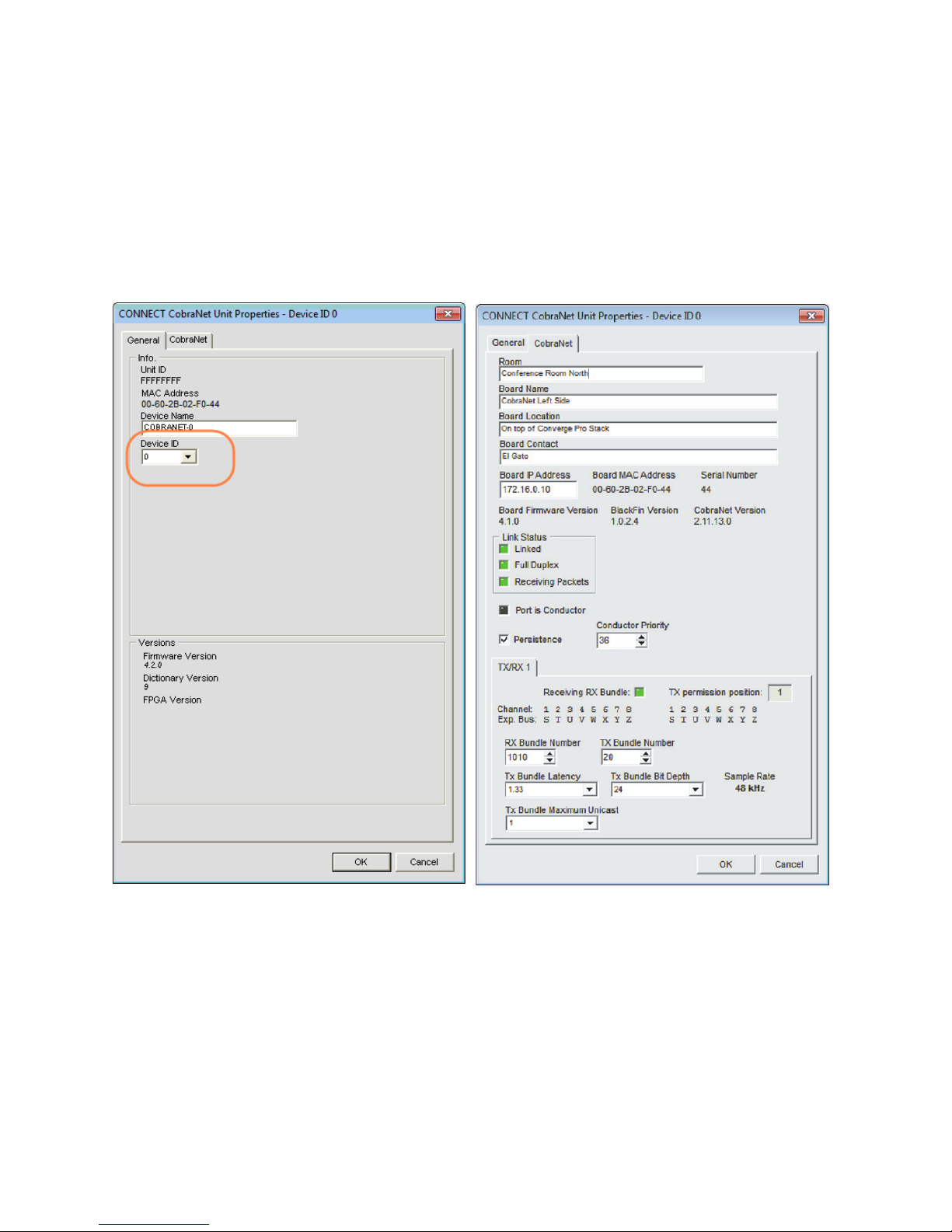
The next two figures show the Unit Properties tabs for the CONNECT
CobraNet bridge.
Set the Device ID (DID) to match that of the rotary selection switch of the
CONNECT CobraNet device.
This manual suits for next models
1
Table of contents
Other Clear One Media Converter manuals

Clear One
Clear One VIEW Pro D110 User manual

Clear One
Clear One VIEW Pro D210 User manual
Clear One
Clear One VIEW Pro User manual

Clear One
Clear One ViewLinX VL9300 User manual

Clear One
Clear One StreamNet AVoIP VIEW Pro User manual

Clear One
Clear One VIEW Lite DJ100 User manual
Clear One
Clear One VIEW Pro - E120 User manual

Clear One
Clear One VIEW Pro D310 User manual

Clear One
Clear One VIEW Lite EJ100 User manual


