Chamberlain ACXL User manual

Large Display Access Controller
INSTALLATION MANUAL
Model ACXL

2
To reduce the risk of SEVERE INJURY or DEATH:
• Disconnect power at the fuse box BEFORE proceeding.
• To AVOID damaging gas, power or other underground utility
lines, contact underground utility locating companies BEFORE
digging.
• ALL electrical connections MUST be made by a qualified
individual.
• ALL power and control wiring MUST be run in separate
conduit.
To protect against fire and electrocution:
• Disconnect power BEFORE installing or servicing controller.
• NEVER connect a keypad/reader or lock to doors without first
consulting the applicable fire code.
• You MUST consult with, and get approval from, local fire
officials BEFORE installing locks or devices on ANY doors that
may be fire exits.
• Use of egress push buttons may not be legal. Single action
exits may be required.
• ALWAYS obtain proper permits and approvals in writing
BEFORE installing equipment.
Safety
Safety Symbol and Signal Word Review
When you see these Safety Symbols and Signal Words on
the following pages, they will alert you to the possibility of
serious injury or death if you do not comply with the warnings
that accompany them. The hazard may come from something
mechanical or from electric shock. Read the warnings carefully.
When you see this Signal Word on the following pages, it will alert
you to the possibility of damage to your property or product if you
do not comply with the cautionary statements that accompany it.
Read them carefully.
MECHANICAL
ELECTRICAL

3
PRE-INSTALL NETWORK PROGRAMMINGINSTALL ACCESS CONTROLINTRODUCTION
INTRODUCTION
Carton Inventory ..................................................................... 4
Tools Needed .......................................................................... 4
Dimensions............................................................................. 5
System Specifications............................................................. 5
Wire Specifications ................................................................. 6
PRE-INSTALL
1
Internet Service....................................................................... 7
SIP Provider............................................................................ 7
Setup a LiftMaster Cloud Account........................................... 7
INSTALL
2
Remove Knockouts................................................................. 8
Mount the Controller............................................................... 9
Controller Overview............................................................... 10
Power/Internet Board Overview ............................................ 11
Door Board Overview............................................................ 12
Install the Ground ................................................................. 14
Connect Power...................................................................... 15
NETWORK
3
Connect Internet ................................................................... 16
Validate Setup....................................................................... 16
ACCESS CONTROL
4
Gate Access (Wired) ............................................................. 17
Gate Access (Wireless) ......................................................... 18
Door Access.......................................................................... 19
Wiegand Proximity Reader.................................................... 20
Wiegand Output .................................................................... 21
Postal Lock ........................................................................... 22
Loop Detector Board............................................................. 23
Programming........................................................................ 24
Wiring Diagram....................................................................25
Repair Parts .........................................................................26
Accessories..........................................................................26
Configuration Sheet .............................................................27
Legal Disclaimers................................................................28
Warranty...............................................................................29
PROGRAMMING
5

4
Tools Needed
• Assorted Screwdrivers
• Precision Screwdrivers
• 1/4" Nut Driver
• Multimeter
• Wire Fish Tape
• Bits for Hammer Drill Bits for Drill/Driver
• Drill Screw Bit
• Wire Strippers
• Wire Cutters
• Assorted Pliers
• Flashlight
• Drill/Driver
• RJ45 Crimping Pliers
• Measuring tape
• Work Gloves
• Conduit Bender
• Conduit Cutter/Reamer
• Hack Saw
• Center Punch Tool
• Hammer
• 7/64" Drill Bit
PROVIDED (NOT SHOWN)
• Hardware for Camera Kit
• Installation Manual
Controller
Carton Inventory
PRE-INSTALL NETWORK PROGRAMMINGINSTALL ACCESS CONTROLINTRODUCTION
Power Supply
Gooseneck Gasket
Keys (2)
Ferrite Core
S10K30MOV
(Metal Oxide Varistor)(4)
1N4005 Diode Kit (4)
Radio Antenna (Security+ 2.0®)
and Cable
Wi-Fi®Antenna and Cable

5
System Capacity People: 50,000 / Activity Buffer: 500,000
Supply Voltage 12Vdc, 5A, Class 2, Level VI (Power Supply 100-240VAC, 50/60Hz, 1.2A,
HK Yinghuiyuan Group YHY-12005000)
Operating Current 2.0 Amps - Without Accessories
Surge Suppression EFT: 2 Kv Power Line, ESD: 15 Kv Hbm / 8Kv Direct / 200V Mm
Controller Operating Temperature Range - 29°C to 54°C (-20°F to 130°F)
- 35°C to 65°C (-31°F to 151°F) Ambient Capability
Enclosure Stainless Steel
Storage and Shipping Temperature Range -40°C To 65°C (-40°F to 149°F)
Wiegand Inputs (4) 26Bit, 30Bit, 12V, 250mA Power Output (Per Input)
4 Primary and 4 Auxiliary Relay Outputs SPDT, Rated Load 3A at 30VDC
Accessory Compatibility Refer to the accessory page for compatible accessories
Network Compatibility RJ-45 Wired Ethernet
Wi-Fi®Compatibility 802.11 a/b/g/n
Wi-Fi®Range Up to 500 feet (152.4 m), Open Air/Line-of-Sight (range will vary depending on
obstructions)
Built-in LiftMaster Passport Receiver Security+ 2.0®
Wireless Communication to Gate Operator Up to 750 feet (228.6 m), Open Air/Line-of-Sight (range will vary depending on
obstructions), Compatible with LiftMaster Security+ 2.0®gate operators
Dimensions
System Specifications
18" (45.7 cm)
14" (35.6 cm)
4-1/4" (10.8 cm)
FRONT VIEW SIDE VIEW BACK VIEW
BOTTOM VIEW
10-7/8" (25.4 cm)
14" (35.6 cm)
E= Electrical Wiring
P= Pedestal Mount
S= Surface Mount
R= Radio Antenna
W= Wi-Fi®Antenna
4-3/4" (10.2 cm)
7-13/32" (17.8 cm)7-11/16" (17.8 cm)
PRE-INSTALL NETWORK PROGRAMMINGINSTALL ACCESS CONTROLINTRODUCTION
RW
RR
WW
SS
SS
PP
PP
E
EE
E

6
Wire Specifications
Use this chart to pull wires in preparation of your installation.
DESCRIPTION OF WIRE RUN WIRE SPECIFICATION MAXIMUM RUN DISTANCE
Power Wire, secondary DC output 2-Conductor 14 AWG
2-Conductor 16 AWG
2-Conductor 18 AWG
Up to 60 feet (18.3 m)
Up to 37 feet (11.3 m)
Up to 24 feet (7.3 m)
Local Area Network (LAN)
CAT 5/6 Network Cable
8-Conductor, 24 AWG Twisted pair 328 feet* (100 m)
Grounding the Chassis 12 AWG Copper 12 feet (3.7 m)
Door Strike 2-Conductor 18-22 AWG Shielded 100 - 250 feet (30.5 - 76.2 m)
Magnetic Lock 2-Conductor 18-22 AWG 50 - 125 feet (15.2 - 38.1 m)
Dry Contact Closure (Most Gate Operators) 2-Conductor 18-24 AWG Shielded 500 - 2500 feet (152.4 - 762 m)
Exit Request (REX) 2-Conductor 18-24 AWG 500 feet (152.4 m)
Supervised Input 2-Conductor 18-24 AWG 500 feet (152.4 m)
Wiegand/Proximity Readers 7-Conductor 18-22 AWG Shielded 500 feet (152.4 m)
Postal Lock Box 2-Conductor 18-24 AWG 250 - 1000 feet (76.2 - 304.8 m)
NOTE: Main power supply and control wiring MUST be run in separate conduits. Conduits must be UL approved for low and high
voltage. Refer to the NEC for additional wiring requirements.
Always provide power from a dedicated source. Plug provided transformer into an outlet wired to its own 10 Amp minimum circuit
breaker. This will prevent two problems:
• Other equipment cannot introduce spikes, noise, surges or dips into the power circuit that will affect the system.
• The system’s operation will not be affected if any other equipment develops a short circuit across the power line.
* CAT 5/6 NETWORK CABLE NOTES:
• For outdoor distances exceeding 140 feet (42.7 m), a UL497 compliant primary surge protector MUST be installed at
the controller.
• Distances exceeding 328 feet (100 m) can be accommodated with additional hardware. Contact Technical Support for more
information.
PRE-INSTALL NETWORK PROGRAMMINGINSTALL ACCESS CONTROLINTRODUCTION

7
Phone.com is the preferred SIP provider. Visit Phone.com/liftmaster to set up an account.
SIP service provider:
SIP domain:
SIP port (usually 5060):
SIP username:
SIP password:
CP# for Controller:
1Internet Service
The controller MUST be configured with the proper network settings to operate.
NETWORK
Internet service provider:
Wi-Fi Network Name:
Wi-Fi Password:
Automatic IP addressing: DHCP (preferred setting)
OR
Static IP Addressing: (NOTE: Write down the following for future reference: IP, Netmask, Gateway, Primary, Secondary, Server Port)
(example: sip.phone.com)
(example: 12345)
(example: s98hn&@f!idjs)
PRE-INSTALL NETWORK PROGRAMMINGINSTALL ACCESS CONTROLINTRODUCTION
(located on inside of the controller door and on the display when powered up)
2SIP Provider
3Setup a LiftMaster Cloud Account
NOTE: If you have an existing MyQ®account, your LiftMaster Cloud account will have the same
password.
1. If you do not have a LiftMaster Cloud Account, call LiftMaster Customer Care at 800.323.2276 to
activate a LiftMaster Hosted Cloud Service account.
2. You will get a welcome email from LiftMaster. Accept the invitation and register your account.
3. You will get a second email to activate your account.
4. Login to your account.
5. Set up your site and add residents and credentials (refer to the available Help in LiftMaster Cloud).
6. Continue with the installation of the controller in this manual.

8
1Remove Knockouts
To prevent damage to the controller from moisture or water:
• DO NOT install during rain. Internal components MUST be
kept free from of water and moisture.
• BEFORE opening the front cover of the controller, remove
ANY accumulated water from the top of the controller.
To prevent damage to ANY internal components:
• DO NOT attempt to remove the knockouts with a hammer.
Banging on the knockouts may result in shock to the circuit
boards, which could cause permanent damage.
1. Turn the key clockwise and open the controller.
2. Identify which knockouts need to be removed
based on your application.
3. Use a center punch tool to remove the knockouts.
NOTE: Be careful when removing the knockouts to
avoid damaging the controller components.
PRE-INSTALL NETWORK PROGRAMMINGINSTALL ACCESS CONTROLINTRODUCTION
E= Electrical Wiring
P= Pedestal Mount
S= Surface Mount
R= Radio Antenna
W= Wi-Fi®Antenna
RR
W
SS
SS
PP
PP
E
W

9
1. Attach the goose-neck gasket (provided) if mounting to a goose-neck.
2. Mount the controller securely to a flat surface or pedestal with
appropriate hardware taking care to route wiring through appropriate
knockouts. NOTE: Ensure the cover can fully open to allow access after
the installation is complete.
Mount Controller
2DO
Make sure the controller is properly sealed
to prevent damage to the controller from
moisture.
PRE-INSTALL NETWORK PROGRAMMINGINSTALL ACCESS CONTROLINTRODUCTION
Pedestal Mount
1/4" x 1-1/2" Ribbed Neck
Security Bolt (4)
Goose-neck
Gasket
Surface Mount
Flush Mount
Flush Mount
Wi-Fi®Antenna
Radio Antenna
IMPORTANT: For flush
mount applications it may
be necessary to mount
the antennas remotely.
Optional antenna cable
kits are available for
remote antenna mounting
(refer to accessories).
Make sure you run the
cables for the remote
antennas before
mounting the controller.

10
Controller Overview
ON
POWER/INTERNET BOARD
SENSOR BOARD
CONTROL BOARD
DOOR BOARD 1
(Doors 1 & 2)
LOOP DETECTOR
BOARD MOUNTING
LOCATION
CAMERA MOUNTING BRACKET
RADIO ANTENNA
Wi-Fi®ANTENNA
POSTAL LOCK
SWITCH
DISPLAY (TOUCHSCREEN)
SPEAKER
LOCK
POSTAL LOCK
LOCATION
PROXIMITY READER LOCATION
CAMERA LOCATION
MICROPHONE
RADIO ANTENNA
CONNECTION Wi-Fi®ANTENNA
CONNECTION
DOOR BOARD 2
(Doors 3 & 4)
PRE-INSTALL NETWORK PROGRAMMINGINSTALL ACCESS CONTROLINTRODUCTION
3
Table of contents
Other Chamberlain IP Access Controllers manuals

Chamberlain
Chamberlain Liftmaster STAR 450-315 User manual

Chamberlain
Chamberlain EL Series Owner's manual

Chamberlain
Chamberlain EL2000SS Owner's manual

Chamberlain
Chamberlain Hub/Switch User manual

Chamberlain
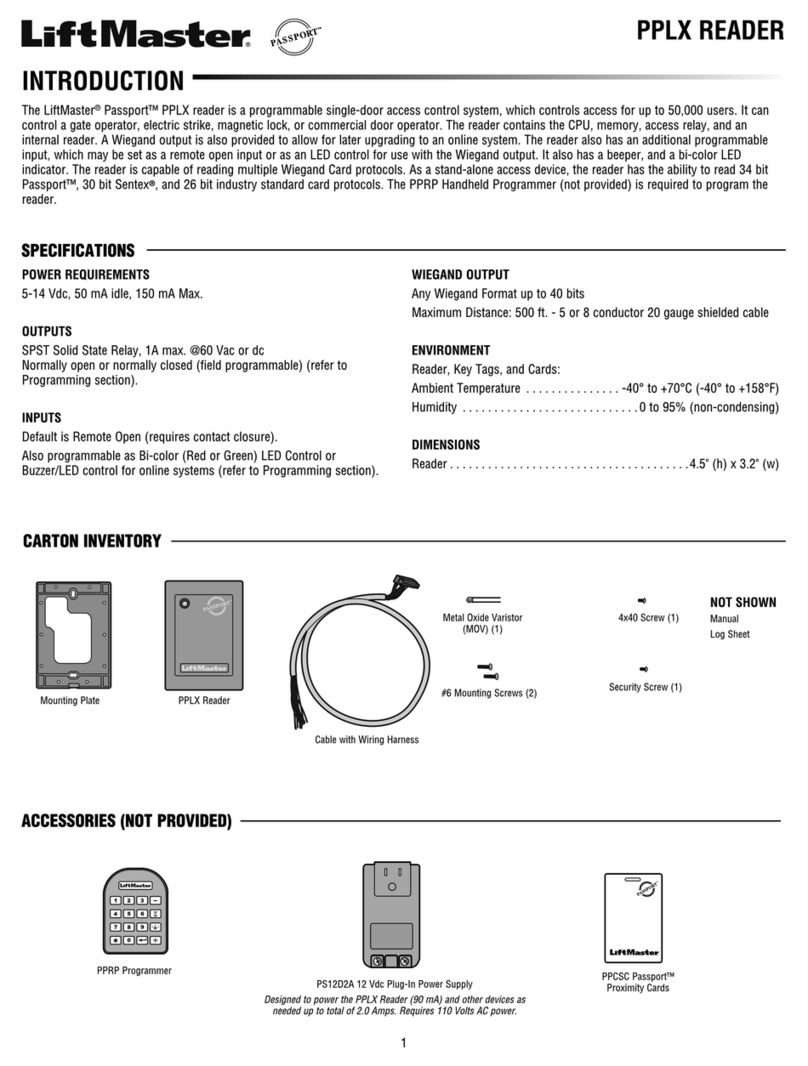
Chamberlain PPLX User manual

Chamberlain
Chamberlain CAPXL Operating and maintenance instructions

Chamberlain
Chamberlain LIF-STAR1000 User manual

Chamberlain
Chamberlain LiftMaster 379E User manual

Chamberlain
Chamberlain Passport PPLX User manual

Chamberlain
Chamberlain STAR1000 User manual