Ceru vu+ ultimo User manual

Large Graphic Type VFD Display (256x64 pixels)
Tripple Pluggable Tuner System for DVB-S2 or DVB-C/T
Advanced Blind Scan
1GB NAND Flash Memory
QWERTY Keyboard RCU
High Speed Wi-Fi USB Dongle (300Mbps)
Temperature Sensor based Automatic FAN Speed Control
Vu+® is a registered trademark of Ceru Co. Ltd.
User Manual
English

(A) PRECAUTION!!!
(B) Packaging Contents
(C) Product Descriptions
(D) Conditional Access
(E) Remote Control
(F) Main Features
(G) Technical Data
I. Installation of Vu+
1. Connecting Signal Cable
2. Connecting TV
3. Connecting Power
4. Power ON/OFF
II. First Time Installation (using Wizard)
Step 1. Language Selection
Step 2. Configuring Satellite Connection
Step 3. Installing Default Satellite List
Step 4. Parental Control Option
III. Basic Operations
1. Switching Channel
2. Volume Control
3. Selecting Audio Track
4. Subtitle
5. Teletext
6. Program Information (Infobar)
7. Channel List
8. Electronic Program Guide (Event View)
9. Timeshift
10. Recording
11. Recording Play
12. Managing Recording Files
13. Media Player
14. Plug-ins
15. Sleep Timer
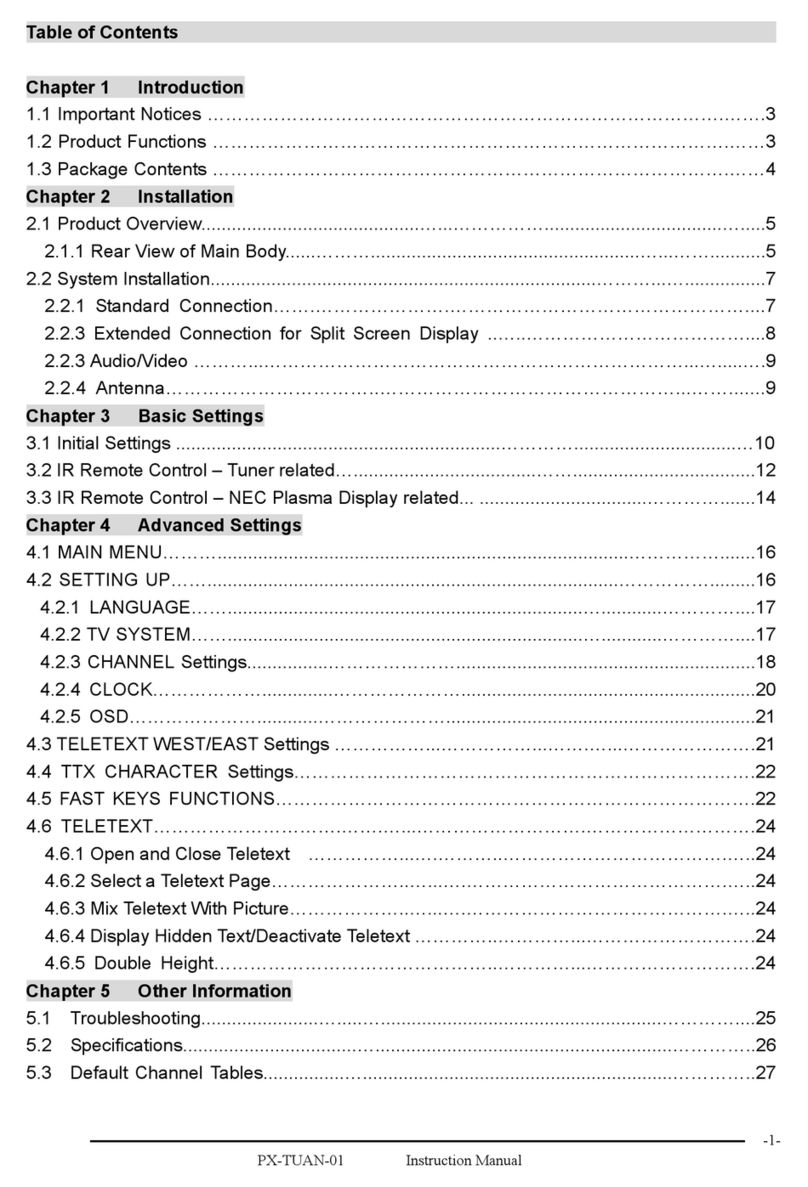
Contents
4
6
7
9
11
14
15
16
17
19
19
20
20
26
26
27
27
28
28
29
30
31
33
36
37
41
42
43
44
45

IV. System Configuration
1.Main Menu
2.System Setup
2-1. Service Searching
A. Tuner Configuration
B. Loading Default Service Lists
C. Automatic Scan of Services
D. Manual Scan of Services
E. Selecting Tuner Type (for DVB-C/T Tuner)
2-2. System Configuration
A. A/V Settings
B. Language Selection
C. Customization
D. Selecting Time Zone
E. Hard Disk Set Up
F. Front Display Setup
G. Network Setup
H. Skin Change
2-3. Checking CAM
2-4. Parental Control
2-5. Factory Reset
2-6. Checking H/W and S/W Information
A. Service Information
B. System Information
2-7. Wi-Fi dongle installation
2-8. Inserting Tuner
2-9. HDD Mounting
2-10. Remote Control Unit (RCU) Set-up
A. User Guide of Vu+ Universal RCU
B. Function Key Table
C. TV Code List
V. Copyright - GNU GPL
VI. Menu Structure
VII. Troubleshooting
VIII. Glossary
46
47
47
47
48
48
49
51
53
53
55
55
57
58
58
59
61
61
62
64
65
65
66
67
70
71
72
72
74
75
87
91
92
93

4Vu :Your Smart Linux TV Player
+
Vu User Manual
+
This Product has been designed and manufactured in compliance with EU consumer safety requirements (CE).
Please read the following safety precautions carefully.
1. Connecting Power
• This product operates only in the range of AC100-240V and 50Hz/60Hz. Please check first your power
supply to see if it fits this range.
• Please be noted that you need to disconnect from the mains before you start any maintenance or
installation procedures.
• Make sure that the power cord is placed in a position where it is easy to unplug it from the mains in an
emergency.
2. Overloading
• Do not overload a wall outlet, extension cord or adapter as this may cause electrical fire or shock.
3. Liquid
• This product is not water-proof and should not be exposed to dripping, splashing, or any type of liquid.
• No objects filled with liquid such as base shall be placed on the product.
• Please do not clean the product with wet cloth, which may cause a short circuit.
• No wet objects should be placed near the product.
4. Ventilation
• Allow a sufficient space between the product and other objects to make sure air ventilation of the product.
• Do not block the top or rear of the product with an object, which will close the ventilation holes and lead to
a high temperature of the system. This may cause a failure of the product.
• Do not stack other electronic devices on top of the product.
• Do not insert any kind of pointed objects like screw, gimlet, etc. into the ventilation holes of the product.
This will damage the product.
5. Connecting the Satellite Cable.
• Disconnect the power of the product before you connect the satellite cable to the product.
Otherwise, it may cause damage to the LNB.
6. Grounding
• The LNB must be earthed to the system earth for the satellite dish.
7. Location
• Place the product indoor.
• Do not expose the product to rain, sun or lightening.
• Do not place the product near any heat appliances as a radiator.
• Ensure that there is more than 10 cm distance from any electrical devices and wall.
(A) PRECAUTION!!!

5
Vu User Manual
+
8. Lightening, Storm or Not In Use.
• Unplug the product and disconnect the antenna cable during a thunderstorm or lightening, especially
when left unattended and unused for a long period of time. This will prevent possible damages from
power surges or lightening.
9. Replacement of Parts
• Unauthorized part replacements, especially by one who is not a qualified technician may result in
damage to the product.
• Ensure that when part replacements are necessary qualified technicians perform the task using the
components specified by the manufacturer.
10. Hard Disk Drive
• Do not move the product or turn the power off suddenly while the Hard Disk Drive (HDD) is still running.
This may result in damage to the HDD and thus the system.
• The company shall not be liable for any corruption of data on the HDD caused by careless use or
misuse of users.
11. Battery
• There is danger of explosion if batteries are incorrectly replaced.
• Replace batteries only with the same or equivalent type.
Dolby Digital Plus :
Manufactured under license from Dolby Laboratories. Dolby and the double - D symbol are trade marks
of Dolby laboratories.
DTS 2.0+Digital OutTM
Manufactured under license under U.S. Patent Nos: 5,956,674; 5,974,380; 6,487,535 & other U.S. and
worldwide patents issued & pending. DTS, the Symbol, & DTS and the Symbol together are registered
trademarks & DTS 2.0+Digital Out is a trademark of DTS, Inc. Product includes software. © DTS, Inc. All
Rights Reserved.
"WEEE" Symbol instructions.
This product should not be disposed with other house hold wastes at the end of its working life.
Please separate this from other types of wastes and recycle it responsibly to promote the sustainable
reuse of material resources. This will help prevent harm to the environment or human health from un-
controlled waste disposal.

6Vu :Your Smart Linux TV Player
+
Vu User Manual
+
(B) Packaging Contents
Please check all package contents before using your product.
• Ultimo RCU (with two coin batteries inserted)
• User Manual
• First Installation Guide
• HDMI cable
• Power cable
• Loop-through cable (for Satellite only)
• SATA cable
• HDD mount screws and rubber washers
NOTE : Two coin batteries(2xCR2032) are used for the remote control.
Please pull out the plastic battery cover to use the remote control.

7
Vu User Manual
+
(C) Product Descriptions
Front Panel
1Buttons (STANDBY, Ch–/+, Vol–/+)
2Display
Displays the current menu and program information.
Large Graphic VFD(256x64 pixels)
3USB Host
Connects to the USB memory stick or external HDD.
4Smartcard reader slot
Two Smartcard slots are provided.
5CI Module slot
Two CI module slots are provided.
VU+ Ultimo
VU+ Ultimo
43
2 5
1

8Vu :Your Smart Linux TV Player
+
Vu User Manual
+
Rear Panel
1Three Pluggable Tuner Slots
Pluggable Type DVB-S2 and DVB C/T Hybrid Tuner available.
2SCART
One SCART connector is provided for TV using SCART cable.
3Video output
Connects to TV using RCA cable(composite YPbPr)
4Component (YPbPr)
Connects to TV using a component cable
5Audio output
Connects to TV using RCA cable.
6HDMI
Connects to TV using a HDMI cable for both audio and video signals.
7e-SATA
Connects the external HDD using e-SATA cable.
8Ethernet
Connects the PC or another set top box of Vu+.
9USB
Connects the USB memory stick or external HDD.
10 S/PDIF
Connects to a digital audio system using S/PDIF cable.
11 RS232
RS232 data port is provided.
12 FAN
13 Power Inlet
Connects the detachable power cord.
14 On/Off Switch
Powers on/off.
53 7 13
12414
12
106 8
9 11

9
Vu User Manual
+
Amongst the channels that are scanned via Vu+, some channels can be properly tuned in only with the
corresponding Smartcard and/or CAM (Conditional Access Module). Vu+ provides two Smartcard Reader
slots and two Conditional Interface slots and users need to purchase those Smartcards and CAMs that are
required for viewing such subscription based services.
Insertion of Smartcard
Vu+ supports Xcript. Users need to buy only these Smartcards without having to buy additional CAMs to
watch those channels that are encrypted in Xcrypt.
1Open the door on the left side.
2Insert Xcrypt Smartcard as in the following instruction.
3Make sure that the Smartcard remains inserted while viewing.
NOTE : Insert the card while the smart card IC is downward.
Insertion
(D) Conditional Access
Smartcard

10 Vu :Your Smart Linux TV Player
+
Vu User Manual
+
Insertion of CAM (Conditional Access Module)
There are several Conditional Access Systems (CAS), other than Xcrypt that Vu+ supports. To be able
to watch channels that are encrypted in such CAS as Nagravision, NDS, Irdeto, Viaccess, etc, users
need to purchase a CAM that is corresponding to each CAS, as well as Smartcard to decrypt those
encrypted channels.
1Insert a Smartcard into the CAM as in the below picture.
2Once the Smartcard inserted into the CAM, insert the CAM into the CI slot.
3Make sure that the CAM remains inserted while viewing.
Insertion
Smartcard
CI-Module
This manual suits for next models
1
Table of contents
Other Ceru TV Receiver manuals