
Car and Driver MINIOPRO CDC-628 User manual
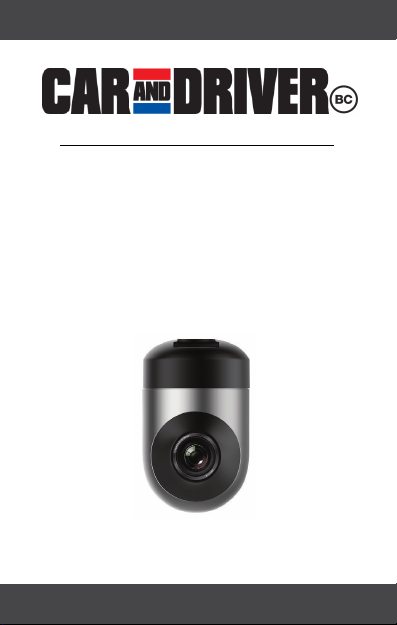
MODEL #: CDC-628
MODEL#:CDC-628 MINIOPRO
1080P FULL HD DASHCAM
WE’RE HERE TO HELP
Call Us:
(833) 227-3274
Live Chat With Us:
www.CarAndDriverTech.com
Email Us:
Support@CarAndDriverTech.com

Read Me
Important Safety Instructions
1) Read these instructions.
2) Keep these instructions.
3) Heed all warnings.
4) Follow all instructions.
5) Do not use this apparatus near water.
6) Clean only with dry cloth.
7) Do not block any ventilation openings. Install in accordance with the manufacturer’s
instructions.
8) Do not install near any heat sources such as radiators, heat registers, stoves, or other
apparatus (including amplifiers) that produce heat.
9) Protect the power cord from being walked on or pinched particularly at plugs,
convenience receptacles, and the point where they exit from the apparatus.
10) Only use attachments/accessories specified by the manufacturer.
11) Use only with the cart, stand, tripod, bracket, or table specified by the manufacturer,
or sold with the apparatus. When a cart is used, use caution when moving the cart/
apparatus combination to avoid injury from tip-over.
12) Unplug this apparatus during lightning storms or when unused for long periods of time.
13) Refer all servicing to qualified service personnel. Servicing is required when the
apparatus has been damaged in any way, such as power-supply cord or plug is damaged,
liquid has been spilled or objects have fallen into the apparatus, the apparatus has been
exposed to rain or moisture, does not operate normally, or has been dropped.
FCC NOTICE TO USERS:
FCC ID: 2AMSOCDC-628
Caution: Changes or modifications not expressly approved by the Party responsible for
compliance could void the user’s authority to operate the equipment.
Note: This equipment has been tested and found to comply with the limits for a Class B
digital device, pursuant to part 15 of the FCC Rules. These limits are designed to provide
reasonable protection Against harmful interference in a residential installation. This
equipment generates, uses and can radiate radio frequency energy and, if not installed
and used in accordance with the instructions, may cause harmful interference to radio
communications, however there is no guarantee that interference will not occur in a
particular installation. If this equipment does cause harmful interference to radio or
television reception, which can be determined by turning the equipment off and on, the
user is encouraged to try to correct the interference by one or more of the following
measures:
- Reorient or relocate the receiving antenna.
- Increase the separation between the equipment and receiver.
- Connect the equipment into an outlet on a circuit different from that to which the
receiver is connected.
- Consult the dealer or an experienced radio/TV technician for Help.
The device complies with part 15 of the FCC Rules. Operation is subject to the following
two conditions: (1) this device may not cause harmful interference, and (2) this device must
accept any interference received, including interference that may cause undesired operation.

Download the Road Cover MINIOPRO app,
which allows you to control video recording and
adjust the MINIOPRO's settings. The
MINIOPRO will automatically start recording
when plugged in without using the app.
However, the app is necessary to unlock the
MINIOPRO's many additional features. Once
the Road Cover MINIOPRO app is downloaded,
follow the installation steps detailed in this
manual. Then connect your smartphone to the
MINIOPRO as detailed in the "Connecting
Phone and Dash Cam" section of this manual.
•IOS users can download the app from the
Apple app store by searching for the “Road
Cover MINIOPRO” app and then
downloading it.
•Android users can download the app from
the Google play store by searching for the
“Road Cover MINIOPRO” app and then
downloading it.
DOWNLOADING APP
PACKAGE CONTENTS
1
•MINIOPRO Dash CAM
•USB Car Charger
•USB Power Cable
•Adhesive Bracket (for mounting)
•Suction Mount

PRODUCT OVERVIEW
INSERT MICRO SD CARD
Before using your MINIOPRO,
insert the micro SD card
into the card slot below the
Bracket Socket.
The MINIOPRO accepts
Class 10 cards, with
storage of up to 64GB. When
properly inserted, the micro
SD card will click and lock in
place when inserted.
Reset Button
Mic
Speaker
LED Lights
Bracket Socets
Gesture Sensor
Camera
Micro USB Port
SET UP
2
SD Card Slot
Note: Remove
Bracket
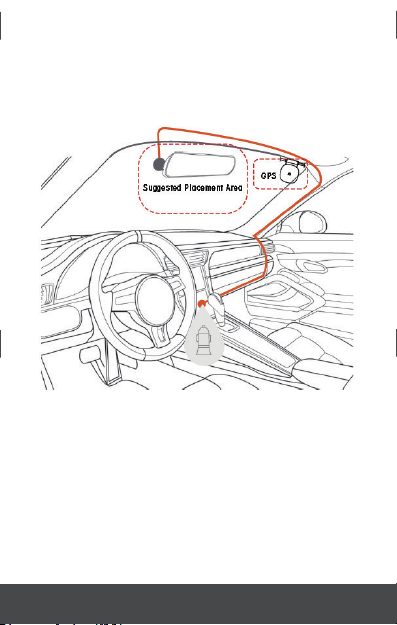
INSTALL THE MINIOPRO
Connect the included Adhesive Bracket to the
Bracket Socket on the dashcam. Then affix the
MINIOPRO to the inside surface of your windshield.
For optimal results, place the MINIOPRO near the
rear-view mirror, as shown in the diagram below.
Connect one end of the USB Power Cable to the
MINIOPRO and the other end to the provided USB
car charger. The user should secure the cable
between the headliner and the windshield to avoid
blocking the driver’s visibility.
The GPS is embedded in the provided USB Power
Cable. As such the user should affix the cable and
GPS to the windshield with the adhesive sticker.
When the vehicle starts up, the MINIOPRO will
start up as well and automatically begin recording
3

in three Minute intervals. These videos will be saved
in the "Normal" video folder.
CONNECTING PHONE AND DASH CAM
The user should enable the WiFi on their phone, and
connect to the WiFi source named “MINIOPRO-
XXXXX” (The X's represent numbers). The user
should enter “12345678” if they are prompted for a
password. Once the phone is connected launch the
app to explore the MINIOPRO's features and settings.
GESTURE CONTROL
Wave your hand through the Gesture Sensor’s
field of view to automatically take a photo (All photos
are saved in the Gallery). The MINIOPRO is set to
take photo's automatically but it can be changed to
videos by enabling the "Clips" feature using the
settings menu. This feature allows you to save ten-
second videos when you wave your hand through the
Gesture Sensor’s field of view (five seconds before
the gesture and five seconds after the gesture). These
videos will be saved in the "Clips" video folder.
GENERAL MINIOPRO INFORMATION
Once your phone is connected to the MINIOPRO, you
will be able to pull up a live view from the camera
through the Road Cover MINIOPRO app.
Using the app, the user can control the video settings,
access saved videos, access photos, toggle audio
recording on/off and open the Settings Menu.
OPERATION
4
INCIDENT DETECTION
The MINIOPRO will detect any incidents and save a
video of it. These videos will be saved in the "Events"
video folder.
NAVIGATING THE APP
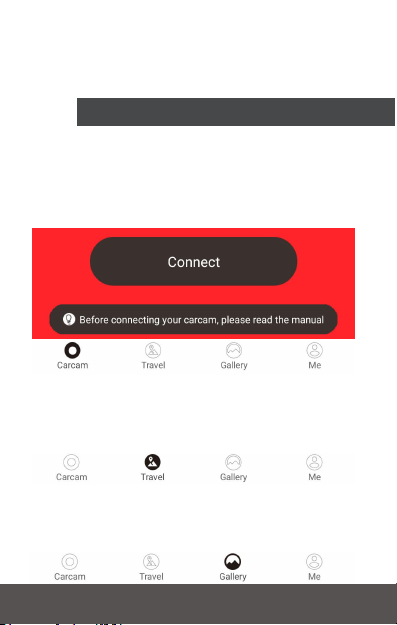
CONNECTING MINIOPRO TO APP
After setting up the MINIOPRO the user will
need to open the app and select "Connect."
Note: The user may need to enter the password
"12345678" to connect properly.
TRAVLE
Travel data including driving length, average
speed, and odometer statistics are located in
the "Travel" section.
GALLERY
Photos taken via the Gesture Sensor (or
other methods) will be stored in this section.
5

ME
•Frequently Asked Questions: The FAQ
section contains answers to some of the
most basic questions the user may have
about utilizing the device.
•About Us: The about us section allows
the user to,
1. Adjust the version of the app.
2. Adjust the firmware version.
3. Change languages.
4. Select speed of either KM/H or MPH
Open Carcam
MY CARCAM
The My Carcam section provides the user a live
feed from the MINIOPRO. It is accessed via the
section by pressing "Open Carcam." Note:
"Open Carcam" is only available after
connecting to the “MINIOPRO-XXXXX” wifi
source.
While in the My Carcam section the user will
have five control options.
1. Wide Screen:
2. Microphone: Turns On/Off voice
recording.
6

3. Carcam Videos: All Carcam Videos
are saved here. Recorded videos are divided
into four folders
A. Normal: This folder contains all videos
saved via the standard loop recording
feature.
B. Clips: This folder contains all videos
taken via the Gesture Sensor. Note: This
feature only works if it is enabled in the
settings menu.
C. Event: This folder contains all videos
saved as a result of an incident. It will
activate only if the MINIOPRO detects an
impact while powered on.
D. Parking: Parking mode will store any
videos saved via the parking feature.
Note: This feature only works if it is
enabled in the settings menu.
4. Settings: The setting menu is used to
adjust a wide variety of the MINIOPRO's
features.
5. Take A Picture: The picture button is
used to manually take a picture of anything the
MINIOPRO is pointed at. It functions identically
to the Gesture Sensor. Note: All photos taken
are stored in the Gallery section.
7
SETTINGS MENU
The Settings Menu holds all of the adjustable
features of your MINIOPRO. Please Note: Voice

Prompt features are not
voice controlled (pictured
on the right). Additional
features include Mobile
Phone Verification
(which allows the user to
choose which phones
can access saved videos and photos). Taking
Pictures Related To Videos(Gesture Sensor
Photography), Parked Vehicles Surveillance
(These videos will be saved in the "Parking" video
folder) and more.
SD CARD STORAGE MANAGEMENT
The Manage The TF Card option tracks how
much space is available on your micro SD card
and how much space is used by the different
saved files. You can choose to erase all files of a
single type by tapping the trash can icon next to
the file type. You can also Format the SD card,
which will erase everything saved on it and
restore the SD card to factory settings.
UPDATE AND RESET THE MINIOPRO
To install firmware updates for your MINIOPRO,
select the Version check from the Settings Menu
and choose “Send Firmware & Upgrade.” This will
download any updates directly to the MINIOPRO.
Always make sure your Road Cover MINIOPRO
app is up-to-date to ensure proper operation. If you
need to reset your MINIOPRO, press and hold the
Reset button on the MINIOPRO.
8
Other manuals for MINIOPRO CDC-628
1
Table of contents
Languages:
Other Car and Driver Dashcam manuals

Car and Driver
Car and Driver CAD-BUC100 User manual

Car and Driver
Car and Driver ZX-1222 User manual

Car and Driver
Car and Driver CDC-629 User manual

Car and Driver
Car and Driver CDC-560 User manual

Car and Driver
Car and Driver CDC609 User manual

Car and Driver
Car and Driver MINIOPRO CDC-628 User manual

Car and Driver
Car and Driver Eye1Pro CDC-632 User manual

Car and Driver
Car and Driver EAGLEEYE CDC-570 User manual

Car and Driver
Car and Driver Eye1Pro CDC-632 User manual

Car and Driver
Car and Driver CDC-E4000 User manual


