Captiva PAD 10.1 FHD LITE User manual


1
Introduction, Important Notes ...................................................................................2
Precautions before Use................................................................................................2
Cleaning, Disposal, Used Logos ................................................................................3
Intended Use ...............................................................................................................3
Layout Definitions ......................................................................................................4
Power on/off..................................................................................................................6
Using touch screen .......................................................................................................7
Desktop..........................................................................................................................8
Settings..........................................................................................................................9
Wi-Fi settings..............................................................................................................11
Bluetooth settings.......................................................................................................12
4G / LTE .....................................................................................................................12
Use of extended storage.............................................................................................13
1. Using USB disk ...................................................................................................13
2. Using SD card .....................................................................................................13
Downloading, installing/uninstalling applications..................................................13
Connecting to PC .......................................................................................................14
Battery charging.........................................................................................................14
Specifications..............................................................................................................14
Package Content.........................................................................................................15
R&TTE Directive.......................................................................................................15
Manufacturer .............................................................................................................15
GNU General Public License, Version 2 (GPL)......................................................15
Troubleshouting.........................................................................................................16

2
Introduction
Thank you for purchasing this tablet.
The tablet is equipped with a built-in wireless module and 4G LTE module. Running on Android
5.1, Intel Atom Quad-Core processor und highly responsive capacitive multi-touch screen, it brings
you a wonderful user experience. The tablet allows you view photos, watch movies, read e-book
and news and communicate with the whole world. This guide serves to enable users to get to know
familiar with the product as soon as possible. Here we have made a brief introduction to the key
layout and definitions in figures and words.
Before beginning, please read this user manual carefully.
*Software not included
Important Notes
1. Charge the battery for at least 12 hours before initial start-up.
2. The display has 2 protective films, one transportation film and one screen protector film. The
transportation film, protect the display during the transportation. Please remove this film,
when the tablet is used. The screen protector film, protect the screen against scratches during
touch operation. Please keep this film on the display.
Precautions before use
1. This product is suitable for use in non-tropic areas below 2,000 meters
2. Prevent this product from falling to the ground, it could be strongly damaged.
3. Keep the tablet away from rain, moisture, direct sunlight and heat source.
4. Avoid using it in the strong magnetic and strong static environment as much as possible.
5. Once any water or other liquid splashes on to this product, close it immediately and do not use
until it dries out.
6. Do not clean this product with any detergent containing chemical element or other liquid to
avoid causing damage due to corrosion and becoming damp. If cleaning is really necessary,
clean it with dry soft cloth tissue paper.
7. Handle the screen gently. To clear fingerprints or dust on the screen, use soft cloth dedicated
for camera lens instead of gauze.
8. Please back up your important files at any time to avoid loss.
9. Please do not disassemble this product by yourself; otherwise you will lose the right to
warranty.
10. Do not disconnect the tablet from power suddenly, when formatting or uploading and
downloading, which can lead to program errors.
11. Please use the original AC adapter for charging. Nonconforming chargers may cause harms.
12. Protect the power cord. When connect the power cord, do not step onto it or place any object
on it, which may cause extrusion. Protect the connector of the power cord connected devices
specially.
13. This product supports the overwhelming majority of mainstream brands of 3G DONGLE
network cards. The cases for 3G Dongle may be different. It is suggested that you test it to
make sure it is OK before buying it.

3
14. Batteries
The batteries in this product cannot be easily replaced by users themselves.
Replacement with incorrect type batteries may cause explosion.
15. While using the earphone, if the volume is excessively high it may cause hearing
damage. So please adjust the volume of the player to a moderate level and
balance the time of using.
Note:
Pictures in this manual are for demonstration purpose only and may differ from the real
product.
Cleaning
Handle the screen gently. To clear the fingerprints or dust on the screen, use soft cloth dedicated
for camera lens instead of gauze.
Caution!
This unit contains a battery. If the battery is defective, it should not be disposed of with household
waste. Batteries can possibly contain harmful substances that can harm the environment and
people's health. Please dispose of the battery commercially or at municipal recycling plants. Return
is free of charge and is prescribed by law. Please only dispose of empty batteries in the containers
provided and tape their terminals.
Used Logos
All brandmarks, trademark and products are registered by their respective company.
Intended Use
The tablet offers many opportunities for the use. For example surf internet*, read e-books, look
movies, play games and communication with the whole world.
The tablet is intended for home and office use and not for industrial application.
*Internet-connection is needed which could cause cost.

4
Layout and Definitions
Front View
Front Camera

5
Rear View
1. Power Button: see Power on/off
2. Sound+/ Sound-: raise/ lower the volume
3. USB 2.0 Type A: for data transfer
4. Mini HDMI port: connect this output to HDMI input of TV or TFT
5. Micro USB port: for data transfer and recharge battery
6. Headphone connector: for earphone or active loudspeaker
7. Micro SD card card slot: supports microSD and micro SDHC format, max. 32GB
8. Sim card slot: support mini SIM card 25x15mm
9. Microphon: Microphon outlet
10. Rear Camera
11. Speaker outlet
12. Touch Pen
13. Keyboard Port: The port enables to connect the tablet with the keyboard

6
Power on/off
Power on: press and hold the power key for 5 seconds. Startup may take about 22 seconds.
Power off: press and hold the power key for 5 seconds→ click Power off → click OK
Lock/unlock screen/ Power saving mode:
Press the power key to lock the screen. The system will enter into sleep mode. Press the power
button again to unlock the screen and wake up the system.
Note: During screen lock, the basic functions of the unit will not be turned off, only the
screen is turned off.
Forced shutdown: In case of no response of the device, press power button (approx.. 30sec.)
to switch off the tablet.
Note: Do not use forced shutdown unless necessary. Shut down the device following power off
steps.
Screen locked
Unlock the screen: Touch and drag up

7
Screen unlocked
Using touch screen
Single click: click an icon to select the option you require.
Press and hold: select an icon and hold to drag it to the desktop.
Drag: drag on the desk to switch among different interfaces.
☆To avoid scratching or damaging the screen, never put anything on it.
8
Desktop
1: Google Search: this icon starts a Google search
2: Wi-Fi icon: shows the WIFI status
3: Battery icon: shows battery state of charge
4: Time icon: shows current time
5: App icon: click to start the application
6: Settings: click to start the settings of the tablet
7: User icon: click to start for different user
8: Application icon: click to see all applications
9: Browser: click to start the Internet Browser
10: Return: return to previous page
11: Home Button: return to Home Screen
12: Current Apps: shows all the Applications which are executed

9
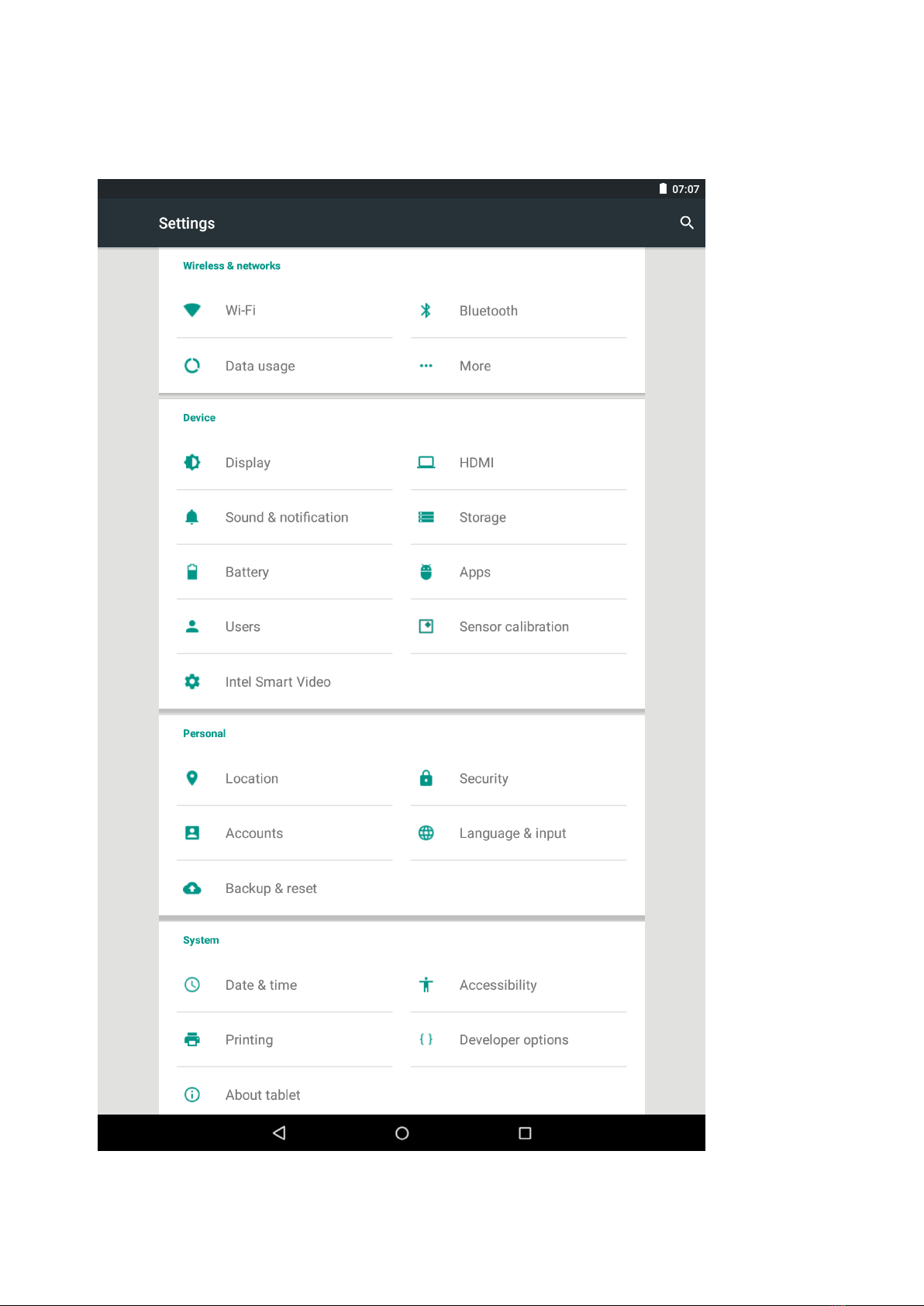
Settings
Table of contents
Languages:
Other Captiva Tablet manuals
Popular Tablet manuals by other brands

Laser
Laser MID-1060 Quick operation guide

MUNBYN
MUNBYN IRT09J Easy setup guide

Motorola
Motorola MC3090R - Win CE 5.0 Professional 520 MHz quick start guide

Dell
Dell Latitude ST Setup and features information

Lenovo
Lenovo IdeaTab S6000L Hardware Maintenance Manual

Venturer
Venturer WT9L11 quick start guide



